
MSBA-169 · Lesson 3 of 12 · 23 min
Domain review: Git and GitHub basics
▶ Video coming soon A video version of this lesson is on the way.
On Wednesday, April 14, Owen took the practice assessment for the first time, as a baseline, before the lunchtime session. He answered 37 of 50 questions correctly, and he logged every question he missed or guessed. Seven of the thirteen misses came from areas he had expected, modern development and project management, but three came from Git and GitHub basics, which he thought he knew best. "That is the area worth a quarter of the exam," Priya said, "so we start there." This lesson reviews the first and largest area of the outline: version control, Git and GitHub, the core concepts, accounts and organizations, GitHub Flow, Markdown, and GitHub Desktop and GitHub Mobile.
What version control is for
A version control system records changes to files over time, so you can see who changed what, when and why, return to an earlier state, and work on changes in parallel without overwriting each other. Its benefits come up repeatedly in exam questions: a complete history, the ability to undo or compare changes, collaboration without emailing copies, traceability of every change to a person and a reason, and backup, because every copy of a Git repository holds the full history. At Tidewater, the guidebook text had once lived in shared folders with names such as "coastal-hikes-FINAL-v3-Grace-edits". Version control replaced that with one history everyone could read.
Git is a distributed version control system. Every person who clones a repository gets the whole history on their own computer, can commit without a network connection, and shares work by pushing and pulling. A centralized system, by contrast, keeps the history on one server and needs a connection for most operations. Questions sometimes ask for the advantage of a distributed design: working offline, speed, and no single point of failure.
Git versus GitHub
The single most tested distinction in this area is between Git and GitHub. Git is open source software that tracks changes in a repository. It runs on your computer and works without GitHub at all. GitHub is a cloud platform that hosts Git repositories and adds collaboration around them: pull requests, issues, discussions, Projects, Actions, Codespaces, Copilot, security features, organizations and permissions. Other services also host Git repositories; Git does not depend on any one of them.
| Git | GitHub | |
|---|---|---|
| What it is | Version control software | A hosting and collaboration platform |
| Where it runs | On your computer | In the cloud (GitHub.com) or on a company server (Enterprise Server) |
| Works offline | Yes | No, except through local Git |
| Provides | Commits, branches, merges, history | Pull requests, issues, Projects, Actions, permissions and more |
| Made by | An open source project | GitHub, a company owned by Microsoft |
Worked problem
Sorting features
A question lists five capabilities and asks which belong to Git itself: creating a branch, opening a pull request, committing a change, assigning an issue, and viewing a file's history. Which are Git?
Show solution
- Creating a branch: Git.
- Opening a pull request: GitHub; Git has no pull requests.
- Committing a change: Git.
- Assigning an issue: GitHub; issues are a GitHub feature.
- Viewing a file's history: Git, with git log; GitHub also shows it in the browser.
Answer: Branching, committing and viewing history are Git. Pull requests and issues are GitHub.
Repositories, commits and branches
A repository is a project's folder of files together with its full history. A commit is a saved snapshot of changes, with an author, a date, a message and a unique identifier, called a hash. Commits form a chain, each pointing to its parent, so the history can be replayed. A branch is a movable pointer to a commit, used to work on a change separately; the default branch, usually called main, holds the project's accepted work. Merging combines a branch back into another. A clone is a full local copy of a repository, and a remote is a named link to another copy, usually called origin for the one on GitHub.
| Command | What it does | Typical question |
|---|---|---|
| git init | Starts a new repository in a folder | How do you make an existing folder a repository? |
| git clone | Copies a remote repository with its history | How do you get a copy of a project from GitHub? |
| git add | Stages changes for the next commit | What puts a change in the staging area? |
| git commit | Records staged changes as a commit | What saves a snapshot to the history? |
| git push | Sends local commits to a remote | How do your commits reach GitHub? |
| git pull | Fetches and merges changes from a remote | How do you get teammates' commits? |
| git branch / git switch | Lists or creates branches / moves to one | How do you start work on a new branch? |
git switch -c fix-tide-times
# edit the file
git add coastal/chapter-4.md
git commit -m "Correct tide times for Cape Enrage walk"
git push -u origin fix-tide-times
Remember the staging area between editing and committing: git add chooses which changes go into the next commit, so one commit can contain a coherent change and leave unrelated edits for later. The exam may also mention .gitignore, a file listing paths Git should not track, such as build output or files with local settings.
Accounts, organizations and enterprises
GitHub has three kinds of account. A personal account belongs to one person and owns their repositories. An organization is a shared account that owns repositories for a team or company, with members, teams and permissions; people join it with their personal accounts. An enterprise account sits above several organizations, for large companies that need central policies, billing and identity management. The outline also expects you to recognize the plans: GitHub Free, Pro, Team and Enterprise, covered in MSBA-161 lesson 10, and the two ways to run Enterprise: GitHub Enterprise Cloud on GitHub.com and GitHub Enterprise Server, installed on a company's own infrastructure.
| Account type | Owned by | Use |
|---|---|---|
| Personal | One person | Individual work; the identity you sign in with |
| Organization | A group, managed by owners | Shared repositories, teams and permissions |
| Enterprise | A company, managed by enterprise owners | Several organizations under shared policies and billing |
One person has one personal account and can belong to many organizations. A common distractor suggests creating a second personal account for work; GitHub's terms allow one free personal account per person in most cases, and the normal pattern is to use one account and join organizations with it. Companies that need complete control of identities use Enterprise Managed Users, reviewed in lesson 8.
GitHub Flow
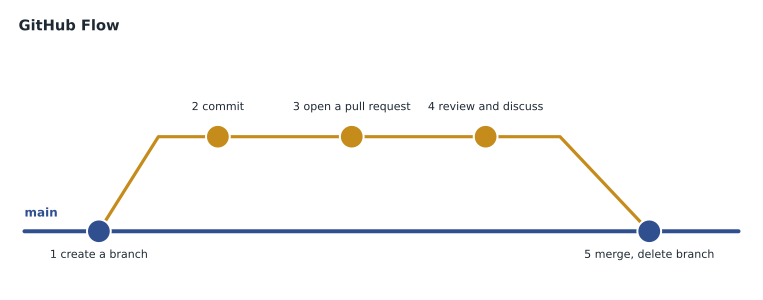
GitHub Flow is GitHub's lightweight branching model. It has one long-lived branch, main, which is always deployable. For any change: create a branch from main with a descriptive name, make commits, open a pull request, discuss and review it, make further commits in response, and merge when it is approved and its checks pass, then delete the branch. The exam asks about the order of these steps and about why each exists: the branch keeps main safe, the pull request makes the change visible and reviewable, and merging completes it.
Worked problem
Putting GitHub Flow in order
A question gives these steps in a jumbled order: merge the pull request; create a branch; open a pull request; make commits; review and discuss. What is the correct order?
Show solution
- A change starts from main on a new branch: create a branch.
- Work is saved on the branch: make commits.
- The change is proposed: open a pull request.
- Teammates comment and approve: review and discuss.
- The accepted change joins main: merge the pull request.
Answer: Create a branch, make commits, open a pull request, review and discuss, merge.
Markdown
Markdown is a simple formatting language for text. GitHub uses GitHub Flavored Markdown in README files, issues, pull requests, discussions, comments and wikis. The outline wants you to use it for clear communication, so expect questions on what common syntax produces.
| You type | You get |
|---|---|
| # Heading, ## Heading | Headings of level 1 and 2 |
| **bold**, *italic* | Bold and italic text |
| - item or 1. item | A bulleted or numbered list |
| - [ ] task | A task list checkbox |
| [text](https://example.org) | A link |
| `code` and three backticks on their own lines | Inline code and a code block |
| > quoted text | A quotation |
| @username, #123 | A mention that notifies a person, and a link to issue or pull request 123 |
Mentions and references are where Markdown meets collaboration. Typing @priya-nair in a comment notifies Priya; typing @tidewater-guides/editors notifies a whole team; typing #42 links to issue or pull request 42 in the same repository. Lesson 5 returns to keywords such as closes #42, which link a pull request to an issue and close it on merge.
GitHub Desktop and GitHub Mobile
GitHub Desktop is a free application for Windows and macOS that does common Git work through a graphical interface: cloning, branching, committing, pushing, pulling and resolving simple conflicts. It suits people who prefer not to use the command line, which is why Grace uses it. GitHub Mobile, for iOS and Android, is for staying in touch away from a computer: reading and replying to notifications, reviewing and merging pull requests, managing issues and browsing code. It is not a coding environment. The exam asks which tool fits a situation, so the key distinction is that Desktop does Git work on your computer and Mobile manages GitHub activity on a phone.
| Situation | Best tool |
|---|---|
| An editor wants to commit changes without typing commands | GitHub Desktop |
| A reviewer wants to approve a pull request while traveling | GitHub Mobile |
| A developer wants full control of Git and scripts | The Git command line |
| Someone wants to edit a file quickly in the browser | The GitHub web editor or github.dev |
Where a change lives
Several baseline questions turned on where a change is at a given moment. Priya drew it as four places. The working directory holds the files as you edit them. The staging area holds the changes chosen for the next commit. The local repository holds your commits on your own computer. The remote repository on GitHub holds the commits you have pushed. A change moves from left to right with git add, git commit and git push, and teammates' work moves the other way with git pull. If a question says a colleague cannot see your commit on GitHub, the likely answer is that it was committed but not pushed; if a file is missing from a commit, it was probably edited but not staged.
| Where the change is | How it got there | Who can see it |
|---|---|---|
| Working directory | You edited the file | Only you, on your computer |
| Staging area | git add | Only you; ready for the next commit |
| Local repository | git commit | Only you, until you push |
| Remote repository | git push | Everyone with access to the repository on GitHub |
Worked problem
Why can Grace not see the fix?
Owen edits chapter 4, runs git add and git commit, then tells Grace the tide correction is ready. On GitHub she sees no new commit. What happened, and what fixes it?
Show solution
- Editing put the change in the working directory.
- git add staged it, and git commit recorded it in Owen's local repository.
- Nothing sent it to GitHub, so the remote repository does not have it.
- Running git push sends the commit to the remote, where Grace can see it.
Answer: The commit exists only in Owen's local repository. He needs to run git push.
The history itself is also worth a moment. Every commit records its parent, so the history of any branch can be read back to the first commit. Comparing two commits shows a diff, the lines added and removed. Undoing a change in a shared history is usually done with a new commit that reverses it, so the record stays honest, rather than by rewriting commits others have already pulled. Foundations questions stay at that level: knowing that history can be compared and reversed, not the details of every reset option.
Owen's three misses
Owen's three baseline misses in this area turned out to be typical. One confused cloning with forking: a clone is a local copy; a fork is a copy of a repository under another GitHub account. One asked which account type gives central policies across several organizations, and he chose organization rather than enterprise. The third asked what GitHub Mobile can do, and he wrongly ticked editing code in a dev container. All three were distinctions between similar things, which is exactly where distractors live. He added each pair to a "confusables" page in his notes, which lesson 10 expands into a full list.
Common mistakes
MistakeSaying GitHub is needed to use Git.
InsteadGit works alone; GitHub hosts Git repositories and adds collaboration.
MistakeConfusing a clone with a fork.
InsteadA clone is a local copy; a fork is a copy under another GitHub account.
MistakeUsing an organization where an enterprise is needed.
InsteadEnterprises manage several organizations with shared policies.
MistakeTreating GitHub Mobile as a place to write code.
InsteadMobile is for notifications, reviews and issues; Desktop does Git work.
Summary and key terms
- Version control gives history, undo, collaboration, traceability and backup; Git is distributed, so every clone has the full history.
- Git is version control software; GitHub hosts Git repositories and adds pull requests, issues, Projects, Actions and more.
- Repositories hold files and history; commits are snapshots; branches are movable pointers; merging combines work.
- Accounts can be personal, organization or enterprise; Enterprise runs as Cloud or Server.
- GitHub Flow: branch, commit, pull request, review, merge, with main always deployable.
- Markdown formats text across GitHub; Desktop does Git work graphically, and Mobile manages activity on a phone.
- Distributed version control
- A system in which every copy of a repository holds the full history.
- Commit
- A saved snapshot of changes with an author, date, message and unique hash.
- Branch
- A movable pointer to a commit, used to work on a change separately.
- Staging area
- Where git add places changes chosen for the next commit.
- Remote
- A named link to another copy of a repository, such as origin on GitHub.
- GitHub Flow
- A branching model with one deployable main branch and short-lived feature branches merged by pull request.
- GitHub Flavored Markdown
- GitHub's version of Markdown, with extras such as task lists, tables and mentions.
Practice problems
Work each problem on paper first, then reveal the answer to check.
Name two advantages of a distributed version control system.
Show answer
Working offline and having no single point of failure; also speed, since most operations are local.
Which command sends local commits to GitHub?
Show answer
git push.
Which tool would a reviewer use to approve a pull request from a phone?
Show answer
GitHub Mobile.
Lesson quiz · 5 questions
Score 60% or more to complete this lesson.
Create a free account to save your progress, take quizzes and earn a certificate.