
MSBA-131 · Lesson 7 of 12 · 20 min
Approvals
▶ Video coming soon A video version of this lesson is on the way.
Kwabena's process map put a number on what everyone suspected: equipment requests spent most of their life waiting for a signature. The paper process sent a form to the instructor's department chair, who signed it when they next checked their mail tray, and for expensive items to the campus budget officer as well. Requests made on a Friday often waited until Wednesday. Maribeth's goal for the approval step was simple: approvers should be able to say yes or no from wherever they already worked, in Teams, in Outlook or on their phones, and the request should move on the moment they did.
Power Automate has a built-in Approvals capability for exactly this. A flow sends an approval request to one or more people, waits for their responses and then continues based on the outcome. The PL-900 outline lists approvals as a key Power Automate use case, and almost every organization that adopts Power Automate builds an approval flow early. This lesson explains how approvals work, the four approval types, how to design sequential and parallel approvals, and how to handle the awkward cases: nobody responds, someone is away, or the answer needs a comment.
How an approval works
Approvals are actions in the Approvals connector, which is a standard connector. The most common action is Start and wait for an approval. It creates an approval request, sends it to the people named in the Assigned to field, and pauses the flow until the approval completes. When it does, the action returns the outcome, such as Approve or Reject, and a list of responses with each approver's name, answer, comments and response time. The flow then uses those outputs in later steps, usually in a condition: if approved, do one thing; if rejected, do another.
Approvers see the request in several places at once. It appears in the Approvals app in Microsoft Teams, as an actionable email in Outlook with Approve and Reject buttons, in the approvals center on the Power Automate website, and in the Power Automate mobile app with a push notification. They can respond from any of these, and the response is recorded once. The request shows a title, the details the flow supplies, an optional link to the item being approved, any attachments, and the requester's name.
Approval type:  Approve/Reject - First to respond
Title:          Equipment request: @{triggerOutputs()?['body/cr123_title']}
Assigned to:    @{outputs('Get_department_chair')?['body/mail']}
Details:        **Item:** Epson projector (KEL-PJ-014)
                **Needed on:** October 21, 2026
                **Requested by:** Instructor, Business Studies
                **Purpose:** Guest lecture in room B-214
Item link:      (link to the request in the media desk app)
Requestor:      @{triggerOutputs()?['body/_createdby_value']}
The four approval types
The approval type decides who must respond and what they can answer. Choosing the right type is the most important design decision in an approval flow, and a favorite exam topic.
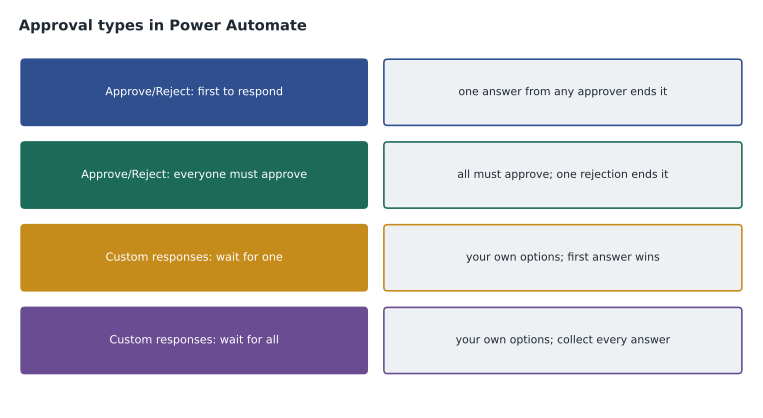
| Type | Answers available | Completes when | Good for |
|---|---|---|---|
| Approve/Reject - First to respond | Approve or Reject | Any one assigned person responds | A group of equivalent approvers, any of whom can decide, such as two campus supervisors |
| Approve/Reject - Everyone must approve | Approve or Reject | All approve, or anyone rejects | Several people who must all agree, such as a committee |
| Custom responses - Wait for one response | Options the maker defines | Any one person responds | Answers other than yes or no, such as Approve, Approve with smaller item, Reject |
| Custom responses - Wait for all responses | Options the maker defines | Everyone has responded | Collecting choices or votes from several people |
Two details catch people out. With First to respond, assigning a request to three people does not mean three approvals; the first answer decides for everyone and the others see that the request is complete. With Everyone must approve, a single rejection ends the approval immediately with an outcome of Reject, without waiting for the remaining approvers. Custom response types return the chosen option text as the outcome, so the condition after them compares the outcome with each option's exact wording.
Sequential and parallel approvals
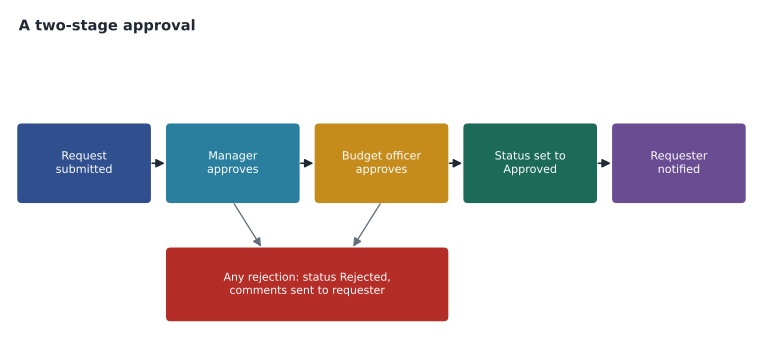
Many processes need more than one level of approval. Sequential approvals go to one approver, then the next, in order: the flow has two Start and wait for an approval actions, and the second runs only if the first was approved. Parallel approvals go to several approvers at the same time and continue when all have answered: the flow uses parallel branches, each with its own approval, and joins them afterward. Parallel approvals are faster when the approvers judge different things independently, such as a manager judging need and IT judging technical fit.
Worked problem
Designing Lumenvale's approval flow
Lumenvale's rules: every staff request needs the department chair's approval; requests for equipment worth more than 1,500 dollars, or for more than seven days, also need the campus budget officer; and nothing should be approved if the item is already booked for that date. How should the flow be structured?
Show solution
- Trigger: when a row is added to Requests in Dataverse.
- Availability check first: list rows from Loans for the same item and overlapping dates. If any exist, set the request status to Unavailable, tell the requester, and stop. This closes the double-booking gap Kwabena found in lesson 1.
- Get the requester's department chair from a Departments table (or from the manager field in Microsoft Entra ID).
- Start and wait for an approval, Approve/Reject - First to respond, assigned to the chair.
- If approved, a condition checks the item's value and the loan length. If either exceeds the threshold, a second approval goes to the campus budget officer.
- If all required approvals are Approve, set the status to Approved, create the Loan row and notify the requester and the desk. If any is Reject, set the status to Rejected and send the approver's comments to the requester.
Answer: An availability check, a first approval, a condition, an optional second approval in sequence, and outcome handling that updates Dataverse and informs everyone. Sequential suits this case because the budget officer only needs to see requests the chair supports.
Writing a good approval request
Approvers decide faster when the request contains everything they need and nothing else. The Details field supports Markdown, so a flow can show bold labels, line breaks, bullet lists and links. The Item link can open the request or the record in an app for anyone who wants more information. Attachments can include a quote or a document. A clear title, such as "Equipment request: Epson projector, October 21", helps an approver scanning a list in Teams. Approvers can add comments with their response, and the flow should pass those comments back to the requester, especially on rejections; a rejection with no reason generates follow-up emails that undo the time saved.
When nobody answers
Approvals have to handle silence. A flow run in Power Automate can wait up to 30 days, after which it times out, so an approval that nobody answers will eventually fail the run. Good designs decide earlier what should happen. Each action has a timeout setting, written as a duration such as P3D for three days. A common pattern is to give the first approval a timeout, and use configure run after on the next step to catch the timeout and either send a reminder and try again, or escalate to a different approver. Approvers can also reassign a request to someone else if the flow allows it, which helps when the chair is on leave.
Lumenvale set a two-working-day timeout on the chair's approval. On timeout, the flow sent the request to the department's assistant chair instead and copied the original chair, so nobody was surprised. Requests no longer sat in a tray during conference week.
Approvals without building a flow
Not every approval needs a custom flow. The Approvals app in Teams lets anyone create a simple approval request directly, choosing approvers, a type and details, and it offers templates that an organization can publish for common requests. Approvals in Teams can also be used with supported electronic signature providers for documents that need a formal signature. Behind the scenes, these approvals use the same service, so they appear in the same lists. Makers build flows when the approval must start automatically, use data from other systems, or update records afterward, as Lumenvale's did.
Where approval data lives
Approval requests and responses are stored in Dataverse in the environment where the flow runs. The first time an approval is used in an environment, Power Automate sets up the tables it needs, which can take a few minutes. This storage gives an approval history that can be searched and reported on, but it also means approvals respect the environment's data policies and capacity. Organizations with audit requirements often add their own step after each approval to write the outcome, approver and time to the business record itself, such as the Request row, so the decision stays with the data even if approval history is cleaned up later.
Measuring the result
After a month, Kwabena reran his process map with the new data. The average time from request to decision fell from two and a half days to just under five hours, and most approvals were answered from Teams on a phone. The budget officer at one campus asked for a weekly digest of approved high-value loans instead of individual notifications, which became a small scheduled flow. Approval design is rarely finished on the first attempt; the approvers themselves are the best source of improvements.
Approvals and the data they change
An approval decides something, and the decision usually needs to be recorded in the business data, not just in the approval history. Maribeth's flow updated the Request row's Status column and also wrote the approver's name, the decision time and any comments into columns on the request. That gave the media desk app and Kwabena's reports everything they needed without reading approval tables, and it meant the request carried its own audit trail. A good test for any approval flow is to ask, a month later, "who approved this, when and why?" and see whether the answer is on the record itself.
Approvals in other tools
Approvals are not limited to cloud flows started by data. A canvas app can start an instant flow that sends an approval when someone presses a button. A Copilot Studio agent can call an agent flow that starts an approval and tells the user it has been sent. Model-driven apps can show approval status on a form by reading the columns the flow updates. In each case the same Approvals service carries the request, so approvers see a single list of everything waiting for them in Teams, wherever the request came from.
Designing for the approver
The people who approve requests are often the busiest people in the process, and they did not ask for a new system. Approval flows succeed when approvers feel the change makes their lives easier. Lumenvale's department chairs were asked three questions before the flow went live: where do you want to approve, how much detail do you need, and what should happen when you are away? Their answers shaped the design: Teams first, a five-line summary with a link for more, and the assistant chair as the escalation path. When the chairs saw their own preferences reflected in the result, adoption took care of itself.
Approvers also appreciate restraint. A flow that sends an approval for every small request trains people to approve without reading. Lumenvale did not require any approval for loans of basic items, such as extension cords and adapters, under one day; those requests were approved automatically by the flow, with a weekly summary to the chairs. Reserving human approval for decisions that need judgment kept the chairs attentive to the requests that mattered.
Common mistakes
MistakeAssigning a request to three people with First to respond and expecting three approvals.
InsteadThe first response decides; use Everyone must approve if all three must agree.
MistakeLeaving approvals with no timeout.
InsteadSet a timeout and decide whether to remind, escalate or close the request.
MistakeSending rejections without the approver's comments.
InsteadPass comments back so the requester knows what to change.
MistakeApproving before checking whether the request can be fulfilled.
InsteadRun availability or budget checks before asking for approval.
Summary and key terms
- Approvals are actions in the standard Approvals connector; Start and wait for an approval pauses the flow until the request completes.
- Approvers respond from Teams, Outlook, the Power Automate website or the mobile app.
- Approve/Reject types return Approve or Reject; custom response types return the option text the maker defines.
- First to respond completes on the first answer; Everyone must approve completes when all approve or anyone rejects.
- Sequential approvals chain actions; parallel approvals use parallel branches.
- Timeouts, reminders, escalation and reassignment handle unanswered requests; flow runs time out after 30 days.
- Approval data is stored in Dataverse in the flow's environment.
- Approvals connector
- The standard connector that creates and tracks approval requests.
- Outcome
- The overall result of an approval, such as Approve, Reject or a custom option.
- First to respond
- An approval type that completes when any assigned person answers.
- Everyone must approve
- An approval type that needs every approver to approve; one rejection ends it.
- Sequential approval
- Approvals that go to approvers one after another.
- Parallel approval
- Approvals sent to several approvers at the same time.
- Escalation
- Sending a request to another approver when the first does not respond in time.
Practice problems
Work each problem on paper first, then reveal the answer to check.
Three supervisors can each approve a request on their own. Which approval type?
Show answer
Approve/Reject - First to respond.
In an Everyone must approve request to four people, the second person rejects. What happens?
Show answer
The approval completes immediately with an outcome of Reject.
Name three places an approver can respond.
Show answer
Any three of: Teams Approvals app, Outlook actionable email, Power Automate website, Power Automate mobile app.
What should a flow do before sending an equipment request for approval?
Show answer
Check the item is available for the requested dates.
Lesson quiz · 5 questions
Score 60% or more to complete this lesson.
Create a free account to save your progress, take quizzes and earn a certificate.