
MSBA-131 · Lesson 6 of 12 · 20 min
Desktop flows and process automation
▶ Video coming soon A video version of this lesson is on the way.
Every piece of equipment at Lumenvale also lived in an older asset management system that the finance office used for insurance and depreciation. It was a Windows application from the early 2010s with no API and no connector. Whenever a media desk checked equipment in after repair, a technician had to open that application, search for the asset tag, open the record, change three fields and save. On a busy Monday that meant forty identical clicking sessions. Rupert asked whether Power Automate could do the clicking.
It could, with a desktop flow. Cloud flows connect services through APIs. Desktop flows automate work on a Windows computer by operating applications, websites and files the way a person does: clicking buttons, typing into fields, reading values from the screen, opening files and copying data between them. This is what the industry calls robotic process automation, or RPA. This lesson covers how desktop flows are built, how they run, how they connect to cloud flows, how AI helps build them, and how process mining helps decide what to automate in the first place.
Use cases for cloud and desktop flows
The PL-900 outline asks you to describe use cases for cloud flows and desktop flows, which really means knowing when each is the right tool. The rule is simple to state. If the system you need to reach has a connector or an API, use a cloud flow, because APIs are faster, more reliable and easier to maintain than screen automation. Use a desktop flow when there is no API: an old Windows application, a website without an API, a terminal emulator, or a file-based task on a local computer or network drive.
| Task | Better tool | Reason |
|---|---|---|
| Copy new Forms responses into a Dataverse table | Cloud flow | Both have connectors |
| Update records in a legacy Windows app with no API | Desktop flow | Only the user interface is available |
| Download a monthly report from a supplier website without an API and save it to SharePoint | Desktop flow, called from a cloud flow | The website needs screen automation; SharePoint has a connector |
| Rename and sort hundreds of scanned files in a shared folder | Desktop flow | File operations on a Windows computer |
| Send a Teams message when an email arrives | Cloud flow | Both services have connectors |
Power Automate for desktop
Desktop flows are built in Power Automate for desktop, a Windows application that Microsoft makes available to Windows users at no extra charge for building and running attended automation of their own tasks. The designer has three panes: an actions pane on the left with hundreds of prebuilt actions grouped into categories, a central workspace where the flow is built as a list of steps, and a variables pane on the right that shows every variable and its current value while the flow runs.
Action categories cover most of what a person does at a computer: UI automation for Windows applications, browser automation for Microsoft Edge, Google Chrome and Mozilla Firefox through browser extensions, Excel, Word, files and folders, email, text and date handling, conditionals and loops, OCR for reading text from images, clipboard and keyboard, and scripting for teams that need it. Each action has parameters and produces variables that later actions can use, in the same way cloud flow actions produce dynamic content.
Recording and building
The quickest way to start is the recorder. The maker presses record, performs the task once, and Power Automate for desktop turns each click and keystroke into actions. Recording rarely produces a finished flow. It produces a draft that captures the screens and controls involved, which the maker then cleans up: removing accidental clicks, replacing typed values with variables, adding a loop so the steps repeat for each row of an Excel file, and adding waits so the flow does not race ahead of a slow application.
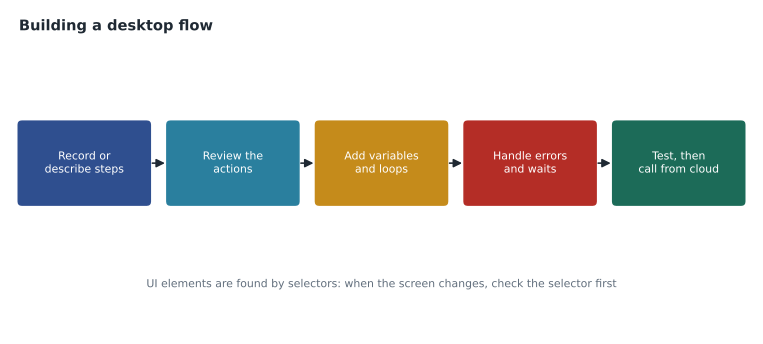
When the flow interacts with a window or a web page, Power Automate for desktop stores a UI element for each control it touches, such as the Asset Tag text box or the Save button. Each UI element is identified by a selector, a description of where to find the control based on its properties and its position in the window's structure. Selectors are the weak point of screen automation. When a software update renames a button or moves a field, the selector no longer matches and the flow fails. Good makers build selectors on stable properties, such as a control's automation ID, rather than on its position or visible text, and they keep the flow's UI elements organized and named.
Worked problem
Automating the asset system update
Each Monday the media desk exports a list of repaired items to an Excel file with columns for asset tag, repair date and condition. For each row, someone opens the legacy asset application, searches by tag, sets Status to In Service, enters the repair date and condition, and saves. How would Maribeth and Signe structure the desktop flow?
Show solution
- Launch Excel and read the worksheet into a data table variable; close Excel.
- Launch the asset application (or attach to it if it is already open) and wait for its main window.
- For each row in the data table: type the asset tag in the search box, press Enter, wait for the record window, set the three fields from the row's values, select Save, and wait for the confirmation.
- Wrap the loop body in error handling: if a step fails for one row, log the asset tag and the error to a list and continue with the next row.
- After the loop, write the list of failed rows to a new Excel file and close the application.
Answer: Read the data once, loop over rows, act on the application's UI elements with waits, and handle errors per row so one bad asset tag does not stop the other thirty-nine. The failure file tells a person exactly which records to check by hand.
Variables, logic and error handling
Desktop flows have the same logical building blocks as cloud flows, with names suited to a desktop: If and Switch for decisions, Loop, For each and Loop condition for repetition, subflows to break a long flow into named parts, and variables of types such as text, number, list, data table and custom object. Error handling can be set on each action, to retry, continue, or run a particular subflow when that action fails, or on a whole block of actions with an On block error group. Flows should also take screenshots or write logs on failure, because when a flow runs unattended nobody is watching the screen.
Attended and unattended runs
Desktop flows run in one of two modes. An attended desktop flow runs while a person is signed in to the computer, often watching. The person may start it from Power Automate for desktop, or a cloud flow may start it on the person's machine. Attended automation suits tasks where someone works alongside the flow, such as filling in a form while the person handles a phone call. An unattended desktop flow runs with no one present: a cloud flow tells a registered machine to sign in to a Windows session, run the flow and sign out again, often overnight or at high volume.
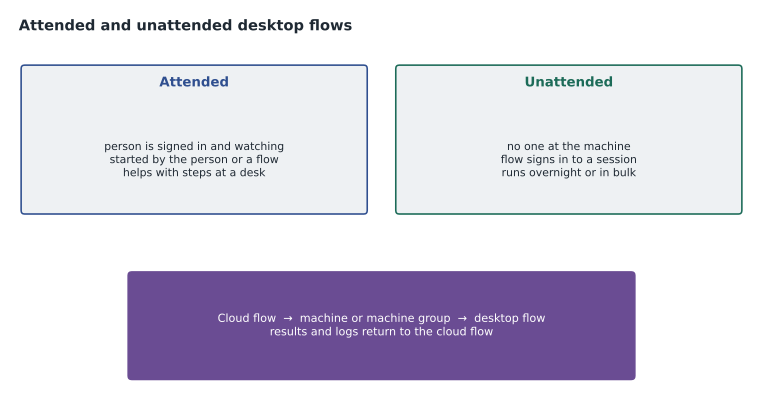
To run desktop flows from the cloud, a computer must be registered as a machine in a Power Platform environment, using the machine runtime installed with Power Automate for desktop. Several machines can be grouped into a machine group so that runs are spread across them. Organizations that do not want to manage physical or virtual machines can use hosted machines and hosted machine groups, which Microsoft provisions and manages in its cloud. Unattended runs require a license suited to automation without a person, such as Power Automate Process, assigned to the machine or flow; attended runs from cloud flows require the user to have Power Automate Premium. As with all licensing details, confirm current terms in the licensing guide.
Calling a desktop flow from a cloud flow
Desktop flows become far more useful when a cloud flow starts them. A cloud flow uses the action that runs a flow built with Power Automate for desktop, chooses the desktop flow, the machine or machine group and the run mode, and passes input variables, such as an asset tag or a file path. The desktop flow returns output variables, such as a status or a list of errors, which the cloud flow can use in later steps. This combination is the usual pattern for enterprise RPA: the cloud flow handles triggers, approvals, notifications and connectors; the desktop flow handles only the part that truly needs screen automation.
At Lumenvale, the Monday update became a scheduled cloud flow that queried Dataverse for items marked repaired in the past week, passed them to an unattended desktop flow on a virtual machine that IT maintained, and posted the desktop flow's list of failures to the asset team's Teams channel. The technicians' forty Monday clicking sessions disappeared.
Using AI to create and modify desktop flows
The PL-900 outline asks how AI helps create and modify desktop flows. Power Automate for desktop includes Copilot features that let a maker describe what a flow should do in natural language and get a draft set of actions, ask questions about how to accomplish a step, and get explanations of existing actions or errors. Microsoft has also added AI-based actions, such as using a generative AI model inside a flow to summarize text or extract information from unstructured content, and AI-assisted ways to find UI elements that are more tolerant of small screen changes. In Copilot Studio, computer use lets an agent operate web and desktop interfaces by looking at the screen rather than following fixed selectors, which Microsoft positioned in 2026 as an option where traditional RPA struggles. The details of these features change often and several were in preview during 2026; the stable idea is that AI can draft or adapt screen automation, but a person still tests the result and decides whether it is reliable enough to run unattended.
Process mining: what should we automate?
Automating the wrong process wastes effort. Process mining in Power Automate analyses event logs from business systems, such as the timestamps of each step in a request's life, and draws a map of how the process actually runs: the common paths, the rare detours, where work waits and how long each step takes. Task mining records the steps people take on their computers for a particular task, with their consent, to show how the work is done in practice. Together they show where automation would save the most time and where a process should be simplified before anyone automates it.
Kwabena ran a process map on three months of loan data exported from the new tables. The longest delay was not the paperwork at all; it was requests waiting for a manager's approval, which averaged two and a half days. That finding set the priority for the next lesson.
Keeping desktop flows healthy
Desktop flows need more care after launch than cloud flows. Applications update, screens change, passwords expire and machines restart for patches. Lumenvale's IT team agreed on a few practices. The virtual machine that ran the asset update flow was dedicated to automation and excluded from automatic restarts during the Monday run window. The flow's credentials were stored securely in the machine connection rather than typed into the flow. The flow wrote a short log for each run, and the cloud flow that called it posted a summary to Teams, so a failure was noticed the same morning. When the asset application's vendor announced an update, Signe tested the flow against the new version in a test environment before the update reached production. Most desktop flow outages come from changes nobody connected to the automation, so a list of the applications each flow depends on, with their owners, is one of the most useful documents an RPA team can keep.
Common mistakes
MistakeUsing a desktop flow when the system has a connector or API.
InsteadUse cloud flows and connectors wherever possible; keep screen automation for systems with no API.
MistakeKeeping recorded selectors that depend on screen position or visible text.
InsteadEdit selectors to use stable properties and name UI elements clearly.
MistakeRunning unattended flows without logging.
InsteadLog progress and take screenshots on failure so problems can be diagnosed later.
MistakeAutomating a slow process exactly as it is.
InsteadUse process mining to find the real bottleneck and simplify before automating.
Summary and key terms
- Desktop flows automate Windows applications, websites and files through their user interfaces; this is robotic process automation.
- Use cloud flows when a connector or API exists and desktop flows only when it does not.
- Power Automate for desktop provides actions, a recorder, variables, subflows and error handling.
- UI elements are found by selectors, which break when screens change; build them on stable properties.
- Attended flows run with a person signed in; unattended flows run on registered or hosted machines with no one present.
- Cloud flows call desktop flows, passing input variables and receiving output variables.
- AI can draft and adapt desktop flows; process mining shows where automation will help most.
- Desktop flow
- An automation that operates applications, websites and files on a Windows computer.
- Robotic process automation (RPA)
- Automating tasks by operating software through its user interface.
- Power Automate for desktop
- The Windows application used to build and run desktop flows.
- Selector
- The description a desktop flow uses to find a control on screen.
- Attended run
- A desktop flow run while a person is signed in to the computer.
- Unattended run
- A desktop flow run on a machine with no person present.
- Process mining
- Analyzing event logs to map how a business process actually runs.
Practice problems
Work each problem on paper first, then reveal the answer to check.
When should you choose a desktop flow over a cloud flow?
Show answer
When the system has no connector or API and can be reached only through its user interface.
What usually breaks a desktop flow after a software update?
Show answer
Selectors that no longer match renamed or moved controls.
What must exist for a cloud flow to run a desktop flow unattended?
Show answer
A registered or hosted machine (or machine group) and an appropriate license such as Power Automate Process.
What did Kwabena's process map show?
Show answer
The biggest delay was waiting for manager approval, not paperwork.
Lesson quiz · 5 questions
Score 60% or more to complete this lesson.
Create a free account to save your progress, take quizzes and earn a certificate.