
MSBA-131 · Lesson 2 of 12 · 21 min
Model-driven apps
▶ Video coming soon A video version of this lesson is on the way.
The prototype's week on SharePoint produced a long list of requests from the media desks. Technicians wanted to see an item's full loan history, attach repair notes, flag equipment that kept coming back damaged and run a weekly list of overdue loans. Instructors wanted to see their own past requests. Rupert added a requirement of his own: campus media staff should see and change only their own campus's equipment, while the central IT asset team should see everything. Maribeth read the list twice and asked Signe Tavernier-Mbeki, one of the two professional developers in central IT, whether her canvas app was the right tool for the media desk side of the work.
Signe's answer was that the staff at the desks were not doing a single task. They were managing a body of data all day: equipment, loans, repairs, campuses and people, all related to each other. For that kind of work, Power Apps has a second app type that starts from the data instead of the screen. This lesson explains model-driven apps, how they are built, what they do well and where they are a poor fit.
What a model-driven app is
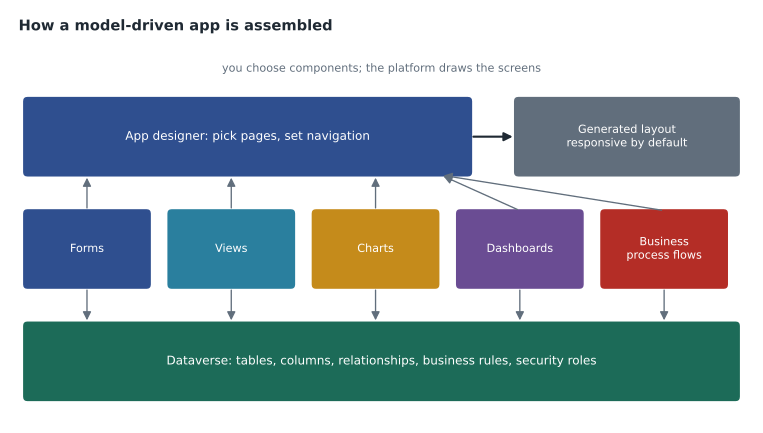
A model-driven app is a Power Apps app whose user interface is generated from the data model in Microsoft Dataverse. You do not drag controls onto a blank screen. Instead you define tables, columns, relationships, forms and views, and choose which of them to include in the app. The platform draws the screens: a navigation pane, lists of records, forms with tabs and sections, charts and dashboards, a command bar with actions such as New, Save and Delete, and a search box. Because the layout is generated, model-driven apps are responsive by default and look consistent with every other model-driven app, including the customer engagement apps of Dynamics 365, which are model-driven apps themselves.
Model-driven apps always use Dataverse. That brings Dataverse's strengths with it: relational data, a role-based security model that can restrict access by business unit, team or individual record, auditing of changes, business rules, duplicate detection and server-side logic. It also means that model-driven apps require a premium license for every user and an environment with a Dataverse database.
The building blocks
Every model-driven app is assembled from the same set of components. Learning their names is most of the work of understanding the app type, and PL-900 questions often test whether you can match a requirement to the right component.
| Component | What it is | Equipment example |
|---|---|---|
| Table | A set of rows with columns, stored in Dataverse | Equipment, Loan, Repair, Campus |
| Form | The layout for viewing and editing one row: tabs, sections, fields, subgrids | The Equipment main form with a Loans subgrid |
| View | A saved list of rows with chosen columns, filters and sort order | Overdue loans, sorted by due date |
| Chart | A visual summary of the rows in a view | Loans per campus this month |
| Dashboard | A page combining charts, lists and other components | The media desk morning dashboard |
| Business process flow | A guided stage-by-stage bar across the top of a form | Request, check-out, return, inspection |
| Site map | The app's navigation: areas, groups and pages | Loans, Equipment and Reports groups |
Forms deserve a closer look because they are where people spend most of their time. A main form can have tabs, each with sections that hold columns, subgrids showing related rows, timelines of notes and activities, and quick-view forms that show columns from a related table. Quick create forms let someone add a row without leaving the current page. Each table can have several main forms, and security roles can control which form a person sees. Views work the same way: a table can have public views anyone can pick, personal views a user saves for themselves, and system views such as lookup and quick find.
Building one: the app designer
Model-driven apps are built in the modern app designer, reached from make.powerapps.com by creating a new app and choosing the model-driven option, or by opening an existing app in a solution. The designer shows a preview of the app with three main panes: Pages, where you add tables, dashboards, custom pages and web resources; Navigation, where you arrange the site map into groups and areas; and Data, where you browse tables and jump into editing their forms and views. When you add a table as a page, you choose which forms and views the app includes. Saving and publishing makes the app available to people with the right security role.
Signe built the first version of the media desk app in an afternoon, mostly by deciding things. She created four tables in Dataverse: Equipment, with columns for asset tag, type, campus, status and purchase date; Loan, with columns for borrower, item, check-out date, due date and returned date; Repair, linked to Equipment; and Campus. She set the relationships so that one campus has many items and one item has many loans and many repairs. Then she created the app, added the four tables, chose the default main forms and a few views, and arranged the navigation into three groups. Nothing on any screen was dragged into place.
Worked problem
Matching requirements to components
The media desk listed five requirements: see an item's full loan history on its page; get a list of loans more than three days overdue; see loans by campus as a bar chart each morning; walk through return and inspection in a fixed order; and stop anyone from marking an item available while a repair is open. Which component meets each?
Show solution
- Loan history on the item page: a subgrid of related Loans on the Equipment main form.
- Overdue list: a view on Loan filtered to returned date empty and due date older than three days.
- Morning chart: a chart on that view, placed on a dashboard.
- Fixed order for return and inspection: a business process flow on Loan.
- Blocking availability during repair: a business rule on Equipment, or server-side logic if the rule needs to check related Repair rows.
Answer: Subgrid, view, chart on a dashboard, business process flow and a business rule (or server logic). Each requirement maps to a standard component, so no custom screen was needed.
Logic without code: business rules and process flows
Business rules apply simple logic on forms and, for some actions, on the server: set a column's value, make a column required or optional, show or hide a column, lock or unlock it, validate data and show an error message, or set a default. Rules are built in a visual designer as conditions and actions. A rule scoped to the entire table runs on the server as well as on forms, so it applies even when data arrives from a flow or an import. Rules cannot read related tables freely; for logic that does, makers use Power Automate (lessons 5 and 7), Power Fx formula columns, or developer tools such as plug-ins, covered in MSBA-250 and the developer courses.
Business process flows show a bar of stages across the top of a form. Each stage lists steps, which are columns to fill in, and a person moves to the next stage when the current one is complete. Flows can branch based on data and can span more than one table. They guide people through a consistent process and give managers a view of where each record sits. The media desk used one for returns: Returned, Inspected, Restocked.
Security that follows the data
The requirement that campus staff see only their own campus's equipment is where model-driven apps shine. Dataverse security is built from security roles, which grant privileges such as create, read, write, delete, append and assign on each table, at a level: user, business unit, parent-child business units or organization. Business units divide the organization; each row is owned by a user or team that belongs to a business unit. Signe created a business unit for each campus under a root unit for the college, gave media desk staff a role with business-unit-level read and write on Equipment and Loan, and gave the central asset team organization-level read. The app itself needed no special logic: people simply see the rows their role allows. Lesson 9 covers sharing and permissions across all the tools.
AI in model-driven apps
The PL-900 skills outline includes describing how to use AI to create a model-driven app. In current versions of Power Apps, a maker can describe a business problem and have Copilot propose tables and a model-driven app, either directly or through Plan designer, which lesson 3 explains. Inside model-driven apps, makers can add generative pages: pages created from a natural-language description that Copilot turns into working code, which can be embedded in the app alongside generated forms and views. Generative pages were in public preview in 2026, with Microsoft extending them during the year to use connector data and to sit inside model-driven forms. For people using the app, Copilot features in model-driven apps can summarize a record, answer questions about the data in a chat pane and help fill in forms, depending on what the environment administrator has turned on.
Because these features change frequently, treat any specific menu name you read in training materials, including this one, as something to confirm in your own environment. What stays stable is the idea: AI can draft the data model and pages, and a maker reviews, corrects and owns the result.
Customizing the experience
Even though layout is generated, model-driven apps are not rigid. Makers can edit the command bar with Power Fx to add buttons such as "Mark as lost", embed custom pages, which are canvas-style pages built with the same tools as canvas apps, add charts and dashboards, change the theme, and decide which forms and views each role sees. Developers can go further with JavaScript on forms, components built with the Power Apps component framework, and plug-ins that run on the server. The general rule is to use the standard components first and reach for code only when they cannot meet a requirement.
Using a model-driven app day to day
People open model-driven apps from a browser at a web address that ends in dynamics.com, from the Power Apps mobile app, or from links in Teams and Outlook. The experience is the same everywhere: a navigation pane on the left, a list of rows in the chosen view, and a form when a row is opened. Users can filter and sort any view by column, search across tables, export a view to Excel, use advanced find to build their own query and save it as a personal view, and pin frequently used rows. They can also add notes, attach files and log activities such as phone calls and tasks on the form's timeline, which gives everyone a shared history of each record.
The media desk technicians took to this quickly because it resembled the spreadsheet they already used, with two differences that mattered to them: nobody could overwrite someone else's change by saving an old copy, and every change to an item's status was recorded with the person and time, thanks to auditing that Rupert switched on for the Equipment and Loan tables. When a projector went missing in October, the history showed exactly who had checked it out last and when it had been marked returned, which ended a week of guessing.
Canvas or model-driven?
The two app types are not rivals. Many solutions use both: a canvas app for occasional users doing one task, often on a phone, and a model-driven app for the people who manage the data all day. Lumenvale ended up with exactly that split. Instructors kept Maribeth's canvas app for requests. Media desk staff got Signe's model-driven app for managing equipment, loans and repairs. Both used the same Dataverse tables, so a request made in the canvas app appeared instantly in the desk's Loans view.
| Question | Canvas app | Model-driven app |
|---|---|---|
| Who designs the layout? | The maker, screen by screen | The platform, from forms and views |
| Data sources | Many, through connectors | Dataverse |
| Best for | Focused tasks, mobile, custom experiences | Managing related data and processes |
| Responsive design | The maker builds it with containers | Automatic |
| Security | Comes from each data source | Dataverse roles, business units and teams |
| Licensing | Standard connectors may need no extra license | Premium license for every user |
Maribeth asked the obvious question at the end of Signe's demo: why not build the instructor side as a model-driven app too, since it used the same tables? Signe's answer was about people. Instructors borrowed equipment a few times a term. A model-driven app would show them navigation, views and a command bar they would never need. A three-screen canvas app on a phone showed them only what they came to do. Choosing an app type is a decision about the people using it as much as about the data.
Common mistakes
MistakeTrying to drag controls onto a model-driven form as in a canvas app.
InsteadModel-driven layouts come from forms and views; use a custom page when you need a free-form screen.
MistakeBuilding security into the app by hiding fields.
InsteadUse Dataverse security roles, business units and column security; hiding a field on a form does not protect the data.
MistakeWriting code for logic a business rule can handle.
InsteadUse business rules and process flows first; reserve plug-ins and scripts for requirements they cannot meet.
MistakeForgetting that every model-driven app user needs a premium license.
InsteadInclude licensing in the decision before building.
Summary and key terms
- A model-driven app is generated from Dataverse tables, forms, views, charts, dashboards and business process flows.
- The modern app designer adds pages, arranges navigation and chooses forms and views; layouts are responsive automatically.
- Business rules and business process flows add logic and guidance without code.
- Dataverse security roles, business units and teams decide which rows each person sees, so the app needs no access logic of its own.
- Copilot can draft data models and apps, and generative pages add AI-built pages; makers review and own the result.
- Canvas apps suit focused tasks; model-driven apps suit managing related data. Many solutions use both on the same tables.
- Model-driven app
- An app whose interface is generated from Dataverse components.
- Form
- The layout used to view and edit a single row in a table.
- View
- A saved list of rows with chosen columns, filters and sort order.
- Business rule
- No-code logic that sets, validates, shows or locks columns on a table.
- Business process flow
- A guided set of stages and steps displayed across the top of a form.
- Security role
- A set of privileges on tables, granted at user, business unit or organization level.
- Generative page
- A model-driven app page created by Copilot from a natural-language description.
Practice problems
Work each problem on paper first, then reveal the answer to check.
Which data platform does every model-driven app use?
Show answer
Microsoft Dataverse.
Which component would you use to show an item's past loans on its form?
Show answer
A subgrid of the related Loan table on the Equipment main form.
A manager wants a list of open repairs older than two weeks. Which component?
Show answer
A view on the Repair table filtered by status and date.
Why did Lumenvale keep a canvas app for instructors?
Show answer
Instructors did one occasional task, often on a phone; a focused canvas app suited them better than a full model-driven app.
Lesson quiz · 5 questions
Score 60% or more to complete this lesson.
Create a free account to save your progress, take quizzes and earn a certificate.