
MSAZ-280 · Lesson 5 of 12 · 23 min
SQL Server on Azure VMs
▶ Video coming soon A video version of this lesson is on the way.
The warehouse management system at the Ames distribution center is the one Harrow & Finch database that will not go to a platform service. Its vendor, a small company that writes software for distribution centers, supports the application only on SQL Server running on a server where its support engineers can sign in to Windows, install their monitoring agent and run their own maintenance scripts. The vendor's support contract is the company's insurance policy for the warehouse, so the decision is simple: the database will move to SQL Server on an Azure virtual machine. Walt has built many SQL Server machines in his career. Elena's point in this lesson is that building one well in Azure involves choices he has never had to make on physical hardware.
Choosing an image
Most SQL Server virtual machines start from an Azure Marketplace image that already contains Windows Server and a chosen SQL Server version and edition. Images exist for Enterprise, Standard, Web, Developer and Express editions, for several recent versions, and for Linux distributions as well as Windows. Choosing a marketplace image has two benefits. Installation is done, so the virtual machine is ready in minutes, and the virtual machine is registered with the SQL IaaS Agent extension automatically, which unlocks the SQL-specific settings in the portal.
The image also decides the license. A pay-as-you-go image includes the SQL Server license in the hourly price of the virtual machine, which is simple and suits short-lived or uncertain workloads. A bring-your-own-license approach, through Azure Hybrid Benefit, uses a license the company already owns with Software Assurance or a subscription, and the hourly price then covers only Windows and the virtual machine. The license type can be switched later through the extension without reinstalling. Developer and Express editions carry no SQL license charge at all. The warehouse vendor certifies SQL Server 2022 Standard, so Walt chooses a SQL Server 2022 Standard on Windows Server 2022 image and marks the license for Azure Hybrid Benefit, because Harrow & Finch has a spare Standard license from a server it retired in 2025.
Choosing a virtual machine size
Azure virtual machine sizes are grouped into families. General-purpose sizes balance processor and memory. Memory-optimized sizes, such as the E series and the larger M series, give more memory per core, which is what most SQL Server workloads want: more buffer pool means fewer reads from disk. Microsoft's best-practices guidance for SQL Server recommends starting from memory-optimized sizes for most production databases, choosing sizes that support premium storage and accelerated networking, and paying attention to the virtual machine's own limits on disk throughput and input-output operations, because a virtual machine can be held back by its size limit even when its disks could go faster.
There is also the question of licensed cores. SQL Server is licensed per core, so a large virtual machine with many cores can make the license bill much larger than the virtual machine bill. Constrained-core sizes keep the memory, storage and throughput of a large size but expose fewer cores to the operating system, which reduces the number of cores to license. They suit databases that need memory and disk throughput more than processor power, which is a common pattern for SQL Server.
Worked problem
Sizing the warehouse server
The warehouse database is 180 GB and growing about 40 GB a year. The vendor recommends at least 4 cores and enough memory to hold the most-used 60 GB of data in cache, plus 16 GB for the operating system, the vendor's agent and other processes. Walt is choosing between a general-purpose size with 8 cores and 32 GB of memory and a memory-optimized size with 4 cores and 64 GB, and a memory-optimized size with 8 cores and 64 GB. SQL Server Standard is licensed per core. Which size meets the memory need with the fewest licensed cores?
Show solution
- Memory needed: 60 GB of cache + 16 GB for everything else = 76 GB.
- The general-purpose size has 32 GB, which is less than 76 GB, so it does not meet the need.
- The memory-optimized 4-core size has 64 GB, also less than 76 GB, so it does not meet the need either.
- The memory-optimized 8-core size has 64 GB: also short of 76 GB.
- None of the three meets 76 GB; the next memory-optimized size up, with 8 cores and 128 GB, or a constrained-core version of it with 4 active cores and 128 GB, does.
- A constrained-core size with 4 active cores and 128 GB meets the vendor's 4-core minimum and the memory need, and needs only 4 licensed cores.
Answer: None of the three listed sizes provides 76 GB. A constrained-core memory-optimized size with 4 active cores and 128 GB meets the need with only 4 licensed cores, so Walt asks for that size class and confirms the exact name in the current size list.
Designing the storage
Storage is where a cloud SQL Server differs most from a physical one, and where the DP-300 exam asks the most detailed questions. On premises, Walt asks the storage team for fast disks and gets a slice of a SAN. In Azure he chooses managed disks, each with its own size, input-output limit and throughput limit, and he decides how to lay out data files, log files and tempdb across them.
Microsoft's best-practices checklist gives a clear pattern. Put data files and log files on separate disks, so their very different access patterns, random reads and writes for data and sequential writes for the log, do not compete. Use Premium SSD v2 or Premium SSD for data and log, or Ultra Disk where the log needs very low latency. Set host caching to read-only for data disks and none for log disks, because the log must be written straight to durable storage. Put tempdb on the local ephemeral SSD that most virtual machine sizes include, which is fast and costs nothing extra; its contents are lost if the machine is deallocated, but tempdb is rebuilt every time SQL Server starts anyway. Format data, log and tempdb volumes with a 64 KB allocation unit size. When one disk cannot provide enough performance, combine several into a single volume with Storage Spaces, striping across them.
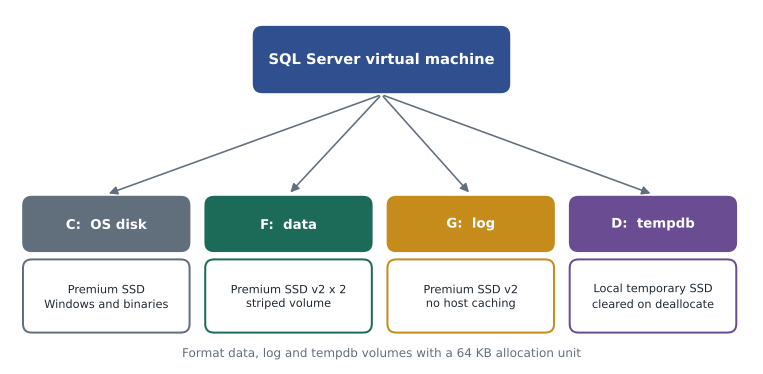
Premium SSD v2 is worth understanding because it changes how sizing works. With older Premium SSD disks, input-output operations and throughput are tied to the disk size, so a team sometimes buys a much larger disk than it needs just to get more performance. Premium SSD v2 lets you set capacity, input-output operations per second and throughput separately, and pay for each, which usually fits database workloads better. It does not support host caching, which is acceptable because its latency is already low.
| Volume | Contents | Disk type | Host caching | Notes |
|---|---|---|---|---|
| C: | Windows, SQL Server binaries | Premium SSD (OS disk) | Read/write (default) | Do not place database files here |
| D: | tempdb data and log | Local temporary SSD | Not applicable | Cleared when the VM is deallocated; SQL Server recreates tempdb |
| F: | User database data files | Premium SSD v2, two disks striped | Not supported on v2 | 64 KB allocation unit |
| G: | Transaction log files | Premium SSD v2, one disk | Not supported on v2 | Sequential writes; 64 KB allocation unit |
Worked problem
Will the log disk keep up?
During the nightly pick-list import, the warehouse database writes about 90 MB of transaction log per second for twenty minutes. Walt sets the Premium SSD v2 log disk to 125 MB per second of throughput. The chosen virtual machine size allows 250 MB per second of uncached disk throughput in total across all its disks. At the same time, the data volume reads and writes about 140 MB per second. Is the virtual machine size the bottleneck?
Show solution
- Total throughput during the import: 90 MB/s for the log + 140 MB/s for data = 230 MB/s.
- The virtual machine limit is 250 MB/s, so total demand is below the limit: 250 − 230 = 20 MB/s of headroom.
- The log disk is set to 125 MB/s, above the 90 MB/s needed: 35 MB/s of headroom.
- Both limits hold, but the virtual machine headroom is small, so a busier night could hit the size limit before the disks.
Answer: Not yet, but with only 20 MB/s of headroom at the virtual machine level, Walt notes it as the first limit to watch and the reason to choose a size with a higher uncached throughput limit if the import grows.
The SQL IaaS Agent extension
The SQL IaaS Agent extension is what turns an ordinary Azure virtual machine into a SQL Server virtual machine in the portal. Registration happens automatically for marketplace images and can be done by hand for SQL Server installed on a plain Windows image. Once registered, the virtual machine appears as a SQL virtual machine resource with extra pages: storage configuration, automated patching, automated backup, license type, SQL best-practices assessment, and security settings such as connectivity and Microsoft Entra authentication for SQL Server 2022 and later.
Automated patching applies Windows and SQL Server updates marked Important or Critical in a weekly maintenance window the customer chooses, for example Sunday from 2:00 to 4:00. It is convenient for small estates but does not coordinate patches across availability group replicas, so larger estates often use Azure Update Manager instead, which schedules and reports patching across many machines. Automated backup takes full and log backups to an Azure storage account on a retention schedule. The best-practices assessment checks the configuration against Microsoft's guidance and reports problems such as data files on the operating system disk or a missing 64 KB allocation unit. The study guide lists applying patches and updates for hybrid and IaaS deployments as a skill; for a virtual machine that means choosing between these tools and taking responsibility for the results.
az sql vm create --name hf-vm-wms-sql01 --resource-group rg-wms-prod-cus --license-type AHUB --sql-mgmt-type Full

az sql vm update --name hf-vm-wms-sql01 --resource-group rg-wms-prod-cus --day-of-week Sunday --maintenance-window-start-hour 2 --maintenance-window-duration 120
Configuring SQL Server inside the virtual machine
Once the virtual machine is running, the familiar SQL Server tasks return, and the best-practices checklist adds Azure-specific reasons for them. Set max server memory so that the operating system and the vendor's agent keep enough memory: on the planned 128 GB machine, Walt leaves 16 GB for them and sets max server memory to 112 GB, which is 114,688 MB. Enable instant file initialization by granting the SQL Server service account the Perform volume maintenance tasks right, so that data files grow without being zeroed first. Enable lock pages in memory for large machines. Create one tempdb data file per core, up to eight, all the same size. Set max degree of parallelism according to the number of cores in the virtual machine's NUMA node rather than leaving the default of zero.
EXEC sp_configure 'show advanced options', 1;
RECONFIGURE;
EXEC sp_configure 'max server memory (MB)', 114688;
EXEC sp_configure 'max degree of parallelism', 4;
EXEC sp_configure 'cost threshold for parallelism', 50;
RECONFIGURE;
Two more decisions finish the build. The virtual machine joins the company's Active Directory domain through the identity subscription's domain controllers, so the vendor and Walt sign in with domain accounts. And the virtual machine is deployed in an availability zone, which protects against the loss of one data center in the region. A single virtual machine in a zone does not protect against a failure of the virtual machine itself; for that, the vendor's own guidance allows an Always On availability group with a second replica in another zone, which MSAZ-282 covers.
Hybrid SQL Server
The study guide also mentions deploying hybrid SQL Server solutions. For Harrow & Finch that means two things. The warehouse virtual machine in Azure will be reached from the warehouse floor through the company network, and its backups will be copied to a storage account in the same region. And the few SQL Server instances that stay on premises until 2028, such as the small database behind the dock scanners at the distribution center, will be connected to Azure through Azure Arc, so that they can be inventoried, patched and protected from the same portal as the cloud servers. Lesson 12 covers that in detail.
Common mistakes
MistakeUse read/write caching on the transaction log disk for speed.
InsteadLog disks should use no host caching, so every write reaches durable storage; Premium SSD v2 does not use host caching at all.
Mistaketempdb should go on a premium data disk so it survives a restart.
Insteadtempdb is recreated at every start, so the fast local ephemeral SSD is the recommended place.
MistakeA bigger disk is the only way to get more performance.
InsteadPremium SSD v2 sets capacity, IOPS and throughput separately; striping several disks also adds performance.
MistakeThe SQL IaaS Agent extension makes Microsoft responsible for patching.
InsteadThe extension automates patching in a window you choose, but the customer remains responsible for the result.
Summary and key terms
- Start from a marketplace image to get SQL Server preinstalled and the SQL IaaS Agent extension registered automatically.
- Choose pay-as-you-go licensing or Azure Hybrid Benefit; the license type can be switched later.
- Prefer memory-optimized sizes, watch the virtual machine's own throughput limits, and consider constrained-core sizes to reduce licensed cores.
- Separate data and log disks, use Premium SSD v2 or Premium SSD, put tempdb on the local SSD and format volumes with 64 KB allocation units.
- The extension adds automated patching, automated backup, license management and a best-practices assessment.
- Inside the VM, set max server memory, instant file initialization, tempdb files and MAXDOP as on any well-built server.
- Marketplace image
- A prepared Azure virtual machine image that includes Windows or Linux and a chosen SQL Server version and edition.
- Memory-optimized size
- A virtual machine size with a high ratio of memory to processor cores.
- Constrained-core size
- A virtual machine size that keeps memory and storage limits but exposes fewer cores, lowering per-core license costs.
- Premium SSD v2
- A managed disk type whose capacity, IOPS and throughput are set and billed separately.
- Host caching
- Caching of disk reads or writes on the virtual machine host; read-only for data disks and none for log disks.
- Ephemeral disk
- The local temporary SSD of a virtual machine, fast but cleared when the machine is deallocated.
- Azure Update Manager
- An Azure service that schedules and reports operating system and software updates across many machines.
Practice problems
Work each problem on paper first, then reveal the answer to check.
Why is the transaction log placed on its own disk?
Show answer
Its sequential write pattern differs from the random reads and writes of data files, and separating them avoids contention.
What happens to tempdb on the local SSD when the virtual machine is deallocated?
Show answer
The files are lost, but SQL Server recreates tempdb at startup, so nothing is lost that matters.
Give one reason to choose a constrained-core size.
Show answer
To keep the memory and storage throughput of a large size while licensing fewer SQL Server cores.
Name two features unlocked by the SQL IaaS Agent extension.
Show answer
Any two of: automated patching, automated backup, license-type switching, storage configuration, best-practices assessment.
What max server memory value in MB corresponds to 112 GB?
Show answer
112 × 1,024 = 114,688 MB.
Lesson quiz · 5 questions
Score 60% or more to complete this lesson.
Create a free account to save your progress, take quizzes and earn a certificate.