
JS-250 · Lesson 10 of 12 · 28 min
Installable progressive web apps
▶ Video coming soon A video version of this lesson is on the way.
On Thursday, September 21, Lucy brings one of the church hall's check-in tablets to the studio. At the moment, setting it up for a Saturday means opening the browser, typing the portal's address, signing in, finding the check-in screen and hoping nobody taps the address bar and wanders off to another site. She wants it to behave like an app: an icon on the home screen that opens straight to check-in, full screen, with no browser controls, and that opens even when the Wi-Fi is down. With the service worker from lessons 8 and 9 in place, the portal is most of the way there. The last step is to make it installable.
What makes a progressive web app
A progressive web app (PWA) is an ordinary web application that browsers can install, so that it gets its own icon, opens in its own window and can work offline. The word progressive matters: the same portal still works in any browser tab, and each extra capability is added where the browser supports it. There is no separate app store and no separate code base. Three things make a site installable in practice.
- HTTPS. Like service workers, installation needs a secure context.
- A web app manifest. A JSON file that gives the app's name, icons, start page and how it should be displayed.
- A service worker, for the full experience. Chromium browsers used to require one with a fetch handler before they would offer installation. Since Chrome 108 on Android and 112 on desktop, installing from the browser's menu works without one, but the automatic install prompt still needs it, and without a worker the installed app cannot open offline.
The web app manifest
The manifest is a JSON file linked from every page of the app with a link element whose rel is manifest. Browsers read it to decide whether the site can be installed and how to present it. Mira writes the portal's manifest field by field with Lucy, because several fields decide what volunteers will see.
{
  "id": "/volunteer/",
  "name": "Riverside Food Hub Volunteers",
  "short_name": "Volunteers",
  "description": "Check in for shifts, see your schedule and plan your hamper drive shifts.",
  "start_url": "/volunteer/checkin?source=installed",
  "scope": "/volunteer/",
  "display": "standalone",
  "display_override": ["window-controls-overlay", "standalone"],
  "orientation": "any",
  "theme_color": "#1f5f4a",
  "background_color": "#ffffff",
  "icons": [
    { "src": "/volunteer/icons/icon-192.png", "sizes": "192x192", "type": "image/png" },
    { "src": "/volunteer/icons/icon-512.png", "sizes": "512x512", "type": "image/png" },
    { "src": "/volunteer/icons/maskable-512.png", "sizes": "512x512", "type": "image/png", "purpose": "maskable" }
  ],
  "shortcuts": [
    { "name": "Check in", "url": "/volunteer/checkin", "icons": [{ "src": "/volunteer/icons/checkin-96.png", "sizes": "96x96" }] },
    { "name": "My shifts", "url": "/volunteer/shifts" }
  ],
  "screenshots": [
    { "src": "/volunteer/screens/checkin-narrow.png", "sizes": "1080x1920", "type": "image/png", "form_factor": "narrow", "label": "Checking in at the door" },
    { "src": "/volunteer/screens/shifts-wide.png", "sizes": "1920x1080", "type": "image/png", "form_factor": "wide", "label": "A week of shifts" }
  ]
}
What this code does
The id gives the app a stable identity, so a later change to start_url does not make browsers think it is a different app. The scope limits the app to the portal's pages, and start_url opens the check-in screen with a query parameter that lets the portal count launches from the installed app. The icons include a maskable version that platforms can crop into a circle or rounded square, and the screenshots give Chromium browsers a richer install dialog.
| Field | What it controls |
|---|---|
| name, short_name | The full name in install dialogs and app lists; the short name under the icon |
| id | A stable identity for the app, independent of start_url |
| start_url | The page that opens when the app is launched |
| scope | Which URLs belong to the app; links outside it open in the browser |
| display, display_override | standalone (its own window), minimal-ui, fullscreen or browser; display_override lists preferred modes first |
| icons | Icons in several sizes; purpose maskable for icons designed to be cropped |
| theme_color, background_color | The color of the title bar and of the splash screen while the app starts |
| shortcuts | Extra entries shown when the icon is long-pressed or right-clicked |
| screenshots, description | Used in richer install dialogs in Chromium browsers |
The studio adds a check of the manifest to the build, so that a missing icon or a typo in a field never reaches the tablets. The rules are the ones that Chromium browsers apply when deciding whether to offer installation, plus a few of the studio's own.
// Check a manifest against the install requirements and the studio's own rules.
function checkManifest(m) {
  const problems = [];
  if (!m.name && !m.short_name) problems.push('needs a name or short_name');
  if (m.short_name && m.short_name.length > 12) problems.push(`short_name "${m.short_name}" may be cut off under the icon`);
  if (!m.start_url) problems.push('needs a start_url');
  if (!['standalone', 'fullscreen', 'minimal-ui'].includes(m.display)) problems.push(`display "${m.display}" will not open in its own window`);
  const sizes = (m.icons ?? []).flatMap((i) => i.sizes.split(' '));
  for (const need of ['192x192', '512x512']) if (!sizes.includes(need)) problems.push(`needs a ${need} icon`);
  if (!(m.icons ?? []).some((i) => (i.purpose ?? '').split(' ').includes('maskable'))) problems.push('studio rule: add a maskable icon');
  if (!m.id) problems.push('studio rule: set an id');
  return problems.length ? problems : ['ok'];
}

const draft = {
  name: 'Riverside Food Hub Volunteers', short_name: 'Food Hub Volunteers', start_url: '/volunteer/',
  display: 'browser', icons: [{ src: 'icon.png', sizes: '192x192' }],
};
const final = {
  id: '/volunteer/', name: 'Riverside Food Hub Volunteers', short_name: 'Volunteers', start_url: '/volunteer/checkin?source=installed',
  display: 'standalone', icons: [{ src: 'i192.png', sizes: '192x192' }, { src: 'i512.png', sizes: '512x512' }, { src: 'm512.png', sizes: '512x512', purpose: 'maskable' }],
};
console.log('draft:\n  ' + checkManifest(draft).join('\n  '));
console.log('final:\n ' + checkManifest(final).join('\n '));draft: short_name "Food Hub Volunteers" may be cut off under the icon display "browser" will not open in its own window needs a 512x512 icon studio rule: add a maskable icon studio rule: set an id final: ok
What this code does
Each rule adds a message to a list when it fails, so one run reports every problem at once instead of stopping at the first. The draft manifest has a short name too long to fit under an icon, a display mode that keeps the browser's controls, no 512-pixel icon and none of the studio's extra fields. The final manifest passes every rule.
Icons that survive every platform
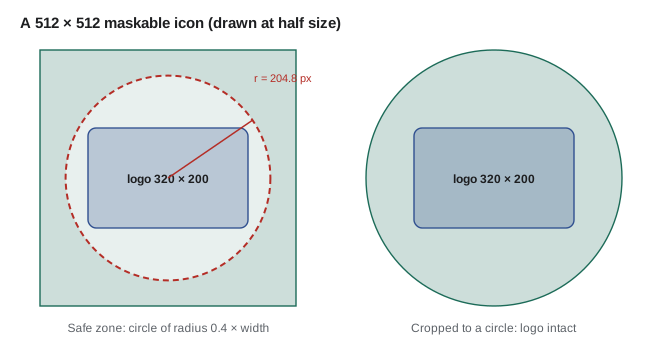
Different platforms show app icons in different shapes: circles on some Android launchers, rounded squares on others and on desktops, and squircles elsewhere. A maskable icon is designed with that in mind. Its important content, the Food Hub's logo, sits inside a central safe zone, and the rest of the square is filled with background, so that whatever shape the platform cuts it into, nothing important is lost. The specification defines the safe zone as a circle centered in the icon whose radius is 40 in 100 of the icon's width.
// The maskable icon safe zone: a circle in the middle with a radius of 0.4 times the icon size.
function safeZone(size) {
  const r = 0.4 * size;
  return { radius: r, diameter: 2 * r, largestSquare: Math.floor(Math.SQRT2 * r) };
}

for (const size of [192, 512]) {
  const z = safeZone(size);
  console.log(`${size} px icon: keep the logo inside a ${z.diameter.toFixed(1)} px circle; a square logo fits if it is at most ${z.largestSquare} px wide`);
}

// Is a logo of a given size, placed in the middle of the icon, inside the safe zone? Check its corners.
function fits(iconSize, logoWidth, logoHeight) {
  const r = 0.4 * iconSize;
  return Math.hypot(logoWidth / 2, logoHeight / 2) <= r;
}
console.log('512 icon, 300 x 220 logo fits:', fits(512, 300, 220));
console.log('512 icon, 380 x 200 logo fits:', fits(512, 380, 200));192 px icon: keep the logo inside a 153.6 px circle; a square logo fits if it is at most 108 px wide 512 px icon: keep the logo inside a 409.6 px circle; a square logo fits if it is at most 289 px wide 512 icon, 300 x 220 logo fits: true 512 icon, 380 x 200 logo fits: false
What this code does
The safe zone's radius is 0.4 times the icon's width, so a 512-pixel icon has a 409.6-pixel circle in which content is never cropped. A rectangular logo centered in the icon is safe if its corners are inside the circle, which is what Math.hypot() checks using half the logo's width and height. The 380 × 200 logo is too wide, so Sana scales it down for the maskable version.
Sana makes two sets of icons: an ordinary one with the logo filling most of the square, for platforms that show icons as they are, and a maskable one with extra background. iOS uses its own apple-touch-icon link element for the home screen icon when it is present, so the studio adds one at 180 × 180 pixels with the same artwork.
Scope and display
The scope decides which URLs are part of the app. When an installed app navigates to a URL inside its scope, the page stays in the app's window. When it follows a link outside the scope, such as the public site's recipe pages or the payment service, the browser opens it in a normal tab or shows it with a minimal toolbar so the visitor can see where they are. A page is inside the scope if its URL, on the same origin, starts with the scope's path.
// Is a URL inside an installed app's scope? Same origin and a path that starts with the scope's path.
function inScope(url, scope, origin = 'https://riverside-food-hub.example') {
  const u = new URL(url, origin);
  const s = new URL(scope, origin);
  return u.origin === s.origin && u.pathname.startsWith(s.pathname);
}

const scope = '/volunteer/';
for (const url of [
  '/volunteer/checkin',
  '/volunteer/shifts?week=38',
  '/volunteer',
  '/volunteers-wanted',
  '/recipes/lentil-soup',
  'https://pay.giveright.example/donate',
]) console.log(`${url.padEnd(40)} ${inScope(url, scope) ? 'in the app' : 'opens outside the app'}`);/volunteer/checkin in the app /volunteer/shifts?week=38 in the app /volunteer opens outside the app /volunteers-wanted opens outside the app /recipes/lentil-soup opens outside the app https://pay.giveright.example/donate opens outside the app
What this code does
Both the URL and the scope are resolved against the site's origin with the URL constructor, which also handles absolute URLs to other sites. A URL is in scope only if the origins match and its path starts with the scope's path, including the trailing slash. That slash is why /volunteer without one and /volunteers-wanted are outside the app even though they start with the same letters.
The display field chooses how the app's window looks. standalone gives an app-like window with no address bar, which is what Lucy wants. fullscreen hides even the system's status bar, which suits games more than check-in. minimal-ui keeps a small set of navigation controls. browser means an ordinary tab. The display_override field lists modes in order of preference, and the browser uses the first one it supports, falling back to display and then to a fixed chain of fallbacks.
// Choose the display mode: the first of display_override the browser supports, then display, then the fallback chain.
const FALLBACK = ['fullscreen', 'standalone', 'minimal-ui', 'browser'];

function displayMode(manifest, supported) {
  for (const mode of manifest.display_override ?? []) if (supported.includes(mode)) return mode;
  const start = FALLBACK.indexOf(manifest.display ?? 'browser');
  return FALLBACK.slice(start).find((m) => supported.includes(m)) ?? 'browser';
}

const manifest = { display: 'standalone', display_override: ['window-controls-overlay', 'standalone'] };
console.log('desktop Chrome:  ', displayMode(manifest, ['window-controls-overlay', 'fullscreen', 'standalone', 'minimal-ui', 'browser']));
console.log('Android tablet:  ', displayMode(manifest, ['fullscreen', 'standalone', 'minimal-ui', 'browser']));
console.log('kiosk manifest: ', displayMode({ display: 'fullscreen' }, ['standalone', 'minimal-ui', 'browser']));desktop Chrome: window-controls-overlay Android tablet: standalone kiosk manifest: standalone
What this code does
The browser walks the display_override list first and takes the first mode it supports. If none is supported it starts the fallback chain at the manifest's display value and moves toward browser, which every platform supports. A desktop browser that supports window controls overlay uses it, a tablet uses standalone, and a fullscreen request on a platform without fullscreen falls back to standalone.
A page can tell whether it is running as an installed app with the display-mode media feature, either in CSS or with matchMedia() in JavaScript. The portal uses it to hide its own 'Install the app' button when it is already installed, and to show a small back button in standalone mode, where there is no browser back button on some platforms.
Offering installation
Browsers decide for themselves when and how to offer installation. Chromium browsers show an install icon in the address bar and may show a prompt, and they fire a beforeinstallprompt event when the site is installable. A page can keep that event and show its own install button at a better moment, such as after a volunteer has checked in successfully, then call prompt() on the saved event. Other browsers do not fire the event: Safari installs through Share, then Add to Home Screen on iPhone and iPad, and Add to Dock on a Mac, and Firefox on Android offers Install in its menu.
// Show the portal's own install button in browsers that support beforeinstallprompt.
let deferredPrompt = null;
const installButton = document.querySelector('#install');

window.addEventListener('beforeinstallprompt', (event) => {
  event.preventDefault();            // keep the event; show our own button instead of the mini prompt
  deferredPrompt = event;
  installButton.hidden = false;
});

installButton.addEventListener('click', async () => {
  installButton.hidden = true;
  deferredPrompt.prompt();
  const { outcome } = await deferredPrompt.userChoice;   // 'accepted' or 'dismissed'
  deferredPrompt = null;
  logEvent('install-prompt', outcome);
});

window.addEventListener('appinstalled', () => logEvent('installed'));

if (window.matchMedia('(display-mode: standalone)').matches) installButton.remove();
What this code does
preventDefault() stops Chromium's own small prompt and the event is saved so the page can show it later, from a button the visitor chooses to press. prompt() can be called only once per saved event, and userChoice resolves with whether the visitor accepted. The appinstalled event and the display-mode check let the portal stop offering installation once it is installed.
For iPhones and iPads, the portal shows a short help panel instead, with the two steps to add it to the home screen, because there is no event to trigger. Apple changed the behavior in iOS 26 and iPadOS 26: any site added to the home screen now opens as a web app by default, with or without a manifest, and Apple has said that web apps there do not require a service worker, although the portal needs one for offline use. Web push notifications on iPhone and iPad, available since iOS 16.4, work only for web apps that have been added to the home screen.
| Platform | How people install | Notes |
|---|---|---|
| Chrome, Edge and other Chromium browsers on desktop and Android | Install icon in the address bar, menu item, or the site's own button through beforeinstallprompt | Richer dialog with screenshots and description |
| Safari on iPhone and iPad | Share, then Add to Home Screen | Opens as a web app by default from iOS 26; push needs installation |
| Safari on Mac | File menu or Share, then Add to Dock | Since macOS Sonoma |
| Firefox on Android | Menu, then Install or Add to Home screen | Uses the manifest |
| Firefox on desktop | Only limited, experimental support at the time of writing | The portal works normally in a tab |
The church hall tablets
With the manifest, the icons and the service worker in place, Lucy installs the portal on both tablets in the studio. Each opens to the check-in screen in a standalone window, offline included, because the worker precached the app shell on the first visit and the shift list from the last sync. Gareth suggests two more settings that are not part of the web app at all but make a big difference: the tablets' operating systems can pin a single app to the screen, so that a volunteer cannot leave the check-in screen by accident, and their automatic updates are set to run overnight instead of on Saturday mornings.
The portal also gains one small feature that only an installed app can use: the App Badging API. When check-ins are waiting in the outbox, the portal sets a badge on its icon with navigator.setAppBadge(), and clears it when they are sent, so the coordinator can see at a glance from the home screen that a tablet still has something to send. Where the API is not supported, the call is skipped and the status line inside the app still shows the count.
Worked problem
Is the logo safe?
Sana's maskable icon is 512 × 512 pixels. The Food Hub logo, centered, is 320 pixels wide and 200 pixels tall. Is it inside the safe zone? If not, what is the largest width it can have at the same proportions?
Show solution
- Safe zone radius: 0.4 × 512 = 204.8 pixels.
- Distance from the center to a corner of the logo: √(160² + 100²) = √(25,600 + 10,000) = √35,600 ≈ 188.7 pixels.
- 188.7 is less than 204.8, so the logo is inside the safe zone.
- At the same 320 : 200 proportions, the corner distance grows in proportion to the width: 188.7 ÷ 320 ≈ 0.5897 per pixel of width.
- Largest width: 204.8 ÷ 0.5897 ≈ 347 pixels, with a height of about 347 × 200 ÷ 320 ≈ 217 pixels.
Answer: Yes, the 320 × 200 logo fits; it could grow to about 347 × 217 pixels before its corners leave the safe zone.
Common mistakes
MistakeLeaving out the 512-pixel icon or the maskable icon.
InsteadProvide 192 and 512 pixel icons and a separate maskable icon designed with the safe zone.
MistakeSetting a scope that does not include start_url.
InsteadMake sure start_url is inside the scope, or the app opens outside itself.
MistakeChanging start_url and losing installed apps.
InsteadSet an id once and keep it, so the app's identity does not depend on start_url.
MistakeShowing the browser's install prompt on the first visit.
InsteadSave beforeinstallprompt and offer installation at a moment that makes sense, such as after a first check-in.
MistakeAssuming every browser fires beforeinstallprompt.
InsteadGive Safari users the Add to Home Screen steps, and let the app work fully in a tab everywhere.
Summary and key terms
- A progressive web app is a web app that browsers can install, with its own icon and window, and that works offline with a service worker.
- It needs HTTPS and a web app manifest; Chromium browsers can install from the menu without a service worker since versions 108 and 112, but the prompt and offline use need one.
- The manifest gives the id, name, short_name, start_url, scope, display and display_override, icons including a maskable one, colors, shortcuts and screenshots.
- Maskable icons keep important content in a central circle with a radius of 0.4 times the width.
- The scope decides which URLs stay in the app.
- Chromium browsers fire beforeinstallprompt, which a page can save to offer installation later; Safari users install with Add to Home Screen, which from iOS 26 opens any site as a web app.
- The display-mode media feature tells a page whether it is installed, and the App Badging API marks the icon.
- Progressive web app (PWA)
- A web app that can be installed and run in its own window, working offline where supported.
- Web app manifest
- A JSON file describing an app's name, icons, start page, scope and display, linked with rel="manifest".
- start_url
- The page an installed app opens when launched.
- Scope
- The set of URLs that belong to an installed app; others open outside it.
- Maskable icon
- An icon designed so that platforms can crop it into different shapes without losing its content.
- display
- The manifest field choosing standalone, fullscreen, minimal-ui or browser presentation.
- beforeinstallprompt
- A Chromium event fired when a site is installable, which a page can save to prompt later.
- display-mode
- A media feature that reports how the page is being displayed, such as standalone.
Practice problems
Work each problem on paper first, then reveal the answer to check.
Why does the manifest set an id as well as a start_url?
Show answer
The id gives the app a stable identity, so changing start_url later does not make browsers treat it as a different app.
A link in the installed portal goes to /recipes/lentil-soup. Where does it open, and why?
Show answer
Outside the app, in the browser, because /recipes/ is not inside the /volunteer/ scope.
Why does the portal save the beforeinstallprompt event instead of letting the browser show its prompt?
Show answer
So it can offer installation at a better moment, from its own button, after the volunteer has used the portal.
How do volunteers with iPhones install the portal?
Show answer
With Share, then Add to Home Screen in Safari, because Safari does not fire beforeinstallprompt.
Try it yourself
In scope
Complete inScope(url, scope) so that it returns true when url, resolved against the origin https://riverside-food-hub.example, has the same origin as the scope and a path that starts with the scope's path.
Use the URL constructor for both values.
function inScope(url, scope) {
  return url.startsWith(scope);
}

console.log(inScope('/volunteer/plan', '/volunteer/'));
console.log(inScope('/volunteer', '/volunteer/'));
console.log(inScope('https://riverside-food-hub.example/volunteer/shifts', '/volunteer/'));
console.log(inScope('https://evil.example/volunteer/', '/volunteer/'));
Try it yourself
Choose the display mode
Complete displayMode(manifest, supported). Return the first mode in manifest.display_override (if present) that is in supported. Otherwise start at manifest.display in the chain ['fullscreen', 'standalone', 'minimal-ui', 'browser'] and return the first supported mode from there on.
If display is missing, start the chain at 'browser'.
function displayMode(manifest, supported) {
  return manifest.display;
}

console.log(displayMode({ display: 'standalone', display_override: ['window-controls-overlay'] }, ['window-controls-overlay', 'standalone', 'browser']));
console.log(displayMode({ display: 'standalone', display_override: ['tabbed'] }, ['standalone', 'browser']));
console.log(displayMode({ display: 'fullscreen' }, ['minimal-ui', 'browser']));
console.log(displayMode({}, ['standalone', 'browser']));
Lesson quiz · 5 questions
Score 60% or more to complete this lesson.
Create a free account to save your progress, take quizzes and earn a certificate.