
JS-102 · Lesson 9 of 12 · 27 min
JSON and data exchange
▶ Video coming soon A video version of this lesson is on the way.
Theo Marchetti, who builds the back ends at Brightwater Web Studio, is designing a database and a small PHP server for the Food Hub, planned for early 2027, that will store volunteer shifts and donations. Once it is running, Mira's pages will no longer keep data in arrays typed into the code; they will send it to Theo's server and fetch it back. Dev's newsletter script will read the month's donations from the same place, and Lucy wants to download the shift list each week and open it in her spreadsheet. All of that data has to travel as text, and the format everyone at the studio uses is JSON.
For the session planned for Tuesday, December 15, Theo joins Gareth and Mira for the first half hour. "Your code and my code don't share variables," he says. "They might not even be written in the same language. What we share is a string. JSON is the agreement about what that string looks like." This lesson covers that agreement in detail: the rules of JSON, converting values to and from it, controlling the conversion, and checking that data received from outside is what you expect.
What JSON is
JSON, short for JavaScript Object Notation, is a text format for structured data. It was popularized by Douglas Crockford in the early 2000s, based on the syntax of JavaScript object and array literals, and it is now defined by two matching standards, ECMA-404 and the internet standard RFC 8259. Although it came from JavaScript, it is independent of any language: Python, PHP, Java, C# and almost every other language can read and write it, which is why it became the standard format for web APIs, configuration files and saved data.
A JSON text represents one value. That value can be an object in curly braces, holding name and value pairs; an array in square brackets; a string in double quotes; a number; one of the literals true, false or null. Objects and arrays can be nested to any depth. Those six kinds of value are all JSON has.
{
  "program": "Hamper packing",
  "date": "2026-12-19",
  "capacity": 20,
  "open": true,
  "lead": { "name": "Lucy Tran", "phone": null },
  "crew": ["Amara", "Dev", "Priya"]
}
JSON looks like a JavaScript object literal, but its rules are stricter, and the differences cause most JSON errors. Every property name must be in double quotes. Strings must use double quotes, never single quotes or backticks. There are no trailing commas after the last item, no comments, and no undefined, functions, dates, NaN or Infinity. Numbers are written in decimal, without leading zeros such as 007.
| Allowed in a JavaScript object literal | Allowed in JSON? |
|---|---|
| Unquoted property names, such as { program: 1 } | No: write "program" |
| Single-quoted strings, such as 'Pantry' | No: use double quotes |
| A trailing comma after the last item | No |
| Comments | No |
| undefined, functions, NaN, Infinity | No |
| Date objects | No: store a date as a string such as "2026-12-19" |
| null, true, false, numbers, strings, nested objects and arrays | Yes |
JSON.stringify: from values to text
JSON.stringify converts a JavaScript value into a JSON string. Objects become JSON objects, arrays become JSON arrays, and strings, numbers, booleans and null become their JSON forms. The result is a single string, ready to send to a server, save in a file or store in the browser.
const shift = {
  program: 'Hamper packing',
  capacity: 20,
  open: true,
  lead: { name: 'Lucy Tran', phone: null },
  crew: ['Amara', 'Dev'],
};

const text = JSON.stringify(shift);
console.log(typeof text, text.length);
console.log(text);string 118
{"program":"Hamper packing","capacity":20,"open":true,"lead":{"name":"Lucy Tran","phone":null},"crew":["Amara","Dev"]}What this code does
JSON.stringify turns the whole object, including the nested lead object and the crew array, into one string. typeof confirms that the result is text, 118 characters long. When printed, it shows every property name and string value in double quotes, with no spaces between the parts.
The compact form is ideal for sending over a network, but hard for people to read. The third argument to JSON.stringify sets the indentation: a number of spaces, or a string such as a tab, used to put each property on its own line. Two spaces is the usual choice for files that people will open.
const settings = { perPallet: 24, programs: ['pantry', 'kitchen'], reminders: { dayBefore: true } };
console.log(JSON.stringify(settings, null, 2));{
"perPallet": 24,
"programs": [
"pantry",
"kitchen"
],
"reminders": {
"dayBefore": true
}
}What this code does
The null in the middle means no replacer, which is explained next, and the 2 asks for two spaces of indentation at each level. Each property and each array item is put on its own line, nested one step further for each level of the data. The result is the same data in a form that is much easier to read and compare.
Some values have no JSON form, and JSON.stringify handles them in particular ways that are worth memorizing, because they explain many surprises. Properties whose value is undefined or a function are left out of objects entirely. In arrays, where leaving out an item would shift the others, they become null. NaN and Infinity become null. Date objects become strings, because a Date has a toJSON method that returns its ISO format. Maps and Sets become empty objects, because they keep their data in a form that JSON.stringify does not look at.
const odd = {
  note: undefined,
  check() { return true; },
  ratio: NaN,
  list: [1, undefined, 3],
  when: new Date('2026-12-19T15:00:00Z'),
  names: new Set(['Amara']),
};
console.log(JSON.stringify(odd));
console.log(JSON.stringify({ names: [...odd.names] }));{"ratio":null,"list":[1,null,3],"when":"2026-12-19T15:00:00.000Z","names":{}}
{"names":["Amara"]}What this code does
The undefined property and the method disappear from the output altogether, NaN becomes null, and the undefined item in the array also becomes null so that the 3 stays in third place. The Date is written as an ISO text string, while the Set becomes an empty object. Spreading the set into an array first, as in the second line, keeps its contents.
Choosing what to include
The second argument to JSON.stringify, the replacer, controls what goes into the text. If it is an array of property names, only those properties are included, at every level. If it is a function, JSON.stringify calls it for every key and value and uses whatever it returns; returning undefined leaves the property out. Replacers are handy for removing private data before sending a record somewhere.
const volunteer = { name: 'Amara Osei', phone: '555-0177', email: 'amara@example.com', shifts: 14 };

console.log(JSON.stringify(volunteer, ['name', 'shifts']));

const noContact = (key, value) => (key === 'phone' || key === 'email' ? undefined : value);
console.log(JSON.stringify(volunteer, noContact));{"name":"Amara Osei","shifts":14}
{"name":"Amara Osei","shifts":14}What this code does
The array replacer keeps only the name and shifts properties. The function replacer is called for every property and returns undefined for the phone and email, so those two are left out. Both produce the same small record, safe to show on the public thank-you page.
An object can also control its own conversion by having a toJSON method. If it exists, JSON.stringify calls it and converts whatever it returns instead of the object. Dates use this, and so can your own classes: a Hamper class from Lesson 6 could define toJSON() { return { family: this.family, size: this.size, items: this.items }; } so that private fields and helper properties never leak into saved data.
Gareth adds a point about responsibility here. Volunteer records hold personal information, and once it is in a JSON string, it is easy to copy anywhere. Wisconsin has no comprehensive consumer privacy law, but the Food Hub's own privacy policy promises volunteers that their phone numbers are used only for shift reminders. The safest code sends and stores only the fields each job needs, and replacers and toJSON methods are simple ways to make that the default.
JSON.parse: from text to values
JSON.parse goes the other way. It reads a JSON string and builds the matching JavaScript value: objects, arrays, strings, numbers, booleans and null. The result is a completely new value with no connection to whatever produced the text, which might have been another program on another computer.
const text = '{"program":"Pantry","capacity":6,"crew":["Amara","Jonah"],"lead":null}';
const shift = JSON.parse(text);

console.log(shift.program, shift.capacity + 1);
console.log(shift.crew.length, shift.lead);
console.log(Array.isArray(shift.crew), typeof shift);Pantry 7 2 null true object
What this code does
JSON.parse reads the text and builds a real object, so its properties can be used straight away, and capacity is a number that can be added to. The crew array and the null lead come back as a genuine array and a genuine null. Nothing about the result shows that it was once a string.
If the text is not valid JSON, JSON.parse throws a SyntaxError. That will happen sooner or later with data from outside, so wrap parsing in a try block, as Lesson 8 showed. The most common causes are single quotes, a trailing comma, an unquoted property name, an empty string, and receiving an HTML error page from a server instead of the JSON that was expected.
const samples = ['{"boxes": 12}', "{'boxes': 12}", '{"boxes": 12,}', '', '[1, 2, 3]'];

for (const s of samples) {
  try {
    const value = JSON.parse(s);
    console.log('valid:', Array.isArray(value) ? 'array' : 'object');
  } catch (err) {
    console.log('invalid:', err.name);
  }
}valid: object invalid: SyntaxError invalid: SyntaxError invalid: SyntaxError valid: array
What this code does
Only the first and last samples follow the JSON rules, so only they parse, one into an object and one into an array. The single-quoted version, the one with a trailing comma and the empty string all make JSON.parse throw a SyntaxError. The try block catches each error, so one bad sample does not stop the loop.
Restoring dates with a reviver
JSON has no date type, so dates travel as strings, usually in the ISO format that Date's toJSON produces, such as 2026-12-19T15:00:00.000Z. When you parse them, they stay strings. The second argument to JSON.parse, the reviver, is a function called for every key and value as the result is built; whatever it returns replaces the value. A reviver can turn date strings back into Date objects.
const text = '{"program":"Hamper pick-up","starts":"2026-12-19T15:00:00.000Z","families":42}';

const plain = JSON.parse(text);
console.log(typeof plain.starts);

const revived = JSON.parse(text, (key, value) => (key === 'starts' ? new Date(value) : value));
console.log(revived.starts instanceof Date, revived.starts.getUTCHours());
console.log(revived.families);string true 15 42
What this code does
Parsed normally, the start time is just a string. The reviver checks each key and, for starts, builds a Date from the text, so the revived object holds a real date whose hour in universal time is 15. Every other value is returned unchanged, so families is still the number 42.
Revivers that check a key name are clear and safe. Some programs instead revive any string that looks like a date, but that can turn an ordinary text field, such as a note that happens to start with a date, into the wrong type. Lesson 10 looks at dates and the newer Temporal API in detail.
Never trust incoming data
JSON.parse checks that text is valid JSON. It does not check that the data is what your program expects. A valid JSON document can be missing properties, have numbers stored as strings, contain an empty array where you expected records, or hold far more items than you planned for. Data from a server, a file, a form or the browser's storage should be treated as untrusted until your code has checked it.
const incoming = '[{"donor":"Lakeside Grocers","boxes":12},{"donor":"","boxes":4},{"donor":"Riverside Rotary","boxes":"18"},{"boxes":7}]';

function isDonation(d) {
  return typeof d === 'object' && d !== null &&
    typeof d.donor === 'string' && d.donor.trim() !== '' &&
    Number.isInteger(d.boxes) && d.boxes > 0;
}

const data = JSON.parse(incoming);
const good = data.filter(isDonation);
console.log(`${good.length} of ${data.length} records accepted`);
console.log(good.map((d) => d.donor));1 of 4 records accepted [ "Lakeside Grocers" ]
What this code does
The text is perfectly valid JSON, so it parses without complaint into four records. The isDonation check then tests each record's shape: the blank donor, the number stored as a string and the record with no donor all fail. Only Lakeside Grocers is accepted, which shows why checking parsed data matters even when parsing succeeds.
Checking can be done by hand, as here, or with a schema: a description of what valid data looks like, checked by a library. JSON Schema is a widely used standard for this, and TypeScript, covered in its own course, adds type checking while you write code. Whatever the method, check data where it enters the program, at the boundary, so that the rest of the code can trust it.
JSON in practice
JSON appears wherever programs exchange or store data. Web APIs send and receive it; the fetch function in browsers and Node.js has a json() method that reads a response and parses it in one step. Configuration files such as package.json are JSON. Browsers' localStorage can only store strings, so pages save objects there with JSON.stringify and read them back with JSON.parse. And the import attributes from Lesson 7 let a module import a JSON file directly.
// Saving and loading a draft in the browser (not runnable here: no localStorage in the runner)
const draft = { donor: 'Lakeside Grocers', boxes: 12 };
localStorage.setItem('donation-draft', JSON.stringify(draft));

const saved = JSON.parse(localStorage.getItem('donation-draft') ?? 'null');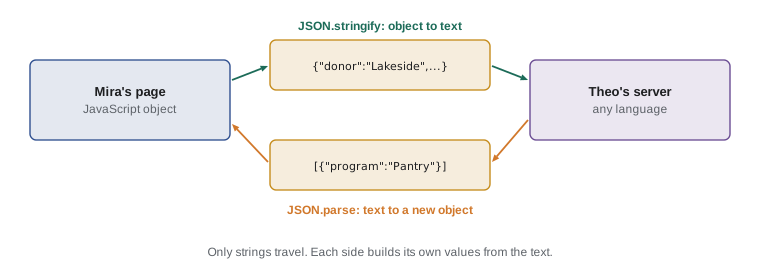
A common trick, JSON.parse(JSON.stringify(value)), makes a deep copy of simple data. It works for plain objects, arrays, strings, numbers and booleans, but it loses undefined values, turns dates into strings and drops Maps, Sets and methods. structuredClone, from Lesson 4, is the better tool for copying; use the JSON round trip only when the data is known to be plain.
JSON is not the only exchange format. CSV, comma-separated values, is simpler and opens directly in spreadsheets, which is why Lucy wants her shift list in it, but it has no nesting and no types: every value is text. XML was common in older systems. JSON's advantage is that its structure matches JavaScript's objects and arrays exactly, so converting needs a single function call.
| Format | Nesting | Types | Typical use |
|---|---|---|---|
| JSON | Yes, any depth | string, number, boolean, null, object, array | Web APIs, configuration, saved data |
| CSV | No, flat rows | Everything is text | Spreadsheets, simple exports |
| XML | Yes | Text, with optional schemas | Older systems, documents, feeds |
Worked problem
Designing a JSON record for a hamper
Theo asks Mira what JSON a hamper should be saved as. A Hamper object has family, size, an items array, a private status, a Date for the pick-up time and a method label(). What should the JSON look like, and how should the class produce it?
Show solution
- JSON can hold strings, numbers, booleans, null, objects and arrays, so family, size and items can be saved as they are.
- The status is private, so JSON.stringify would not see it; if the server needs it, it must be included on purpose.
- The Date becomes an ISO string automatically, but naming the field clearly, such as pickupAt, tells readers it holds a time.
- The method label() is behavior, not data, and JSON.stringify leaves functions out anyway.
- A toJSON method on the class makes the decision explicit: return { family, size, items, status, pickupAt } built from the instance.
Answer: A flat object with family, size, items, status and pickupAt as an ISO string, produced by a toJSON method so that exactly the intended fields are saved.
Try it yourself
A public volunteer list
The starter has an array of volunteer records that include private contact details. Use JSON.stringify with an array replacer so that only name and program are kept, and with an indentation of 2 spaces, then print the result.
The output must match exactly, including the indentation.
const volunteers = [
  { name: 'Amara Osei', program: 'pantry', phone: '555-0177' },
  { name: 'Jonah Reyes', program: 'kitchen', email: 'jonah@example.com' },
];

// print the public JSON here
Try it yourself
Import a donation feed
The Input box holds one line of JSON text: an array of donation records. Read it with readline(), parse it, and keep only the records whose boxes is a whole number greater than 0 and whose donor is a non-empty string.
Print the number of accepted records and their total boxes in the form Accepted 2 records, 30 boxes. If the text is not valid JSON, print Could not read the feed instead.
const text = readline();
// parse, check each record and print the summary
Common mistakes
MistakeJSON allows single quotes, like JavaScript.
InsteadJSON strings and property names must use double quotes.
MistakeJSON.stringify keeps properties whose value is undefined.
InsteadThey are left out of objects, and become null inside arrays.
MistakeIf JSON.parse succeeds, the data is safe to use.
InsteadParsing only checks the syntax. Check that the data has the shape and types you expect.
MistakeA Date survives a round trip through JSON.
InsteadIt becomes a string. Use a reviver or new Date(value) to turn it back into a Date.
MistakeJSON.stringify(new Set(['a'])) saves the set's items.
InsteadSets and Maps become {}. Convert them to arrays first, for example with [...set].
Summary and key terms
- JSON is a text format for structured data, defined by ECMA-404 and RFC 8259 and used by almost every language.
- It has objects, arrays, double-quoted strings, numbers, true, false and null, and allows no comments, trailing commas, undefined or functions.
- JSON.stringify turns a value into a JSON string; its replacer argument chooses what to include, its third argument sets indentation, and an object's toJSON method can control its own conversion. undefined and functions are dropped, NaN becomes null and Dates become ISO strings.
- JSON.parse turns JSON text back into values and throws a SyntaxError for invalid text; a reviver can transform values, for example restoring dates.
- Always check the shape of parsed data, at the boundary where it enters the program.
- Send and store only the personal information each job needs.
- JSON
- JavaScript Object Notation, a text format for structured data based on object and array literals.
- JSON.stringify
- A function that converts a JavaScript value into a JSON string.
- JSON.parse
- A function that converts a JSON string into a JavaScript value.
- replacer
- The second argument to JSON.stringify, which chooses or transforms what is included.
- reviver
- The second argument to JSON.parse, a function that can transform each value as it is built.
- toJSON
- A method that, if an object has it, JSON.stringify calls to get the value to convert.
- serialization
- Turning a value into a format, such as a string, that can be stored or sent.
- deserialization
- Rebuilding a value from its stored or sent form.
- schema
- A description of what valid data looks like, used to check incoming data.
- CSV
- Comma-separated values, a flat text format for rows of data.
Practice problems
Work each problem on paper first, then reveal the answer to check.
Is {'boxes': 12} valid JSON?
Show answer
No. The property name must be in double quotes: {"boxes": 12}.
What does JSON.stringify({ a: undefined, b: 2 }) give?
Show answer
{"b":2}, because properties with undefined values are left out.
How do you make JSON.stringify indent with two spaces?
Show answer
Pass 2 as the third argument, with null or a replacer as the second.
What type is a date after JSON.parse, without a reviver?
Show answer
A string.
Why check parsed data even when JSON.parse does not throw?
Show answer
Valid JSON can still have missing fields, wrong types or unexpected values.
Lesson quiz · 5 questions
Score 60% or more to complete this lesson.
Create a free account to save your progress, take quizzes and earn a certificate.