
JAVA-120 · Lesson 2 of 12 · 21 min
Working in an IDE
▶ Video coming soon A video version of this lesson is on the way.
On Monday, January 18, 2027, Leif's plan is to open the same PartsDesk folder in an IDE and look at it again. Hamza has been using an editor with a Run button since September without knowing what it did. Now that he has built PartsDesk by hand, Leif wants him to see the IDE for what it is: an editor that understands Java, wrapped around the javac, java and build-tool steps from last week. The goal of the evening is not to memorize menus, which change from release to release, but to learn which jobs to hand to the IDE and how to check that it is doing them the way the build does.
What an IDE does
An integrated development environment combines an editor with tools that understand the language. As you type, it parses the code continuously, so it can underline errors before you compile, complete names, show a method's documentation, jump to where a class is declared and find every place a method is called. It runs and debugs programs, runs tests, shows version-control changes and, most usefully for growing projects, refactors: it renames, moves and restructures code across every file at once, changing only the places that refer to the thing you changed. A text search and replace cannot do that safely, because it cannot tell a method called total from a variable called total.
The main Java IDEs
Three IDEs cover most Java work, and all three are free for what this program needs. IntelliJ IDEA, from JetBrains, is the most common in industry. Since its 2025.3 release it has been a single product: the core Java, Maven and Gradle features are free, and some advanced features, such as the Spring and database tools, need a subscription, which JetBrains offers free to students. Visual Studio Code with Microsoft's Extension Pack for Java is a lighter editor that becomes a Java IDE through extensions; its Java understanding comes from a language server built on the Eclipse compiler. Eclipse IDE is the long-standing open-source IDE, still widely used in larger organizations, and Apache NetBeans is another open-source option.
| IntelliJ IDEA | VS Code + Extension Pack for Java | Eclipse IDE | |
|---|---|---|---|
| Cost for this program | Free core; student license for advanced features | Free | Free, open source |
| Maven and Gradle | Built in | Through extensions | Built in (m2e, Buildship) |
| Strengths | Deep inspections and refactoring | Light, one editor for many languages | Mature, large plugin ecosystem |
| Things to watch | Heavier on memory | Fewer refactorings; depends on extensions | Older-looking interface |
Hamza's college teaches with IntelliJ IDEA, and Leif uses it at work, so the course's examples describe it, with VS Code's equivalent where it differs. The ideas carry over to any IDE.
Opening a project, not a file
The first habit to unlearn is opening single files. An IDE works on a project: a folder whose layout and build file tell it where the source is, which JDK to use and which libraries the code needs. When the folder contains a Maven pom.xml or a Gradle settings.gradle.kts, open the folder (in IntelliJ, File, Open, then choose the folder) and the IDE imports the build, so that its picture of the project matches the build tool's. When there is no build file, as with last week's hand-built PartsDesk, you tell the IDE which folder holds sources (it calls this marking a folder as a sources root) and which JDK to use.
The project JDK setting matters more than it looks. The IDE can download and manage JDKs itself, and a machine can easily have three installed. If the IDE compiles with JDK 25 while the build file asks for 21, code that uses a Java 25 feature will run in the IDE and fail in the build. Leif's rule: the build file says which Java version the project uses, and the IDE follows it. Lesson 5 shows how a Gradle toolchain setting pins the version for everyone.
Completion, inspections and quick fixes
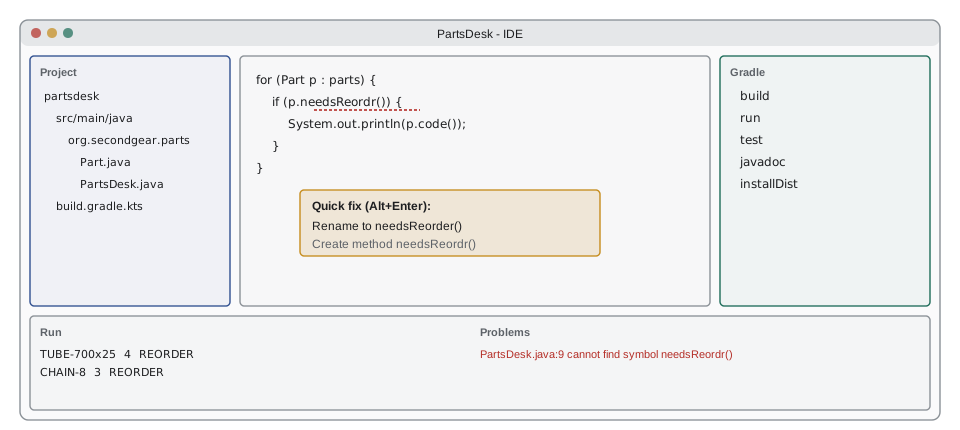
Code completion, Ctrl+Space in most IDEs, offers the names that fit at the cursor: methods of the object before the dot, classes you could import, variables in scope. Inspections are the IDE's continuous checks, from compile errors to warnings such as a variable that is never used or a condition that is always true. Where it knows a fix, the IDE offers a quick fix: Alt+Enter in IntelliJ and Ctrl+. in VS Code. Typical quick fixes add a missing import, create a method you called before writing it, or replace an old loop with a clearer form.
Quick fixes are suggestions, not instructions. One will happily add a throws clause to silence an exception you should have handled, or import the wrong class when two libraries both have one called List. Read what a quick fix will do before accepting it, and if you do not understand the change, undo it.
import java.util.ArrayList;
import java.util.List;

public class Main {
    public static void main(String[] args) {
        List<String> low = new ArrayList<>();
        String[] codes = {"TUBE-700x25", "PAD-RIM", "CHAIN-8"};
        int[] onHand = {4, 22, 3};
        int[] reorderAt = {10, 8, 4};
        for (int i = 0; i < codes.length; i++) {
            if (onHand[i] <= reorderAt[i]) {
                low.add(codes[i]);
            }
        }
        System.out.println("Low stock: " + low);
        System.out.println("Count: " + low.size());
    }
}Low stock: [TUBE-700x25, CHAIN-8] Count: 2
What this code does
This is the kind of code an IDE helps you write: typing List and accepting completion adds the import line, and the inspection would flag the unused variable if one were left in. The loop checks each part against its reorder level and collects the codes of parts that are low. The program prints the two parts that need ordering.
Refactoring safely
A refactoring changes the structure of code without changing what it does. The IDE's refactorings are worth learning because they are both faster and safer than editing by hand. The ones you will use every week are:
- Rename (Shift+F6 in IntelliJ, F2 in VS Code): renames a class, method, field or variable and every reference to it, including the file name for a class.
- Extract method: turns selected lines into a new method, working out its parameters and return value, and replaces the lines with a call.
- Extract variable and extract constant: give an expression or a magic number a name.
- Inline: the reverse, replacing a variable or method with its body where it is used.
- Change signature: adds, removes or reorders a method's parameters and updates every caller.
Below is PartsDesk's report code before and after Hamza used extract method on it. The output is identical, which is the point: the behavior did not change, only the shape. Running the program, or better its tests, after each refactoring is how you confirm that.
public class Main {
    public static void main(String[] args) {
        String[] codes = {"TUBE-700x25", "PAD-RIM"};
        int[] onHand = {4, 22};
        int[] priceCents = {899, 1249};
        long total = 0;
        for (int i = 0; i < codes.length; i++) {
            long value = (long) onHand[i] * priceCents[i];
            total += value;
            System.out.println(codes[i] + ": " + (value / 100) + "." + String.format("%02d", value % 100));
        }
        System.out.println("Stock value: " + (total / 100) + "." + String.format("%02d", total % 100));
    }
}TUBE-700x25: 35.96 PAD-RIM: 274.78 Stock value: 310.74
What this code does
Before the refactoring, the same dollars-and-cents formatting is written out twice, once for each line and once for the total. Each part's value is its count times its price in cents, added to a running total. The program prints each value and the total stock value.
public class Main {
    public static void main(String[] args) {
        String[] codes = {"TUBE-700x25", "PAD-RIM"};
        int[] onHand = {4, 22};
        int[] priceCents = {899, 1249};
        long total = 0;
        for (int i = 0; i < codes.length; i++) {
            long value = (long) onHand[i] * priceCents[i];
            total += value;
            System.out.println(codes[i] + ": " + dollars(value));
        }
        System.out.println("Stock value: " + dollars(total));
    }

    static String dollars(long cents) {
        return (cents / 100) + "." + String.format("%02d", cents % 100);
    }
}TUBE-700x25: 35.96 PAD-RIM: 274.78 Stock value: 310.74
What this code does
After extract method, the formatting lives in one method, dollars, and both places call it. The output is exactly the same as before, which shows the refactoring kept the behavior. A later change to the format, such as adding a dollar sign or a thousands separator, now has one place to go.
Generating code, and when not to
IDEs generate the boilerplate that Java classes used to need: constructors, getters and setters, equals, hashCode and toString (Alt+Insert in IntelliJ, the Source Action menu in VS Code). Generated equals and hashCode are much safer than hand-written ones. But since Java 16, a record gives a simple data class all of these automatically, and keeps them correct when a field is added, which a generated method does not: if you add a field to a class and forget to regenerate equals, the old one silently ignores it. Prefer a record for plain data, and use generation for classes that need to be classes.
import java.util.Objects;

public class Main {
    static final class PartClass {
        private final String code;
        private final int onHand;
        PartClass(String code, int onHand) { this.code = code; this.onHand = onHand; }
        @Override public boolean equals(Object o) {
            if (this == o) return true;
            if (!(o instanceof PartClass)) return false;
            PartClass p = (PartClass) o;
            return onHand == p.onHand && Objects.equals(code, p.code);
        }
        @Override public int hashCode() { return Objects.hash(code, onHand); }
        @Override public String toString() { return "PartClass[code=" + code + ", onHand=" + onHand + "]"; }
    }

    record PartRecord(String code, int onHand) { }

    public static void main(String[] args) {
        System.out.println(new PartClass("PAD-RIM", 22));
        System.out.println(new PartRecord("PAD-RIM", 22));
        System.out.println(new PartClass("PAD-RIM", 22).equals(new PartClass("PAD-RIM", 22)));
        System.out.println(new PartRecord("PAD-RIM", 22).equals(new PartRecord("PAD-RIM", 22)));
    }
}PartClass[code=PAD-RIM, onHand=22] PartRecord[code=PAD-RIM, onHand=22] true true
What this code does
PartClass has the equals, hashCode and toString an IDE would generate, about fifteen lines of code. The record PartRecord gets the same behavior from a single line, and its toString has the same shape. Both compare equal by value, but only the record stays correct automatically if a component is added later.
Live templates and run configurations
Live templates, or snippets, expand an abbreviation into code: in IntelliJ, typing main and pressing Tab writes a main method, and sout writes System.out.println. They save keystrokes, but learn to type the real code too, because exams and interviews do not have them.
A run configuration records how the IDE runs a program: which main class, which JDK, which arguments, which working folder and which environment variables. When a program works in the IDE but not from the terminal, or the reverse, compare the run configuration with the command line. The usual differences are the working folder, which changes how relative file paths are found, and program arguments that were set in the IDE and forgotten.
| Job | IntelliJ IDEA | VS Code |
|---|---|---|
| Show quick fixes | Alt+Enter | Ctrl+. |
| Code completion | Ctrl+Space | Ctrl+Space |
| Rename | Shift+F6 | F2 |
| Go to declaration | Ctrl+B or Ctrl+click | F12 or Ctrl+click |
| Find usages | Alt+F7 | Shift+F12 |
| Reformat code | Ctrl+Alt+L | Shift+Alt+F |
| Search everything | Shift twice | Ctrl+P, Ctrl+Shift+P |
Let the build decide
Leif's closing point is the one he repeats all term. On a team, the build file, not anyone's IDE settings, is the definition of how the project builds. The IDE imports the build; it does not replace it. If the IDE and the build disagree, the build is right, and the fix is to reimport (in IntelliJ, the reload button in the Maven or Gradle tool window) rather than to change IDE settings until the red underlines go away. IDE project files, such as IntelliJ's .idea folder, are usually kept out of version control for the same reason, apart from a few shared settings a team agrees on.
Many IDEs now also offer AI code completion and chat assistants. They can be useful for exploring an unfamiliar library, but they produce plausible code that is sometimes wrong, so everything they write must be read, understood and tested like code from any other source. Hamza's college has its own rules about using them for assessed work, and those rules come first.
Try it yourself
Extract a method
The report code computes a line total twice with the same expression. Extract a method static long lineTotal(int qty, int priceCents) that returns the total in cents, and use it in both places.
Complete the method so the program prints Tubes: 8990 and Pads: 4996.
public class Main {
    static long lineTotal(int qty, int priceCents) {
        return 0;
    }

    public static void main(String[] args) {
        System.out.println("Tubes: " + lineTotal(10, 899));
        System.out.println("Pads: " + lineTotal(4, 1249));
    }
}
Try it yourself
A record instead of generated code
Replace the class Bin with a record Bin(String label, int capacity) so that two bins with the same label and capacity are equal and print readably.
The program should print Bin[label=A3, capacity=40] and then true.
public class Main {
    static class Bin {
        final String label;
        final int capacity;
        Bin(String label, int capacity) { this.label = label; this.capacity = capacity; }
    }

    public static void main(String[] args) {
        Bin a = new Bin("A3", 40);
        Bin b = new Bin("A3", 40);
        System.out.println(a.label + " " + a.capacity);
        System.out.println(a.equals(b));
    }
}
Common mistakes
MistakeOpening a single .java file instead of the project folder.
InsteadOpen the folder that contains the build file so the IDE imports the project.
MistakeLetting the IDE compile with a different JDK than the build.
InsteadSet the project JDK to match the version the build file asks for.
MistakeAccepting quick fixes without reading them.
InsteadCheck what the fix will change; undo it if you do not understand it.
MistakeRenaming with search and replace.
InsteadUse the IDE's rename refactoring, which changes only real references.
MistakeChanging IDE settings until a build error disappears.
InsteadFix the build file and reimport; the build is the definition of the project.
Summary and key terms
- An IDE is an editor that understands Java: it parses code as you type, completes names, runs inspections, offers quick fixes, refactors across files, runs and debugs programs and shows build-tool tasks.
- IntelliJ IDEA, VS Code with the Extension Pack for Java, and Eclipse IDE are the common choices.
- Open a project folder so the IDE imports the Maven or Gradle build, and keep the project JDK the same as the build's.
- Refactorings such as rename and extract method change structure without changing behavior.
- Prefer records to generated equals, hashCode and toString for plain data.
- Run configurations record how the IDE runs a program.
- The build file, not IDE settings, defines how the project builds.
- IDE
- An integrated development environment: an editor combined with tools that understand the language.
- Inspection
- A check the IDE runs continuously on code, from errors to style warnings.
- Quick fix
- An automatic correction the IDE offers for an inspection, such as adding an import.
- Refactoring
- A change to the structure of code that keeps its behavior the same.
- Extract method
- A refactoring that moves selected code into a new method and calls it.
- Project JDK
- The JDK an IDE uses to compile and run a project.
- Run configuration
- The saved settings an IDE uses to run a program: main class, arguments, working folder and JDK.
- Live template
- An abbreviation the editor expands into a snippet of code.
- Sources root
- A folder an IDE treats as the root of a package tree.
- Reimport
- Reloading the build file so the IDE's view of the project matches it again.
Practice problems
Work each problem on paper first, then reveal the answer to check.
Why is the IDE's rename safer than search and replace?
Show answer
It changes only real references to the renamed element, not other text that happens to match.
A program works in the IDE but cannot find its data file from the terminal. What should you compare first?
Show answer
The working folder in the run configuration and the folder you run the command from.
Why prefer a record to IDE-generated equals and hashCode for a data class?
Show answer
The record stays correct automatically when a component is added; generated methods must be regenerated.
What should you do when the IDE and the Maven build disagree about an error?
Show answer
Trust the build, fix the build file if needed, and reimport the project.
Which IntelliJ shortcut shows quick fixes?
Show answer
Alt+Enter (Ctrl+. in VS Code).
Lesson quiz · 5 questions
Score 60% or more to complete this lesson.
Create a free account to save your progress, take quizzes and earn a certificate.