
GCP-193 · Lesson 7 of 12 · 18 min
Review: Troubleshooting
▶ Video coming soon A video version of this lesson is on the way.
Section 6 of the guide, about 13 in every 100 questions, is about keeping people working when something goes wrong. Its four objectives cover identifying and diagnosing problems, resolving common issues, using reports and audit logs, and using support resources. Troubleshooting questions also appear inside other sections, wherever a scenario begins with "a user reports that...", so the method in this lesson earns marks well beyond section 6.
Owen did a lot of troubleshooting in GCP-211 and GCP-212, but almost all of it was mail and access during Birchline's pilot. The exam ranges wider: calendars, Drive for desktop, Meet quality, recovery of deleted data, reports and support cases. Sofia starts with a method that works across all of them.
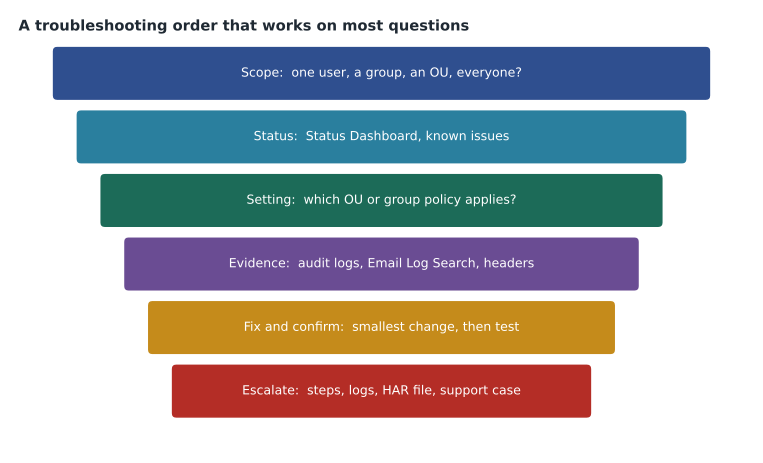
A troubleshooting order
| Step | Question to ask | Tools |
|---|---|---|
| Scope | Is it one user, one group, one OU, one location or everyone? Since when? | The report itself; the admin's own test account |
| Status | Is Google reporting a problem with the service? | Google Workspace Status Dashboard; the Admin console's notices |
| Setting | Which OU or group settings apply to the affected users, and did anything change recently? | The user's OU and groups; admin audit log for recent changes |
| Evidence | What do the logs show for the affected users or messages? | Audit and investigation logs, Email Log Search, message headers, the Admin Toolbox |
| Fix and confirm | What is the smallest change that fixes it, and does a test confirm it? | A test account in the same OU; the same logs again |
| Escalate | If it is still not fixed, what does Google support need? | Steps to reproduce, timestamps, logs, HAR file, a support case |
The first two steps are the ones the exam tests hardest, because they decide what to do first. When many users across the organization report the same problem at once, the Status Dashboard is a sensible first check. When one user or one place is affected, the cause is almost always local: a setting, a license, a device or a network. Changing settings before establishing scope is the most common wrong answer.
6.1 Identifying and diagnosing
The guide lists finding audit logs in the Admin console, interpreting log entries, checking the Status Dashboard, and recommending fixes for mail delivery. GCP-212 covered the logs. In exam terms: logs are under Reporting in the Admin console, organized by service; they can be filtered by user, event, date and many other attributes; Google documents most log events as available for six months, with a lag from minutes to hours depending on the log; and for longer retention, logs can be exported to BigQuery on editions that support it. An entry shows who did what, to what, when and from where, which is often enough to answer a question on its own.
6.2 Resolving common issues
This objective has the longest list in the section. Owen groups it by service.
| Problem area | Common causes | First things to check |
|---|---|---|
| Sign-in, passwords and 2SV | Wrong password, suspended account, 2SV enforced before enrollment, lost security key, context-aware access blocking | Account status, login audit log, 2SV status; generate backup codes for a verified user; check access levels |
| Service access | Service off for the OU, no license, a group setting overriding the OU | The user's OU, groups and license; the service's settings |
| Mail delivery | MX or routing wrong, SPF, DKIM or DMARC failure, a compliance rule, spam filtering, quarantine | Email Log Search, message headers, Check MX in the Admin Toolbox, quarantines |
| Forwarding, filters and labels | Forwarding blocked by policy, a user's filter moving or deleting mail | Gmail settings for the OU; the user's filters; Email Log Search shows delivery |
| Calendar | Sharing settings, interop with another calendar system, a delegate or resource permission | Calendar sharing defaults, resource sharing, interoperability settings, the Calendar audit log |
| Drive sharing | External sharing off for the file's OU, a trust rule, a DLP rule, a shared drive in another OU | Drive audit log, the shared drive's OU, DLP and trust rules |
| Drive for desktop and offline | App not allowed for the OU, account signed in wrongly, offline not enabled | Drive settings for the OU, the app's own logs |
| Deleted data | User emptied the trash, account deleted | Admin restore of Drive files or mail within the window Google documents; Vault if rules or holds apply |
| Meet quality and access | Network, device, external participants blocked by settings | Meet quality tool, Meet audit log, Meet safety settings |
Deleted data is a favorite topic, and the timings are worth knowing in outline while checking the current numbers in the documentation. Files a user deletes go to Drive trash, where they stay for about 30 days before being removed. After that, an administrator can restore Drive files and Gmail messages for a further period, which Google's help pages have described as 25 days. After both windows, only Vault can produce data, and only if a retention rule or hold covered it. Owen writes the chain as user trash, then admin restore, then Vault.
Message headers return from GCP-212. A header shows every server a message passed through, with times, and the authentication results for SPF, DKIM and DMARC. The Messageheader tool in the Admin Toolbox makes headers readable and shows where delays occurred. Check MX checks a domain's DNS records for mail. Email Log Search in the Admin console finds a message by sender, recipient, date or message ID and shows what happened to it: delivered, marked as spam, quarantined, rejected, routed elsewhere.
Worked problem
A mail delivery scenario
A supplier says messages to one Birchline employee bounce, while messages to everyone else arrive. The supplier sends the bounce text, which says the recipient address was rejected. What should Owen check, in order?
Show solution
- Scope: one recipient, so the cause is about that address, not the whole domain or the MX records.
- Search Email Log Search for messages from the supplier to that address and read the result for each.
- Check whether the address exists: a typo, a deleted account, a user moved to another domain without an alias.
- Check whether a compliance rule or a user setting rejects mail for that address.
- Fix the cause, such as restoring an alias, then ask the supplier to resend and confirm delivery in the log.
Answer: Scope first, then Email Log Search, then the address itself and any rules; confirm with a resend.
Account and 2SV lockouts
Sign-in problems are the most common calls to any help desk, and the exam reflects that. Owen reviews the safe sequence for a user locked out by 2-step verification. First, verify the person's identity through a channel the organization trusts, such as a call back to a known number or a manager's confirmation; never act on an email from the account itself, because an attacker may control it. Second, check the login audit log for what happened: a lost phone, a new device, a blocked sign-in from an unusual place. Third, choose the smallest fix: generate backup verification codes for the user, or temporarily allow sign-in without 2SV for a short time if policy permits, and make sure 2SV is set up again straight away. If the account shows signs of compromise, the response is the incident sequence from GCP-212 instead: suspend, revoke sessions and app tokens, reset the password and investigate.
Calendar problems have their own patterns. A user who cannot see a colleague's free and busy times may be blocked by the internal sharing default, by the colleague's own sharing choice, or, during coexistence with another calendar system, by interoperability settings. A meeting room that will not accept a booking may be restricted by the resource's sharing, may require approval, or may have a booking rule such as a maximum duration. As always, scope first: if no one can see anyone's free and busy times, the cause is an organization or interop setting; if one person cannot, it is something about that person or calendar.
6.3 Reports and audit logs
The guide also asks candidates to monitor app usage, storage, devices and audit reports. Reports in the Admin console show adoption and usage by app, storage use by user and in total, device activity, and security metrics. Exam questions in this objective are usually about choosing the report: "Which users are close to their storage limit?" points to user reports with storage columns; "Is Meet adoption growing in the stores?" points to app usage reports filtered by OU; "Which devices have not synced in 30 days?" points to the devices list and device reports.
Reports are not real time. Like the logs, they have lag, and some report data is updated daily. A question that asks why yesterday's change is not yet visible in a usage report is usually about that lag, not about an error.
6.4 Using support resources
When a problem cannot be fixed with the tools above, the administrator escalates to Google support. The guide lists documenting steps to reproduce, collecting logs, checking app status and known issues, generating HAR files, opening cases, and using the Workspace Updates blog, the Status Dashboard and the release calendar.
| Resource | What it is for |
|---|---|
| Google Workspace Status Dashboard | Current service problems and their history |
| Known issues | Problems Google has acknowledged, with workarounds |
| Workspace Updates blog | Announcements of new and changed features, with release dates |
| Release calendar | When features reach Rapid Release and Scheduled Release domains |
| HAR file | A browser recording of web requests, used by support to see what the browser sent and received |
| Support case | A request to Google support from the Admin console, with steps, times, affected users and logs |
A good support case is specific. Sofia's template, which Birchline uses: who is affected, how many, since when; exact steps to reproduce; expected and actual results; times in a stated time zone; screenshots or error text; log entries; a HAR file if the problem is in the browser; and what has already been tried. Owen notices that the template is the troubleshooting order written down. A case that skips scope and evidence gets the same questions back from support, and days are lost.
The release calendar matters for one more reason. Features reach organizations on the Rapid Release track before those on the Scheduled Release track. A question that says one administrator sees a new option and another does not may be answered by their release tracks, not by a fault.
Owen's unsure list for section 6
- The current windows for admin restore of Drive files and Gmail messages after the trash is emptied.
- How Calendar interoperability with Exchange is diagnosed, and what its troubleshooting tool checks.
- How to generate a HAR file in Chrome and what to remove from it before sending, because it can contain sensitive data.
- Which reports update daily rather than within hours.
- What the Meet quality tool shows about a past meeting and for how long.
Common mistakes
MistakeChanging settings before finding out how many users are affected.
InsteadEstablish scope first; it decides whether the cause is global or local.
MistakeChecking the Status Dashboard first for a problem affecting one user.
InsteadLook at that user's account, OU, groups, license and logs first.
MistakeTelling a user that a file emptied from the trash is gone for good.
InsteadAn administrator can restore it within the documented window; after that, only Vault, if a rule or hold applies.
MistakeExpecting yesterday's change to appear in a report immediately.
InsteadReports and logs have lag; some report data updates daily.
MistakeOpening a support case with only a description of the problem.
InsteadInclude scope, steps, times, logs and a HAR file where relevant.
Summary and key terms
- Section 6 covers diagnosing, resolving, reporting and getting support.
- Work in order: scope, status, settings, evidence, fix and confirm, escalate.
- Organization-wide problems point to the Status Dashboard; local ones to local causes.
- Logs are under Reporting, kept about six months, with lag.
- Common problems include sign-in and 2SV, service access, mail delivery, forwarding, Calendar, Drive sharing, Drive for desktop, deleted data and Meet quality.
- Deleted data goes from user trash to an admin restore window to Vault.
- Email Log Search, message headers and the Admin Toolbox diagnose mail.
- Reports show usage, storage and devices but are not real time.
- Support cases need steps, times, logs and HAR files; the release calendar explains features that appear for some organizations first.
- Status Dashboard
- Google's page showing current and past problems with Workspace services.
- Email Log Search
- An Admin console tool that shows what happened to specific messages.
- Message header
- The part of an email that records its route, times and authentication results.
- Admin Toolbox
- Google's web tools for checking DNS records and reading message headers.
- HAR file
- A recording of a browser's web requests, used by support to diagnose problems.
- Release track
- Rapid Release or Scheduled Release, which decides when new features appear.
- Admin restore
- Recovery of a user's deleted Drive files or mail by an administrator within a limited window.
- Scope
- How many users, places or services a problem affects.
Practice problems
Work each problem on paper first, then reveal the answer to check.
Why is scope the first step?
Show answer
It shows whether the cause is global, such as a service problem, or local, such as a setting, license or device.
In what order can deleted Drive files be recovered?
Show answer
User trash, then admin restore within the documented window, then Vault if a rule or hold applies.
Why might one administrator see a new option that another does not?
Show answer
Their organizations may be on different release tracks.
Lesson quiz · 5 questions
Score 60% or more to complete this lesson.
Create a free account to save your progress, take quizzes and earn a certificate.