
GCP-193 · Lesson 6 of 12 · 19 min
Review: Data access and protection
▶ Video coming soon A video version of this lesson is on the way.
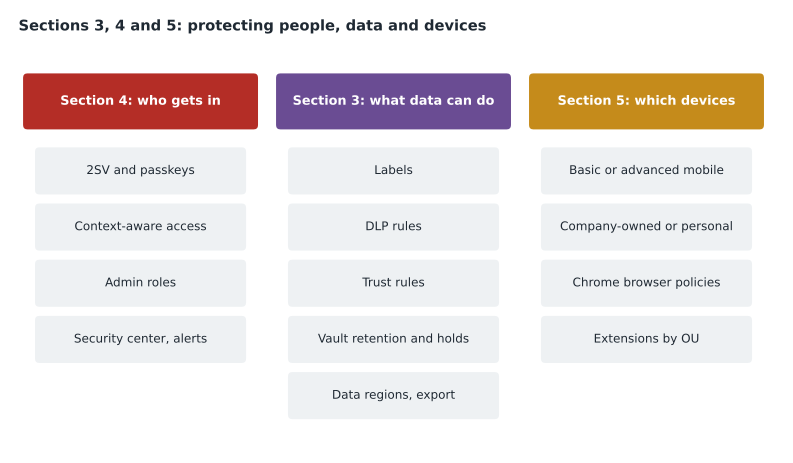
This review covers three sections of the guide together, because they protect the same things from different directions. Section 4, security policies and access controls, decides who gets in and what administrators can do (about 20 in 100). Section 3, data governance and compliance, decides what data can do once people are in (about 15 in 100). Section 5, browsers and endpoints, decides which devices and browsers can be trusted (about 10 in 100). Together they are worth about 45 in every 100 questions, so this is the longest review lesson.
Section 4: securing user access
Objective 4.1 covers password rules and 2-step verification, recovery options, the methods users can choose, context-aware access, applying policies to users and groups, admin roles, and Google session control. GCP-212 covered most of it in depth; the exam points are summarized here.
| Topic | Exam points |
|---|---|
| Passwords | Minimum and maximum length, strength enforcement, reuse, expiry (Google does not recommend forced periodic changes for most users), and requiring a change at next sign-in after a reset |
| 2-step verification | Allow users to enroll, then enforce by OU or group with an enrollment period; a new user enrollment period for new accounts; methods from text codes up to security keys and passkeys; security keys only for administrators |
| Recovery | Users can set recovery phone and email; super admins have their own recovery options; administrators can generate backup verification codes for a locked-out user |
| Context-aware access | Access levels built from IP address, country, and device attributes, assigned to apps by OU or group; a request is allowed if it meets any one assigned level |
| Admin roles | Prebuilt roles such as Groups Admin, User Management Admin and Help Desk Admin; custom roles built from privileges; roles can be scoped to an OU |
| Google session control | How long users stay signed in before reauthenticating, set per OU |
The 2SV questions usually test the rollout: you cannot enforce 2SV the same day you turn it on for people who have not enrolled, or they are locked out. The safe pattern is to let users enroll, give an enrollment period, enforce on a date, and give new users a short window before enforcement applies to them. The passkey questions test a subtle point: allowing users to skip passwords at sign-in with a passkey does not remove their passwords, and enrolling a passkey does not by itself turn on 2SV for that user.
Admin role questions test least privilege. A help desk that only needs to reset passwords for store staff gets a role with only that privilege, scoped to the Stores OU, not super admin. At Birchline, the regional coordinators have a custom role scoped to their region's store OUs. Owen remembers the guard rails too: keep at least two super admins, keep super admin accounts separate from daily accounts, and require security keys for them.
Section 4: reporting, auditing and investigating
Objective 4.2 lists audit and investigation tools, the security center, the security health page, and activity rules and alerts. The point the exam tests most is which tool does which job.
| Tool | What it does | Typical question |
|---|---|---|
| Audit and investigation (Reporting) | Searchable logs of admin actions, sign-ins, Drive, Gmail and other services | "Who changed this setting?" or "Who shared this file outside?" |
| Alert center | A list of alerts from Google and from rules, with assignment and status | "Where are suspicious sign-in alerts reviewed?" |
| Activity rules | Rules that create alerts or take action when log events match conditions | "Alert security when more than 50 files are shared outside in an hour" |
| Security dashboard | Charts of security activity, on editions with the security center | "How many phishing messages were received this month?" |
| Security health page | Settings compared with recommendations, with links to fix them | "Which settings are weaker than Google recommends?" |
| Security investigation tool | Investigates and acts on data, such as deleting a phishing message from every mailbox, on editions that include it | "Remove a malicious message from all inboxes" |
Edition matters here, and Owen marks it as the clue to watch. The security center and the investigation tool are not in every edition; audit and investigation logs and the alert center are much more widely available. A question set in a Business Starter organization cannot have the investigation tool as its answer.
Section 4: third-party and additional apps
Objective 4.3 covers the Marketplace allowlist, deploying and restricting Marketplace apps and Play Store apps, single sign-on for third-party apps, access to additional Google services such as YouTube or AdSense for selected users, and removing connected apps and sites. From GCP-211, the key ideas are: an allowlist lets administrators permit only approved Marketplace apps; API controls decide which third-party apps can access Workspace data and whether unconfigured apps are allowed; SAML apps let users sign in to services like a payroll system with their Google account; and additional Google services such as YouTube or Blogger are turned on separately per OU, because they are not core Workspace services.
Section 3: Vault
Objective 3.1 covers Vault for eDiscovery and retention: archive licenses, retention rules by date or content, holds, search and export, export location, and audit reports. The points from GCP-212 that the exam tests most often are these. Vault keeps nothing until a retention rule or a hold exists. Holds override retention rules, custom rules override the default rule for the data they cover, and the longest applicable custom rule usually wins. Exports are available for download for a limited time, 15 days in Google's documentation. Vault actions, including searches and exports, are themselves audited, so access to Vault should be limited to a few people with custom Vault roles.
The Archived User license links section 3 to section 1: a departed employee's data can be kept, and held, without paying for a full license.
Section 3: DLP, trust rules and labels
| Control | What it decides | Exam clue |
|---|---|---|
| DLP rules | What happens when content matching detectors, word lists, regular expressions or labels is shared or sent: audit, warn or block | "Stop card numbers being shared outside" |
| Trust rules | Who can share Drive files with whom, by OU, group, domain or user | "Finance may share only with the auditor's domain" |
| Labels | Metadata on Drive files or Gmail messages: applied by users, by default, by DLP rules or by AI classification | "Mark confidential files so DLP can act on them" |
DLP covers Drive, Gmail and Chat, with different capabilities in each. Rules should start in audit mode, move to warn and then to block once false positives are understood; when two rules match, the stricter action wins. Notifications to users can be customized, which matters for questions about explaining a block. Trust rules are newer than the older external sharing settings and give finer control: allow or block sharing between specific OUs, groups, domains or users. Labels connect the two, because a DLP rule can act on a label, and a label can be applied automatically by a DLP rule or by AI classification where available.
Section 3: storing and exporting data
Objective 3.4 covers Google Takeout settings, the Data Export tool, data regions and legal and compliance settings. Google Takeout lets individual users download their own data; administrators can turn it on or off per OU and per service. The Data Export tool lets a super admin export the whole organization's data, for example when leaving Workspace, and has its own requirements and limits. Data regions let some editions store covered data at rest in the United States or Europe, or with no preference; there is no option for other countries.
That last point is simple for Birchline in the US: GCP-212 set its data region to the United States for the editions that support it.
Section 5: mobile devices
Objective 5.1 covers choosing basic, advanced or third-party mobile management, security policies under basic management, company-owned and personal devices, and offboarding devices. Basic management needs no agent and enforces simple rules such as a screen lock; advanced management uses device policies, work profiles on Android, and the ability to wipe a company-owned device or only the work account on a personal one. The exam's favorite question is what to do with a lost device: block and sign out first if it may be found, wipe the account on a personal phone, wipe the whole device if it is company-owned.
Section 5: Chrome browser management
Objective 5.2 is the gap Owen identified in lesson 1. It covers browser policies such as offline access and updates, enrolling browsers, and allowing, blocking or force-installing extensions by OU or group. Sofia takes him through the essentials.
| Concept | What it means | Exam points |
|---|---|---|
| Managed browser | A Chrome browser enrolled in the organization's Admin console with an enrollment token, so policies apply to the browser on that computer, whoever signs in | Enroll with a token deployed by the device management tool; the browser appears in the Admin console and policies apply by the OU the browser is in |
| Managed profile | A Chrome profile signed in with a Workspace account, so user policies follow the person to any computer | User policies apply to the person's OU; useful on personal computers |
| Browser policies | Settings such as update behavior, safe browsing, password manager, downloads and offline use | Set per OU or group; the policy source (cloud, platform) can matter when they conflict |
| Extensions | Allow, block or force-install extensions, or allow only approved ones | Block all and allowlist approved extensions for high-risk OUs; force-install required ones such as a company password manager |
| Reports | Browser versions, installed extensions and policies in effect | Find browsers that are out of date or have risky extensions |
The distinction between a managed browser and a managed profile is the one Owen expects to be tested. Machine-level enrollment makes policies follow the computer: a shared store computer at Birchline would be enrolled so that every person who uses it gets the same safe settings. User-level management through sign-in makes policies follow the person. Google's name for the free browser management service has changed over the years; in GCP-210 it appeared as Chrome Enterprise Core. Owen writes himself a note to check the current name and the policy list in the documentation.
For extensions, Sofia states a rule of thumb: in organizations with sensitive data, block all extensions by default and allow only those on an approved list, and force-install the few that everyone must have. A question that describes a data leak through a browser extension usually expects that pattern, applied by OU so that, for example, developers can have a wider list than store staff.
Owen's unsure list for sections 3 to 5
- Exact differences between trust rules and the older external sharing settings, and which wins if both are set.
- Which labels can be applied by AI classification, and in which editions.
- The Data Export tool's requirements and what it exports compared with Takeout.
- How Chrome browser enrollment tokens are deployed on Windows and macOS, and how browsers are moved between OUs.
- Which editions include the security center, the investigation tool and context-aware access.
- How to give YouTube access to some users only, and what the YouTube settings for the organization control.
Worked problem
A cross-section scenario
A company's security team finds that an employee installed a browser extension that copied pages from internal web apps to an outside server. The team wants to stop this for everyone except developers, who need several approved extensions. What should the administrator do?
Show solution
- This is a browser endpoint problem (section 5), not a DLP or sharing problem.
- Confirm browsers are managed, by enrollment or managed profiles, so that policies apply.
- For the top-level OU, block all extensions except an approved list, and force-install any required ones.
- For the developers' OU or a configuration group, allow the wider approved list.
- Use the browser reports to find computers where the extension is still installed, and confirm it is removed.
Answer: Block extensions by default with an approved list, give developers a wider list by OU or group, and verify with browser reports.
Common mistakes
MistakeEnforcing 2SV the day it is turned on.
InsteadAllow enrollment first, set an enrollment period, enforce on a date, and give new users a window.
MistakeGiving the help desk super admin rights to reset passwords.
InsteadAssign a narrow role with only the needed privilege, scoped to the right OU.
MistakeChoosing the investigation tool in a scenario set in an edition that lacks it.
InsteadCheck the edition clue; logs and the alert center are more widely available.
MistakeAssuming Vault keeps deleted data by default.
InsteadVault keeps nothing until retention rules or holds exist.
MistakeConfusing a managed browser with a managed profile.
InsteadEnrollment makes policies follow the computer; sign-in makes them follow the person.
Summary and key terms
- Sections 3, 4 and 5 together are about 45 in every 100 questions.
- Section 4 covers passwords, 2SV rollout, passkeys, recovery, context-aware access, admin roles, session control, the audit tools and security center, and third-party and additional apps.
- Section 3 covers Vault, DLP, trust rules, labels, Takeout, the Data Export tool and data regions, which offer only the United States or Europe.
- Section 5 covers basic and advanced mobile management and Chrome browser management.
- Edition clues decide many questions.
- Managed browsers carry policies by computer, managed profiles by person.
- Block extensions by default and allow an approved list where data is sensitive.
- Enrollment period
- The time users have to set up 2SV before enforcement applies.
- Custom admin role
- A role built from selected privileges, often scoped to an OU.
- Activity rule
- A rule that creates an alert or takes action when log events match conditions.
- Trust rule
- A rule that allows or blocks Drive sharing between specific OUs, groups, domains or users.
- Data Export tool
- A super admin tool to export the whole organization's data.
- Google Takeout
- A tool for users to download their own data, controlled by administrators.
- Managed browser
- A Chrome browser enrolled with a token so that policies apply on that computer.
- Managed profile
- A Chrome profile signed in with a Workspace account so that user policies follow the person.
Practice problems
Work each problem on paper first, then reveal the answer to check.
Which three sections does this lesson review, and what share of the exam do they cover together?
Show answer
Sections 3, 4 and 5, about 45 in every 100 questions.
What is the difference between Google Takeout and the Data Export tool?
Show answer
Takeout lets users download their own data; the Data Export tool lets a super admin export the whole organization's data.
Why might a shared store computer be enrolled as a managed browser?
Show answer
So the same policies apply to everyone who uses that computer.
Lesson quiz · 5 questions
Score 60% or more to complete this lesson.
Create a free account to save your progress, take quizzes and earn a certificate.