
COMP-110 · Lesson 9 of 12 · 23 min
Installing and managing applications
▶ Video coming soon A video version of this lesson is on the way.
Every Monday Lorna reviews the software request queue, and this week it is a good sample of what arrives. The makerspace wants a free 3D modeling program on its lab computers. The communications office wants a subscription design suite for two more staff. Marcus Bell, the data analyst, wants a statistics package that the vendor licenses per user. A branch manager asks whether staff can install a free PDF editor they found online. And the teen tech volunteers want an AI writing assistant on the public computers. Each request raises the same questions: what kind of software is it, where does it come from, how is it licensed, how will it be installed and kept up to date, and is it safe? Tech+ covers this as the purpose and proper use of software, and Lorna asks Noor to draft an answer to each request using a short checklist.
Kinds of application software
Applications are programs that do the jobs users want done, as distinct from the operating system and utilities that keep the computer running. Productivity software includes word processors, spreadsheets, presentation programs and note-taking apps, usually sold together as suites such as Microsoft 365, Google Workspace or LibreOffice. Collaboration software lets people work together: email, calendars, video conferencing, chat and shared document editing. Business software covers jobs specific to an organization, such as accounting, payroll, customer relationship management and, at the library, the integrated library system that runs circulation and the catalog. Specialized software serves particular professions: design, video editing, computer-aided design, statistics, programming. Utility software maintains the computer: antivirus, backup, compression and disk tools.
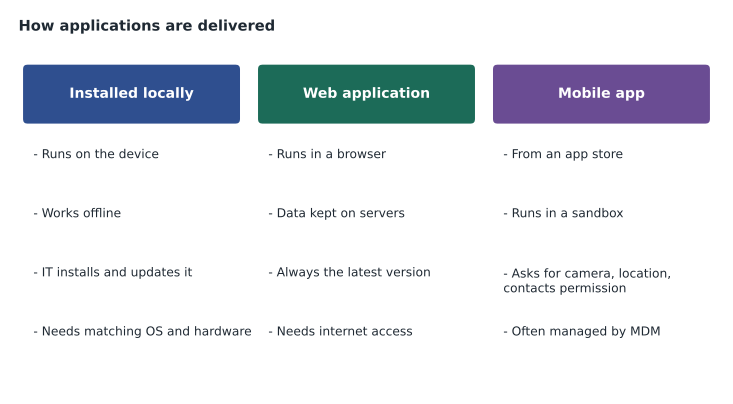
Applications are also described by how they are delivered. Locally installed applications run on the computer's own processor from files on its drive, and can usually work offline. Web applications run in a browser and keep their data on servers, so there is nothing to install and the latest version is always in use; most of the library's staff tools are web applications. Mobile apps are installed from an app store on a phone or tablet. Many modern products are offered as software as a service, or SaaS, which means they are web or cloud applications paid for by subscription; Microsoft 365, for example, offers both web versions and installed desktop versions under one subscription. Lesson 10 explains SaaS alongside the other cloud models.
Software licensing
Buying software almost never means owning it. What you buy is a license, a legal agreement that sets out how the software may be used. Most installers show the end-user license agreement, or EULA, before installation, and clicking Agree binds the organization to its terms. Licenses differ in several ways that a support technician must understand, because installing software outside its license can expose the organization to audits and fines.
| License type | What it means | Example situation |
|---|---|---|
| Proprietary (commercial) | The publisher keeps the source code and sets the terms | A design suite paid for by the library |
| Open source | The source code is published and may be studied, changed and shared under the license terms | A free 3D modeling program |
| Freeware | Free to use but not open source | A free PDF reader |
| Shareware or trial | Free for a limited time or with limited features | A 30-day trial of a video editor |
| Subscription | Paid regularly; stops working if not renewed | Monthly or yearly SaaS plans |
| Perpetual | Paid once for a version that can be used indefinitely | An older one-time purchase of office software |
Licenses also differ in who and what they cover. A single-user or per-seat license covers one person or one computer. A concurrent license allows a set number of people to use the software at the same time, whoever they are. A site license covers every computer at a location, and a volume or enterprise agreement covers a whole organization at a discount. Education and nonprofit licenses offer lower prices to eligible organizations, and the library qualifies for several. Open-source licenses come in two broad kinds: permissive licenses, which let you reuse the code in almost any way, and copyleft licenses, which require changed versions that are distributed to be shared under the same terms. Either way, the license is what decides what is allowed, not whether the software was free to download.
Many products also need a product key or activation, which links the license to a computer or an account so the publisher can check that it is being used within its terms. Organizations keep a software inventory, a record of what is installed where and under which license, so that they can prove compliance and avoid paying for licenses nobody uses. Marcus's statistics package, licensed per user, can be assigned to his account and moved to a colleague if he leaves, but it cannot be installed on every lab computer.
Before installing: requirements and sources
Before installing an application, check its system requirements: the operating system and version, processor architecture, minimum RAM, free storage space, graphics needs and any other software it depends on. A program built for Windows will not install on macOS, and one that needs a dedicated graphics card will run poorly or not at all on integrated graphics. Many publishers list minimum requirements, which let the software start, and recommended requirements, which let it run well. Always aim for the recommended figures on computers that will be used all day.
Just as important is where the software comes from. Trusted sources are the publisher's official website, the operating system's app store, the organization's own software portal and well-known package managers on Linux and Windows. Untrusted sources include search adverts that imitate real download pages, file-sharing sites, and installers sent by email or chat. Fake installers are one of the most common ways malware reaches computers, and they often look exactly like the real thing. Installers from trusted publishers are digitally signed, and operating systems warn when an installer is unsigned or comes from an unknown publisher. The branch manager's free PDF editor turns out to come from an advertising site that bundles extra programs with the download; Noor recommends the library's approved PDF tool instead.
Installing, updating and removing
On organization computers, installing software usually needs administrator rights, which ordinary staff accounts do not have. This is deliberate: it stops users from installing unapproved or malicious programs, and lesson 12 explains why everyday work should never be done with an administrator account. The library installs approved software in three ways. Standard applications are pushed to computers automatically by a management system. Optional applications are offered in a self-service company portal where staff can install them without admin rights. Anything else needs a ticket and approval. On Linux, software is usually installed from the distribution's repositories with a package manager, and Windows has a similar command-line package manager.
winget search "3D printing"
winget install --id Example.Modeler
winget upgrade --allsudo apt update
sudo apt install inkscape
sudo apt upgradeAfter installation, software must be kept up to date. Updates and patches fix security weaknesses and bugs; version upgrades add features and sometimes change how the software works or what it requires. Most applications can update themselves, but organizations often control the timing so that a broken update can be stopped before it reaches every computer. Version numbers usually follow a pattern of major, minor and patch numbers, such as 4.2.7, where a change in the first number signals a large change that may break compatibility. When software is no longer needed, it should be uninstalled properly through the operating system's apps settings or the package manager, rather than by deleting its folder, which leaves behind settings and background services.
Try it yourself
Is an update available?
Software versions such as 4.10.2 have three numbers: major, minor and patch. Write is_newer(available, installed) that returns True if the available version is newer than the installed one. Compare the numbers as integers, not as text, because 4.10 is newer than 4.9.
def is_newer(available, installed):
    return available > installed
Compatibility and troubleshooting applications
When an application fails, the cause is usually one of a small number of things. It may not meet the requirements of the computer or operating system, especially after an operating system upgrade. A recent update may have introduced a bug, in which case rolling back to the previous version or waiting for a fix may help. Its settings or cache may be corrupted, and resetting or repairing the app from the operating system's settings, or clearing its cache, often fixes that. Another program may conflict with it, such as a security tool blocking it. Or the user may lack permission to a file or folder it needs. Error messages, even cryptic ones, are worth copying exactly into the ticket, because searching for the exact message often leads straight to the publisher's fix.
Applications that use artificial intelligence
Tech+ includes a newer objective about the common uses of artificial intelligence, and many applications now include AI features. Generative AI tools, such as chat assistants and writing assistants, produce text, images or code in response to prompts. Other AI features are less visible: speech recognition for dictation and captions, translation, image recognition in photo apps, recommendation systems that suggest books based on borrowing history, spam filters, and fraud detection. AI features can save time, but they also raise questions a technician should ask before deploying them: where does the data typed into the tool go, does the provider use it to train its models, can the output be wrong in convincing ways, and does it meet the organization's privacy obligations under state privacy laws and the library's records policy?
The teen volunteers' request for an AI writing assistant on the public computers goes to Hana Petrovic, the security and accounts lead, who reviews the provider's privacy terms. Lorna's draft answer is cautious but not a refusal: an approved assistant can be offered through the browser with a notice reminding patrons not to enter personal information, and staff will remind users that AI tools can produce confident but wrong answers that need checking against reliable sources.
Keeping track of software
Lorna keeps the software inventory in a shared spreadsheet that records each approved program, its version, its license type and count, who owns the license, which computers or accounts it is assigned to, its renewal date and the person to contact at the vendor. When a request comes in, the first question is whether the program is already approved; if it is, Noor can deploy it the same day. The inventory also protects the budget: before each renewal, Marcus pulls usage figures from the management system, and licenses that nobody has used in six months are canceled or reassigned instead of renewed automatically.
Worked problem
Working through the request queue
Use the checklist (type, source, license, installation, updates, safety) to answer two requests: the free 3D modeling program for the makerspace, and the free PDF editor the branch manager found.
Show solution
- 3D modeling program: open-source specialized software from the project's official website; its license permits installation on every lab computer; it needs a dedicated graphics card, which the makerspace computers have; it can be packaged and pushed by the management system and updated quarterly. Approve.
- PDF editor: freeware from an advertising download site that bundles other programs; its license forbids commercial use, which may include library staff; it would need admin rights on each computer. Decline, and offer the library's approved PDF tool from the company portal instead.
- Record both decisions in the software inventory so the next request for the same program is answered immediately.
Answer: Approve the open-source 3D program and deploy it centrally; decline the bundled PDF editor and point staff to the approved tool.
Common mistakes
MistakeAssuming free to download means free to use anywhere.
InsteadRead the license; some freeware forbids commercial or organizational use.
MistakeInstalling from a search advert.
InsteadUse the publisher's site, an app store, the company portal or a package manager.
MistakeChecking only minimum requirements.
InsteadAim for recommended requirements on computers used all day.
MistakeDeleting a program's folder to remove it.
InsteadUninstall through the OS or package manager to remove services and settings.
MistakeTrusting AI output without checking.
InsteadAI tools can be confidently wrong; verify important answers.
Summary and key terms
- Applications include productivity, collaboration, business, specialized and utility software.
- Software is delivered as installed apps, web apps, mobile apps or SaaS subscriptions.
- A license sets how software may be used; types include proprietary, open source, freeware, trial, subscription and perpetual.
- Check system requirements and use trusted, signed sources before installing.
- Organizations control installation with admin rights, management systems and self-service portals.
- Keep software updated, uninstall it properly, and record it in a software inventory.
- AI features are now common; check data handling, accuracy and privacy before deploying them.
- Application
- A program that does a job for the user.
- SaaS
- Software as a service: an application delivered over the internet by subscription.
- License
- A legal agreement setting out how software may be used.
- EULA
- The end-user license agreement shown before installation.
- Open source
- Software whose source code is published under a license allowing study, change and sharing.
- Package manager
- A tool that installs and updates software from trusted repositories.
- Patch
- An update that fixes a bug or security weakness.
Practice problems
Work each problem on paper first, then reveal the answer to check.
What is the difference between a web application and an installed application?
Show answer
A web app runs in a browser with data on servers; an installed app runs from files on the device.
Name three things to check in system requirements.
Show answer
Operating system and version, RAM, storage space; also processor architecture and graphics.
What does a concurrent license allow?
Show answer
A set number of people to use the software at the same time.
Why do organizations remove admin rights from staff accounts?
Show answer
To stop unapproved or malicious software being installed.
Which is newer: version 2.10.1 or 2.9.8?
Show answer
2.10.1.
Name two AI features found in everyday applications.
Show answer
Speech recognition, translation, recommendations, spam filtering or chat assistants.
A program fails after an update. Name two possible fixes.
Show answer
Roll back to the previous version, or repair or reset the app; also wait for a fixed update.
Lesson quiz · 5 questions
Score 60% or more to complete this lesson.
Create a free account to save your progress, take quizzes and earn a certificate.