
COMP-110 · Lesson 7 of 12 · 23 min
Wireless and home networks
▶ Video coming soon A video version of this lesson is on the way.
Two kinds of wireless ticket reach the help desk. The first comes from the branches: patrons say the public Wi-Fi is slow in the reading room, drops out in the children's area, or asks them to log in again and again. The second comes from the lending program: a patron borrows one of the library's 90 mobile hotspots or one of its 180 laptops, takes it home, and calls because it will not connect to their own home Wi-Fi or because their teenager cannot get online. Lorna wants Noor comfortable with both, because Tech+ asks candidates to explain the basic capabilities of a small wireless network: the kind found in homes, small offices and the library's smaller branches. The same principles scale up to the central library's dozens of access points, but a home network is the place to learn them.
What Wi-Fi is
Wi-Fi is the common name for wireless local area networking based on the IEEE 802.11 family of standards. A wireless access point, or the wireless part of a home router, broadcasts a network that devices can join by radio instead of by cable. Each network has a name, called the SSID or service set identifier, that appears in the list of available networks. Devices that join the network exchange data with the access point, which forwards it to the wired network and the internet. Wi-Fi is shared: every device connected to an access point takes turns using the same radio channel, so the more devices are busy at once, the less of the channel each one gets.
The 802.11 standards have been released in generations, and the Wi-Fi Alliance now gives them simple names. Wi-Fi 4 (802.11n) was common in the 2010s. Wi-Fi 5 (802.11ac) improved speed on the 5 GHz band. Wi-Fi 6 (802.11ax) improved efficiency when many devices share a network, which is exactly the situation in a busy library. Wi-Fi 6E extended Wi-Fi 6 into the new 6 GHz band, and Wi-Fi 7 (802.11be) adds wider channels and the ability to use several bands at once. Newer access points work with older devices, but an older device connects at its own generation's speed. The headline speeds printed on router boxes are theoretical maximums under ideal conditions; real speeds are much lower and are shared among all connected devices.
Bands, range and interference
Wi-Fi uses three radio bands. The 2.4 GHz band travels farthest and passes through walls best, but it has only three non-overlapping channels in most countries and is crowded with neighbors' networks, Bluetooth devices, cordless phones and microwave ovens, so it is often slow. The 5 GHz band offers many more channels and much higher speeds, but its signal fades faster and is blocked more by walls and floors. The 6 GHz band, available to Wi-Fi 6E and Wi-Fi 7 devices, has the most room and the least interference but the shortest range. Many routers broadcast on two or three bands at once and use band steering to move capable devices to the faster band automatically.
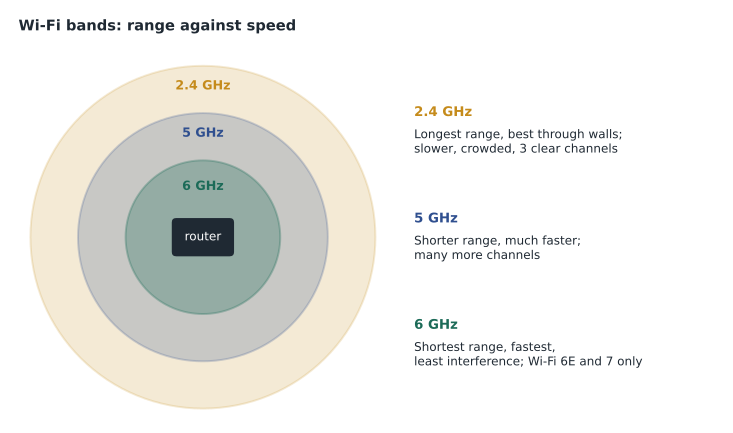
Range and speed are reduced by distance, by obstacles and by interference. Concrete and brick walls, metal shelving, mirrors, elevator shafts, aquariums and even large crowds of people absorb or reflect Wi-Fi signals. Neighboring networks on the same channel compete for airtime. In the library, the reading room's problem turns out to be steel shelving between the access point and the tables; Dez moves the access point to the ceiling above the tables. A home that has dead spots can add a mesh system: several units placed around the home that work together as one network with one SSID, passing traffic between themselves and handing devices from one unit to the next as people move around. Wi-Fi extenders, or repeaters, are cheaper but often halve the speed because they must receive and retransmit on the same radio.
Setting up a small wireless network
Most home and small-office routers are set up through a web page or a phone app. Tech+ expects you to know the basic steps and why each matters. First, connect the router to the internet provider's modem or fiber terminal and to power. Second, sign in to the router's administration page or app with the default credentials printed on its label, and immediately change the administrator password to a strong, unique one; default passwords are published online and are a common way attackers take over routers. Third, update the router's firmware, because updates fix security weaknesses. Fourth, set the SSID and the Wi-Fi password, choosing the strongest security mode that all devices support. Fifth, check the DHCP settings, which hand out addresses to devices, and consider reserving addresses for printers. Finally, turn off features that are not needed, such as remote administration from the internet and WPS, a push-button pairing feature that has had security weaknesses.
| Setting | Recommended choice | Why |
|---|---|---|
| Administrator password | Change from the default to a strong, unique one | Default passwords are widely published |
| Firmware | Update now and enable automatic updates | Updates fix security weaknesses |
| Security mode | WPA3, or WPA2/WPA3 mixed if older devices need it | Encrypts traffic and protects the password |
| Wi-Fi password | A long passphrase, not the label default | Resists guessing |
| Guest network | On, for visitors and smart devices | Keeps them away from personal computers |
| WPS and remote administration | Off unless needed | Reduce ways in for attackers |
Wireless security
Because radio signals pass through walls, anyone nearby can try to join or listen to a Wi-Fi network. Wireless security protocols encrypt the traffic and control who can join. WEP, the original method, and the first version of WPA are long broken and must not be used. WPA2 with AES encryption is still widely used and acceptable with a strong passphrase. WPA3 is the current standard; it protects better against password-guessing attacks and adds stronger encryption, and it is required for 6 GHz Wi-Fi. Home and small-office networks use the personal mode, where everyone shares one passphrase. Organizations use the enterprise mode, where each person signs in with their own account through a central authentication server, so that a departing employee's access can be removed without changing everyone's password.
An open network with no password, like many café networks, does not encrypt traffic over the air at all. Users of open networks should rely on encrypted websites and apps, which show HTTPS, and organizations may add a VPN for staff. Fairhaven's public Wi-Fi uses a captive portal: a web page that appears when a device first connects and asks the patron to accept the acceptable use policy before granting access. A patron who says the Wi-Fi "keeps asking them to log in" usually has a device that is renewing its connection and showing the portal again, or a browser that blocks the portal page; opening any plain website usually brings the portal back.
Guest networks and smart devices
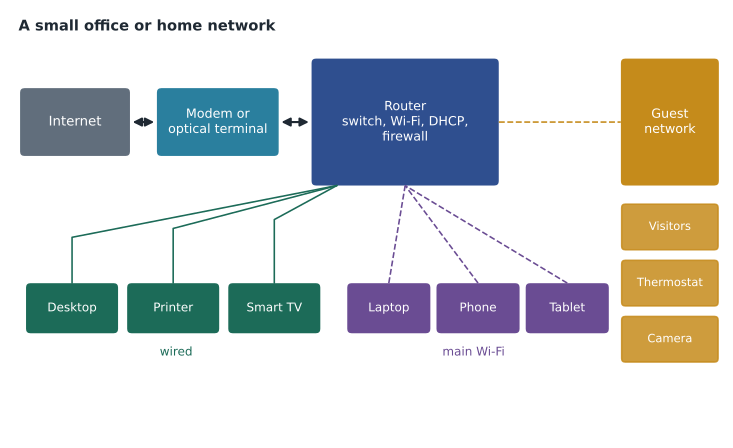
Most routers can run a guest network: a second SSID that gives internet access but keeps its devices away from the main network's computers, printers and shared files. Guest networks are useful for visitors, and they are also a sensible home for smart devices such as televisions, speakers, cameras and thermostats, which are often less carefully secured than computers and phones. The library applies the same idea on a larger scale: the public Wi-Fi, the staff network, the kiosks and the makerspace devices are kept on separate networks so that a problem on one cannot spread easily to another.
Mobile hotspots and tethering
A mobile hotspot is a small device that connects to a cellular network and shares the connection over Wi-Fi. Fairhaven lends them to patrons without home internet, and the bookmobile uses a larger cellular router. Phones can do the same job through tethering, sharing their mobile data with nearby devices over Wi-Fi, Bluetooth or USB. Hotspots are simple to use, but their speed depends on the cellular signal where the patron lives, they may slow down after a monthly data allowance is used, and their battery limits how long they run unplugged. Most hotspot tickets are about signal and placement: a hotspot placed near a window on an upper floor often performs far better than one in a basement.
Channels and congestion
Each band is divided into channels, and two nearby networks on the same or overlapping channels slow each other down. On 2.4 GHz only channels 1, 6 and 11 do not overlap in most of North America, so a well-run network uses only those three. The 5 GHz and 6 GHz bands have many more channels and allow wider channels that carry more data, though wider channels are more likely to meet interference. Most routers choose channels automatically, and that works well in most homes. In an apartment building where dozens of networks compete, a Wi-Fi analyzer app on a phone can show which channels are crowded, and moving to a quieter channel or to the 5 GHz band often makes a dramatic difference. At the library, Dez plans channels for every access point so that neighboring access points never share a channel.
Interference also comes from devices that are not Wi-Fi at all. Microwave ovens leak energy in the 2.4 GHz band when they run, which is why a laptop in the staff kitchen may slow down at lunchtime. Some cordless phones, baby monitors, wireless video senders and older Bluetooth devices share the same band. When users report Wi-Fi that drops at particular times of day, ask what else is switched on at those times.
Placing a router or access point
Where the router sits matters as much as which router it is. The best place is central, high up and in the open: on a shelf in the middle of the home rather than on the floor of a closet at one end, and away from thick walls, metal cabinets, televisions and fish tanks. Antennas, where they can be moved, work best pointed in different directions, such as one upright and one sideways. Routers provided by internet companies are often installed wherever the cable enters the building, which is rarely the best spot, so a longer network cable to a better position can be the cheapest coverage fix of all. In offices, access points are mounted on ceilings for the same reason: a clear, high view of the room.
Worked problem
A borrowed laptop will not join a home network
A patron borrows a library laptop. At home it shows her network name but says it cannot connect, although her phone works on the same network. What should Noor check over the phone?
Show solution
- Confirm she is choosing the right SSID; homes with dual-band routers may show two similar names, or a neighbor's network may look alike.
- Ask her to retype the Wi-Fi password carefully, checking capital letters; passwords are case-sensitive, and the phone may have saved it long ago.
- If the password is right, ask what security mode the router uses: a very old router using WEP or the original WPA will be refused by up-to-date laptops for safety reasons.
- As a fallback, the patron can borrow a library hotspot, which the laptop already trusts.
Answer: Check the network name, then the password and its capital letters, then whether the home router uses an obsolete security mode that the laptop refuses.
The patron had been typing the password with a lowercase first letter. When she reads it from the label on the router, the laptop connects at once. Noor adds the case to the lending program's phone script, along with a suggestion that patrons keep their router's label photographed in case they forget the passphrase. Lorna suggests one more line for the script: if a patron's router still has its default administrator password, gently recommend changing it, because a router taken over by an attacker can watch everything the household does online.
Signs of a healthy small network
A small network is healthy when every device gets an address automatically, the router's firmware is current, the administrator and Wi-Fi passwords are strong and not the defaults, the strongest common security mode is in use, guests and smart devices are kept apart, and coverage reaches the rooms where people actually work. Checking those six points takes ten minutes and prevents most home and small-office wireless problems before they start.
Common mistakes
MistakeLeaving the router's default administrator password.
InsteadChange it at setup; default passwords are published online.
MistakeUsing WEP or the original WPA.
InsteadUse WPA3, or WPA2 with AES where older devices need it.
MistakeBelieving the speed on the router box.
InsteadHeadline speeds are theoretical and shared among all devices.
MistakePutting smart TVs and cameras on the main network.
InsteadUse a guest or separate network for them.
MistakeAdding an extender for every dead spot.
InsteadExtenders often halve speed; a mesh system or better placement may work better.
Summary and key terms
- Wi-Fi follows the 802.11 standards; Wi-Fi 6, 6E and 7 handle many devices better than older generations.
- 2.4 GHz reaches farther but is crowded; 5 GHz and 6 GHz are faster with shorter range.
- Distance, walls, metal and neighboring networks reduce Wi-Fi performance; mesh systems improve coverage.
- Set up a router by changing the admin password, updating firmware, setting the SSID and security, and turning off unneeded features.
- Use WPA3 or WPA2 with AES; never WEP; enterprise mode gives each person their own sign-in.
- Guest networks keep visitors and smart devices away from personal computers.
- Hotspots and tethering share cellular data; signal and data limits decide their performance.
- SSID
- The name of a Wi-Fi network.
- Access point
- A device that connects Wi-Fi devices to a wired network.
- WPA3
- The current Wi-Fi security standard.
- Mesh network
- Several Wi-Fi units working together as one network.
- Guest network
- A separate Wi-Fi network with internet access but no access to the main network.
- Captive portal
- A web page that must be accepted before a public network grants access.
- Tethering
- Sharing a phone's mobile data with other devices.
Practice problems
Work each problem on paper first, then reveal the answer to check.
Which Wi-Fi band has the longest range?
Show answer
2.4 GHz.
Name two things to change immediately on a new home router.
Show answer
The administrator password and the firmware version; also set the Wi-Fi security and passphrase.
Which wireless security mode should never be used?
Show answer
WEP.
Why put smart cameras on a guest network?
Show answer
To keep less carefully secured devices away from personal computers and files.
What is a captive portal?
Show answer
A page that must be accepted before a public network grants access.
Why might a Wi-Fi extender make a connection slower?
Show answer
It must receive and retransmit on the same radio, often halving speed.
A hotspot works poorly in a basement. What is the first suggestion?
Show answer
Move it near a window on a higher floor for better cellular signal.
Lesson quiz · 5 questions
Score 60% or more to complete this lesson.
Create a free account to save your progress, take quizzes and earn a certificate.