
COMP-110 · Lesson 4 of 12 · 23 min
Peripherals and connection types
▶ Video coming soon A video version of this lesson is on the way.
Monday mornings bring a cluster of tickets that Lorna calls "cable and driver day." Over the weekend patrons unplug things, staff move monitors between desks, and someone always tries a new gadget. This Monday Noor has five: the genealogy room's second monitor shows nothing, a webcam in the job-search room is not recognized, the makerspace wants a new 3D printer connected to its lab computer, the children's librarian cannot hear audio from her laptop in a meeting room, and a print-release station has stopped printing. None of these needs a new computer. Every one is about a peripheral, a device connected to the computer to add input or output, and about the connection between them. Tech+ asks you to install and configure common peripherals and to compare the interfaces they use, and this lesson covers both.
What counts as a peripheral
A peripheral is any device outside the main computer that adds input, output or storage. Input peripherals include keyboards, mice, touchpads, drawing tablets, barcode scanners, card readers, webcams, microphones and document scanners. Output peripherals include monitors, projectors, printers, speakers and headphones. Some peripherals do both: a touchscreen monitor accepts touch input and shows output, a headset has a microphone and speakers, and a multifunction printer prints, scans and copies. External drives and USB flash drives are storage peripherals. In a library, peripherals are where most of the wear happens, because patrons handle them all day.
USB
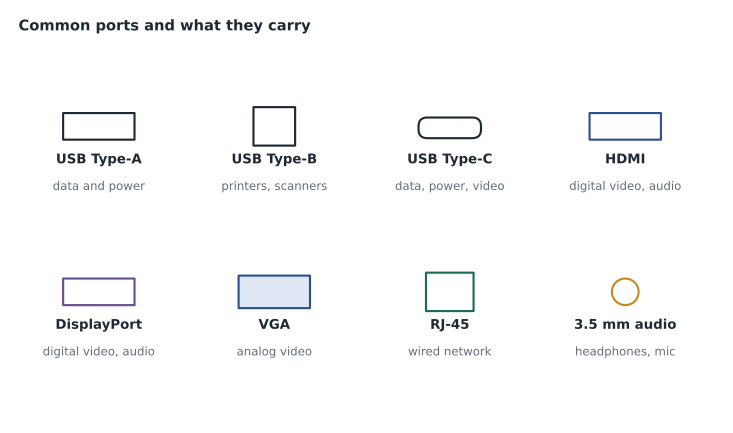
Universal Serial Bus, or USB, is the most common way to connect peripherals. It carries data and power over one cable, supports hot-plugging (connecting and disconnecting while the computer is running), and lets the computer identify the device automatically. USB has two things that are often confused: the connector, which is the physical shape of the plug, and the version, which decides the speed. Older connectors include USB Type-A, the flat rectangle found on most computers, USB Type-B, the squarer plug on many printers, and Micro-USB on older phones. USB Type-C is a small, reversible oval plug that now appears on laptops, phones and tablets and can carry data, charging power and video over the same cable.
USB versions have had confusing names over the years, but the speeds are what matter. USB 2.0 runs at up to 480 Mbps and is fine for keyboards, mice and simple printers. USB 3.x versions run at 5, 10 or 20 Gbps, depending on the version and the cable, and are needed for fast external drives and high-resolution webcams. USB4 runs at up to 40 Gbps or more and is closely related to Thunderbolt, Intel's high-speed connection that also uses the Type-C connector and can carry several displays and external storage through one port. Blue plastic inside a Type-A port often marks USB 3, and many ports show a small logo for speed or charging capability. A USB device works at the speed of the slowest part of the chain: the port, the cable or the device.
USB can also supply power. Ordinary USB ports provide enough power for a mouse or a flash drive. USB Power Delivery, mostly over Type-C, can provide enough power to charge a laptop, which is why many laptops now charge through a Type-C port. Devices that need more power than a port provides, such as some external hard disks, may need their own power adapter or a powered USB hub.
Video connections
Monitors and projectors connect through several standards. HDMI, the High-Definition Multimedia Interface, carries digital video and audio and is common on televisions, projectors and monitors. DisplayPort carries digital video and audio too, is common on business monitors and graphics cards, and can link several monitors in a chain on some setups. VGA is an old analog standard with a blue 15-pin connector; it still appears on older projectors in meeting rooms and needs an adapter for modern laptops. DVI is a digital standard between VGA and HDMI in age. USB-C ports on many laptops can carry DisplayPort video, so one cable can connect a laptop to a monitor or a docking station.
When a monitor shows nothing, work along the chain. Check the monitor is on and that its input setting matches the port in use, because many monitors have several inputs and do not switch automatically. Check both ends of the cable. Check the computer is sending a signal to that output: on Windows, press the Windows key and P to choose how to use a second screen, and open Display settings to detect monitors. Try a known good cable. Adapters, such as USB-C to HDMI, are a frequent point of failure, and an adapter that supports only lower resolutions can make a high-resolution monitor show nothing at all.
Audio connections
Audio devices connect through 3.5 mm jacks, USB or Bluetooth, or carry sound inside HDMI and DisplayPort. Many laptops have one combined headset jack for headphones and microphone. When a device produces no sound, the most common cause is that the operating system is sending sound to a different output, such as a monitor's speakers through HDMI or a Bluetooth speaker in the next room. Check the output device chosen in the sound settings, then the volume and mute controls in the operating system and in the application, then the physical connection. Noor's children's librarian turns out to have a meeting room projector selected as her output; the projector's speakers are switched off. Choosing the laptop speakers fixes it in ten seconds.
Wireless connections
Bluetooth is a short-range wireless standard for peripherals such as headphones, keyboards, mice, speakers and phones. Devices must be paired before they work together: one device is put into pairing mode, the other searches for it, and sometimes a code is confirmed on both screens. Bluetooth range is typically up to about ten meters indoors, and walls and other radio devices reduce it. Pairing problems are often solved by removing the old pairing from both devices and starting again, or by checking that the device is not already connected to another phone or computer. Near-field communication, or NFC, works over a few centimeters and is used for tap-to-pay cards, phone payments and some library card readers. Some peripherals use their own small USB radio receiver, called a dongle, instead of Bluetooth.
| Interface | Typical use | Notes |
|---|---|---|
| USB Type-A / Type-B | Keyboards, mice, printers, flash drives | USB 2.0 up to 480 Mbps; USB 3.x up to 5 to 20 Gbps |
| USB Type-C | Laptops, phones, docks, displays, charging | Reversible; can carry data, power and video |
| Thunderbolt | Docks, fast external storage, several displays | Uses the Type-C connector; very high speed |
| HDMI | Projectors, TVs, monitors | Digital video and audio |
| DisplayPort | Business monitors, graphics cards | Digital video and audio; some setups allow chaining |
| VGA | Older projectors and monitors | Analog video only; needs an adapter for modern laptops |
| Bluetooth | Headsets, keyboards, mice, speakers | Short range; devices must be paired |
| NFC | Tap-to-pay, some card readers | Works over a few centimeters |
Installing peripherals and drivers
Most modern peripherals are plug and play: the operating system detects them when they are connected and installs a suitable driver automatically. A driver is a small program that lets the operating system talk to a particular device. Basic keyboards, mice, flash drives and many webcams use generic drivers built into the operating system. Printers, scanners, drawing tablets and specialized equipment often work better with the maker's driver or app, which adds features such as double-sided printing or pressure sensitivity. The rule is to use drivers from the operating system's update service or the maker's official website, never from a random download site, because fake driver sites are a common way to spread malware.
When a device is not recognized, check the basics in order: the cable and port, power to the device if it has its own supply, and whether the device appears at all in Device Manager on Windows or System Information on macOS. A device listed with a warning symbol usually has a driver problem; updating, rolling back or reinstalling the driver often fixes it. A device that does not appear at all usually has a connection or power problem. Noor's job-search webcam does not appear anywhere; moving its plug from a loose front port to a rear port on the computer brings it straight back. She also checks the privacy settings, because Windows and macOS let users block apps from using the camera, and a blocked camera looks like a broken one.
Printers
Printers are the peripheral that generates the most help desk tickets in almost every organization. Laser printers use a laser, a drum and powdered toner fused onto paper by heat; they are fast and cheap per page for text, and they are the type used for the library's public print-release stations. Inkjet printers spray tiny drops of liquid ink; they are good for color photos but cost more per page, and their ink can dry out if unused. Thermal printers use heat-sensitive paper and no ink at all; the receipt printers on self-checkout kiosks are thermal, which is why a roll loaded upside down produces blank receipts. Impact printers, which strike an inked ribbon, survive in a few places that need multi-part forms. 3D printers build objects layer by layer from melted plastic filament or liquid resin; the makerspace has two.
Printers connect by USB, by wired network, or by Wi-Fi, and shared printers are almost always on the network so that many computers can use them. A network printer usually needs a fixed or reserved address so that computers can find it after a restart. Many organizations, including Fairhaven, use print release: patrons send jobs to a shared queue, then walk to a release station, sign in or tap a card, and choose which jobs to print and pay for. When printing stops, check the printer itself first (paper, toner, jams and error messages on its panel), then the print queue on the computer or server, then the network connection. A stuck job at the front of a queue can block every job behind it, and clearing it is one of the most common fixes on the help desk.
Docking stations and hubs
A docking station connects a laptop to a full desk setup through one cable: monitors, keyboard, mouse, wired network, speakers and charging. Docks for modern laptops usually connect by USB-C or Thunderbolt. When a dock stops working, the cause is often its own power supply, an outdated dock firmware, or a laptop port that supports data but not video. A USB hub is simpler: it turns one USB port into several. Unpowered hubs share the port's power among all devices, so a hub full of power-hungry devices may cause some to disconnect at random; a powered hub with its own adapter fixes that.
Worked problem
Connecting the makerspace 3D printer
The makerspace has a new 3D printer. It has a USB Type-B port, Wi-Fi and a slot for a microSD card. The teen volunteers want to send prints from the lab computer. What are the options, and which should Noor choose?
Show solution
- Option 1: a USB cable from the computer to the printer. Simple and reliable, but the computer must stay connected and awake for the whole print, which can take hours.
- Option 2: the printer's Wi-Fi. Prints can be sent from any lab computer, but the printer must join the staff network or an isolated device network, and its firmware must be kept up to date.
- Option 3: save the print file to a microSD card and insert it in the printer. No network needed, but cards get lost.
- Noor recommends Wi-Fi on the library's separate device network, which keeps the printer away from public computers while still letting the lab send jobs, with USB as a fallback.
Answer: Use the printer's Wi-Fi on an isolated device network, with a USB connection kept as a fallback for long prints if the network is unavailable.
By lunch, all five Monday tickets are closed. The genealogy monitor was set to the wrong input after a cleaner bumped its buttons. The webcam was in a loose port. The 3D printer is on the device network. The audio was going to a switched-off projector. The print-release station had a single corrupted job blocking the queue. Lorna points out that none of them needed a single new part, and that each one was solved by checking the chain from device to computer in order.
Common mistakes
MistakeMixing up the USB connector with the USB version.
InsteadThe connector is the shape; the version sets the speed.
MistakeAssuming a blank monitor is broken.
InsteadCheck its input setting, the cable, the adapter and the display settings first.
MistakeDownloading drivers from search results.
InsteadUse the operating system's updates or the maker's official website.
MistakeBlaming the speaker when there is no sound.
InsteadCheck which output device the operating system is using.
MistakeRestarting a printer while a stuck job blocks the queue.
InsteadClear the stuck job from the queue, then print again.
Summary and key terms
- Peripherals add input, output or storage; some do more than one.
- USB connectors (Type-A, Type-B, Type-C) are shapes; USB versions decide speed; Type-C can carry data, power and video.
- HDMI and DisplayPort carry digital video and audio; VGA is older analog video.
- Bluetooth pairs short-range wireless peripherals; NFC works over a few centimeters.
- Drivers let the operating system use a device; get them from trusted sources.
- Laser, inkjet, thermal and 3D printers work differently and fail differently.
- Troubleshoot peripherals by following the chain from device to computer.
- Peripheral
- A device connected to a computer to add input, output or storage.
- Driver
- Software that lets the operating system communicate with a device.
- Plug and play
- Automatic detection and setup of a newly connected device.
- Hot-plugging
- Connecting or disconnecting a device while the computer is on.
- Pairing
- Linking two Bluetooth devices so they can work together.
- Docking station
- A device that connects a laptop to monitors, peripherals and power through one cable.
- Print queue
- The list of jobs waiting to print.
Practice problems
Work each problem on paper first, then reveal the answer to check.
Which USB connector is small, reversible and can carry video?
Show answer
USB Type-C.
A projector in a meeting room has only a VGA input. What does a modern laptop need?
Show answer
A USB-C or HDMI to VGA adapter.
Why do kiosk receipts sometimes come out blank?
Show answer
The thermal paper roll is loaded upside down.
A device shows a warning symbol in Device Manager. What is the likely problem?
Show answer
A driver problem.
Why might devices drop out of an unpowered USB hub?
Show answer
The hub shares limited power from one port among all of them.
What must you do before a Bluetooth keyboard works with a new laptop?
Show answer
Pair it.
Name the printer type used for most print-release stations.
Show answer
Laser.
Lesson quiz · 5 questions
Score 60% or more to complete this lesson.
Create a free account to save your progress, take quizzes and earn a certificate.