
COMP-110 · Lesson 1 of 12 · 24 min
Computing basics and the input-processing-output cycle
▶ Video coming soon A video version of this lesson is on the way.
Noor Abbasi spent four years at the circulation desk of the Northgate branch before she joined Library Technology Services at Fairhaven Regional Library in Spokane in October, and she is still getting used to questions arriving from every branch at once. Her manager, Lorna Fitzgerald, hands her one from a patron that she wants answered properly. A retired bus driver has asked, at the front counter, why the new tablet he bought for his granddaughter is "a computer" when it has no keyboard, no tower and no fan. He is not being difficult; he genuinely wants to know what makes something a computer. Lorna thinks it is the perfect place to start the Tech+ objectives, because the honest answer is the same one that explains every device the help desk supports: anything that takes input, processes it according to instructions, stores what it needs, and produces output is a computer. The tablet, the self-checkout kiosk by the door, the smart thermostat in the meeting room and the server in the back closet all follow that pattern. This lesson builds that pattern carefully, because every later lesson in the course hangs off it.
What a computer is
A computer is a machine that follows instructions to transform data. The instructions are called a program or software; the physical machine is the hardware. Data is any information the machine works with: the letters in a document, the pixels in a photo, the temperature reading from a sensor, the numbers in a spreadsheet. A computer does not understand any of these things in the way a person does. It manipulates patterns of ones and zeros very quickly and very reliably, and people and programs decide what those patterns mean. That is why the same physical machine can be a word processor one minute and a video player the next: only the instructions changed.
What separates a computer from a simple machine, such as a light switch or a mechanical clock, is that its behavior can be changed by changing its program. A calculator from the 1970s could only add, subtract, multiply and divide, because its circuits were built for those jobs and nothing else. A general-purpose computer can be told to do almost anything that can be described as a sequence of steps. That flexibility is the reason computers spread into every corner of daily life, and the reason a help desk technician needs to understand both the hardware and the software layers of every device they support.
The input-processing-output cycle
The simplest useful model of any computer is the input-processing-output cycle, often extended with storage. Input is data entering the system: a key press, a mouse click, a barcode scan, a photo from a camera, a reading from a temperature sensor, or data arriving over a network. Processing is the work the computer does on that data: comparing, calculating, sorting, searching, converting. Output is the result leaving the system: characters on a screen, a page from a printer, sound from a speaker, a signal to a motor, or data sent over a network to another machine. Storage is where data and programs are kept so they can be used later, whether for a fraction of a second in memory or for years on a drive.
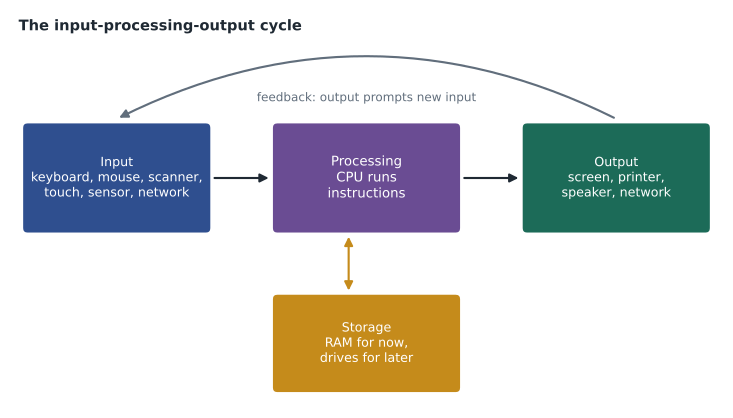
Walk through a library self-checkout kiosk with the cycle in mind. The patron scans a library card: that is input from a barcode scanner. The kiosk's computer looks up the card number in the library's catalog system: that is processing, and it involves fetching stored data over the network. The patron places a book on the pad and the radio-frequency reader identifies its tag: more input. The computer checks that the patron is allowed to borrow it, records the loan, and tells the security gate not to sound the alarm: processing, storage and output. Finally the kiosk prints a receipt and shows a due date on the screen: output. A transaction that takes the patron eight seconds involves the full cycle several times.
The cycle is also a troubleshooting tool. When something stops working, ask which stage has failed. If the screen stays dark but the fans spin and the keyboard lights up, output may be the problem. If the computer ignores every key press, input may have failed. If it accepts input and shows output but gives wrong answers or freezes, the problem may be in processing or in the software. If it forgets settings every time it restarts, storage is a suspect. Lorna teaches Noor to say the stage aloud before touching anything: "The scanner beeps, so input is working; the screen does not change, so the problem is in processing or output." Naming the stage narrows the search.
| Stage | What happens | Examples at a library branch |
|---|---|---|
| Input | Data enters the system | Barcode scan, key press, touch, card tap, webcam image, sensor reading |
| Processing | Instructions transform the data | Looking up a patron, calculating a fine, resizing a photo, checking a password |
| Output | Results leave the system | Screen display, receipt printer, speaker, door lock signal, data sent to the network |
| Storage | Data and programs are kept for later | Memory while a program runs; a drive or cloud service for files and records |
Data and information
People often use the words data and information as if they meant the same thing, but in computing the difference is useful. Data is the raw material: individual facts and values without context, such as 1042, 2026-11-03 and 2.50. Information is data that has been organized and given meaning, such as "Patron 1042 returned a book on November 3, 2026 and owes 2.50 in late fees." Processing is the step that turns data into information. A database full of transaction records is data; a monthly report showing which branches have the most overdue items is information. Knowledge goes one step further: it is what a person concludes and does with information, such as deciding to send reminder emails two days before items are due.
This distinction matters to a support technician because users rarely ask for data. They ask for information. A branch manager who says "the circulation numbers are wrong" is usually not reporting corrupted data; more often a report is filtering or grouping the data differently from what they expect. Asking what the information is supposed to show, and where the underlying data comes from, solves many of these tickets without touching any hardware at all.
Kinds of computing devices
Computers come in many shapes, and Tech+ expects you to recognize the main families and what each is good for. Desktop computers sit on or under a desk, are plugged into mains power, and are easy to open and upgrade; staff workstations and public-access computers in a library are typically desktops. Laptops combine the computer, screen, keyboard, pointing device and battery in one portable case; staff who move between branches carry them. Tablets and smartphones are mobile devices built around a touchscreen, with sensors such as cameras, location receivers and accelerometers, and they run mobile operating systems designed for touch and long battery life. Servers are computers that provide services to other computers, such as file storage, email, websites or the library catalog, and they are usually kept in a secure room or in a data center.
Beyond those familiar families are many specialized devices. Workstations are powerful desktops for demanding work such as video editing or engineering. Gaming consoles are computers tuned for graphics and play. Point-of-sale terminals and kiosks are computers locked down to one job, such as taking payments or checking out books. Embedded systems are tiny computers built into other products: the controller in a printer, the chip in a microwave, the system that runs a car's brakes. Internet of Things (IoT) devices are embedded systems connected to a network, such as smart thermostats, door sensors, security cameras and smart speakers. Every one of them follows the input-processing-output cycle; they differ in size, power, flexibility and how they are managed.
A useful way to compare devices is to ask four questions. How much processing power does it have, and does it need it? How is it powered, and for how long can it run unplugged? Can it be upgraded or repaired, or is it sealed? How is it managed: by its user, by an IT department, or by the company that made it? A public-access desktop in a library has plenty of power, runs on mains power, is easy to repair and is managed centrally by the IT team. A smart thermostat has very little power, may run on batteries or low-voltage wiring, cannot be upgraded, and is managed through its maker's app and cloud service. Those differences decide how the help desk supports each one.
Hardware, software and firmware
Hardware is the physical equipment you can touch: the processor, memory, drives, screen, keyboard, cables and case. Software is the set of instructions that tells the hardware what to do. Software comes in layers. The operating system, such as Windows, macOS, Linux, Android, iOS or ChromeOS, manages the hardware and provides services to everything else. Applications, such as a web browser, a word processor or the library's circulation program, do the jobs people actually want done. Utilities are small programs that maintain the system, such as backup tools and disk cleaners. Lesson 8 covers operating systems in detail and lesson 9 covers applications.
Firmware sits between hardware and software. It is software stored on a chip on the hardware itself, and it runs before any operating system loads. The firmware on a computer's motherboard, called UEFI on modern machines and BIOS on older ones, checks the hardware, finds a drive to start from, and hands control to the operating system. Printers, routers, phones, cameras and even keyboards have firmware too. Firmware is updated less often than applications, but those updates often fix security problems and hardware bugs, so a support technician must know where firmware lives and how to update it safely: on mains power, with nothing interrupting the update, using the maker's official file.
Worked problem
Classifying a self-checkout problem
A branch reports that its self-checkout kiosk turns on and shows the welcome screen, but nothing happens when patrons scan their library cards. The scanner's red light comes on and it beeps. Which stage of the cycle is most likely failing, and what would you check first?
Show solution
- The scanner lights up and beeps, so it has power and is reading the barcode: the input device itself is probably working.
- Nothing changes on screen, so either the scan is not reaching the kiosk's software, or the software is not processing it, or it is processing it but cannot reach the catalog.
- Check the connection between scanner and kiosk first, such as a USB cable that has worked loose, because a scanner can beep without delivering data to the computer.
- If the cable is fine, check whether the kiosk software is running normally and whether the kiosk has a network connection to the catalog system.
Answer: The failure is between input and processing. Check the scanner's cable to the kiosk first, then the kiosk software and its network connection.
Why basic concepts matter on the help desk
It is tempting to skip a lesson like this one and go straight to the components and cables. Lorna disagrees, and so does the Tech+ exam, which gives this domain its own weight. The cycle, the difference between data and information, the device families and the hardware, software and firmware layers are the vocabulary of every ticket. When a patron says "the computer is broken," a technician who thinks in stages and layers can ask better questions: Does it turn on? Does it respond to the keyboard? Does the program start? Does it show the right information? Each answer rules out whole categories of problems. Lesson 12 formalizes this into a troubleshooting method, but the habit starts here.
By the end of the afternoon, Noor goes back to the front counter with an answer for the retired bus driver. The tablet is a computer because it takes input from its touchscreen, camera and microphone, processes it with a processor that runs instructions, stores apps and photos in its memory and storage, and produces output on its screen and speaker. It has no fan because its processor is designed to use very little power, and no keyboard because the touchscreen does that job. The patron nods and says that is the first explanation of computers that has ever made sense to him. Noor writes it up as a short knowledge base article for the next person who asks.
Common mistakes
MistakeThinking a device without a keyboard or tower is not a computer.
InsteadAnything that takes input, processes it, stores data and produces output is a computer.
MistakeUsing data and information as if they meant the same thing.
InsteadData is raw values; information is data organized to have meaning.
MistakeTreating firmware as part of the operating system.
InsteadFirmware lives on the hardware and runs before the operating system loads.
MistakeJumping straight to fixes.
InsteadName the failing stage of the cycle first to narrow the search.
MistakeAssuming every device is managed the same way.
InsteadAsk who manages it: the user, the IT team or the maker's cloud service.
Summary and key terms
- A computer follows instructions to transform data, and its behavior changes when its program changes.
- The input-processing-output cycle, with storage, describes every computing device.
- Data is raw values; information is data organized to have meaning.
- Device families include desktops, laptops, mobile devices, servers, workstations, kiosks, embedded systems and IoT devices.
- Hardware is physical, software is instructions, and firmware is software stored on the hardware that runs first.
- Naming the failing stage of the cycle is the first step in troubleshooting.
- Input
- Data entering a computer from a device, sensor or network.
- Processing
- The work a computer does on data by running instructions.
- Output
- Results leaving a computer, such as a display, print or network message.
- Storage
- Where data and programs are kept for later use.
- Firmware
- Software stored on a hardware chip that runs before the operating system.
- Embedded system
- A small computer built into another product to do one job.
- Internet of Things
- Embedded devices connected to a network, such as smart thermostats and cameras.
Practice problems
Work each problem on paper first, then reveal the answer to check.
Name the four stages of the extended computing cycle.
Show answer
Input, processing, output and storage.
A barcode scanner beeps but the screen never changes. Which two stages are suspects?
Show answer
The link from input to processing, and processing itself.
Is a smart thermostat a computer? Explain.
Show answer
Yes: it takes input from sensors, processes it with a small processor, stores settings and outputs signals to the heating system.
Give an example of data and the information made from it.
Show answer
Data: 1042, 2026-11-03, 2.50. Information: patron 1042 returned a book late on November 3 and owes 2.50.
Where does UEFI firmware live, and when does it run?
Show answer
On a chip on the motherboard; it runs at power-on, before the operating system.
Name two ways a kiosk differs from a staff desktop.
Show answer
It is locked down to one job and usually managed centrally with no user changes allowed.
Why should a firmware update be done on mains power?
Show answer
Because losing power during the update can leave the device unable to start.
Lesson quiz · 5 questions
Score 60% or more to complete this lesson.
Create a free account to save your progress, take quizzes and earn a certificate.