
COMP-110 · Lesson 6 of 12 · 24 min
Networking basics and the internet
▶ Video coming soon A video version of this lesson is on the way.
Dez Okafor-Laine, the network and systems administrator, keeps a whiteboard in the technology office with a hand-drawn map of the library's network: fourteen branches, the central library, the bookmobile's cellular link, and a cloud marked "internet" at the top. When Noor started in October, the map looked like spaghetti. Now Lorna has asked Dez to walk her through it, because a large share of help desk tickets are really network tickets in disguise: "the catalog is slow," "the kiosk says offline," "I can't print," "the website won't load." Tech+ expects you to identify basic networking concepts and compare the common types of internet service. Dez's version is shorter: "Know what each box on the map does, and know how a request gets from a public computer to a website and back."
What a network is
A network is two or more devices connected so they can share data and resources. The devices, called nodes or hosts, include computers, phones, printers, servers, kiosks and cameras. A local area network, or LAN, covers one site, such as a single branch library, a home or an office floor. A wide area network, or WAN, connects LANs across distances, such as the links between Fairhaven's branches and the central library. The internet is the largest WAN of all: a global network of networks run by thousands of organizations that agree to carry one another's traffic using the same protocols.
Data on a network travels in small pieces called packets. A large file or web page is split into many packets, each carrying a piece of the data plus addressing information that says where it came from and where it is going. Packets may take different routes and arrive out of order; the receiving computer puts them back together. A protocol is an agreed set of rules for communicating. The internet runs on a family of protocols called TCP/IP. IP, the Internet Protocol, handles addressing and routing packets between networks. TCP, the Transmission Control Protocol, makes sure packets arrive complete and in order, and resends any that are lost. UDP is a lighter alternative used where speed matters more than perfection, such as video calls and online games.
The devices on the map
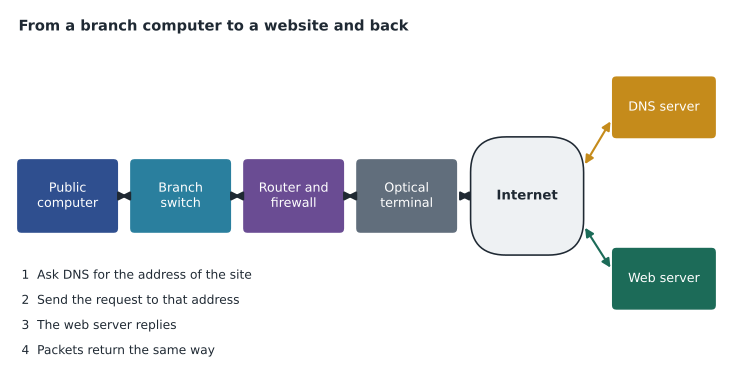
A switch connects devices within a LAN. Each computer, printer or access point plugs into a switch port with an Ethernet cable, and the switch forwards each packet only to the port where its destination is connected, using the hardware MAC address of each device. A router connects different networks and decides where to send packets that are leaving the local network; every branch has a router that links its LAN to the library's WAN and the internet. A wireless access point lets Wi-Fi devices join the LAN without a cable, and is covered in lesson 7. A modem converts between the signals used by the internet provider's line, such as cable or DSL, and the Ethernet the router understands; fiber services use a similar box often called an optical network terminal. A firewall filters traffic between networks according to rules, allowing what is needed and blocking the rest. In a home, a single box often combines a modem, router, switch, access point and firewall, which is why people call the whole thing "the router."
| Device | What it does | Where it is at a branch |
|---|---|---|
| Switch | Connects devices within the LAN | In the branch's network cabinet |
| Router | Connects the LAN to other networks and chooses where packets go | In the network cabinet, linked to the provider |
| Access point | Connects Wi-Fi devices to the LAN | On ceilings around the branch |
| Modem or fiber terminal | Converts the provider's signal to Ethernet | Where the provider's line enters the building |
| Firewall | Allows or blocks traffic by rules | Built into the branch router or a separate box |
Addresses: IP, MAC and ports
Every device on a network needs an address. A MAC address is a hardware identifier built into each network adapter, written as six pairs of hexadecimal digits, such as 3C-52-82-1A-7F-04; switches use it to deliver packets inside a LAN. An IP address is a logical address assigned to a device on a network, and routers use it to deliver packets between networks. IPv4 addresses are four numbers from 0 to 255 separated by dots, such as 192.168.20.45, which gives about four billion possible addresses. That is not enough for every device in the world, so IPv6 was created, with much longer addresses written in hexadecimal groups separated by colons, such as 2001:db8:4a2:20::45. Both are in use today, side by side.
To stretch the supply of IPv4 addresses, networks use private address ranges inside their LANs: 10.0.0.0 to 10.255.255.255, 172.16.0.0 to 172.31.255.255 and 192.168.0.0 to 192.168.255.255. These addresses are not used on the public internet. When a device with a private address reaches the internet, the router translates it to the router's own public address, a process called network address translation, or NAT. That is why every computer at a branch can browse the web while the outside world sees only one or a few public addresses. A device that shows an address beginning 169.254 has given itself an automatic private address because it could not get one from the network, which usually points to a cable, Wi-Fi or DHCP problem.
A port number identifies which service on a device a packet is meant for, so one server can run a website, email and file sharing at once. Well-known ports include 80 for HTTP web traffic, 443 for HTTPS secure web traffic, 53 for DNS, 25 and 587 for sending email, 22 for SSH secure remote administration, and 3389 for Windows Remote Desktop. Firewalls often allow or block traffic by port.
import ipaddress
for text in ['192.168.20.45', '10.4.0.12', '172.20.1.9', '8.8.8.8', '169.254.8.20']:
    ip = ipaddress.ip_address(text)
    if ip.is_link_local:
        kind = 'self-assigned: no DHCP answer'
    elif ip.is_private:
        kind = 'private: used inside a LAN'
    else:
        kind = 'public: used on the internet'
print(text.ljust(15), kind)192.168.20.45 private: used inside a LAN 10.4.0.12 private: used inside a LAN 172.20.1.9 private: used inside a LAN 8.8.8.8 public: used on the internet 169.254.8.20 self-assigned: no DHCP answer
What this code does
It sorts a list of IP addresses into three kinds using Python's ipaddress module. Addresses starting with 169.254 are self-assigned, which means the device got no answer from DHCP; private ranges are used inside a local network; everything else is public. The output labels each address with its kind.
Try it yourself
Is it private?
Write is_private_v4(text) that returns True if an IPv4 address string is in one of the three private ranges (10.x.x.x, 172.16.x.x to 172.31.x.x, or 192.168.x.x) and False otherwise. Split the address on dots and compare the numbers yourself rather than using the ipaddress module.
def is_private_v4(text):
    parts = [int(p) for p in text.split('.')]
    return False
DHCP and DNS
Two services make networks easy to use. DHCP, the Dynamic Host Configuration Protocol, hands out IP addresses automatically. When a laptop joins the branch Wi-Fi, it asks for an address, and a DHCP server, usually built into the router, replies with an address, the subnet information, the router's address (called the default gateway) and the DNS servers to use. Without DHCP, every device would need its address typed in by hand. Printers, servers and other devices that others must find reliably are often given a reserved or static address that does not change.
DNS, the Domain Name System, translates names that people remember, such as fairhavenlibrary.example, into the IP addresses computers use. When a patron types a web address, the computer asks a DNS server for the address, then connects to it. DNS works like a phone book that is spread across thousands of servers around the world. When DNS fails, websites appear to be down even though the internet connection works, because the computer cannot find out where to go. A common test is to reach a site by its IP address; if that works but the name does not, DNS is the problem.
Types of internet service
Each branch needs a connection to an internet service provider, or ISP, and Tech+ expects you to compare the main types. Fiber-optic service carries data as light through glass fibers and offers the highest speeds, often a gigabit or more in both directions, with low latency; most city branches use fiber. Cable internet uses the same coaxial cable network as cable television; it is fast for downloads but usually slower for uploads, and speeds can drop at busy times because neighbors share capacity. DSL, the Digital Subscriber Line, uses telephone lines; it is slower, and speed falls the farther the building is from the telephone exchange. Cellular service uses 4G LTE or 5G mobile networks; it needs no cable at all, which is why the bookmobile and the library's lending hotspots use it, but data plans may be capped and signal varies. Fixed wireless uses a dish or antenna on the building pointed at a nearby tower, common in rural areas.
Satellite internet reaches places no cable does. Traditional satellites sit in geostationary orbit about 36,000 kilometers above the equator, so every signal travels a very long way and latency is high, often over half a second, which makes video calls awkward. Newer low-earth-orbit services use large numbers of satellites only a few hundred kilometers up, which cuts latency to levels close to cable. Speed is not the only measure: Tech+ expects you to weigh bandwidth (how much data per second), latency (how long a round trip takes), reliability, availability at the location, data caps and cost.
| Service | Medium | Strengths | Limits |
|---|---|---|---|
| Fiber | Light in glass fiber | Very fast both ways, low latency | Not available everywhere |
| Cable | Coaxial TV cable | Fast downloads, widely available | Slower uploads; shared at busy times |
| DSL | Telephone line | Uses existing phone wiring | Slower; weakens with distance |
| Cellular (4G/5G) | Mobile network | No cable needed; portable | Variable signal; data limits |
| Fixed wireless | Antenna to a nearby tower | Rural coverage | Needs line of sight; weather |
| Satellite | Dish to satellites | Reaches remote places | High latency for geostationary; cost |
Bandwidth, latency and what users feel
Users experience the network through two qualities that are easy to confuse. Bandwidth is capacity, measured in bits per second: a wider pipe moves more data at once, so large downloads finish sooner. Latency is delay, measured in milliseconds: the time for a packet to reach its destination and for a reply to come back. A connection can have high bandwidth and high latency at the same time, like a wide pipe that is very long. Video streaming mostly needs bandwidth; video calls, online games and remote desktop sessions mostly need low latency. A speed test website reports both, usually as download speed, upload speed and ping time.
Worked problem
The bookmobile cannot load the catalog
The bookmobile's laptop connects to the internet through a cellular router. At a rural stop this morning, the catalog page will not load, but the laptop shows it is connected to the bookmobile's Wi-Fi. What should Noor check, in order?
Show solution
- Confirm the laptop has a valid address from the cellular router, not a 169.254 address, which would mean the Wi-Fi link itself is the problem.
- Check the cellular router's signal display: at a rural stop, weak or no mobile signal is the most likely cause.
- If there is signal, test a known website by name and then by IP address to separate a DNS problem from a connection problem.
- If only the catalog fails, check whether the catalog service itself is up from another location.
Answer: Work from the laptop outwards: its address, then the cellular signal, then DNS, then the catalog service. At a rural stop, weak cellular signal is the most likely cause.
Noor phones the bookmobile driver, who reports one bar of signal. The driver moves the van fifty meters up the road to the top of a slight rise, the router picks up a stronger signal, and the catalog loads. Dez adds a note to the bookmobile's route sheet showing where signal is strong at each stop, and Lorna asks Noor to write a two-line knowledge base article: "Connected to Wi-Fi does not mean connected to the internet."
Common mistakes
MistakeThinking Wi-Fi bars show internet access.
InsteadWi-Fi bars show the link to the access point, not the link beyond it.
MistakeConfusing MAC and IP addresses.
InsteadMAC is a fixed hardware ID for the LAN; IP is a logical address for routing.
MistakeAssuming a site is down when names will not resolve.
InsteadTest by IP address to tell a DNS failure from an outage.
MistakeJudging internet service by speed alone.
InsteadWeigh latency, reliability, availability, data limits and cost too.
MistakeIgnoring a 169.254 address.
InsteadIt means the device got no answer from DHCP.
Summary and key terms
- A LAN covers one site, a WAN links sites, and the internet is a global network of networks.
- Data travels in packets using the TCP/IP protocols; TCP is reliable and UDP is faster.
- Switches connect devices in a LAN; routers connect networks; access points add Wi-Fi; firewalls filter traffic.
- IP addresses route packets between networks; MAC addresses identify adapters; ports identify services.
- DHCP hands out addresses automatically; DNS turns names into addresses.
- Fiber, cable, DSL, cellular, fixed wireless and satellite services differ in speed, latency, availability and cost.
- Bandwidth is capacity and latency is delay; different tasks need different qualities.
- LAN
- A local area network covering one site.
- Router
- A device that connects networks and forwards packets between them.
- Switch
- A device that connects devices within a LAN.
- IP address
- A logical address used to route packets between networks.
- MAC address
- A hardware identifier built into a network adapter.
- DHCP
- A service that assigns IP addresses and settings automatically.
- DNS
- A service that translates domain names into IP addresses.
- NAT
- Network address translation, which shares a public address among private ones.
- Latency
- The delay for data to travel to a destination and back.
Practice problems
Work each problem on paper first, then reveal the answer to check.
Which device connects the computers inside one branch?
Show answer
A switch.
Which device connects the branch network to the internet?
Show answer
A router, through the provider's modem or fiber terminal.
Is 172.25.4.9 a private or public address?
Show answer
Private.
What does DNS do?
Show answer
It translates names such as websites into IP addresses.
Which port does HTTPS use by default?
Show answer
443.
Why are video calls awkward over geostationary satellite?
Show answer
Very high latency from the long distance to the satellite.
A device has the address 169.254.12.3. What does that tell you?
Show answer
It did not get an address from DHCP.
Lesson quiz · 5 questions
Score 60% or more to complete this lesson.
Create a free account to save your progress, take quizzes and earn a certificate.