
COMP-110 · Lesson 11 of 12 · 24 min
Browsers and web applications
▶ Video coming soon A video version of this lesson is on the way.
Most of what patrons do on the public computers happens inside a web browser: job applications, government forms, email, banking, homework, the library's own catalog and its e-book apps. Most of what staff do happens there too, since the integrated library system, the room-booking site and the office suite are all web applications. So when Ruth Ingram calls from Northgate to say that "the internet is broken" on a staff computer, Noor's first question is which website, which browser, and what exactly happens. This time the answer is that one government benefits site shows a blank page, while everything else works. Tech+ expects candidates to configure and use web browser features, and fixing problems like Ruth's is largely a matter of knowing what those features are and how they can go wrong.
What a browser does
A web browser is an application that requests pages from web servers and displays them. Common browsers include Google Chrome, Microsoft Edge, Mozilla Firefox and Apple Safari; Chrome and Edge are built on the same open-source engine, Chromium, so they behave similarly. When you type an address, the browser asks DNS for the server's IP address, as lesson 6 explained, then sends an HTTP request. The server replies with files: HTML that describes the structure and text of the page, CSS that describes its layout and appearance, JavaScript code that makes it interactive, and images, fonts and video. The browser's engine assembles these into the page you see and runs the JavaScript in a protected sandbox, separated from the rest of the computer.
A web application is a website that behaves like a program: the library's room-booking tool lets staff search, create and cancel bookings, and the office suite lets them edit documents, all within the browser. The application's code runs partly in the browser and partly on the server, and its data is stored on the server. Some web applications can be installed as progressive web apps, which get their own icon and window and can work partly offline, although they still run on the browser's engine.
Reading a web address
A web address, or URL (uniform resource locator), tells the browser exactly what to fetch and how. Reading a URL carefully is both a troubleshooting skill and a security skill, because fraudulent sites often use addresses that look almost right.
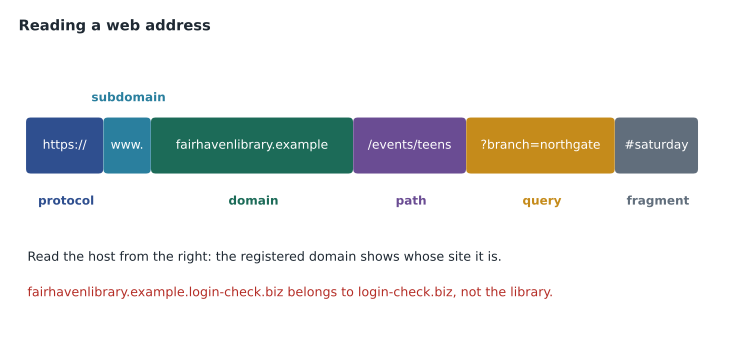
The protocol is usually https, meaning HTTP secured with encryption, or occasionally plain http. The domain name identifies the site's owner; it ends in a top-level domain such as .ca, .com, .org, .gov or .edu. The part just before the top-level domain is the part that really matters: in fairhavenlibrary.example.login-check.biz the real domain is login-check.biz, and everything before it is decoration chosen to mislead. The path after the first single slash points to a particular page, and a query string after a question mark passes settings or search terms to the server.
from urllib.parse import urlparse
for url in ['https://www.fairhavenlibrary.example/events/teens?branch=northgate',
            'http://fairhavenlibrary.example.login-check.biz/renew']:
    u = urlparse(url)
print('scheme:', u.scheme, '| host:', u.hostname, '| path:', u.path)scheme: https | host: www.fairhavenlibrary.example | path: /events/teens scheme: http | host: fairhavenlibrary.example.login-check.biz | path: /renew
What this code does
It splits two web addresses into their scheme, host name and path. The host name is the part that tells you which site you are really visiting. The output shows the second link belongs to login-check.biz even though it starts with the library's name, a common phishing trick.
Try it yourself
Find the real domain
Write real_domain(host) that returns the last two parts of a host name joined by a dot, which for most addresses is the registered domain. For example, real_domain('www.fairhavenlibrary.example') returns fairhavenlibrary.example and real_domain('fairhavenlibrary.example.login-check.biz') returns login-check.biz. (Some country domains, such as .co.uk, use three parts; you can ignore that here.)
def real_domain(host):
    return host
HTTPS, certificates and the padlock
HTTPS encrypts the connection between the browser and the server, so that nobody on the network in between, including other users of the library's public Wi-Fi, can read or change what is sent. To start an HTTPS connection, the server presents a digital certificate issued by a trusted certificate authority, which proves that the server really belongs to the domain in the address bar. Browsers show a padlock or a similar icon for a valid HTTPS connection and a clear warning page when a certificate is expired, issued for a different name, or not trusted.
Two points are often misunderstood. First, the padlock means the connection is encrypted and the domain is genuine; it does not mean the site is honest. A fraudulent site at login-check.biz can have a perfectly valid certificate for login-check.biz. Second, certificate warnings should not be clicked through casually. On the help desk, a certificate warning on a well-known site is often caused by a computer whose clock is wrong, because certificates are valid only between two dates. Fixing the date and time, often by replacing a flat CMOS battery as lesson 3 described, makes the warning disappear.
Browser settings that matter
Browsers have dozens of settings, but a handful cause most help desk calls. The default browser is the one the operating system opens for links in email and documents. The home page and new-tab page decide what appears at start-up. The default search engine decides where text typed in the address bar is sent; malicious extensions and bundled software often change it to an advertising search engine, which is a sign that something unwanted has been installed. The download location and prompts decide where files go. Pop-up blockers stop most unwanted windows, but some legitimate sites, including some government forms, open their pages in pop-ups and need an exception.
| Feature | What it does | Common help desk problem |
|---|---|---|
| Cache | Stores copies of page files to load sites faster | Old or damaged copies make a site look broken |
| Cookies | Small files sites use to remember sign-ins and settings | Blocked or stale cookies break sign-in |
| Extensions | Add features to the browser | Malicious or buggy extensions change search or break pages |
| Pop-up blocker | Stops unwanted windows | Blocks a legitimate form window |
| Private browsing | Does not keep history or cookies after the window closes | Users think it makes them anonymous |
| Saved passwords and autofill | Stores sign-ins and form data | Saved passwords on shared computers |
| Sync | Shares bookmarks and settings across devices | Unwanted settings or extensions come back |
Cache and cookies
The browser cache stores copies of files from sites you have visited, such as images and scripts, so that pages load faster next time. Cookies are small pieces of data that a site asks the browser to keep, most often to remember that you are signed in, what is in your basket, or your language choice. First-party cookies come from the site you are visiting; third-party cookies come from other sites embedded in the page, such as advertising networks, and are increasingly restricted by browsers because they are used to track people across sites.
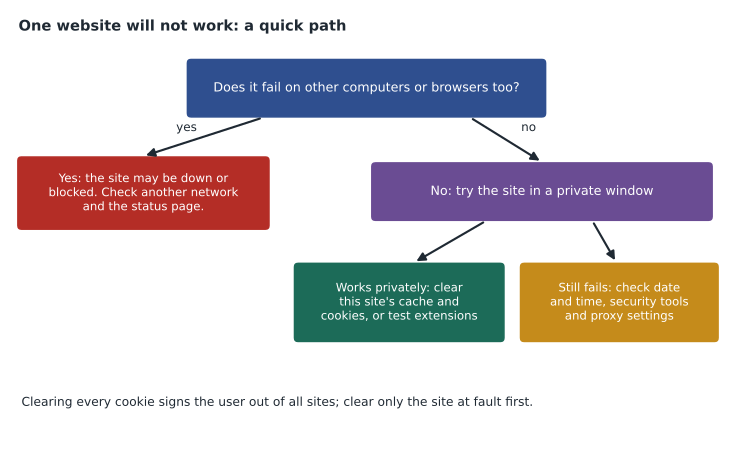
When a single site behaves strangely while others work, a damaged cache or stale cookies for that site are common causes. Clearing them for that one site, or for the last few days, fixes many problems without signing the user out of everything else. Ruth's government site loads perfectly once Noor clears that site's cached files and cookies; the site had been updated overnight and the browser was mixing old and new files. Lorna adds a reminder: clearing all cookies signs the user out of every site, so warn them before doing it, and make sure they know their passwords.
Extensions and plug-ins
Extensions, also called add-ons, add features to a browser: password managers, ad blockers, accessibility tools, translators and note-takers. They can be very useful, but they run inside every page you visit, and a malicious or compromised extension can read and change those pages, including bank and email pages. Install extensions only from the browser's official store, only from well-known publishers, and only when there is a clear need; review the permissions they request; and remove ones that are no longer used. Older browser plug-ins, such as Flash, have been retired completely because of their security problems. On the library's public computers, extensions are blocked except for an approved list.
Private browsing and shared computers
Private browsing, called InPrivate in Edge and Incognito in Chrome, opens a window that does not keep history, cookies or form data after it is closed. It is useful on a shared computer and for testing whether a problem is caused by cookies or extensions, since extensions are usually off in private windows. It does not make a user anonymous: the websites, the network and the internet provider can still see the traffic. The library's public computers go further. They run a reset program that wipes all browsing data, downloads and saved passwords when a session ends, so the next patron cannot see what the last one did. Patrons should still sign out of their accounts and never let the browser save a password on a shared computer.
Passwords, autofill and sync
Browsers can save passwords and fill them in automatically, and their built-in password managers can generate strong, unique passwords and warn when a saved password has appeared in a known data breach. For staff on their own work computers, a password manager approved by the organization is far better than reusing one password everywhere. Sync links the browser to an account so that bookmarks, history, passwords and extensions follow the user to other devices. Sync is convenient, but on a shared or public computer it can copy someone's whole browser profile onto a machine anyone can use, so it must never be turned on there.
Keeping browsers safe and current
Browsers are one of the most attacked programs on any computer, because they handle content from the whole internet. They update themselves often, sometimes several times a month, to fix security weaknesses. On managed computers, updates are applied centrally, and a browser that shows a message asking to be restarted should be restarted promptly. Other settings that keep browsing safer include the browser's built-in protection against known malicious sites and downloads, blocking third-party cookies, and turning on DNS over HTTPS where the organization allows it. Organizations sometimes route browsers through a proxy server, which filters or logs web traffic; a wrong proxy setting can make every site fail on one computer while the network itself is fine.
Accessibility features in the browser
Browsers include features that make the web easier to use for everyone, and help desk technicians should know where they are. Zoom, with Ctrl and the plus key on Windows or Command and plus on a Mac, enlarges a page's text and images, and Ctrl or Command with zero returns it to normal; a patron who says "the website has gone tiny" has usually zoomed out by accident. Reader view strips away clutter and shows just the article text. Built-in read-aloud features speak a page's text, and translation features offer to translate pages written in another language, which many newcomers to the library use daily. Captions can be turned on for most online video.
Worked problem
One site will not work for one user
A patron on a public computer says a job application site keeps sending him back to the sign-in page after he signs in. Other patrons have used the same site today without trouble. What should Noor try?
Show solution
- The site works for others, so the problem is probably on this computer or in this session, not the site itself.
- Try the site in a private window: if sign-in works there, cookies or an extension in the normal window are the likely cause.
- Check that the browser is not blocking the site's cookies, since sign-in depends on them, and that the computer's date and time are correct.
- Ending the session and starting a new one will reset the browser on a public computer and usually clears the problem.
Answer: Test in a private window, check that cookies are allowed for the site and the clock is right, then start a fresh session.
Common mistakes
MistakeTrusting the padlock as proof a site is honest.
InsteadIt shows the connection is encrypted and the domain is real; read the domain.
MistakeClicking through certificate warnings.
InsteadCheck the computer's date and time and the address first.
MistakeClearing every cookie as a first step.
InsteadClear only the troublesome site's data, and warn users about sign-outs.
MistakeInstalling extensions freely.
InsteadUse the official store, check permissions, and remove unused ones.
MistakeThinking private browsing makes you anonymous.
InsteadIt only avoids keeping local history and cookies.
Summary and key terms
- Browsers request HTML, CSS, JavaScript and media from servers and assemble them into pages.
- Web applications run in the browser with data on servers; some install as progressive web apps.
- Read URLs from the right: the registered domain shows whose site it is.
- HTTPS encrypts the connection and proves the domain; it does not prove honesty.
- Cache, cookies, extensions, pop-up blockers and proxy settings cause most browser problems.
- Private browsing and session resets protect shared computers; never sync or save passwords there.
- Keep browsers updated and limit extensions to trusted, needed ones.
- URL
- A web address that tells the browser what to fetch and how.
- HTTPS
- HTTP secured with encryption and a server certificate.
- Certificate
- A digital document proving a server belongs to a domain.
- Cache
- Stored copies of web files used to load pages faster.
- Cookie
- A small piece of data a site stores in the browser.
- Extension
- An add-on that gives a browser extra features.
- Proxy server
- A server that forwards, filters or logs web traffic for an organization.
Practice problems
Work each problem on paper first, then reveal the answer to check.
In https://help.example.org/forms?id=7, what is the domain?
Show answer
example.org (help is a subdomain).
What does the padlock in the address bar prove?
Show answer
That the connection is encrypted and the certificate matches the domain.
A certificate warning appears on every major site. What should you check first?
Show answer
The computer's date and time.
Why might clearing all cookies annoy a user?
Show answer
It signs them out of every site.
What is the difference between first-party and third-party cookies?
Show answer
First-party come from the site you visit; third-party from other sites embedded in it.
When is private browsing useful for troubleshooting?
Show answer
To test whether cookies or extensions cause a problem.
Why should sync never be turned on at a public computer?
Show answer
It would copy a personal browser profile onto a machine anyone can use.
Lesson quiz · 5 questions
Score 60% or more to complete this lesson.
Create a free account to save your progress, take quizzes and earn a certificate.