
PHOT-202 · Lesson 2 of 12 · 25 min
Importing, organizing and culling
The least glamorous part of the digital darkroom is also one of the most important. A photographer who cannot find an image cannot use it, sell it or license it, and a photographer who loses files through careless ingest or missing backups may lose irreplaceable work. Equally, editing time is wasted on images that should have been rejected. This lesson covers importing files safely, folder and file naming systems, catalogues and sessions, metadata including copyright, captions and keywords, culling and rating, collections and smart collections, and backing up and maintaining a library over years.
Importing safely
Importing, or ingesting, copies images from memory cards or cameras to your computer and registers them in your raw processor. A safe import routine includes:
- Using a reliable card reader rather than connecting the camera directly, which is slower and drains its battery.
- Copying files rather than moving them, leaving the card untouched until backups are confirmed.
- Copying to the main storage and simultaneously to a second backup location, an option many raw processors provide during import.
- Applying a metadata preset with your name, copyright notice and contact details to every image.
- Renaming files according to a consistent scheme, if you use one.
- Building previews at a suitable size to make culling fast.
- Verifying that files open correctly before formatting the card in the camera.
For important shoots, some photographers use offload software with checksum verification, as in film production, or a dedicated backup device in the field (PHOT-201 Lesson 11).
Folder structures
A clear folder structure on disk lets you find images even without your catalogue software, and survives changes in software over the years. The most common approach organizes by date, for example a folder for each year containing folders named with the date and a short description, such as "2026-10-18 Smith wedding" or "2026-10-18_Lisbon_street". Dates written as year-month-day sort correctly in any file browser. Some photographers organize by client or project instead, especially for commercial work. Whatever scheme you choose, use it consistently, avoid scattering images across many drives and desktop folders, and keep originals separate from exports, which can live in an "exports" or "deliverables" folder within each project.
| Approach | Example | Suits |
|---|---|---|
| By date | 2026 / 2026-10-18 Smith wedding | Most photographers, events, personal work |
| By client or project | Clients / Acme / 2026-10 Catalogue shoot | Commercial and agency work |
| By subject | Landscapes / Rockies | Rarely; better handled with keywords |
File naming
Camera file names such as IMG_4821.CR3 repeat every 10,000 images and say nothing about the content. Renaming on import with a scheme that combines the date, a short descriptor and a sequence number, for example "20261018_Smith_0001.cr3", produces unique, sortable names that remain meaningful outside the catalogue. Avoid spaces, special characters and very long names, which can cause problems on websites, servers and some operating systems. Keep the original camera file name in metadata, which most raw processors do automatically, in case you need to match files with a camera or second shooter later.
Catalogues and sessions
Lightroom Classic stores information about your images in a catalogue: a database recording where each file is, its metadata, and all edits. One catalogue can manage hundreds of thousands of images across many folders and drives, and allows searching, filtering and collections across the whole library. The catalogue must be backed up regularly, since losing it means losing edits and organization, although edits can also be written to XMP sidecar files as a safeguard. Capture One offers both catalogues and sessions: a session is a self-contained project folder holding the images, edits and outputs for one shoot, popular in studio and commercial work because it can be moved between computers and handed to clients or retouchers. Some photographers keep one master catalogue; others keep separate catalogues by year or client. Whatever approach you choose, avoid moving or renaming files outside the catalogue software, which breaks the links between the catalogue and the files.
Metadata
Metadata is information stored with an image. It comes in several forms:
- EXIF metadata, written by the camera: date and time, camera and lens, exposure settings, and GPS location if enabled.
- IPTC metadata, added by the photographer: creator, copyright notice, contact details, caption or description, headline, keywords, location names, and usage rights. IPTC fields are essential for news, stock and commercial work, and are read by many websites and asset management systems.
- XMP, a flexible framework that stores IPTC fields and editing instructions.
At a minimum, every image you share should carry your name, a copyright notice and contact information, which helps establish ownership and allows people to find you if they want to license an image. Captions should be accurate and specific; for editorial work, they answer who, what, where, when and why. Keywords make images searchable: descriptive keywords for the subject, location, activity, colours and concepts, and controlled vocabularies or hierarchical keyword lists keep them consistent. AI keywording tools can suggest keywords, but they need checking for accuracy and sensitivity, particularly when describing people.
Worked problem
Writing an editorial caption
A photographer covering a community event photographs a volunteer serving food at a shelter. What should the caption and keywords include?
Show solution
- Who: the volunteer's full name, spelled correctly, with their permission.
- What: serving a hot meal at the community dinner.
- Where: the shelter's name, city and province or state.
- When: the date of the event.
- Why or context: for example, an annual Thanksgiving dinner serving 400 people.
- Keywords: volunteer, community dinner, shelter, food, Thanksgiving, the city, the organization.
Answer: A factual caption naming the person, action, place, date and context, plus specific, accurate keywords.
Culling
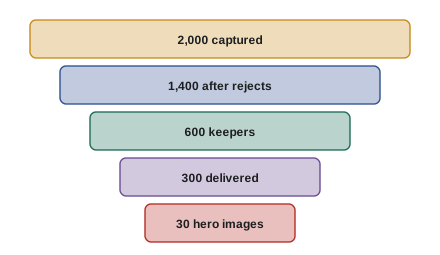
Culling is selecting the best images and rejecting the rest. It is often the step that most improves a body of work, because showing fewer, stronger images is more effective than showing many similar ones. An efficient culling process:
- First pass: reject obvious failures, such as missed focus, closed eyes, motion blur, test shots and duplicates, using a reject flag.
- Second pass: pick the strongest images, using a pick flag or star ratings.
- Further passes: narrow the selection, comparing similar images side by side in compare or survey views and zooming to check focus and expression.
- Group similar images and choose one or two from each group.
Culling quickly, with keyboard shortcuts and full-screen previews, keeps momentum. Many photographers cull with fresh eyes a day after shooting. AI culling tools, which detect closed eyes, focus and duplicates, can speed up large shoots such as weddings, but final choices should remain the photographer's.
Ratings, flags and labels
Raw processors offer several marking systems: pick and reject flags; star ratings from one to five; and colour labels. Using them consistently makes later filtering easy. A common system uses flags for the first pass, then stars for quality: one star for acceptable images, three stars for client deliverables, four stars for strong images and five stars for portfolio-quality work. Colour labels can mark status, such as red for needs retouching, green for delivered or blue for sent to a client for approval. Write your system down so that it remains consistent over time and can be understood by assistants or collaborators.
Collections and smart collections
Collections group images independently of their folder location, so one image can appear in several collections without duplication: a client delivery, a portfolio, a book project and a stock submission. Smart collections fill themselves automatically according to rules, such as all five-star images from a year, all images with a certain keyword, or all images rated three stars or more that lack a copyright notice. Smart collections are powerful tools for quality control and for building portfolios over time. Collection sets organize collections into hierarchies, such as clients, then projects.
Backups and long-term storage
A robust backup strategy protects years of work. Follow the 3-2-1 approach: three copies of every image, on at least two kinds of media, with one copy off site, such as a cloud service or a drive kept at another location. Back up the catalogue and its previews as well as the images. Automate backups where possible, so that they happen without relying on memory. Test backups periodically by restoring files, since a backup that cannot be restored is worthless. Hard drives fail, typically within three to six years of heavy use, so plan to migrate archives to new drives periodically, and keep file formats that will remain readable, such as DNG, TIFF and JPEG, alongside proprietary raw files.
Maintaining a library
A photo library grows quickly; a professional may add 50,000 to 100,000 images a year. Periodic maintenance keeps it manageable: deleting rejected images after a project is complete, if you are sure you will not need them; optimizing catalogues; checking for missing files and broken links; updating keywords; and reviewing storage capacity. Some photographers delete rejects aggressively to save space, while others keep everything; for paid work, check contracts and laws on how long images must be kept and how client images and personal information must be secured.
Tethered capture and organization during the shoot
In studio, product and commercial photography, the camera is often connected to a computer by cable or wireless link, so that images appear immediately in Capture One, Lightroom Classic or other software as they are taken. Tethered capture lets the photographer, art director and client review images on a large calibrated screen, check focus and lighting closely, and make selections during the shoot. Images can be named, keyworded and given adjustments automatically as they arrive, using next-capture naming and adjustment settings, so that a whole product range is organized and partly processed before the shoot ends. Capture One's sessions are designed around this workflow, with capture, selects, output and trash folders for each shoot.
Organizing images from several cameras
Weddings, events and documentary projects often involve several cameras or photographers. Before ingesting, synchronize camera clocks, ideally at the start of each shoot, so that images sort correctly in chronological order; if clocks were not synchronized, raw processors can shift capture times for a selected group of images by a known offset. Renaming with a camera or photographer code, such as "A" and "B", distinguishes sources. Combining images from different cameras into one collection sorted by capture time makes culling and sequencing an event much easier.
Keywording strategies
Keywords are only useful if they are applied consistently. A hierarchical keyword list, for example "Places > Canada > British Columbia > Vancouver" or "Subjects > Animals > Birds > Owls", keeps keywords organized and lets you search at any level. Keyword sets for recurring shoots, such as weddings or product categories, speed up tagging. Apply general keywords to whole shoots on import, then specific keywords to selected images during or after culling. For stock photography, keywords strongly affect sales, so agencies provide guidelines on relevance, number and accuracy; misleading or excessive keywords may be penalized. When describing people, use accurate, respectful language and avoid assumptions about identity.
Face recognition and privacy
Many catalogue applications offer face recognition, grouping images of the same person and allowing names to be attached. This makes finding photographs of family members or clients easy, but it also creates sensitive personal data. Photographers should consider whether to enable face recognition, especially for client work, comply with privacy laws and client expectations, and avoid exporting names in metadata unless subjects have agreed. Similar care applies to location data for images of private homes, children and vulnerable people.
Common mistakes
MistakeFormatting cards before confirming backups.
InsteadVerify copies first, then format in camera.
MistakeMoving files outside the catalogue software.
InsteadMove and rename files from within the catalogue.
MistakeLeaving out copyright and contact metadata.
InsteadApply a metadata preset on import.
MistakeEditing before culling.
InsteadCull to the strongest images first.
MistakeBacking up images but not the catalogue.
InsteadBack up catalogues and test restores.
Summary and key terms
- Import by copying to two locations with metadata presets.
- Use consistent date-based or project-based folders.
- Rename files with dates, descriptors and sequence numbers.
- Catalogues and sessions track files, metadata and edits.
- EXIF, IPTC and XMP metadata record capture data, ownership and descriptions.
- Cull ruthlessly using flags, ratings and comparison views.
- Collections, smart collections and 3-2-1 backups keep a library usable and safe.
- Ingest
- Copying images from cards into a library.
- Catalogue
- Database tracking images and edits.
- Session
- Self-contained project folder in Capture One.
- IPTC
- Standard for descriptive and rights metadata.
- Keyword
- Searchable word describing an image.
- Culling
- Selecting the best images and rejecting the rest.
- Pick flag
- Marker for selected images.
- Collection
- Group of images independent of folder location.
- Smart collection
- Collection filled automatically by rules.
- 3-2-1 backup
- Three copies, two media, one off site.
Practice problems
Work each problem on paper first, then reveal the answer to check.
Why copy rather than move files on import?
Show answer
To keep the card intact until backups are confirmed.
Why name date folders year-month-day?
Show answer
They sort correctly.
Give an example of a good file name.
Show answer
20261018_Smith_0001.cr3.
What does a Lightroom catalogue store?
Show answer
File locations, metadata and edits.
What is a Capture One session?
Show answer
A self-contained project folder.
Name three IPTC fields.
Show answer
Creator, copyright, caption, keywords, location, rights.
What does a caption answer?
Show answer
Who, what, where, when and why.
Describe a two-pass cull.
Show answer
Reject failures, then pick the best.
What is a smart collection?
Show answer
A collection filled automatically by rules.
How often should archives be migrated?
Show answer
Every few years as drives age.
Lesson quiz · 5 questions
Score 60% or more to complete this lesson.
Create a free account to save your progress, take quizzes and earn a certificate.