
MSBA-250 · Lesson 9 of 12 · 20 min
Column-level security
▶ Video coming soon A video version of this lesson is on the way.
Two weeks before go-live, Dr. Imelda Raczkowski from the college's health and safety office asked for a change. Some findings involve people: a lab technician with a minor chemical burn, a student who slipped on a wet stair. Facilities had started recording the injured person's name and a short description of the injury on the finding so that follow-up could be arranged. "Every supervisor can see those details," she said, "and every contractor we share an inspection with. They need to see the hazard. They don't need to see who was hurt."
Row-level security from lessons 7 and 8 decides which rows a person can reach. Sometimes a row is fine to see but one or two of its columns are not. Column-level security controls access to individual columns, and this lesson explains how it works, how to configure it with column security profiles, what it does and does not protect, and how to use it without slowing the system down.
What column-level security does
Column-level security works on top of row access. First you enable column security on a specific column, which marks it as a secured column. From then on, nobody except users with full administrative rights can read, create or update that column unless a column security profile grants them that permission. Users who can open the row but lack permission on the secured column see the column on the form as masked or empty, cannot change it, and do not receive its value from queries or the API.
Column-level security does not grant access to rows. A profile that allows reading Injury Details does nothing for a user who cannot open the finding in the first place. The user needs row access from their roles, business unit, hierarchy or sharing, and then column access from a profile. Both must be true.
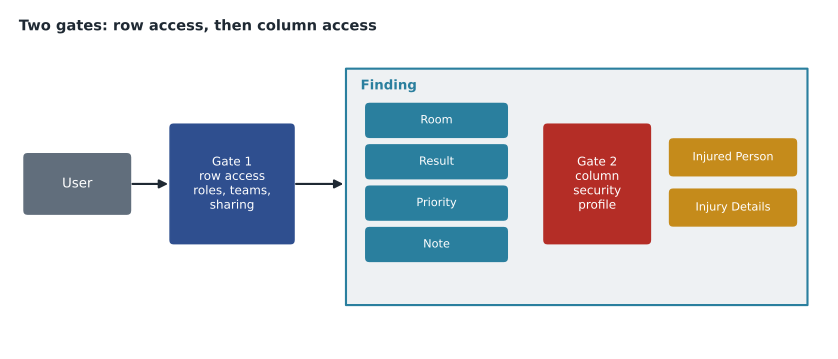
Column security profiles
A column security profile is a named set of permissions on secured columns, assigned to users and teams. For each secured column the profile sets three permissions: Read, Create and Update, each Allowed or Not allowed. Read lets the user see the value. Create lets them set the value when they create a row. Update lets them change it on an existing row. A user can have several profiles; like roles, their permissions add up, so if any profile allows Read, the user can read.
| Permission | What it allows | Lumenvale example |
|---|---|---|
| Read | See the value in forms, views, exports and API results | Health and safety staff read Injury Details |
| Create | Set the value when the row is created | Inspectors record an injured person when creating a finding |
| Update | Change the value on an existing row | Health and safety staff correct injury details later |
Profiles live in the environment and can be included in solutions, so the profile definition moves from development to test to production with the rest of the model; the assignments of users and teams to profiles are made in each environment. Profiles are managed in the Power Platform admin center, under the environment's users and permissions settings, and column security is enabled on a column in the column's advanced options in Power Apps.
Designing Lumenvale's secured columns
Signe and Dr. Raczkowski agreed a design in one meeting. Two columns on Finding would be secured: Injured Person and Injury Details. A third, Incident Reference, the number of the formal incident report in the health and safety system, would stay unsecured, because it identifies a report without revealing anything, and supervisors need to know an incident exists. Two profiles would grant access.
| Profile | Injured Person | Injury Details | Assigned to |
|---|---|---|---|
| Incident Recorders | Create allowed; Read and Update not allowed | Create allowed; Read and Update not allowed | The Facilities Inspectors group team |
| Health and Safety | Read, Create, Update allowed | Read, Create, Update allowed | The Health and Safety group team |
The Incident Recorders profile is unusual and deliberate. Inspectors can enter the injured person's name and the injury when they create a finding, because they are often the first to know, but once saved they cannot read it back or change it. Health and safety staff can do everything. Supervisors and contractors, with neither profile, see the finding and its hazard but not the personal details. Dr. Raczkowski asked whether inspectors would find it strange to type something they could not then see. They did, slightly, so the canvas app shows a confirmation message after saving: "Injury details sent to health and safety."
Worked problem
Checking who sees what
A Lakeshore supervisor, a contractor with a shared inspection, a Lakeshore inspector who created the finding and a health and safety officer each open the same finding. What does each see in Injury Details?
Show solution
- Supervisor: can open the row through business-unit-level Read, but has no profile for the column, so the value is masked.
- Contractor: can open the row through sharing, has no profile, so the value is masked.
- Inspector: can open their own row and has Incident Recorders, which allows Create only, so after saving the value is masked and cannot be changed.
- Health and safety officer: needs row access too. Their team holds a role with organization-level Read on Finding, and the Health and Safety profile allows Read and Update, so they see and can edit the value.
Answer: Only health and safety staff see the value; everyone else sees the finding with the injury details masked, and inspectors can only enter them at creation.
What column security protects, and where
Because Dataverse enforces column security on the server, it applies everywhere data is read or written: model-driven forms and views, canvas apps, Power Automate flows running as a user, exports to Excel, the Web API and Copilot features that read data on the user's behalf. A flow that runs under the connection of a user without access to a secured column cannot read it either. This is the same principle as in lesson 7: security in the data, not in the app.
That has consequences for automation. If a flow must send injury details to the health and safety system, its connection must belong to an account, often a service account or application user, that has the right profile. Signe created an application user for that integration with the Health and Safety profile and documented why it had access. She also checked the prompt column from lesson 4: Plain Summary takes the inspector's note as input, not the secured columns, so no injury details leak into the generated summary. A prompt that used a secured column as input would fail for users without access, as the prompt column documentation notes.
Which columns can be secured
Column security can be enabled on custom columns and on most system columns, including many that hold personal information, such as contact details on the standard tables. Some columns cannot be secured, such as primary keys and certain system columns that the platform needs. Before designing around a standard column, check that it can be secured: in the column's settings, the option to enable column security appears only for columns that support it.
Some features interact with secured columns in ways worth testing. Values from secured columns are not shown to unauthorized users in views, charts and exports, so totals and charts built on them can look different to different users. Calculated columns and rollups that use a secured column can reveal information indirectly: a formula column that concatenates Injured Person into a description would show the name to everyone who can read the formula column. Lumenvale's rule is simple: no calculated, formula, rollup or prompt column may use a secured column as an input.
Performance and maintainability
Column security is checked every time a secured column is read, for every row, and Microsoft advises using it sparingly: secure the few columns that really need it rather than every column of a table. Many secured columns across busy tables slow forms and views. If most of a table's columns are sensitive, the better design is often a separate table for the sensitive data with its own row-level security. Lumenvale considered this, a separate Incident Detail table related to Finding, and chose two secured columns because only two values were sensitive and the separate table would have made the inspector's app more complicated.
| Option | Good for | Watch out for |
|---|---|---|
| Secure a few columns | Two or three sensitive values on otherwise ordinary rows | Indirect exposure through calculated and formula columns |
| Separate sensitive table | Many sensitive values, or values with different owners | More relationships and app complexity |
| Separate environment | Data that must be isolated from other solutions entirely | Integration and duplication |
Masking and administration
Newer releases of Dataverse add more options around secured columns, such as masking rules that show part of a value, like the last four digits of a number, to users allowed to see a masked version. These options change between releases, so check the current Power Apps and Power Platform admin documentation before designing around them. Administrators should also keep in mind that users with full administrative roles generally have full access to secured columns, so administrative roles must be restricted to the few people who need them.
Testing column security
Signe added nine checks to the security test script: each of the four test users opening a finding with injury details, an inspector creating one and trying to edit it afterwards, an export to Excel by a supervisor, a flow running as a supervisor trying to read the column, a Web API query by the report reader, and the integration's application user reading it successfully. One check failed at first: the report reader's Power BI dataset showed the injured person's name, because Kwabena's dataset connected with an account that had the Health and Safety profile from an earlier test. Signe removed the profile from that account and the column disappeared from the report. "That," said Dr. Raczkowski, "is exactly why we test."
Column security for standard tables
Column security is not only for custom columns. Standard tables such as Contact hold personal information, such as personal phone numbers and dates of birth, and many of those columns can be secured. The registrar's solution secures the Date of Birth column on Contact, with a profile for the records team, so advisers who search for students can see their names and programs but not their birth dates. When a standard column is secured, check every app, flow and report that reads it, because forms and processes that used to show the value will show it masked to people without a profile, and some processes may need an account with a profile to keep working.
Designing profiles for change
Profiles are easiest to manage when they follow job functions rather than individual people, and when they are assigned to teams rather than users. Lumenvale assigns both incident profiles to Microsoft Entra group teams, so the help desk process that adds someone to the Facilities Inspectors group also gives them the Incident Recorders profile, and removing them takes it away. Signe also keeps a one-page register of every secured column in the facilities environment: the table, the column, why it is secured, which profiles grant which permissions, and which integrations read it. The register is short, because there are only two secured columns, and that is the point. Every addition has to be justified, which keeps column security fast and understandable.
Finally, column security must be included in data movement plans. An import by an account without Create permission on a secured column fails for rows that contain a value for it, and an export by an account without Read permission silently omits the values. When the historical inspections were loaded in lesson 11, Signe ran the import as an account with the Health and Safety profile for the small number of old findings that recorded injuries, and checked a sample afterwards with a supervisor's test account to confirm that the values were masked.
Common mistakes
MistakeExpecting a column security profile to give access to rows.
InsteadProfiles control columns only; users also need row access from roles, teams or sharing.
MistakeHiding a sensitive column on the form instead of securing it.
InsteadSecure the column so the value is protected in views, exports, flows and the API too.
MistakeUsing secured columns as inputs to unsecured formula, calculated or prompt columns.
InsteadKeep secured values out of calculations that other users can read.
MistakeSecuring many columns on busy tables.
InsteadSecure only the few columns that need it, or move sensitive data to its own table.
MistakeForgetting service accounts and connections.
InsteadGive integration accounts only the profiles they need and document why.
Summary and key terms
- Column-level security controls access to individual columns, on top of row access.
- Enable security on a column, then grant Read, Create and Update through column security profiles assigned to users and teams.
- Profiles add up across a user's assignments; users without permission see secured values masked.
- Enforcement is on the server, so it applies to forms, apps, flows, exports, the API and Copilot features.
- Calculated, formula, rollup and prompt columns can expose secured values indirectly; do not feed secured columns into them.
- Use column security sparingly for performance; consider a separate table for many sensitive values.
- Secured column
- A column with column-level security enabled, readable or editable only through a column security profile.
- Column security profile
- A named set of Read, Create and Update permissions on secured columns, assigned to users and teams.
- Read permission
- Permission to see a secured column's value.
- Create permission
- Permission to set a secured column's value when a row is created.
- Update permission
- Permission to change a secured column's value on an existing row.
- Application user
- A non-interactive user used by integrations, with its own roles and profiles.
Practice problems
Work each problem on paper first, then reveal the answer to check.
Does a column security profile let a user open rows they otherwise cannot reach?
Show answer
No. It controls columns only; the user also needs row access.
Why can inspectors create injury details but not read them afterwards?
Show answer
Their profile allows Create but not Read or Update on the secured columns.
How could a formula column leak a secured value?
Show answer
If it uses the secured column as an input, users who can read the formula column see the value indirectly.
Why must an integration's account be considered when securing a column?
Show answer
Flows and integrations read data as their account, so that account needs the right profile, or it cannot read the column.
Lesson quiz · 5 questions
Score 60% or more to complete this lesson.
Create a free account to save your progress, take quizzes and earn a certificate.