
MSBA-250 · Lesson 11 of 12 · 20 min
Importing and exporting data
▶ Video coming soon A video version of this lesson is on the way.
A data model is empty until data arrives. Lumenvale had four years of inspection spreadsheets, a building inventory in the space-planning system, room lists in a shared workbook, and a nightly feed of building changes from the maintenance system that would continue after go-live. Going the other way, Kwabena needed inspection data for Power BI, supervisors wanted to edit findings in Excel occasionally, and the test environment needed the same checklist templates as production. "Data moves in, data moves out, data moves between environments," Signe said. "Each one has a right tool."
This lesson covers the main ways to import and export Dataverse data: importing from Excel and CSV files, Power Query dataflows, the classic import wizard, exporting to Excel, moving configuration data between environments, and linking Dataverse to analytics platforms. It also covers how keys, choices, lookups and business rules from earlier lessons affect every import, because most import failures are design questions in disguise.
The import order follows the relationships
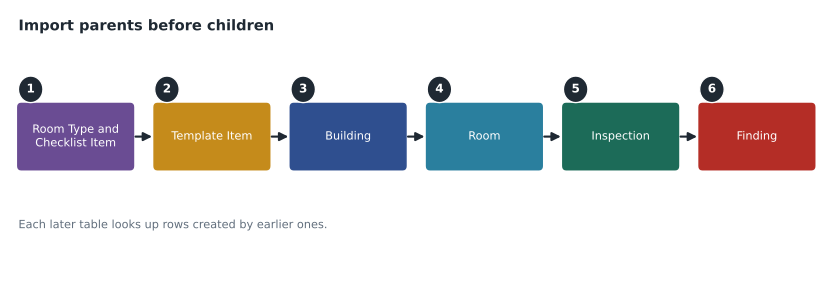
Rows that others look up must exist first. A room cannot point to a building that has not been imported, and a finding cannot point to an inspection or a checklist item that does not exist. So the import order follows the relationships from parents to children: reference data such as Room Type and Checklist Item first, then Template Item, then Building, then Room, then Inspection, then Finding. Signe wrote the order at the top of the migration plan and numbered every file.
Importing from Excel and CSV
For a one-off load of a single table, Power Apps can import data from Excel or CSV directly into a table. Open the table, choose to import data from Excel, select the file, and map each source column to a table column; Dataverse suggests mappings from the column headings, and you correct the ones it gets wrong. Lookups are matched by the related row's primary column or by an alternate key, choices by their labels, and the import runs as a background job whose results, including any rows that failed and why, can be reviewed.
Signe used this for the room list. The workbook had Building Code, Room Number, Room Type and Floor. The Building lookup matched rows by the Building Code alternate key from lesson 5, the Room Type lookup matched by name, and Floor mapped to a whole number column. The first attempt failed on 23 of 1,480 rows, which turned out to be a good thing: the failures showed room types spelled differently from the Room Type table and two rooms that already existed, caught by the Room alternate key.
Worked problem
Reading import failures
The room import reports 23 failed rows: 19 with "The lookup value Chem Lab was not found", and 4 with a duplicate key error. What should Signe do?
Show solution
- The 19 lookup errors mean the file uses a room type name that does not match any Room Type row; the table has Chemistry lab.
- Fix the source: map Chem Lab to Chemistry lab in the file, or add a mapping step in Power Query, and re-import only the failed rows.
- The 4 duplicate key errors mean those rooms already exist, so the alternate key on Building plus Room Number rejected them.
- Decide whether they are true duplicates to skip or updates to apply; to update existing rows, use an import method that supports updates by key, such as a dataflow.
Answer: Fix the lookup values at the source and re-import the failures; treat duplicate key errors as either skips or as a reason to use an upsert.
Power Query dataflows
For data that needs reshaping, comes from another system, or must load repeatedly, dataflows are the better tool. A dataflow uses Power Query, the same data preparation engine as Excel and Power BI, to connect to a source such as Excel, SharePoint, a SQL database or a web API, transform the data with steps such as filtering, renaming, splitting and merging, and load it into Dataverse tables. Dataflows can run on a schedule and keep their transformation steps, so the same cleaning happens every time.
When loading into an existing table, a dataflow maps query columns to table columns and chooses how to match existing rows. If the table has an alternate key and the dataflow maps it, the dataflow can update rows that match the key and create rows that do not, which is an upsert. Without a key, a dataflow can only add new rows, and repeated runs create duplicates. The maintenance system's nightly building feed became a scheduled dataflow that upserts Building rows by Building Code. Lesson 5's key decision made this possible.
let
    Source = Excel.Workbook(File.Contents("Inspections-2022-2026.xlsx")),
    Raw = Source{[Item="Findings", Kind="Sheet"]}[Data],
    Promoted = Table.PromoteHeaders(Raw),
    Unpivoted = Table.UnpivotOtherColumns(Promoted,
        {"Building", "Room", "Date", "Inspector"}, "Checklist Item", "Result Text"),
    Cleaned = Table.TransformColumns(Unpivoted, {{"Result Text", Text.Trim}}),
    NoBlanks = Table.SelectRows(Cleaned, each [Result Text] <> "")
in
    NoBlanks
The historical inspections were the hardest load. The old spreadsheets had one row per room visit with thirty checklist columns. Power Query's unpivot turned each checklist column into its own row, exactly the normalization from lesson 1, so 9,000 wide rows became 214,000 finding rows. A mapping step translated the eleven spellings of Result to the three choice labels from lesson 5, with unknown values sent to a review query. Kwabena checked the counts per result against the spreadsheets before anyone called the migration done.
How business logic affects imports
Imported data passes through the same server-side logic as data from apps. Entity-scoped business rules run, so the date rule from lesson 6 rejects historical inspections with impossible dates; Signe fixed the 12 bad rows at the source rather than switching the rule off. Plug-ins run unless the import is configured to bypass them where that option exists and is permitted. Alternate keys enforce uniqueness. Autonumber columns generate new numbers unless a value is supplied. Prompt columns run for new rows if they are enabled, which consumes AI credits; Signe turned off execution on the Plain Summary column during the historical load and back-filled selected rows later. Plan for each of these before a big import.
| Design element | Effect on import | Plan |
|---|---|---|
| Alternate keys | Duplicates fail; keys allow upserts | Map keys; decide whether duplicates are skips or updates |
| Choices | Values must match option labels | Map source values to labels first |
| Lookups | Related rows must exist and be matched | Import parents first; match by key or primary column |
| Entity-scoped business rules | Rows that break rules are rejected | Fix source data; do not disable rules casually |
| Prompt columns | Generate for new rows if enabled | Pause execution for bulk historical loads |
| Auditing | Every imported row is audited if auditing is on | Consider log capacity for very large loads |
The classic import wizard and templates
Model-driven apps also offer the classic Import Data wizard, which can import CSV, Excel and compressed files into one or several tables at once, using saved data maps to remember how source columns map to table columns. An administrator or user can download an import template for a table: an Excel workbook with the table's columns as headings and choice lists as drop-downs, which people fill in and import. Templates are a good way to let a department prepare data in the right shape. Lumenvale's facilities admin uses a Building template for new buildings acquired by the college.
Exporting to Excel
Users with the privilege to export can export the rows of a model-driven view to an Excel workbook, as a static file or as a workbook that can be refreshed. They can also edit in Excel Online from some views: change values in a grid and publish the changes back to Dataverse, where they pass through the same security, keys and business rules as any other update. Exports respect security, including column security from lesson 9, and the export privilege itself is a miscellaneous privilege in security roles. Lumenvale gives it to supervisors and the report reader, not to inspectors, who work on phones and have no need to take bulk data away.
Exported workbooks are copies outside Dataverse's security, so the privacy office asked that exports containing personal information be stored only in the college's Microsoft 365 tenant, which keeps data in Canada, and never on personal devices.
Moving configuration data between environments
Solutions move the schema, tables, columns, relationships, keys, rules, roles and profiles, from development to test to production. They do not move ordinary data. But some data is really configuration: the Room Type and Checklist Item rows, and the Template Items that link them, define what inspectors must check, and every environment needs the same rows, ideally with the same identifiers so lookups and references line up.
The Configuration Migration tool, part of Microsoft's Power Platform tools, exports chosen tables and rows from one environment into a data file and imports them into another, preserving their identifiers and the relationships between them. Lumenvale uses it, through the Power Platform command-line tools in its deployment pipeline, to move the checklist templates with each release, so the test environment always checks the same items as production. Business data such as real inspections never moves this way; test environments get test data.
Getting data out for analytics
Reports need data, and Dataverse offers several routes. Power BI can connect to Dataverse directly, reading tables as the signed-in user or a dataset account, so security applies. The Dataverse connector in Power Query and the read-only SQL endpoint let analysts query tables. For large-scale analytics, Azure Synapse Link for Dataverse and Link to Microsoft Fabric continuously replicate chosen tables into a data lake or Fabric, using the change tracking setting from lesson 2, so analysts can join Dataverse data with other sources without loading the operational database. Kwabena's inspection dashboard uses a direct Power BI connection; the college's data warehouse team uses the Fabric link for long-term analysis.
| Need | Tool |
|---|---|
| Load one file into one table once | Import from Excel or CSV in Power Apps |
| Clean, reshape or load repeatedly from another source | A Power Query dataflow, upserting by alternate key |
| Let a department prepare data in the right shape | An import template and the import wizard |
| Let users take or edit data in Excel | Export to Excel or edit in Excel Online, controlled by privilege |
| Copy configuration rows between environments | The Configuration Migration tool |
| Report on Dataverse data | Power BI connected to Dataverse |
| Large-scale analytics with other data | Azure Synapse Link or Link to Microsoft Fabric |
Bulk deletion and clean-up
Sometimes data must leave for good. Test loads leave rows behind, and retention rules require deleting old data. Bulk delete jobs, run by administrators, delete rows that match a query, once or on a schedule, as a background job. They respect relationship behaviours from lesson 3: deleting inspections deletes their findings through the parental relationship, and restrict delete blocks deleting buildings with rooms. Signe used a bulk delete job to remove the first, failed test load of historical findings before the final load, and scheduled one to delete draft inspections that were never started after 90 days.
The migration took three weekends. On the Monday after the last one, Kwabena opened the dashboard and answered Octavia's question about failed extinguishers across four years in about four seconds. He sent her a screenshot without comment.
Validating a migration
A migration is finished when someone has checked it, not when the last job succeeds. Kwabena and Signe agreed four checks before calling the historical load complete: the number of findings per year matched the spreadsheets; the number of failures per checklist item matched; a random sample of 50 findings, compared field by field with the source, had no differences; and every row that had been sent to the review list had been resolved by a person. They recorded the results in the migration plan, so anyone asking later how the historical data was loaded can see what was checked and by whom.
Common mistakes
MistakeImporting children before their parents.
InsteadImport in relationship order, parents first, so lookups resolve.
MistakeLoading repeatedly with a dataflow but no alternate key.
InsteadMap an alternate key so the dataflow can upsert instead of creating duplicates.
MistakeSwitching off business rules to make an import pass.
InsteadFix the source data; rules protect the model for every source.
MistakeForgetting that prompt columns and auditing run during imports.
InsteadPause prompt execution and plan log capacity for large historical loads.
MistakeUsing solutions to move configuration rows.
InsteadSolutions move schema; use the Configuration Migration tool for configuration data.
MistakeGiving everyone the export privilege.
InsteadGrant export only to roles that need bulk data, because exported files leave Dataverse security.
Summary and key terms
- Import parents before children, following the relationships of the model.
- Import from Excel or CSV for one-off loads; use Power Query dataflows for transformed, repeated or external loads.
- Dataflows upsert by alternate key; without a key, repeated loads create duplicates.
- Imported data passes through keys, business rules, plug-ins, prompt columns and auditing.
- Export to Excel respects security, and the export privilege is controlled by roles.
- Solutions move schema; the Configuration Migration tool moves configuration data; analytics use Power BI, Synapse Link or the Fabric link.
- Dataflow
- A Power Query process that extracts, transforms and loads data into Dataverse, once or on a schedule.
- Unpivot
- A transformation that turns columns into rows, removing repeating groups.
- Data map
- A saved mapping of source columns to table columns for the import wizard.
- Import template
- An Excel workbook with a table's columns, used to prepare data for import.
- Configuration Migration tool
- A Microsoft tool that moves configuration rows between environments with their identifiers.
- Link to Microsoft Fabric
- A feature that replicates Dataverse tables to Microsoft Fabric for analytics.
- Bulk delete
- A background job that deletes rows matching a query, once or on a schedule.
Practice problems
Work each problem on paper first, then reveal the answer to check.
Why must Building rows be imported before Room rows?
Show answer
Each room looks up its building, so the building must exist for the lookup to resolve.
What lets a scheduled dataflow update existing rows instead of adding duplicates?
Show answer
Mapping an alternate key so the dataflow can upsert.
Which Power Query step turned thirty checklist columns into rows?
Show answer
Unpivot.
Why do the checklist templates move with the Configuration Migration tool rather than the solution?
Show answer
They are data rows, and solutions move schema; the tool moves the rows with their identifiers.
Lesson quiz · 5 questions
Score 60% or more to complete this lesson.
Create a free account to save your progress, take quizzes and earn a certificate.