
MSBA-211 · Lesson 2 of 12 · 21 min
Enrolling Windows devices
▶ Video coming soon A video version of this lesson is on the way.
Ama's first Intune task of the autumn was not glamorous. She wanted to be sure that every Windows device that belonged to Corvallin was enrolled, that nothing else could enroll by accident, and that each record showed the right owner and ownership type. The spring Autopilot project had enrolled most laptops, but a few older desktops had been joined by hand years before, and one branch manager had once added her home laptop to "get Teams working". Before building any policies, Ama wanted the enrollment door locked and labelled.
Enrollment, join and registration
Three ideas are easy to mix up. Microsoft Entra join makes a device a member of the organization's directory, so people sign in to Windows with their work accounts. Microsoft Entra registration adds a work account to a personal device without joining it; the person still signs in with their own account. Intune enrollment is separate from both: it hands management of the device to Intune, so Intune can apply policies and report on it. On Windows, joining and enrolling usually happen together, because the join process can trigger enrollment automatically. The previous course, on deploying Windows clients, covered the join types in detail; this lesson concentrates on the enrollment side.
| Method | Who starts it | Ownership Intune records | Typical use |
|---|---|---|---|
| Windows Autopilot | The user or a technician at first start-up | Corporate | New and reset corporate devices |
| Entra join during setup or from Settings, with automatic enrollment | The user | Corporate | Corporate devices set up without Autopilot |
| Bulk enrollment with a provisioning package | A technician | Corporate | Kiosks, shared devices and batches without Autopilot registration |
| Add a work account to a personal device (Entra registered) with MDM enrollment allowed | The user | Personal | Personal Windows devices, where an organization allows them |
| Co-management with Configuration Manager | An administrator | Corporate | Organizations still running Configuration Manager; not Corvallin |
Automatic enrollment
Automatic enrollment links Entra join to Intune: when a user joins a device to Entra ID, or adds a work account in some cases, Windows enrolls it in Intune without any extra step. It is configured in the Intune admin center under the Windows enrollment settings, which point to a page in Entra ID with two scopes. The MDM user scope decides which users' devices enroll in Intune for full management. The MAM user scope decides whose devices get Windows app protection only, which is uncommon on Windows. Each scope can be set to None, Some (a group) or All.
Teodor had set the MDM user scope to All during the Autopilot project, so any licensed user who joined a device would have it enrolled. Ama checked two details that often go wrong. First, the users need an Intune licence; a user without one can join a device, but enrollment fails. Second, if both scopes include the same user, MDM takes priority for joined devices. Corvallin left the MAM user scope set to None.
Enrollment restrictions
Intune uses enrollment restrictions to decide which devices may enroll. There are two kinds.
A device platform restriction decides which platforms may enroll, which operating system versions are allowed and whether personally owned devices of each platform are allowed. A device limit restriction sets how many devices one user may enroll. The default restriction allows every platform and a limit of five devices per user; the maximum limit is 15. Administrators can create additional restrictions with a priority order and assign them to groups, so a stricter rule can apply to most staff and a looser one to a small group. The default restrictions always apply last, to everyone not covered by another.
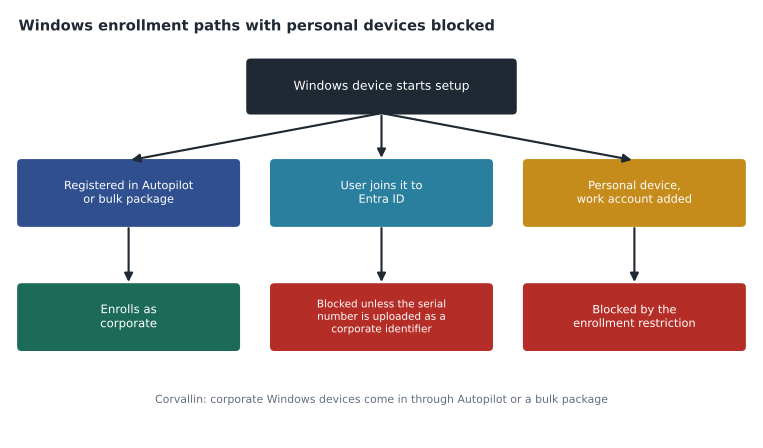
Ama created a platform restriction for Windows that blocks personally owned devices and assigned it to all users. That is the setting that would have stopped the branch manager's home laptop. Corporate devices are not affected, because Intune recognizes them as corporate in one of several ways: they enrolled through Autopilot, they were enrolled by a device enrollment manager account, they used a bulk provisioning package, or their hardware identifiers were uploaded as corporate device identifiers. One case catches many administrators out. A device that a user joins to Entra ID during Windows setup or from Settings, outside Autopilot, is marked corporate once it enrolls, but the personal-device block still stops it, because Intune has no per-device record that the organization approved it. Microsoft's documentation lists this behaviour explicitly. To allow such devices while blocking personal ones, an organization uploads their serial numbers as corporate identifiers or deploys them through Autopilot. Ama was content with that: at Corvallin, a laptop that is not in Autopilot should not be enrolling at all.
| Restriction | Corvallin setting | Reason |
|---|---|---|
| Windows platform, personal devices | Blocked | Client records must not sit on unmanaged personal laptops |
| Windows minimum version | Windows 11 version 24H2 | Matches the supported versions in the deployment project |
| Device limit for all users | 5 (default) | A nurse might have a laptop, a phone and a tablet |
| Device limit for IT staff | 15 | Technicians enroll and test many devices |
Worked problem
Which restriction wins?
Ama has three device limit restrictions: priority 1 assigned to the IT-Staff group with a limit of 15, priority 2 assigned to Branch-Care-Staff with a limit of 3, and the default with a limit of 5. Felix is in both IT-Staff and Branch-Care-Staff because he covers a branch on Fridays. What limit applies to him?
Show solution
- Restrictions are evaluated in priority order, lowest number first.
- The first restriction assigned to any group Felix belongs to is the one that applies.
- Priority 1 applies to IT-Staff, which includes Felix.
Answer: Felix gets the limit of 15. The lower-priority restrictions and the default are not combined with it.
Ownership and the device record
Every enrolled device is marked Corporate or Personal. Ownership matters because it changes what Intune can do and see. On corporate devices Intune can collect a full app inventory, wipe the device and run every remote action. On personal devices Intune limits its inventory to managed apps and limits what administrators can do; on Windows, a personal device can be retired but not wiped from Intune without the user agreeing. An administrator can change the ownership on a device record, and should when a record is wrong, but ownership should normally be right from the start because it was set by the enrollment method.
Ama found 11 Windows devices marked Personal. Nine were old desktops that a former technician had enrolled by adding a work account rather than joining them, so they had never been joined to Entra ID. Two were genuinely personal: the branch manager's home laptop and a scheduler's family computer. She retired the two personal devices, phoned their owners to explain, and planned to reset and rejoin the nine desktops properly through Autopilot.
The device enrollment manager
A device enrollment manager (DEM) is a user account that may enroll up to 1,000 devices, far beyond the usual limit. It is meant for technicians who set up many shared devices. DEM accounts have limitations: devices enrolled by a DEM are treated as shared rather than tied to a user, Conditional Access doesn't work for them in the same way, and some features, such as user-based app deployment, behave differently. Microsoft's guidance is to use a DEM only where Autopilot or bulk enrollment can't be used. Corvallin had one DEM account, created years earlier and long forgotten; Ama removed it.
Bulk enrollment
For a small number of devices that are not registered in Autopilot, such as the reception sign-in computers at each branch, a provisioning package built in Windows Configuration Designer can join a device to Entra ID and enroll it in Intune when it is applied. The package contains a bulk enrollment token tied to a special account, which should be excluded from multifactor authentication for this purpose only and kept tightly controlled. Because the token can join devices to the directory, the package itself must be stored securely and deleted once the job is done. The deployment course covered building packages; for enrollment, the points to remember are that bulk-enrolled devices are corporate and are not associated with a user.
Checking that enrollment worked
On a Windows device, Settings shows the connection under Accounts, Access work or school. Selecting the work account and choosing Info shows the management server, the last sync and a Sync button. The same page can create an MDM diagnostic report, a detailed list of every policy the device has received and its result, which Ama would rely on in lesson 10. In the admin center, the device record shows when it last checked in and its enrollment date, and the Monitor area has an enrollment failures report that lists failed attempts with a reason.
| Failure reason | What it usually means | Fix |
|---|---|---|
| User is not licensed | No Intune licence is assigned to the user | Assign Microsoft 365 E3, F3 or an Intune licence |
| Device limit reached | The user already has the maximum number of enrolled devices | Remove stale devices or raise the limit for that group |
| Platform or personal device blocked | An enrollment restriction blocks it | Confirm the restriction is intended; use Autopilot or corporate identifiers for corporate devices |
| MDM terms of use or scope | The user is outside the MDM user scope | Add the user to the scope group |
| Device already enrolled elsewhere | Another MDM authority or tenant manages the device | Unenroll it from the other service first |
Stale devices
Devices that stop checking in stay in Intune until someone removes them. Intune has device clean-up rules that delete devices from Intune after a chosen number of days without a check-in, from 30 to 270, optionally by platform. Clean-up removes the Intune record but not the Entra ID device object, which has its own process. Ama set a rule of 120 days for Windows: long enough to cover a staff member on parental leave, short enough to keep reports accurate. Before switching it on, she checked the report of devices that had not checked in for 90 days, found 23 laptops that had been replaced in the spring, and confirmed none was still in use.
Worked problem
Choosing a clean-up period
Corvallin's longest common absence is a parental leave of about 52 weeks, during which a laptop sits in a locked cupboard. If Ama wants devices to survive such an absence, could she use a 120-day clean-up rule? What happens to a laptop that is cleaned up and then switched on again?
Show solution
- 52 weeks is 364 days, more than the 270-day maximum and far more than 120.
- A laptop off for that long would be removed from Intune under either setting.
- A removed Windows device loses its Intune management; when it is switched on it must be re-enrolled, for example with an Autopilot reset.
Answer: No clean-up period covers a full year, so Ama agreed with the branch managers that laptops of staff on long leave are returned to IT and reset, rather than kept in cupboards.
What Ama documented
At the end of the first week Ama wrote a one-page enrollment standard for the help desk: corporate Windows devices are enrolled only through Autopilot or, for reception computers, a bulk package; personal Windows devices are blocked; the device limit is five for staff and 15 for IT; enrollment failures are reviewed every Monday; and devices that have not checked in for 120 days are cleaned up. It was short on purpose. Every later decision in the project, from compliance rules to Conditional Access, depended on Intune's list of devices being accurate.
Windows devices that are not laptops
Not every Windows device belongs to one person. Corvallin's head office has two Teams Rooms systems, the branches have reception computers and the training room has four shared laptops for new-staff induction. These devices enroll as corporate devices without user affinity, through a bulk package, self-deploying Autopilot or, for Teams Rooms, the method the room vendor documents. They need their own groups so that user-focused baselines, such as OneDrive folder backup, don't land on them, and they are the most common place where an enrollment restriction written with people in mind blocks something by surprise. Ama listed them separately in her inventory from the start.
Windows 365 Cloud PCs are also Windows devices in Intune, enrolled automatically when they are provisioned. Corvallin had none, but the MD-102 skills include provisioning them through Intune, and the enrollment rules in this lesson apply to them in the same way.
Common mistakes
MistakeTreating Entra join and Intune enrollment as the same thing.
InsteadJoin puts the device in the directory; enrollment gives Intune management. Automatic enrollment links the two for users in the MDM user scope.
MistakeBlocking personal Windows devices and expecting corporate devices to be blocked too.
InsteadAutopilot, bulk-enrolled and DEM-enrolled devices, and devices with uploaded corporate identifiers, pass the personal block. A device a user joins to Entra ID outside Autopilot is blocked unless its identifier is uploaded.
MistakeExpecting several device limit restrictions to add up for a user in several groups.
InsteadThe highest-priority restriction assigned to the user applies on its own.
MistakeUsing a device enrollment manager account for everyday enrollment.
InsteadDEM accounts have limitations; use Autopilot or bulk enrollment where possible.
Summary and key terms
- Entra join, Entra registration and Intune enrollment are separate; automatic enrollment ties join to enrollment for users in the MDM user scope.
- Enrollment restrictions control which platforms, versions and personal devices may enroll and how many devices each user may enroll.
- Ownership, corporate or personal, changes what Intune can see and do; Autopilot, bulk enrollment and corporate identifiers mark devices as approved corporate devices.
- The MDM diagnostic report and the enrollment failures report are the first places to look when enrollment goes wrong.
- Device clean-up rules remove devices from Intune after 30 to 270 days without a check-in.
- Automatic enrollment
- Enrolling a Windows device in Intune when a user in the MDM user scope joins it to Entra ID.
- MDM user scope
- The Entra ID setting that decides whose devices enroll in Intune for full management.
- Enrollment restriction
- An Intune rule limiting which devices, or how many, a user may enroll.
- Corporate device identifier
- A serial number or hardware identifier uploaded so Intune treats a device as corporate.
- Device enrollment manager (DEM)
- An account allowed to enroll up to 1,000 shared devices, with feature limitations.
- Device clean-up rule
- A setting that deletes devices from Intune after a chosen period without a check-in.
Practice problems
Work each problem on paper first, then reveal the answer to check.
A user joins a new laptop to Entra ID but it never appears in Intune. Name two likely causes.
Show answer
The user has no Intune licence, or the user is outside the MDM user scope.
What does the default device limit restriction allow?
Show answer
Five devices per user; restrictions can allow up to 15.
Does an Intune clean-up rule delete the device from Entra ID?
Show answer
No. It removes the Intune record only.
Lesson quiz · 5 questions
Score 60% or more to complete this lesson.
Create a free account to save your progress, take quizzes and earn a certificate.