
MSBA-211 · Lesson 10 of 12 · 20 min
Policy conflicts and troubleshooting
▶ Video coming soon A video version of this lesson is on the way.
In the last week of October, the configuration status for WIN-Baseline-Experience turned orange: 61 laptops showed Conflict. At the same time, a scheduler at head office reported that her laptop locked itself every three minutes, and a branch nurse said the Wi-Fi profile had "never arrived" on her new laptop. Three different symptoms, and as it turned out three different causes. This lesson follows how Ama worked through them, and the tools and habits that make Intune troubleshooting fast rather than frustrating.
A method before tools
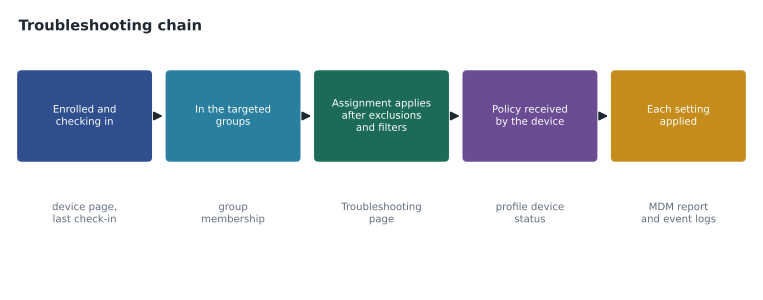
Ama's rule for the help desk was to locate the problem before touching anything. Every Intune problem sits somewhere on a chain: is the device enrolled and checking in, is it in the groups the policy targets, does the assignment apply to it after exclusions and filters, did the device receive the policy, and did each setting apply? Working along that chain in order avoids the commonest mistake, which is changing a policy that was never the problem.
What a conflict is
A conflict happens when two policies assigned to the same device try to set the same setting to different values. Intune can't decide which one the administrator meant, so for most configuration settings it applies neither of the conflicting values and reports Conflict, leaving the device with whatever value it had before. Compliance policies behave differently: when two compliance policies set the same requirement differently, Intune applies the more restrictive value, because a stricter compliance rule is the safer interpretation.
Conflicts usually come from overlap between kinds of policy. The same setting can often be configured in a settings catalog profile, an older template, an Endpoint security policy and a security baseline. Two people working in different areas of the admin center can easily set it twice without noticing.
| Source of overlap | Example | Prevention |
|---|---|---|
| Settings catalog and an older template | Edge settings set in both an administrative template and a catalog profile | Move settings into the catalog and retire the template |
| Configuration profile and Endpoint security | Firewall or BitLocker set in a general profile and an Endpoint security policy | Keep security settings in Endpoint security only |
| Security baseline and a custom profile | A baseline sets screen lock to 15 minutes and a profile sets 10 | Change the baseline's value rather than adding a second profile |
| Two administrators, one setting | A consultant's profile for Teams Rooms and the general Windows baseline | Exclude specialist devices from general baselines |
Case one: 61 conflicting laptops
Ama opened WIN-Baseline-Experience, then the device status, and picked one conflicting laptop. The device's configuration view listed each setting in the profile with its state, and the conflicting setting, the inactivity limit for locking the screen, showed Conflict with the name of the other policy that set it: a Windows security baseline that Teodor had assigned to a test group two weeks earlier and then widened to all Windows devices. The baseline set the limit to 15 minutes; Ama's profile set 10.
Neither value was wrong, but having two owners was. Ama and Teodor agreed that security baselines would own the screen lock setting, changed the baseline's value to 10 minutes and removed the setting from WIN-Baseline-Experience. Within a day the 61 laptops showed Succeeded. They added a line to the change process: before adding a setting to any policy, search for it in the admin center's policy list to see whether something already sets it.
Worked problem
Why only 61 laptops?
WIN-Baseline-Experience is assigned to all 520 corporate Windows laptops, and the security baseline was widened to all Windows devices too. Yet only 61 showed Conflict. Ama found that the other 459 had not checked in since the baseline was widened, because it was a long weekend. What would have happened over the next few days without the fix, and what does that teach about reading status reports?
Show solution
- Each laptop that checked in would receive both policies and report Conflict.
- The count would have risen towards all 520 as devices came back online.
- A status report shows devices that have reported, not the eventual result.
Answer: The conflict would have spread to almost every laptop. A small number on a new problem can be the early edge of a large one, so Ama now checks how many devices are still pending before judging how big a problem is.
Case two: a screen that locks every three minutes
The scheduler's laptop showed no conflict at all; every profile reported Succeeded. So the cause had to be something Intune did not report as a conflict. Ama ran the Troubleshooting page for the scheduler, which lists every policy and app assigned to the user and their devices. One entry stood out: the scheduler was also a member of a group used for a small pilot of a kiosk-style power plan on shared laptops, which set the display to turn off after three minutes through a different setting from the lock screen limit. Because the two settings were different, Intune saw no conflict, but the effect on the user was the same. She had been added to the pilot group by mistake. Removing her fixed it after the next check-in.
This case shows the limit of conflict reporting. Intune reports conflicts only when two policies set the same setting. Settings that interact, such as a display timeout and a lock timeout, or a Wi-Fi profile and a network restriction, can cause problems without any conflict being shown.
Case three: a Wi-Fi profile that never arrived
The nurse's new laptop did not show the Wi-Fi profile in the Troubleshooting view at all. Her laptop was enrolled, checking in and compliant. Branch Wi-Fi profiles were assigned to one dynamic device group per branch, built on the Autopilot group tag, and the East Branch profile went to DEV-WIN-Branch-East. The laptop was not in the group. It had been registered in Autopilot that morning with its group tag typed as BRANCH-EAST with a trailing space, and the dynamic rule, which compares the tag exactly, did not match. Because the device was not in the group, the profile was never assigned to it, so there was nothing to fail and nothing to report. Ama corrected the tag in the Autopilot device list, waited for the group to update and synced the laptop. She also changed the branch rules to use the startsWith operator, so stray spaces at the end would no longer matter.
This is the kind of problem that status reports cannot show: a device outside the targeted group never appears in the profile's status at all. That is why the Troubleshooting page, which starts from the user and lists what is actually assigned, is often more useful than the profile's own report.
The MDM diagnostic report and event logs
When the admin center shows a setting as an error, the device itself usually knows more. On Windows, Settings, Accounts, Access work or school, then the work account and Export your management log files produces an MDM diagnostic report, an HTML page listing every policy area the MDM client has, the configured values and enrollment details. The event log under Applications and Services Logs, Microsoft, Windows, DeviceManagement-Enterprise-Diagnostics-Provider records each policy the MDM client processes, with error codes for failures.
Win32 apps, PowerShell scripts and Remediations are handled by the Intune Management Extension rather than the MDM client, so their logs are separate, in the IntuneManagementExtension folder under ProgramData. The main log covers app installs and check-ins; others cover script execution and Remediations. Because reading logs on a user's laptop means a remote session, Ama preferred the Collect diagnostics remote action, which gathers these logs and the relevant event logs and uploads them to Intune, where she can download them as a zip file.
| Tool | Best for |
|---|---|
| Device page, last check-in | Is the device talking to Intune at all? |
| Troubleshooting page for a user | What is assigned to this person and their devices, and app protection status |
| Profile device status and per-setting view | Which setting failed or conflicted, and with which policy |
| MDM diagnostic report | What the Windows MDM client actually holds |
| DeviceManagement-Enterprise-Diagnostics-Provider event log | Error codes for policies the MDM client processed |
| Intune Management Extension logs | Win32 apps, scripts and Remediations |
| Collect diagnostics | Getting logs without a remote session |
| Company Portal or Intune app logs on phones | Mobile enrollment and compliance problems, sent to Microsoft support with an incident ID |
Mobile troubleshooting
Phones have fewer local tools. On a managed iPhone or Android phone, the Company Portal or Intune app shows the device's compliance state and the reason for any failure, with a link to fix it; pressing Check status or Check access forces a fresh evaluation. Users can send logs from the app, which produces an incident ID that the help desk or Microsoft support can use. Most mobile problems Ama saw were simpler than that: a phone that had been off for a week, a security patch level below the compliance minimum, or a passcode that did not meet the new six-digit rule.
Worked problem
A noncompliant Samsung phone
A home-care worker's phone shows Not compliant. The compliance policy requires Android 13 or later, a security patch level no older than 90 days and a passed Play Integrity check. The device page shows Android 14, a security patch dated July 1, 2026 and a passed integrity check. Today is November 3, 2026. What is wrong, and what should the help desk do?
Show solution
- Android 14 meets the version requirement, and the integrity check passed.
- From July 1 to November 3 is 125 days, more than 90.
- The patch level is too old; the phone has missed its monthly updates.
Answer: The security patch is about 125 days old. The help desk asks the worker to install the waiting system update, or checks whether a system update policy is blocking it, then has her press Check status in the Intune app.
Habits that prevent problems
By November Ama had a short list of habits that prevented most of the problems in this lesson: one owner for each setting, recorded in the profile description; clearly named groups with exact, tested rules; filters instead of extra groups where a device property is enough; every new policy through the IT ring and pilot before everyone; and every change logged with the reason. None of these needs a special tool. All of them make the tools in this lesson faster to use when something does go wrong.
When to call Microsoft support
Some problems are in the service, not the tenant. If a setting fails on every device with the same error code, the tenant's configuration has been checked and service health shows nothing, it is worth opening a support request from Troubleshooting and support in the admin center. Microsoft will ask for the tenant, affected devices, times, error codes and logs, so Ama kept a template in the help desk wiki with those fields and the steps to collect diagnostics, which made requests quicker to open and quicker to resolve.
Making the next investigation faster
After each of the three cases, Ama added a line to the help desk wiki describing the symptom, the cause and the check that found it: conflict on many devices, look at the per-setting view for the other policy; a symptom with no conflict, look at the Troubleshooting page for unexpected groups; a missing profile, check group membership before anything else. Within a month the wiki had a dozen such entries, and the technicians were solving most configuration calls without asking her.
Common mistakes
MistakeChanging a policy as soon as a user reports a problem.
InsteadLocate the problem along the chain first: check-in, groups, assignment, receipt, then the setting.
MistakeExpecting Intune to apply one of two conflicting configuration values.
InsteadFor most configuration settings neither conflicting value applies; for compliance settings the more restrictive one does.
MistakeAssuming no reported conflict means no interaction.
InsteadDifferent settings can interact, such as display and lock timeouts, without Intune showing a conflict.
MistakeLooking only in the MDM event log for a failed script.
InsteadScripts, Win32 apps and Remediations run through the Intune Management Extension and have their own logs.
Summary and key terms
- Troubleshoot along a chain: enrolled and checking in, in the right groups, assignment applies, policy received, setting applied.
- A conflict is two policies setting the same setting differently; for most configuration settings neither value applies, while compliance uses the more restrictive value.
- The per-setting view of a profile names the conflicting policy; one owner per setting prevents conflicts.
- The MDM diagnostic report, the DeviceManagement-Enterprise-Diagnostics-Provider log and the Intune Management Extension logs show what happened on the device.
- Collect diagnostics gathers Windows logs without a remote session; mobile users can send logs from the Company Portal or Intune app.
- Conflict
- Two policies setting the same setting to different values on one device.
- Troubleshooting page
- The admin center view that lists everything assigned to a user and their devices.
- MDM diagnostic report
- An HTML report from Windows listing the policies the MDM client holds.
- DeviceManagement-Enterprise-Diagnostics-Provider
- The Windows event log for MDM policy processing.
- Collect diagnostics
- A remote action that gathers and uploads Windows logs to Intune.
- Security baseline
- A Microsoft-provided group of recommended security settings deployed as a policy.
Practice problems
Work each problem on paper first, then reveal the answer to check.
Two compliance policies require different minimum passcode lengths. Which applies?
Show answer
The more restrictive, longer requirement.
Where are Remediation logs on a Windows device?
Show answer
In the Intune Management Extension logs folder under ProgramData.
Why was the nurse's Wi-Fi profile missing?
Show answer
Her laptop wasn't in the targeted dynamic group because its Autopilot group tag had a trailing space.
Lesson quiz · 5 questions
Score 60% or more to complete this lesson.
Create a free account to save your progress, take quizzes and earn a certificate.