
MSBA-169 · Lesson 7 of 12 · 24 min
Domain review: project management
▶ Video coming soon A video version of this lesson is on the way.
On Tuesday, April 20, Grace Achterberg joined the session, because the project management area of the outline, worth 5 to 10 in 100, is about the tools she uses to run the guidebook schedule. Owen's dots were on project insights and built-in workflows. Grace brought the real board for "Coastal Day Hikes, 3rd edition", a GitHub project with 84 items, and the three of them used it to review every skill in the area: GitHub Projects and its layouts, configuring fields, views, labels, milestones and workflows, saved replies and assignees, and using insights to track progress.
GitHub Projects
A GitHub project is a flexible planning tool that sits above repositories. It holds items: issues and pull requests from one or more repositories, and draft issues, quick notes that exist only in the project until someone converts them into real issues. Each item carries the issue's own data, such as title, assignees, labels and milestone, plus custom fields defined in the project, such as Status, Priority, Chapter, Estimate or Target date. Projects belong to an organization or a personal account, not to a single repository, which is what lets one board track work across trail-notes, trailcheck and style-guide together.
Projects replaced the older projects (classic), which were simple column boards tied to one repository or organization and were retired in 2024. Exam questions now refer only to the current Projects. Owen made a note, because some older study material still describes classic boards.
Layouts and views
Every project offers three layouts, and a project can have many views, each a saved combination of layout, filter, grouping, sorting and visible fields, shown as tabs across the top.
| Layout | Looks like | Best for |
|---|---|---|
| Table | A spreadsheet of items and fields | Bulk editing, sorting and seeing many fields at once |
| Board | Columns of cards, usually by status | Following work as it moves from to do to done |
| Roadmap | Items as bars on a timeline, from date or iteration fields | Planning against dates and spotting overlaps |
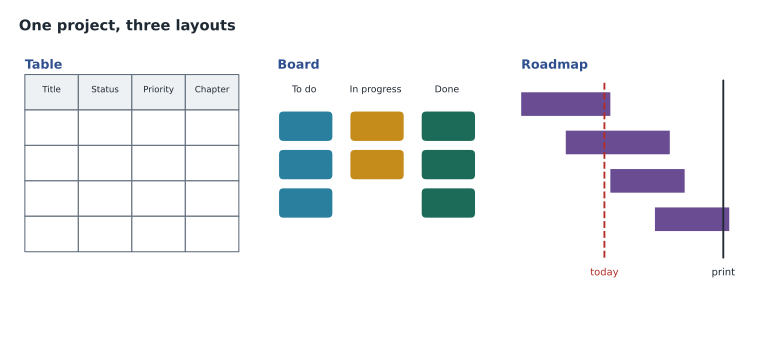
Grace's project had five views: a table of everything for weekly triage, a board grouped by Status for the daily stand-up, a board grouped by Chapter for the editors, a roadmap using the Target date field for the print schedule, and a table filtered to assignee:@me so each person saw only their own work. Views are shared with everyone who can see the project, so a change to a view's filter changes it for the whole team unless saved as a new view.
Fields
Custom fields shape what a project can show. The field types are text, number, date, single select, a fixed list of options such as High, Medium and Low, and iteration, repeating time boxes such as two-week sprints, with breaks between them. Built-in fields include Title, Assignees, Status, Labels, Linked pull requests, Milestone, Repository and Reviewers. Grouping a board or table by a single-select or iteration field, and sorting by a number field, is how views are built.
Worked problem
Designing fields for the print schedule
Grace wants to see, for each chapter, how many items are still open, which are urgent, and whether each will be ready by its print slot. Which fields does the project need?
Show solution
- Chapter: a single-select field with one option per chapter, to group by.
- Priority: a single-select field with High, Medium and Low, to sort or filter by.
- Target date: a date field, to show items on the roadmap against print slots.
- Status already exists as a built-in single-select field: To do, In progress, Done.
Answer: Chapter and Priority as single-select fields, Target date as a date field, plus the built-in Status.
Items can be added to a project in several ways: by pasting an issue or pull request link into the add-item row, by searching for issues from a repository with the # key, from the issue sidebar under Projects, by a built-in auto-add workflow, or by typing a title to create a draft issue. Draft issues suit quick ideas from a planning meeting; when one is ready to be worked on, converting it creates a real issue in a chosen repository and keeps its place and fields in the project. Bulk changes are easiest in the table layout, where several selected items can have a field set in one action.
Labels and milestones
Labels belong to repositories, not projects. They classify issues and pull requests, such as correction, new-trail, map, good first issue or needs-review, and every repository starts with a default set that can be edited. Organizations can set default labels for new repositories. Milestones also belong to a repository: each groups issues and pull requests towards a goal, optionally with a due date, and shows a progress bar of how many of its items are closed. Projects can show both as fields, filter by them, and group by milestone.
| Tool | Belongs to | Use |
|---|---|---|
| Label | A repository (defaults can be set for the organization) | Classifying and filtering issues and pull requests |
| Milestone | A repository | Grouping work towards a goal or date, with progress |
| Project field | A project | Planning data such as priority, estimate or iteration |
| Project view | A project | A saved layout with filters, grouping and sorting |
Exam questions often hinge on that ownership. A label applied to an issue in trail-notes shows wherever that issue appears; a Priority value set in Grace's project exists only in that project. If a question asks how to group the issues of one repository towards a release date with a progress bar, the answer is a milestone; if it asks how to plan work across several repositories with custom fields, it is a project.
Built-in workflows and automation
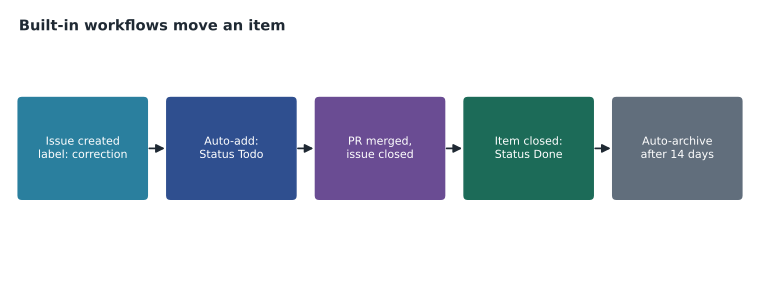
Projects include built-in workflows that keep fields up to date without anyone remembering to. They are switched on in the project's Workflows menu. Typical ones set Status to Todo when an item is added, set Status to Done when an issue is closed or a pull request is merged, set a status when a pull request is approved or changes are requested, add items automatically from a repository when they match a filter, and archive items that meet a condition, such as done for two weeks. For anything more, the project can be automated with GitHub Actions and the GraphQL API.
Worked problem
How many items need manual updating?
In a week, 18 items close in the project. Before Grace turned on the item closed workflow, each needed its Status changed by hand, taking about 20 seconds including finding the item. How much time does the workflow save each week, and what else does it remove?
Show solution
- Manual updates replaced: 18.
- Time saved: 18 times 20 seconds is 360 seconds, which is 6 minutes.
- It also removes the risk of forgotten updates, which made the board show finished work as still in progress.
Answer: About 6 minutes a week, and, more importantly, a board that is always accurate.
Saved replies and assignees
Saved replies are reusable responses that you write once and insert into any issue or pull request comment from the reply box, for example a thank-you for a first correction, a request for a page number, or the standard reply when a suggestion is out of scope. They are stored on your personal account and available in every repository you comment in. Grace kept five: thanks, need-page-number, duplicate, out-of-scope and fixed-in-next-printing. They speed up triage and make replies consistent and polite.
Assignees connect projects to people. Assigning an issue to someone puts it in their assigned list, which they can filter with assignee:@me in any repository or project view. Grace's rule was that an item in progress always has exactly one assignee, so it is clear who to ask, and an item with no assignee is not in progress, whatever its status says.
Insights
Project insights are charts built from the project's own data. The default burn up chart shows items completed over time against the total, so you can see whether work is finishing as fast as it arrives. You can also create custom charts, as bar, column, line or stacked charts, grouped by any field: items per status, per assignee, per chapter or per iteration. Charts respect filters, so a chart can cover one milestone, one label or one person.
Worked problem
Reading a burn up chart
Grace's burn up chart for the third edition shows 84 total items, of which 60 are done on April 20. Over the past four weeks, 9 items a week were completed on average, and 2 new items a week were added. At that pace, about how many weeks will it take to finish?
Show solution
- Remaining items: 84 minus 60 is 24.
- Net progress each week: 9 completed minus 2 added is 7.
- \[\frac{24}{7} \approx 3.4 \text{ weeks}\]
- So about three and a half weeks, if both rates hold.
Answer: About 3.4 weeks, so mid-May, which Grace compared with the print deadline.
Insights answer project questions with evidence rather than impressions. Grace used a chart of open items by chapter to move an editor from chapter 2, nearly done, to chapter 7, which had the most open items, and a chart by assignee to spot that one person had twelve items in progress, more than anyone could work on at once.
Breaking work down
Large pieces of work are easier to plan in smaller parts. GitHub supports sub-issues, which link child issues to a parent so the parent shows how many of its parts are done, and projects can show that progress as a field. Organizations can also define issue types, such as Bug, Task and Feature, shared across their repositories, so every repository classifies work the same way. Older guidance used task lists in an issue description for the same purpose, and many teams still do. For the exam, the key idea is that a big goal becomes a parent issue, its parts become sub-issues or tasks, and the project tracks them all.
Iterations add time to the picture. With a two-week iteration field, each item is placed in a sprint, a board grouped by iteration shows what is planned for each, and the roadmap shows the iterations as bands. Grace used three-week iterations named after the print schedule: copy edit, layout, proofs. When an iteration ends, unfinished items can be moved to the next one in bulk from the table layout, by selecting the items and changing the field once.
Worked problem
Planning a three-week iteration
The proofs iteration runs for 3 weeks. The team of four editors can each finish about 3 items a week. Grace has 40 items marked for proofs. How many fit, and what happens to the rest?
Show solution
- Capacity per week: 4 editors times 3 items is 12.
- Capacity for the iteration: 12 times 3 weeks is 36.
- Items that do not fit: 40 minus 36 is 4.
- Grace sorts by Priority and moves the 4 lowest-priority items to the next iteration before it starts.
Answer: 36 items fit; 4 low-priority items move to the next iteration.
A weekly triage routine
Grace runs a fifteen-minute triage every Monday from the project's table view, filtered to items with no Status or no assignee. For each item she checks that it has the right labels, sets Priority and Chapter, assigns one person if it is ready to start, links it to a milestone if it belongs to an edition, and uses a saved reply to ask the reporter for missing details if needed. Anything that will never be done is closed as not planned with a short explanation. The routine keeps the board trustworthy, and a trustworthy board is what makes its insights worth reading.
Projects at the organization level
Projects at the organization level
Organization projects can be shared with teams and outside collaborators, with roles of read, write or admin on the project itself, separate from repository roles. A project can be made public, so that readers can follow the third edition's progress, while the repositories behind it stay private; items from private repositories remain hidden from people without access. Projects can be copied, so a project for the next guidebook can start from this one's fields, views and workflows, and organizations can create project templates for that purpose.
Common mistakes
MistakeThinking a project belongs to one repository.
InsteadProjects belong to an organization or user and can hold items from many repositories.
MistakeUsing a project field where a milestone is asked for.
InsteadMilestones group a repository's issues towards a goal with a progress bar.
MistakeUpdating Status by hand after every merge.
InsteadTurn on the built-in workflow that sets Done when an item closes.
MistakeStudying projects (classic) from old material.
InsteadClassic projects were retired; the exam covers current Projects.
Summary and key terms
- GitHub Projects plan work across repositories with issues, pull requests, draft issues and custom fields.
- Layouts are table, board and roadmap; views save a layout with filters, grouping and sorting.
- Field types include text, number, date, single select and iteration.
- Labels and milestones belong to repositories; fields and views belong to projects.
- Built-in workflows add items, set status on close or merge, and archive old items.
- Saved replies speed up consistent comments; insights charts such as burn up track progress.
- Project
- A planning tool owned by an organization or user, holding items from many repositories.
- Draft issue
- A project item that exists only in the project until converted to an issue.
- View
- A saved layout of a project with its own filters, grouping and sorting.
- Iteration field
- A field of repeating time boxes, such as two-week sprints.
- Milestone
- A repository's grouping of issues and pull requests towards a goal, with progress.
- Built-in workflow
- An automation in a project that updates fields or adds and archives items.
- Saved reply
- A reusable comment stored on your account and inserted from the reply box.
- Burn up chart
- A chart of completed items against total items over time.
Practice problems
Work each problem on paper first, then reveal the answer to check.
Which layout shows items as bars on a timeline?
Show answer
Roadmap.
Where are saved replies stored?
Show answer
On your personal account, available wherever you comment.
Which built-in workflow keeps a board accurate after merges?
Show answer
The one that sets Status to Done when an item is closed or merged.
Lesson quiz · 5 questions
Score 60% or more to complete this lesson.
Create a free account to save your progress, take quizzes and earn a certificate.