
MSBA-160 · Lesson 3 of 12 · 20 min
Branches and merging
▶ Video coming soon A video version of this lesson is on the way.
At the third Git lunch, on November 30, Priya started with a problem the editors already knew well. Owen was halfway through restructuring chapter 4, a long rewrite that would take two weeks. Meanwhile a reader had emailed to say that the parking area at one trailhead had moved, and the correction had to go into the online errata that week. On the shared drive, Owen would have had to choose between finishing the rewrite first and making a quick fix in a copy he would later have to reconcile by hand. "Branches are how Git lets you do both," Priya said. "The rewrite lives in one line of work and the urgent fix in another, and Git combines them when each is ready."
What a branch is
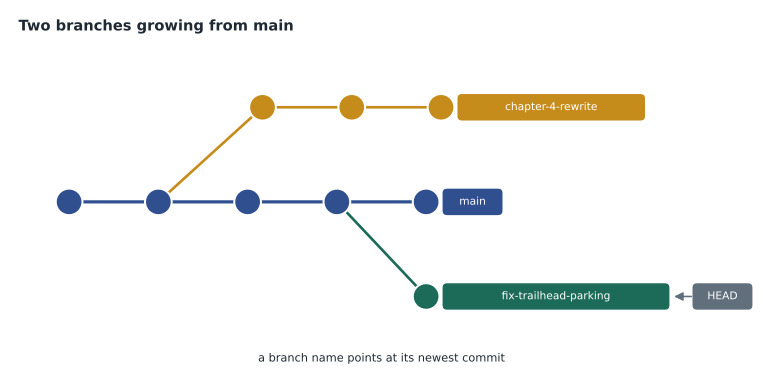
A branch is a named, movable pointer to a commit. When you create a branch, Git does not copy any files; it simply writes down a new name that points to the commit you are on. When you commit on that branch, the new commit records the previous commit as its parent and the branch name moves forward to point at the new commit. Other branches stay where they were. Because a branch is only a pointer, creating one is instant and costs almost nothing, which is why Git users create branches for even small pieces of work.
Every repository starts with one branch, usually called main. By convention, main holds the version everyone agrees is current and correct: at Tidewater, the guidebook text that is ready for the printer and the website that is live. New work happens on other branches, often called feature branches or topic branches, and reaches main only when it is finished and reviewed.
Creating and switching branches
The git branch command lists branches and creates new ones; git switch moves to a branch, changing the files in the working tree to match that branch's newest commit. git switch -c creates a branch and switches to it in one step. Older documentation uses git checkout for the same jobs, and it still works, but git switch was added to make the command clearer.
git switch -c fix-trailhead-parking
# edit ch07-fundy-coast.md, then:
git add ch07-fundy-coast.md
git commit -m "Update Herring Cove trailhead parking location"
git switch main
git branchchapter-4-rewrite fix-trailhead-parking * main
The asterisk marks the current branch. When Owen switched back to main, the parking fix disappeared from the chapter file in his working tree, because that commit exists only on the fix branch so far. That surprised him at first, until Priya pointed out that this is exactly what keeps unfinished or unreviewed work out of the main version. In GitHub Desktop, the Current branch menu at the top does the same jobs: choosing a branch switches to it, and New branch creates one.
One rule matters before switching: commit or set aside changes in the working tree first. If uncommitted edits would be overwritten by the switch, Git refuses and says so. For changes you are not ready to commit, git stash saves them on a temporary shelf and git stash pop brings them back later.
| Command | What it does |
|---|---|
| git branch | Lists local branches and marks the current one |
| git branch <name> | Creates a branch at the current commit without switching |
| git switch <name> | Switches to an existing branch |
| git switch -c <name> | Creates a branch and switches to it |
| git merge <name> | Merges the named branch into the current branch |
| git branch -d <name> | Deletes a branch that has been merged |
| git stash and git stash pop | Shelves uncommitted changes and restores them later |
Naming branches
Branch names are seen by everyone on the team, so Tidewater agreed on a simple pattern: a short description in lowercase words joined by hyphens, sometimes starting with a type, such as fix-trailhead-parking, chapter-4-rewrite or site-search-box. Some teams include an issue number, such as 42-trail-status-colours. Names cannot contain spaces and should avoid special characters. Short-lived branches with clear names are easier to review and easier to clean up after merging.
Merging
Merging combines the work from one branch into another. You switch to the branch that should receive the changes, usually main, and run git merge with the name of the branch that has the work. Git then works out how to combine the two lines of history. There are two common outcomes.
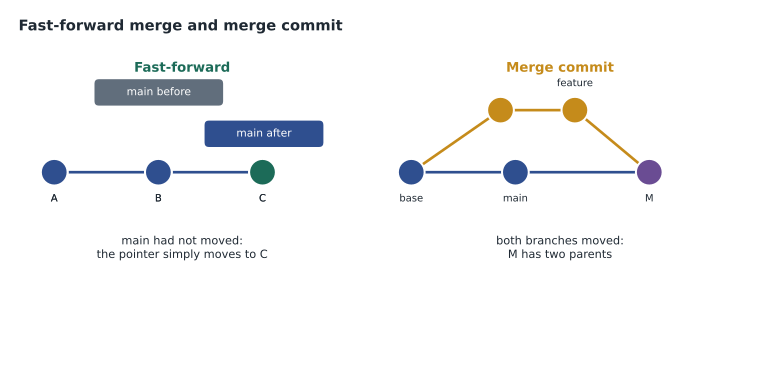
A fast-forward merge happens when the receiving branch has not moved since the other branch was created. In that case there is nothing to combine: Git simply moves the main pointer forward to the newest commit of the other branch. The history stays a straight line.
A merge commit is needed when both branches have new commits. Git finds the most recent commit the two branches share, called the merge base, compares each branch with it, and combines both sets of changes into a new commit that has two parents, one from each branch. The history then shows the two lines joining.
git switch main
git merge fix-trailhead-parking
git branch -d fix-trailhead-parkingUpdating 8c2f0d1..a91e4b7 Fast-forward ch07-fundy-coast.md | 4 ++-- 1 file changed, 2 insertions(+), 2 deletions(-) Deleted branch fix-trailhead-parking (was a91e4b7).
Because nobody had committed to main since the fix branch was created, this was a fast-forward. Deleting a merged branch removes only the name; the commits are safe in main's history. On GitHub, teams usually merge through a pull request rather than on their own computers, so that someone reviews the change first; lesson 6 covers that.
Worked problem
Fast-forward or merge commit?
Main pointed at commit 8c2f0d1 when Owen created chapter-4-rewrite. Since then Owen has made 6 commits on his branch, and the urgent parking fix (1 commit) has been merged into main. Owen now merges his rewrite into main. Will Git fast-forward, and how many parents will the result have?
Show solution
- A fast-forward is possible only if main has not moved since the branch was created.
- Main has moved: it gained the parking fix commit after chapter-4-rewrite was created.
- So both branches have commits the other lacks, and Git must create a merge commit.
- A merge commit has one parent from each branch, so it has 2 parents.
Answer: No fast-forward. Git creates a merge commit with 2 parents: the newest commit of main and the newest of chapter-4-rewrite.
Merge conflicts
Most merges complete automatically, because the two branches changed different files or different parts of the same file. A merge conflict happens when both branches changed the same lines of the same file, or one branch changed a file that the other deleted. Git cannot know which version is right, so it stops, marks the conflicting section in the file and waits for a person to decide.
In December this happened for real. Owen's rewrite had changed the opening paragraph of chapter 4, and Grace had separately corrected a word in that same paragraph on another branch that was merged first. When Owen merged main into his branch to bring it up to date, Git reported a conflict and placed markers in the file.
<<<<<<< HEAD
The Cape Enrage loop is best walked counter-clockwise, starting at the lighthouse parking lot.
=======
The Cape Enrage loop is best walked counterclockwise, starting at the lighthouse.
>>>>>>> main
Everything between <<<<<<< and ======= is the version on the current branch (HEAD); everything between ======= and >>>>>>> is the version from the branch being merged. To resolve the conflict, Owen edited the file so it said what the team actually wanted, keeping his new wording and Grace's house-style word, then deleted all three marker lines, staged the file and committed. GitHub Desktop and most editors show conflicts with buttons such as Accept current, Accept incoming and Accept both, and GitHub can resolve simple conflicts in the browser on a pull request page.
| Step | Command or action |
|---|---|
| 1. See which files conflict | git status lists them as both modified |
| 2. Open each file and find the markers | Look for <<<<<<<, ======= and >>>>>>> |
| 3. Edit to the correct final text | Keep one side, the other or a combination; delete the markers |
| 4. Mark the file as resolved | git add <file> |
| 5. Finish the merge | git commit (Git suggests a message) |
| Or give up and start again | git merge --abort returns to the state before the merge |
Conflicts are normal and not a sign that anyone did something wrong. They become rarer and smaller when branches are short-lived, when people merge main into long-running branches regularly, and when unrelated changes go on separate branches. Tidewater adopted all three habits.
Other ways to combine work
Merging is not the only option, and GitHub offers three ways to merge a pull request, which the exam expects you to recognize. A normal merge commit keeps every commit from the branch and adds a merge commit. Squash and merge combines all the branch's commits into one commit on main, which keeps main's history tidy when a branch had many small work-in-progress commits. Rebase and merge replays the branch's commits one by one on top of main, producing a straight line without a merge commit. Rebasing rewrites the replayed commits with new identifiers, so it should be used only on branches nobody else is building on.
| Method | Result on main | Good when |
|---|---|---|
| Merge commit | All branch commits plus a merge commit | You want the full history of how work happened |
| Squash and merge | One new commit containing all the changes | The branch had many small or messy commits |
| Rebase and merge | The branch commits replayed in a straight line | You want linear history and each commit is meaningful |
GitHub flow: a simple branching strategy
A branching strategy is a team's agreement about how branches are used. The one GitHub recommends for most teams, and the one in the GH-900 outline, is GitHub flow. It has a small number of rules: main is always in a releasable state; every change starts on a new branch from main with a descriptive name; you commit to that branch and push it to GitHub; you open a pull request to start discussion and review; when the change is approved and any automated checks pass, it is merged into main; and the branch is then deleted. Changes to main can be published or deployed right away.
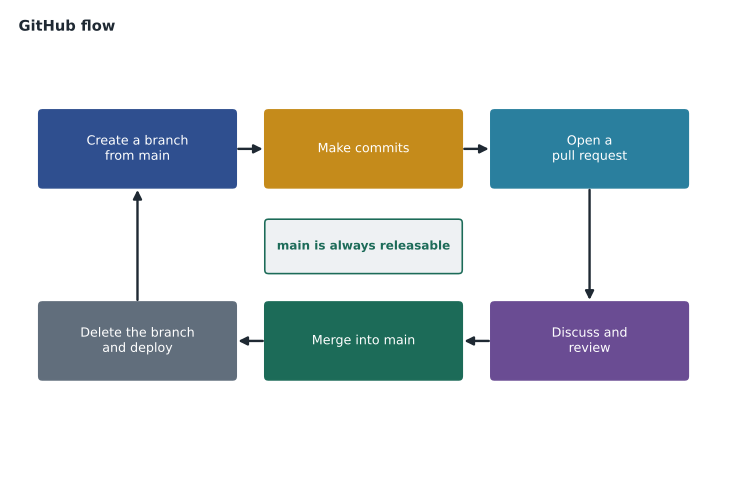
Larger organizations sometimes use heavier strategies with long-lived branches for development and releases, but GitHub flow suits a small team that publishes often. Tidewater adopted it for both the guidebook text and the website, with one addition: Grace's approval is required before anything that affects the printed book merges into main.
Worked problem
Planning branches for a busy week
In one week the web team must add a search box to TrailCheck (about four days of work), fix a broken link on the closures page (ten minutes), and update the colours for trail status (one day). Using GitHub flow, how many branches should they create, and in what order might they merge?
Show solution
- GitHub flow uses one short-lived branch per change, each starting from main.
- The three changes are unrelated, so they get three branches: site-search-box, fix-closures-link and trail-status-colours.
- The link fix is smallest and most urgent, so it can be reviewed and merged first, probably as a fast-forward.
- The colour change merges next; the search box, which takes longest, merges last after main has been merged into it to pick up the other two changes.
Answer: Three branches, one per change, merged in the order they are finished and reviewed: the link fix, then the colours, then the search box.
Common mistakes
MistakeThinking a branch is a copy of all the files.
InsteadA branch is a lightweight pointer to a commit; creating one copies nothing.
MistakeWorking directly on main for every change.
InsteadUse a short-lived branch per change and merge through review.
MistakeCommitting a file with conflict markers still in it.
InsteadEdit to the final text, delete all marker lines, then stage and commit.
MistakeRebasing a branch that teammates are also using.
InsteadRebase only private branches, because it rewrites commit identifiers.
Summary and key terms
- A branch is a movable pointer to a commit; main holds the agreed current version.
- git switch -c creates and switches to a branch; git merge combines a branch into the current one.
- A fast-forward moves the pointer when main has not moved; otherwise Git makes a merge commit with two parents.
- A conflict occurs when both branches change the same lines; a person edits the file, removes the markers, stages and commits.
- GitHub can merge pull requests with a merge commit, by squashing or by rebasing.
- GitHub flow: branch from main, commit, open a pull request, review, merge, delete the branch; main stays releasable.
- Branch
- A named pointer to a commit that moves forward as you commit.
- Fast-forward merge
- A merge that simply moves the branch pointer because the receiving branch had not moved.
- Merge commit
- A commit with two parents that joins two lines of history.
- Merge base
- The most recent commit shared by two branches.
- Merge conflict
- Overlapping changes that Git cannot combine automatically.
- Squash and merge
- Combining all of a branch's commits into a single commit on the target branch.
- GitHub flow
- A lightweight branching strategy built around short-lived branches and pull requests.
Practice problems
Work each problem on paper first, then reveal the answer to check.
Which command creates a branch called site-search-box and switches to it?
Show answer
git switch -c site-search-box.
What do the lines between ======= and >>>>>>> contain in a conflict?
Show answer
The version from the branch being merged in.
In GitHub flow, what state should main always be in?
Show answer
Releasable: correct and ready to publish or deploy.
Lesson quiz · 5 questions
Score 60% or more to complete this lesson.
Create a free account to save your progress, take quizzes and earn a certificate.