
MSBA-160 · Lesson 2 of 12 · 22 min
Git basics: repositories, commits and history
▶ Video coming soon A video version of this lesson is on the way.
The second Git lunch, on November 23, started with Priya's laptop connected to the boardroom screen. She had installed Git and opened a terminal, and Owen had GitHub Desktop open on his own laptop so that he could see the same steps in the graphical tool. The plan for the hour was to turn a plain folder of guidebook chapters into a Git repository, record the first snapshots, and learn to read the history. Priya chose a small folder for practice: three Markdown chapters for the new edition of Coastal Day Hikes and a notes file. "Everything we do today happens on this laptop," she said. "Nothing goes to GitHub until next week. That is the point: Git is complete on its own."
Installing and introducing yourself to Git
Git is installed once per computer. On Windows it comes as an installer from the Git website; on macOS it is available through Apple's developer tools or a package manager; on Linux it is in every distribution's package system. GitHub Desktop includes its own copy of Git, so people who only use Desktop do not need a separate installation.
Before the first commit, Git needs to know who you are, because it stamps your name and email address on every commit you make. This is set once with the git config command. The email address should match one on your GitHub account so that GitHub can link your commits to your profile. GitHub also offers a private no-reply address for people who do not want their personal address in public history.
git config --global user.name "Priya Nair"
git config --global user.email "priya@tidewaterguides.example"
git config --global init.defaultBranch main
The --global option stores the setting for every repository on the computer. The third line tells Git to call the first branch main, which is the name GitHub uses for new repositories. Older tools used master, and you will still see that name in older projects.
Turning a folder into a repository
A repository is just a folder whose history Git is tracking. The command git init, run inside the folder, creates a hidden subfolder called .git. That subfolder is the repository database: it holds every snapshot, every branch name and the configuration for this project. The files you see and edit in the folder are called the working tree. Deleting the .git folder deletes the history but leaves the current files; deleting the working files leaves the history, from which the files can be restored.
cd coastal-day-hikes
git init
git statusInitialized empty Git repository in /home/priya/coastal-day-hikes/.git/ On branch main No commits yet Untracked files: (use "git add <file>..." to include in what will be committed) ch01-introduction.md ch02-tide-safety.md ch03-cape-trails.md notes.txt nothing added to commit but untracked files present (use "git add" to track)
git status is the command Priya told Owen to run whenever he is unsure what is going on. It reports which branch you are on, which files have changed, and which changes are ready to be recorded. The four files are untracked: they are in the folder, but Git has not been asked to record them yet. In GitHub Desktop the same information appears in the Changes list on the left.
The three areas: working tree, staging area and repository
The idea that unlocks Git for most people is that a change passes through three places. You edit files in the working tree. When a change is ready, you add it to the staging area, also called the index, which is a draft of the next snapshot. When the staging area holds exactly what you want, you commit, which records the staged snapshot permanently in the repository.
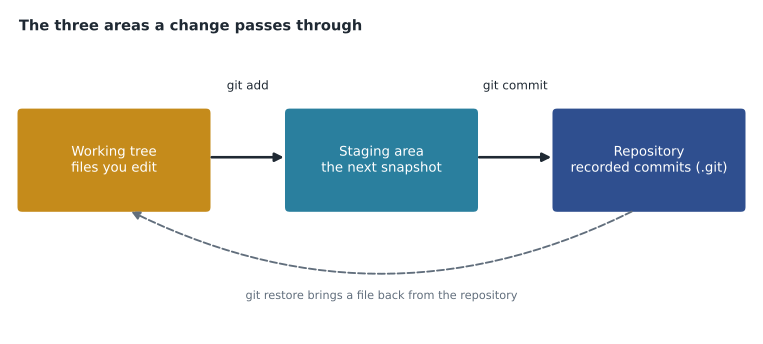
The staging area exists so that a commit can be focused. Suppose Owen fixes a distance in chapter 3 and, while he is there, starts a new paragraph in chapter 2 that is not finished. He can stage only the chapter 3 fix and commit it with a clear message, leaving the half-written paragraph for later. A commit that does one thing is easier to review and easier to undo.
git add ch01-introduction.md ch02-tide-safety.md ch03-cape-trails.md
git status
git commit -m "Add first three chapters of Coastal Day Hikes 3rd edition"On branch main No commits yet Changes to be committed: (use "git rm --cached <file>..." to unstage) new file: ch01-introduction.md new file: ch02-tide-safety.md new file: ch03-cape-trails.md Untracked files: notes.txt [main (root-commit) 4e1c9a2] Add first three chapters of Coastal Day Hikes 3rd edition 3 files changed, 412 insertions(+)
The commit output shows the branch, a short form of the commit's identifier (4e1c9a2), the message and a count of lines added. In GitHub Desktop the equivalent is ticking the files to include, typing a summary in the box at the bottom left and clicking Commit to main.
| Command | What it does | Desktop equivalent |
|---|---|---|
| git init | Creates a repository in the current folder | File, then New repository or Add local repository |
| git status | Shows the branch and the state of each changed file | The Changes list |
| git add <file> | Stages a change for the next commit | Ticking the file's check box |
| git commit -m "message" | Records the staged snapshot with a message | Summary box and the Commit button |
| git log | Lists commits, newest first | The History tab |
| git diff | Shows line changes not yet staged | The diff view beside each changed file |
| git restore <file> | Discards unstaged changes to a file | Right-click, then Discard changes |
What a commit actually is
A commit records a complete snapshot of every tracked file as it was in the staging area, not just a list of the lines that changed. Git stores this efficiently: a file that did not change is not stored again, only referred to. Each commit also records its author, the time, the message and a link to the commit or commits that came immediately before it, called its parent. Those links are what make the history a chain.
Every commit has an identifier, often called its hash or SHA, that Git calculates from the commit's contents. A full identifier is 40 hexadecimal characters long, such as 4e1c9a2b7d0f3e8a1c5b9d2f6a0e4c7b8d1f3a5e, but the first seven or so characters are almost always enough to name a commit within one project. Because the identifier depends on the contents, including the parent link, changing anything in an old commit would change its identifier and every identifier after it. That is why Git history is very hard to alter silently, and why rewriting shared history is something teams avoid.
HEAD is Git's name for "where you are now". Normally it points to the branch you are on, and the branch points to its newest commit. When you make a commit, the branch moves forward to the new commit and HEAD moves with it.
Writing good commit messages
The commit message is the part of the history that people read. Grace wanted the messages to be as useful as the margin notes editors used to write. Priya gave the team a short house style, based on common practice in open-source projects.
Write a short summary line of about 50 characters or fewer, in the imperative, as if completing the sentence "This commit will...": Fix ferry times for Grand Manan crossing, not Fixed stuff or Changes. If more explanation helps, leave a blank line and then write a body that explains why the change was made and anything a reviewer should know. Keep each commit to one logical change. Mention the issue number if there is one, which GitHub turns into a link, as lesson 7 shows.
| Weak message | Better message | Why it is better |
|---|---|---|
| update | Correct Hopewell Rocks low-tide walking window | Says what changed |
| fixed typo and also new section and photo captions | Split into three commits with one change each | Each change can be reviewed or undone alone |
| Grace edits | Apply copy edits to chapter 2 tide safety | Describes the change, not the person |
| WIP | Draft cliff-top route description (not ready for print) | Tells readers the state of the work |
Reading the history
Once a project has commits, git log lists them, newest first. The plain form shows each commit's full identifier, author, date and message. The --oneline option shortens each commit to one line, which is how Priya usually reads it. Adding a file name shows only the commits that touched that file, which is how Grace would answer a reader's question about a route description.
git log --oneline
git log --oneline -- ch03-cape-trails.md
git show b73d0e1f19a6c4 Correct Hopewell Rocks low-tide walking window b73d0e1 Add cliff-top warning to Cape Enrage route 4e1c9a2 Add first three chapters of Coastal Day Hikes 3rd edition
git show displays one commit: its details and the exact lines it changed. git diff compares states: with no arguments it shows changes in the working tree that are not yet staged, and with two commit identifiers it shows everything that changed between them. In a diff, lines starting with a minus sign were removed and lines starting with a plus sign were added.
diff --git a/ch03-cape-trails.md b/ch03-cape-trails.md
@@ -41,3 +41,4 @@
 The trail follows the cliff edge before turning inland at the lookout.
-Allow 40 minutes for the return.
+Allow 50 minutes for the return; the last section is steep and loose.
+Stay well back from the cliff edge, which is undercut in places.
Worked problem
Reading a diff
Owen ran git diff after editing chapter 3 and saw the output above. How many lines did he remove, how many did he add, and is the change staged yet?
Show solution
- Lines starting with a minus sign were removed: there is one, the old 40-minute return time.
- Lines starting with a plus sign were added: there are two, the new return time and the cliff warning.
- The unchanged first line is context that helps a reader see where the change sits.
- Plain git diff shows changes that are not yet staged, so these changes are still only in the working tree.
Answer: One line removed and two added, and the change is not staged yet. He would stage it with git add and then commit it.
Undoing things safely
Owen's main worry was breaking something. Priya explained that most undo operations in Git are safe, as long as you understand which area you are undoing.
To throw away edits in the working tree that you have not staged, use git restore with the file name. This really does discard the edits, so use it with care. To unstage a file but keep the edits, use git restore --staged. To undo a commit that has already been shared with others, use git revert with the commit's identifier: it creates a new commit that reverses the old one, so the history shows both the mistake and its correction. Commands that rewrite history, such as git reset --hard or amending a commit that others already have, change identifiers and cause trouble for everyone who has the old commits, so the rule at Tidewater became simple: never rewrite history that has been pushed to GitHub.
| Situation | Safe command | Effect |
|---|---|---|
| Edits in the working tree you do not want | git restore <file> | Discards the unstaged edits |
| A file staged by mistake | git restore --staged <file> | Unstages it; the edits stay in the working tree |
| A commit that others already have is wrong | git revert <commit> | Adds a new commit that reverses it |
| Typo in the last commit message, not yet pushed | git commit --amend | Replaces the last commit; avoid after pushing |
Ignoring files
Some files in the folder should never be tracked, such as Owen's notes.txt, system files that operating systems create, and output that tools generate. A file named .gitignore at the top of the repository lists patterns of file names for Git to ignore, and ignored files no longer appear in git status. Lesson 5 returns to .gitignore with the other standard repository files. Ignoring a file does not remove it from history if it was already committed, which is another reason to set up the ignore file early.
# Personal notes
notes.txt
# System files
.DS_Store
Thumbs.db
# Generated website output
_site/
Worked problem
Planning focused commits
During one afternoon Owen fixed a wrong ferry time in chapter 2, rewrote the introduction to chapter 3, and added notes.txt with reminders to himself. How should he record this work?
Show solution
- The ferry time fix is a small factual correction that readers depend on, so it deserves its own commit: stage only chapter 2 and commit with a message such as Correct ferry departure time for Deer Island.
- The chapter 3 introduction is a separate editorial change. Stage chapter 3 and commit it with its own message.
- notes.txt is personal and should not be shared, so add it to .gitignore instead of committing it.
- Run git status at the end: it should report a clean working tree, with nothing left to commit.
Answer: Two focused commits, one per change, and an ignore entry for the notes file.
Common mistakes
MistakeThinking git add records a change permanently.
Insteadgit add only stages the change; git commit records it in the repository.
MistakeBundling unrelated changes into one commit.
InsteadCommit one logical change at a time so each can be reviewed or reverted alone.
MistakeUsing reset or amend to undo commits that are already shared.
InsteadUse git revert, which adds a new commit and keeps history intact.
MistakeExpecting .gitignore to remove a file that was already committed.
InsteadIgnore rules affect untracked files only; set them up before the first commit.
Summary and key terms
- Set your name and email once with git config so commits are linked to you.
- git init turns a folder into a repository by creating the hidden .git folder that holds the history.
- Changes move from the working tree to the staging area with git add, and into the repository with git commit.
- A commit is a full snapshot with an author, time, message, parent link and a content-based identifier.
- git status, git log, git show and git diff let you see the state and the history.
- Undo safely: restore for working changes, restore --staged to unstage, revert for shared commits.
- Working tree
- The files in the project folder that you see and edit.
- Staging area
- A draft of the next commit, filled with git add; also called the index.
- Hash
- The unique identifier Git calculates for each commit from its contents.
- HEAD
- Git's pointer to the current position, normally the current branch.
- Parent
- The commit that came immediately before a given commit.
- .gitignore
- A file listing patterns of file names that Git should not track.
- git revert
- A command that creates a new commit reversing an earlier one.
Practice problems
Work each problem on paper first, then reveal the answer to check.
Which command shows which files are changed, staged or untracked?
Show answer
git status.
You staged notes.txt by mistake. How do you unstage it without losing your edits?
Show answer
git restore --staged notes.txt.
Why is it hard to change an old commit without anyone noticing?
Show answer
Its identifier is calculated from its contents and parent, so any change alters it and every later identifier.
Lesson quiz · 5 questions
Score 60% or more to complete this lesson.
Create a free account to save your progress, take quizzes and earn a certificate.