
MSBA-141 · Lesson 7 of 12 · 21 min
Data management framework
▶ Video coming soon A video version of this lesson is on the way.
Cobalt Ridge had twenty years of data in the old system: about 1,800 active customers, 2,400 vendors, 14,000 items, open orders, open invoices and balances. None of it would be typed in by hand. Desmond had already exported the main tables to spreadsheets, and he wanted to know how they would get into the new system and, just as important, how data would get out again for the reports and integrations that other systems needed. Annelise opened the Data management workspace and said it would be the busiest page on the project for the next three months.
The framework and its workspace
The data management framework is the set of tools in finance and operations apps for importing, exporting and copying data in bulk. Its home is the Data management workspace under System administration, which shows tiles for import, export, data templates, data entities, job history and configuration. The framework handles one-time migrations, such as Cobalt Ridge's move from the old system, and repeated integrations, such as a nightly file of bank transactions or a daily export of open orders to a planning tool. It is also how configuration is copied between legal entities and environments.
Data entities
The framework never reads or writes tables directly. It works through data entities. A data entity is an abstraction that presents a business object as one flat structure, hiding the many tables behind it. A customer in finance and operations apps is spread across the customer table, the global address book party, postal addresses, contact information and more; the Customers V3 entity presents all of it as one row with fields such as customer account, name, group, currency, address and payment terms. When you import a row into the entity, the framework writes to every underlying table correctly and runs the same business logic that the customer page would run.
Microsoft provides thousands of entities, covering master data, documents and setup. They are categorized as parameter entities for module settings, reference entities for setup such as units or customer groups, master entities for customers, vendors and products, document entities for orders and journals, and transaction entities for posted history, which usually support export rather than import. The same entities serve the Excel add-in, OData services and dual-write, so learning them pays off in several places. Developers can create custom entities for custom tables.
| Category | Typical content | Example entity |
|---|---|---|
| Parameter | Module settings | Accounts payable parameters |
| Reference | Setup lists used by master data | Customer groups, terms of payment |
| Master | Customers, vendors, products, workers | Customers V3, Vendors V2, Released products V2 |
| Document | Orders, journals, documents in progress | Sales order headers V2, Purchase order lines V2 |
| Transaction | Posted history, usually for export | General journal account entry |
Import and export projects
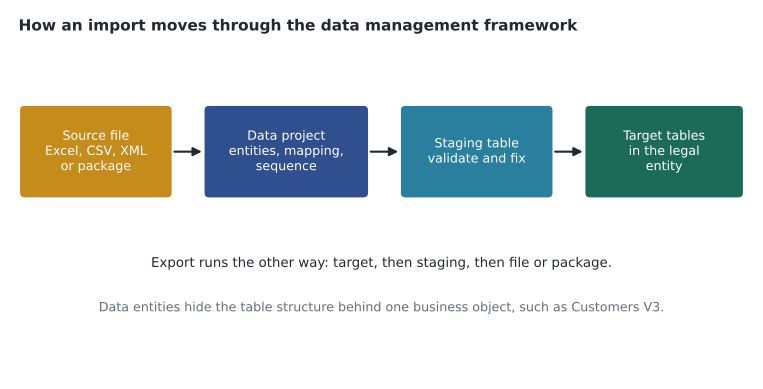
Work in the framework is organized into projects. An import project names a set of entities, a source data format for each, such as Excel, CSV or XML, and the files to load. An export project names entities and a target format. Each project remembers its settings, so it can be run again. For each entity in a project, the mapping shows how the source fields connect to the entity's fields; for files exported from finance and operations apps the mapping is automatic, and for files from other systems you adjust it, either in a visual mapper or a field list.
When a project contains several entities, their sequence matters. Customer groups must exist before customers, and customers before open invoices. Each entity in a project has an execution unit, level and sequence number, and the framework processes them in that order. Templates, covered below, come with sensible sequences for standard entities.
Staging
Imports run in two steps. First the framework copies the file into a staging table for the entity, a holding area with the same fields. Then it copies from staging to the target, the real tables, running validation and business logic. If rows fail, they stay in staging with error messages, and you can view them, fix them in staging or in the source file, and run the copy again for just the failed rows. Staging is what makes large migrations manageable: you can load 14,000 items, see the 37 that failed because of a missing unit of measure, fix the unit, and reload only those.
Some entities support set-based processing, which writes rows in bulk without row-by-row business logic, much faster for large volumes but with fewer checks. Staging can also be skipped for some scenarios. These are options for experienced users; Annelise's rule was to use staging and normal processing until a performance test proved otherwise.
Worked problem
Loading customers
Desmond has a CSV file of 1,800 CRCA customers from the old system. Describe the steps to load them.
Show solution
- Switch the company picker to CRCA, because customers are company-specific.
- In the Data management workspace, select Import and create a project named CRCA customers.
- Add the Customers V3 entity with source format CSV and upload the file.
- Open the mapping and connect the old system's column names to entity fields such as CUSTOMERACCOUNT, NAME, CUSTOMERGROUPID and CURRENCYCODE.
- Make sure reference data, such as customer groups and payment terms, was imported first.
- Run the import, review the staging results and fix any rows with errors.
- Copy the fixed rows to the target and spot-check customers on the All customers page.
Answer: An import project with Customers V3, a mapped CSV file, staging review and a final check on the customer page.
Templates and packages
A data template is a saved list of entities in the right sequence, which can be reused to create projects. Microsoft provides default templates for common areas, such as system and shared setup, general ledger, accounts payable and accounts receivable, and companies create their own. Cobalt Ridge built a migration template with the entities it needed in the order the business rules required.
A data package is a zip file that contains one data file per entity plus a manifest and a package header describing the entities, formats and sequence. Packages make it easy to move a set of data between environments: export a package from a sandbox where configuration was perfected, then import it into another sandbox or production, and every entity loads in order. Packages are also the format Microsoft uses for its configuration offerings and for recurring integrations.
Copying configuration between legal entities
Lesson 3 recommended designing configuration once in a template legal entity. The framework supports this directly with Copy into legal entity, which takes the data of selected entities in one legal entity and copies it into one or more others in the same environment. Setup entities such as payment terms, journal names and posting profiles copy well; transactional data does not belong in this tool. When Cobalt Ridge sets up CRMX, much of its setup will be copied from CRUS this way and then adjusted for Mexico.
Recurring integrations
For files that arrive regularly, the framework supports recurring data jobs. An external system sends packages or files to a REST endpoint, and the framework picks them up on a schedule and processes them through a project, or produces export files on a schedule for others to collect. Cobalt Ridge planned two: a daily import of bank statement lines from its bank's export, and a nightly export of open sales orders for the plant scheduling tool. For real-time integrations, developers use other options instead, such as OData services on the same data entities, custom services, business events or dual-write.
| Need | Suitable tool |
|---|---|
| One-time migration of thousands of records | Import projects with templates and staging |
| Moving tested configuration between environments | Data packages |
| Copying setup to a new company | Copy into legal entity |
| Regular file-based interfaces | Recurring data jobs |
| Editing many records quickly by hand | Excel add-in through data entities |
| Real-time integration | OData, custom services, business events or dual-write |
Exporting data
Exports mirror imports. An export project reads the target data, writes it to staging and produces files in the chosen format, which can be downloaded or packaged. Exports can be filtered, for example customers in one group or invoices since a date, and can be incremental, sending only records changed since the last run when change tracking is turned on for the entity. Exports are a sensible way to give auditors or another system a snapshot. For analytics at scale, however, Microsoft steers customers to other options, such as linking finance and operations data to Microsoft Fabric through Dataverse, which the developer and data courses cover.
Job history and troubleshooting
Every run of a project creates an entry in job history, with the number of records processed, created, updated and failed for each entity, the staging data and the error log. Most errors are simple: a mandatory field is blank, a referenced record such as a customer group does not exist, a value is in the wrong format, or the user running the job lacks permission for the entity. Data management tasks themselves require specific security roles; not every user can import data, and that is deliberate, because the framework can change thousands of records at once.
Cleaning data before it moves
Annelise's least popular advice was also her most important: migration is the cheapest moment to clean data, and the most expensive moment not to. The old system held vendors that had not been used in a decade, customers entered twice with slightly different names, items with no unit of measure and addresses typed in one long field. Moving that into a new system would simply move the problem. The team agreed rules. Only customers and vendors with activity in the last three years would migrate. Duplicates would be merged in the old system before export, with Thandeka deciding which record survived. Every item would need a valid unit, item group and product type. Addresses would be split into street, city, province or state and postal code in the spreadsheet stage, because the target entities expect separate fields.
Some of this work happened in Excel, some in the old system, and some in the staging tables, where the framework's validation acted as a free data-quality check. A rehearsal import that failed 200 vendor rows for missing tax registration numbers was not a failure of the migration; it was the framework finding a data problem before go-live instead of after.
Mapping details that matter
The mapping for each entity has more options than simply connecting columns. A field can be given a default value, so that a column missing from the source file still receives a sensible value, such as a default customer group for every row. Value conversions translate codes from the old system to the new, so that old payment term codes such as N30 become the new code Net30 without editing the file. Some fields can be marked to be ignored on import. And each entity has a set of key fields that identify a record, such as the customer account; if a row with the same key already exists, the import updates it rather than creating a duplicate, which is what makes reruns safe.
Worked problem
Translating old codes
The old system used terms of payment codes 30D, 45D and COD. The new system uses Net30, Net45 and COD. How can the vendor import translate them without editing 2,400 rows?
Show solution
- Create the three terms of payment in the new system, or import them first as reference data.
- In the vendor entity's mapping, open the conversion settings for the terms of payment field.
- Add conversions: 30D to Net30 and 45D to Net45; COD stays the same.
- Run the import; staging shows the converted values before they reach the target.
Answer: Use value conversions in the mapping, so the source file stays as exported from the old system.
A migration plan
Kiri set out the migration plan that the team would rehearse three times before go-live. First, reference and setup data from packages built in the configuration sandbox. Second, master data: customers, vendors, products and workers, cleaned in the old system before export so that duplicates and inactive records were not migrated. Third, open documents: open purchase and sales orders. Fourth, open balances: open customer and vendor invoices and general ledger opening balances, reconciled to the old system's trial balance. Each rehearsal was timed, because the real cutover had to fit into one weekend, and each ended with a reconciliation signed off by Thandeka and Piotr.
Desmond made one more suggestion that the team adopted: keep every file and package used in each rehearsal, with the job history, in a folder named for the rehearsal. When a question came up later about where a value had come from, the answer would be in the folder.
Common mistakes
MistakeImporting customers before customer groups and payment terms exist.
InsteadLoad reference data first and sequence entities in the project.
MistakeImporting into the wrong legal entity.
InsteadCheck the company picker before running company-specific imports.
MistakeFixing errors by editing target records one by one.
InsteadFix rows in staging or the source and rerun the failed rows.
MistakeUsing recurring file jobs for real-time needs.
InsteadUse OData, services, business events or dual-write for real-time integration.
Summary and key terms
- The data management framework imports, exports and copies data in bulk from the Data management workspace.
- Data entities present business objects as flat structures and run business logic on import.
- Projects define entities, formats, mapping and sequence; imports pass through staging before the target.
- Templates and data packages make migrations and configuration moves repeatable; Copy into legal entity copies setup.
- Recurring data jobs handle scheduled file integrations; job history shows results and errors.
- Data entity
- An abstraction that presents a business object across many tables as one structure.
- Staging table
- A holding table where imported data is validated before it reaches the target.
- Data project
- A saved import or export definition with entities, formats and mapping.
- Data package
- A zip file with entity data files, a manifest and a package header.
- Recurring data job
- A scheduled import or export used for repeated file-based integration.
Practice problems
Work each problem on paper first, then reveal the answer to check.
Why should customer groups be imported before customers?
Show answer
Customers reference customer groups, so the groups must exist or the rows fail validation.
What happens to rows that fail validation during an import?
Show answer
They stay in staging with errors and can be fixed and reprocessed.
Which tool copies setup from one legal entity to another in the same environment?
Show answer
Copy into legal entity in the Data management workspace.
Lesson quiz · 5 questions
Score 60% or more to complete this lesson.
Create a free account to save your progress, take quizzes and earn a certificate.