
MSBA-141 · Lesson 11 of 12 · 22 min
Batch jobs and alerts
▶ Video coming soon A video version of this lesson is on the way.
Every night the old Cobalt Ridge system ran a set of scripts that Desmond had written over the years: recalculating inventory values, emailing overdue invoice lists, exporting orders to the plant scheduling tool. When one failed, the first sign was usually a complaint the next morning. In the eleventh session, Annelise showed how finance and operations apps run work in the background with batch jobs, how administrators watch them, and how alerts tell people when something they care about happens, so that nobody has to discover problems by accident.
Why background processing matters
Many tasks in finance and operations apps are too large or too regular to run while a user waits: posting thousands of invoices, settling payments, running inventory close, calculating master planning, generating reports, processing workflow steps, sending emails, importing recurring data files. The batch framework runs these tasks on servers in the background, on a schedule or on demand, so users can carry on working. Lessons 6 and 7 already relied on it: the Workflow message processing job moves workflows, and recurring data jobs run through batch.
Batch jobs and tasks
A batch job is a unit of scheduled work with a description, a start date and time, a recurrence and settings such as priority and alerts. A job contains one or more batch tasks, each running one process, for example settling open transactions or posting a journal. Tasks in a job can run in parallel or in sequence: a task can have conditions that make it wait until another task ends, ends with an error, or is canceled. That makes it possible to build a small process chain, such as settle payments, then post journals, then email a report, inside one job.
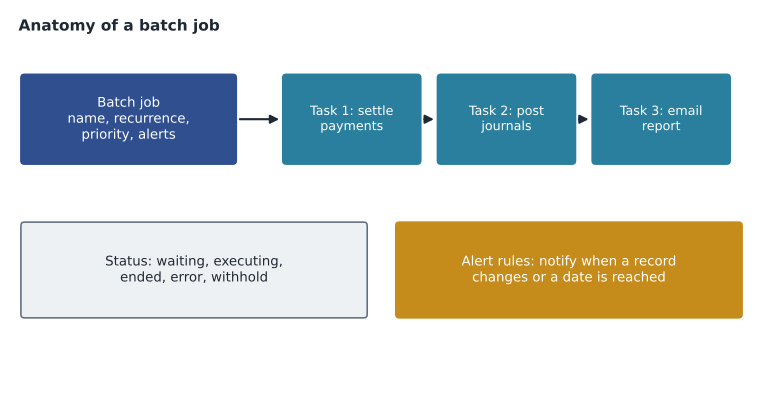
Most users never create batch jobs from scratch. Instead, many processes have a Run in the background option in their dialog: when a user starts, for example, the process that creates payment proposals or posts a batch of sales invoices, they can choose to run it in batch, set a recurrence and receive alerts. The system creates the batch job for them. Administrators see all batch jobs on the Batch jobs page under System administration, where they can create, edit, change status and view history.
Recurrence
Recurrence sets how often a job runs: once, or every so many minutes, hours, days, weeks, months or years, with an end after a number of occurrences, on a date or never. A job can be limited to run only within a time window. Recurrence is where many performance problems start: a job set to run every minute when every hour would do consumes capacity and fills history. Annelise's rule was to choose the slowest recurrence that meets the business need.
Worked problem
Counting runs
Piotr wants the nightly order export to run every 30 minutes between 18:00 and 23:30 so that late orders reach the plant scheduling tool, plus once at 05:00. How many runs is that each day?
Show solution
- From 18:00 to 23:30 is 5.5 hours, which is 11 intervals of 30 minutes.
- Counting the first run at 18:00, that is 11 + 1 = 12 runs.
- Add the 05:00 run: 12 + 1 = 13 runs a day.
- That needs two recurrences or two jobs, because one recurrence pattern cannot express both.
Answer: 13 runs a day, configured as two schedules.
Statuses and history
A batch job moves through statuses. Waiting means it is scheduled and will start when its time comes. Executing means it is running. Ended means it finished successfully, Error that at least one task failed, and Canceled that someone stopped it. Withhold pauses a job so that it does not run until released, which administrators use during maintenance or when a job is misbehaving. Every run creates a batch job history entry with start and end times, status and an infolog of messages, so an administrator can see exactly what happened in last night's run and why a task failed.
| Status | Meaning | Typical administrator action |
|---|---|---|
| Waiting | Scheduled to run | None, or check the next run time |
| Executing | Running now | Watch long-running jobs |
| Ended | Finished successfully | None |
| Error | One or more tasks failed | Read the log, fix the cause, rerun |
| Withhold | Paused until released | Release after maintenance |
| Canceled | Stopped by a user | Confirm it was intended |
Priorities and capacity
Batch work competes for server capacity. Finance and operations apps use priority-based scheduling: each batch job has a scheduling priority, such as low, normal, high or critical, and the batch framework favours higher-priority jobs when capacity is limited. A reserved capacity setting can keep some capacity for critical work. Older environments used batch groups assigned to specific servers to separate workloads; batch groups still exist for organizing jobs, but priority now does most of the scheduling work. In practice, the period-end close, payment runs and workflow processing deserve higher priority than a report that nobody will read until morning.
Large processes can split themselves into many smaller tasks that run in parallel across servers, which is how master planning or invoice posting handles high volumes. This is mostly automatic, but it explains why a single job can show dozens of tasks in its history.
Alerts on batch jobs
Each batch job can send batch alerts when it ends, ends with an error or is canceled, to the user who created it, by notification in the application, by email or both. For critical jobs, Cobalt Ridge set error alerts to go to the IT administrator and the process owner, so that a failed payment run would be known within minutes rather than the next morning.
Alert rules on data
Separate from batch alerts, alert rules let users be notified when data they care about changes. From many pages a user can create an alert rule on a field or record, choosing an event: a record is created or deleted, a field changes, or a date field reaches a due date. Piotr's buyers set an alert on the confirmed delivery date of important purchase orders, so that any change triggered a notification. Thandeka set a due date alert on large customer invoices, three days before they were due, so collections could call early.
Alert rules are processed by two batch jobs, change-based alerts and due date alerts, which an administrator schedules. If those jobs are not running, no alerts arrive, and users conclude, wrongly, that nothing has changed. The recurrence of the change-based alerts job also sets how quickly people hear about changes: every five minutes is near real time, every few hours is not.
Worked problem
A due date alert
Thandeka wants to be told three days before any customer invoice over 50,000 dollars in CRCA is due. How is it set up, and what must the administrator ensure?
Show solution
- From the open customer transactions list in CRCA, filter on amount greater than 50,000.
- Create an alert rule on the due date field with the event due in three days, keeping the filter as a condition.
- Choose to receive the alert as a notification and email.
- The administrator confirms the due date alerts batch job runs at least daily.
Answer: An alert rule with a due-date event and an amount condition; it only works if the due date alerts batch job is scheduled.
Notifications and email
Alerts and many other messages appear in the Action center and the notifications list in the application. Email delivery depends on the system's email parameters and on the batch job that sends queued emails, often called the email distributor. Administrators configure email providers, test them and watch for queued messages that have not been sent. In a sandbox copied from production, email should be redirected or disabled, as lesson 9 warned, so that test alerts do not reach real customers or staff.
Business events
For notifications to other systems rather than people, finance and operations apps offer business events. When a defined event occurs, such as a vendor payment posted or a purchase order confirmed, the system can send a message to an endpoint such as Azure Service Bus, Azure Event Grid, a Power Automate flow or another service. Business events are configured in a catalog and activated per legal entity. Desmond planned to replace his old nightly export to the plant scheduling tool with a business event on purchase order confirmation, so that changes would arrive in near real time instead of once a night.
Batch work from a developer's point of view
Desmond wanted to know how his own processes would run in batch. Custom processes are built with the SysOperation framework, which separates a process into a contract that holds its parameters, a controller that decides how it runs, and a service that does the work. A process built this way automatically gets a dialog with a Run in the background option, a recurrence and alerts, exactly like Microsoft's processes, and it can split large work into parallel tasks. The developer course covers the framework. The functional point is that a well-built custom process should look and behave like a standard one to the administrator, with the same statuses, history and alerts, rather than being a hidden script that only its author understands.
Cleaning up history
Batch history, alert history, notifications and data management staging tables all grow every day. Left alone, they slow searches and consume database capacity, which lesson 9 explained is now measured and paid for. Finance and operations apps include standard cleanup processes for batch job history, notifications, workflow history in some areas, and data management staging and job history, each with a setting for how much history to keep. Cobalt Ridge set a retention policy with Thandeka's agreement: keep batch history for 90 days, data management staging for 30 days after a successful import, and anything needed for audit for as long as the auditors required. The cleanup jobs themselves run in batch, weekly, outside business hours.
Worked problem
Diagnosing a slow job
The nightly inventory recalculation, which used to take 40 minutes, now takes over three hours and overlaps the morning shift. What should the administrator look at?
Show solution
- Open the batch job history and compare recent runs with earlier ones to see when the duration changed.
- Check whether other heavy jobs, such as master planning or a large data import, now run at the same time and compete for capacity.
- Check the job's scheduling priority compared with those jobs.
- Look at whether the volume of data grew, for example a new site with many items.
- Move competing jobs, adjust priorities or change the schedule, and watch the next runs.
Answer: Compare history, look for competing jobs and volume changes, then adjust schedules and priorities. Most slowdowns come from overlapping work rather than the job itself.
An operations routine
By the end of the session, the team had a short daily and weekly routine for the IT administrator. Daily: check the batch jobs page filtered for errors since yesterday, read the logs, rerun or escalate; confirm that workflow, alert and email jobs are running; check data management job history for failed recurring imports. Weekly: review long-running jobs and recurrences that might be too frequent; clean up batch history according to the retention policy, using the standard cleanup jobs; review users' alert rules that point at fields which no longer matter. Before every service update: withhold jobs that should not run during the update window and release them afterwards.
Desmond looked at the list and laughed. It was the first time anyone had written down what his nightly scripts were supposed to do and how anyone would know if they had not.
Kiri asked one last question: who would own each batch job after go-live? The answer went into a table in the operations handbook listing every recurring job, its business owner, its schedule, its priority, who receives error alerts and what to do if it fails. The payment proposal job belonged to Thandeka's team, the order export to Piotr's, and the workflow, alert, email and cleanup jobs to IT. Owners reviewed their part of the list each quarter. A job with no owner was a candidate for deletion.
Common mistakes
MistakeSetting recurring jobs to run every minute by default.
InsteadUse the slowest recurrence that meets the business need to save capacity.
MistakeExpecting alerts to arrive when the alert batch jobs are not scheduled.
InsteadSchedule the change-based alerts and due date alerts jobs.
MistakeIgnoring jobs in Error status until users complain.
InsteadSet error alerts for critical jobs and review errors daily.
MistakeLeaving batch jobs running during maintenance or updates.
InsteadWithhold jobs that should not run, then release them.
Summary and key terms
- The batch framework runs large and recurring work in the background on a schedule or on demand.
- Batch jobs contain tasks, which can depend on each other through conditions; many processes offer Run in the background.
- Statuses include waiting, executing, ended, error, withhold and canceled; history records each run.
- Priority-based scheduling decides which jobs run first when capacity is limited; batch alerts report job results.
- Alert rules notify users of changes and due dates and depend on the change-based and due date alerts batch jobs; business events notify other systems.
- Batch job
- A scheduled unit of background work containing one or more tasks.
- Batch task
- One process within a batch job, which can depend on other tasks.
- Recurrence
- The schedule that controls how often a batch job runs.
- Withhold
- A batch job status that pauses the job until it is released.
- Alert rule
- A user-defined rule that sends a notification when data changes or a date is reached.
Practice problems
Work each problem on paper first, then reveal the answer to check.
A job shows Error status. Where do you find out why?
Show answer
In the batch job history and its log of messages.
Which two batch jobs process alert rules?
Show answer
Change-based alerts and due date alerts.
What status pauses a job until it is released?
Show answer
Withhold.
Lesson quiz · 5 questions
Score 60% or more to complete this lesson.
Create a free account to save your progress, take quizzes and earn a certificate.