
JS-250 · Lesson 7 of 12 · 26 min
Rendering performance
▶ Video coming soon A video version of this lesson is on the way.
On Tuesday, September 12, the home page is already much faster to load. Its first photo arrives early, its scripts no longer block the parser and returning visitors transfer almost nothing. But two problems in the baseline are not about loading at all. The calendar script still runs a 680 ms task shortly after the page appears, and on the volunteer portal a tap on a day in the shift list takes more than a second to show anything. Both are about what the browser does on the main thread once the bytes have arrived, which is the subject of today's lesson.
How the browser draws a frame
A screen refreshes at a fixed rate, usually 60 times a second and sometimes 90 or 120 on newer phones. Each refresh is a chance for the browser to show a new frame. To produce one, the browser may need to do up to five kinds of work, in order, on the main thread and then on a separate compositor thread.
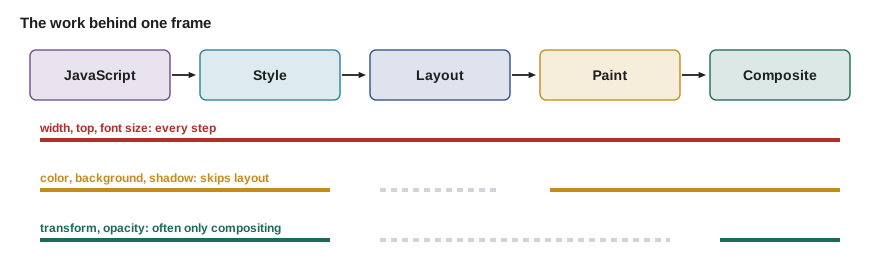
| Step | What happens | Triggered by |
|---|---|---|
| JavaScript | Event handlers, timers and other scripts run | Input, timers, network responses |
| Style | The browser works out which CSS rules apply to each element | Changed classes, styles or the DOM |
| Layout | It calculates the size and position of every affected element | Changes to geometry: width, height, position, text, fonts |
| Paint | It records how to draw the pixels of each layer | Changes to colours, shadows, images, text |
| Composite | It combines the layers into the final frame, often on the GPU | Every frame; transform and opacity changes need only this step |
At 60 frames per second each frame has about 16.7 ms, and the browser needs some of that time for its own work, so a page's code should aim to finish its part of a frame in about 10 ms. Work that takes longer than one frame means at least one frame is skipped, which shows up as a stutter in an animation or a delay after a tap. Work that takes longer than 50 ms is a long task, and during a long task the page cannot respond at all.
// Which frames are dropped? Each entry is the main-thread work (ms) needed before a frame.
const FRAME = 1000 / 60;
const work = [6, 8, 7, 41, 9, 5, 120, 7, 6];

let clock = 0, shown = 0, dropped = 0;
for (const ms of work) {
  clock += ms;
  const deadline = (shown + dropped + 1) * FRAME;
  if (clock <= deadline) {
    shown++;
    clock = deadline;                  // wait for the next refresh
  } else {
    const missed = Math.ceil((clock - deadline) / FRAME);
    dropped += missed;
    shown++;
    clock = (shown + dropped) * FRAME;
    console.log(`${ms} ms of work: ${missed} frame(s) dropped`);
  }
}
console.log(`frames shown ${shown}, dropped ${dropped}, over ${clock.toFixed(1)} ms`);41 ms of work: 2 frame(s) dropped 120 ms of work: 7 frame(s) dropped frames shown 9, dropped 9, over 300.0 ms
What this code does
The loop advances a clock by each piece of work and compares it with the deadline of the next refresh, about 16.7 ms apart. Work that fits waits for the deadline and the frame is shown; work that overruns pushes the frame to a later refresh and the skipped refreshes are counted as dropped. The 41 ms task drops two frames and the 120 ms task drops seven, which a visitor sees as a jerk in scrolling or a frozen animation.
Layout thrashing
The browser is lazy about layout. When a script changes a style, the browser marks the layout as out of date and recalculates it later, once, just before the next frame. But if the script then asks a question that needs up-to-date layout, such as an element's offsetHeight or getBoundingClientRect(), the browser must calculate layout immediately, in the middle of the script. This is a forced synchronous layout. Doing it once is fine. Doing it in a loop, write, read, write, read, is called layout thrashing, and it is one of the commonest causes of slow interactions.
The portal's shift list had exactly this pattern. When a volunteer tapped a day, a loop went through the 60 shift rows and, for each, set its height to match the tallest row so far and then read that height back to compare with the next. Mira models the browser's layout bookkeeping to see the cost.
// A model of the browser's layout bookkeeping: writes mark layout dirty, reads of geometry force a layout if dirty.
function makeDoc() {
  let dirty = false, layouts = 0;
  return {
    write() { dirty = true; },
    read() { if (dirty) { layouts++; dirty = false; } return 40; },
    frame() { if (dirty) { layouts++; dirty = false; } return layouts; },
  };
}

const ROWS = 60;
// Interleaved: write a row, then read it back, for every row.
const a = makeDoc();
for (let i = 0; i < ROWS; i++) { a.write(); a.read(); }
console.log('interleaved writes and reads:', a.frame(), 'layouts');

// Batched: read everything first, then write everything.
const b = makeDoc();
const heights = [];
for (let i = 0; i < ROWS; i++) heights.push(b.read());
for (let i = 0; i < ROWS; i++) b.write();
console.log('reads first, then writes: ', b.frame(), 'layout');interleaved writes and reads: 60 layouts reads first, then writes: 1 layout
What this code does
Each document object counts layouts: a write only marks the layout as dirty, and a read performs a layout if anything is dirty, exactly the rule browsers follow for geometry such as offsetHeight. Interleaving a write and a read for each of 60 rows forces 60 layouts, while doing all the reads first and all the writes afterwards needs just one, at the next frame. On a slow phone each layout of the shift list costs several milliseconds, which is where most of the portal's 1,180 ms task went.
The fix in the real portal is to read all the measurements first, calculate in plain JavaScript, and then write all the styles. Better still, Mira removes the measuring altogether: a CSS grid lays the rows out with equal heights by itself, which is the kind of work CSS does far faster than any script.
Animate cheaply
Animations show the pipeline's costs clearly. Animating an element's left or width changes geometry, so every frame runs style, layout, paint and composite. Animating transform and opacity can usually skip layout and paint entirely, because the browser can move or fade an existing layer on the compositor thread, which keeps running smoothly even when the main thread is busy.
/* Slow: moves the panel by changing its geometry, so every frame needs layout. */
.panel.slow { position: relative; left: -320px; transition: left 300ms ease-out; }
.panel.slow.open { left: 0; }

/* Fast: moves the same panel with a transform, which only needs compositing. */
.panel { transform: translateX(-320px); transition: transform 300ms ease-out; }
.panel.open { transform: translateX(0); }

/* People who ask for less motion get an instant change instead. */
@media (prefers-reduced-motion: reduce) {
  .panel { transition: none; }
}
What this code does
The two versions look the same, but the first changes left, so the browser has to lay out the page again on every frame of the animation. The second changes transform, which the compositor can apply to the panel's layer without layout or paint, so it stays smooth even while scripts run. The media query respects visitors who have asked their system for reduced motion.
The home page's old slideshow faded between photos by animating their opacity, which was cheap, but it also changed each photo's height as it went, which was not, and that caused some of the layout shift. With the slideshow gone, the only animation left on the home page is the menu, which now uses a transform.
Skip work the visitor cannot see
The recipe index page lists 180 recipes, each with a photo, a title and a short description. Even with lazy-loaded photos, the browser lays out and paints every card when the page opens, although only six fit on a phone screen. The CSS property content-visibility: auto tells the browser it may skip layout and painting for an element's contents while the element is far off screen, doing the work only as the visitor scrolls near it. It has been supported in all current browsers since 2024.
.recipe-card {
  content-visibility: auto;
  /* Until it is rendered, treat the card as 320 px tall so the scrollbar stays steady. */
  contain-intrinsic-size: auto 320px;
}
What this code does
content-visibility: auto lets the browser skip rendering the inside of each card that is far from the viewport. contain-intrinsic-size gives skipped cards a placeholder height, and the auto keyword tells the browser to remember the real height once a card has been rendered, so scrolling back does not make the page jump. On the recipe index this cut the initial rendering work by about four fifths in Mira's lab test.
For very long lists in the portal, such as Lucy's list of all 300 volunteers, the studio uses virtualization instead: only the rows near the viewport exist in the DOM at all, and they are reused as the visitor scrolls. It needs more code, so the studio uses it only where a list can grow to thousands of items.
Breaking up long tasks
The calendar script's 680 ms task builds a whole year of classes in one go. While it runs, a tap on the menu does nothing, and in the field that is exactly what INP measures. The cure is to split the work into small pieces and give the browser a chance to handle input and draw frames between them, which is called yielding to the main thread.
The modern way to yield is scheduler.yield(), which pauses an async function and lets the browser run anything more urgent before continuing, with the continuation placed ahead of other ordinary tasks. It is supported in Chromium browsers and in Firefox, but not yet in Safari, so the studio uses it when it exists and falls back to a promise around setTimeout, which also yields but puts the continuation at the back of the queue.
// Yield to the main thread, using scheduler.yield() where the browser has it.
function yieldToMain() {
  if (globalThis.scheduler?.yield) return scheduler.yield();
  return new Promise((resolve) => setTimeout(resolve, 0));
}

// Build the calendar a little at a time, yielding roughly every 5 ms.
async function buildCalendar(days, renderDay) {
  let last = performance.now();
  for (const day of days) {
    renderDay(day);
    if (performance.now() - last > 5) {
      await yieldToMain();
      last = performance.now();
    }
  }
}
What this code does
yieldToMain() checks for scheduler.yield() and otherwise returns a promise that resolves on a new timer task, so awaiting it gives the browser a chance to handle input and paint. buildCalendar() renders one day at a time and yields only when about 5 ms have passed since the last yield, so it does not pay the cost of yielding after every single day. The result is many short tasks instead of one long one.
Mira cannot measure real time in the course's code runner, where every run must print the same output, so she simulates the scheduler with a clock that advances by each day's cost. The simulation shows what yielding does to the longest task and to how soon a tap can be handled.
// Simulate building 365 calendar days, each costing a known number of ms, with and without yielding.
const costs = Array.from({ length: 365 }, (_, i) => 1 + (i % 7 === 0 ? 4 : 1));   // busier on class days

function run(budgetMs) {
  const tasks = [];
  let current = 0;
  for (const c of costs) {
    current += c;
    if (budgetMs !== null && current >= budgetMs) { tasks.push(current); current = 0; }
  }
  if (current) tasks.push(current);
  return tasks;
}

for (const budget of [null, 50, 5]) {
  const tasks = run(budget);
  const longest = Math.max(...tasks);
  console.log(`${budget === null ? 'no yielding' : 'yield every ' + budget + ' ms'}: ${tasks.length} task(s), longest ${longest} ms, total ${tasks.reduce((a, b) => a + b, 0)} ms`);
}no yielding: 1 task(s), longest 889 ms, total 889 ms yield every 50 ms: 18 task(s), longest 51 ms, total 889 ms yield every 5 ms: 157 task(s), longest 6 ms, total 889 ms
What this code does
Each simulated day has a cost in milliseconds, and the run collects days into a task until the task reaches the budget, then starts a new one, which is what yielding does. Without yielding the whole year is one 889 ms task. With a 5 ms budget the same work is split into short tasks of 5 or 6 ms, so a tap waits at most a few milliseconds before its handler can run, although the total work is unchanged.
Faster responses to input
For INP, the question is how long a visitor waits after a tap until the page visibly responds. Yielding removes long tasks that delay the input. Three more habits shorten the other two parts of an interaction, the processing time and the presentation delay.
- Show feedback first, finish later. When a volunteer taps a day, update the selected button and show a loading state at once, then yield, then do the slower work of filtering and rendering the shifts.
- Do less in handlers. Save drafts, send analytics and update caches after the next paint, for example after a yield or in requestIdleCallback where it exists.
- Keep the DOM small. Style and layout cost grows with the number of elements; the portal's shift list had 4,200 elements for 60 rows before Mira simplified it.
- Move heavy calculations off the main thread. A Web Worker, as in JS-210's season report, can crunch numbers without blocking input.
Input that arrives in bursts needs its own treatment. The volunteer search box in Lucy's admin view used to filter 300 names on every key press, which made fast typing lag. Debouncing waits until the input has paused for a moment before doing the work; throttling does the work at most once in each interval. Mira writes both against a fake clock so that their behaviour is easy to see.
// A fake clock and timers, so every run prints the same thing.
let now = 0;
const timers = [];
const setT = (fn, ms) => { const t = { at: now + ms, fn }; timers.push(t); return t; };
const clearT = (t) => { const i = timers.indexOf(t); if (i >= 0) timers.splice(i, 1); };
function advanceTo(t) {
  while (true) {
    timers.sort((a, b) => a.at - b.at);
    if (!timers.length || timers[0].at > t) break;
    const next = timers.shift(); now = next.at; next.fn();
  }
  now = t;
}

function debounce(fn, ms) {
  let timer = null;
  return (...args) => { clearT(timer); timer = setT(() => fn(...args), ms); };
}
function throttle(fn, ms) {
  let last = -Infinity;
  return (...args) => { if (now - last >= ms) { last = now; fn(...args); } };
}

const search = debounce((q) => console.log(`${now} ms  search for "${q}"`), 250);
const save = throttle((q) => console.log(`${now} ms  save draft "${q}"`), 500);
// Typing "rosa", then a pause, then " d".
for (const [t, q] of [[0, 'r'], [120, 'ro'], [240, 'ros'], [330, 'rosa'], [900, 'rosa '], [1000, 'rosa d']]) {
  advanceTo(t);
  search(q);
  save(q);
}
advanceTo(2000);0 ms save draft "r" 580 ms search for "rosa" 900 ms save draft "rosa " 1250 ms search for "rosa d"
What this code does
The fake clock keeps a list of timers and runs them in time order as advanceTo() moves time forward, so the output never depends on how fast the computer is. The debounced search restarts its 250 ms timer on every key press and runs only after a pause, twice in all, while the throttled save runs at most once every 500 ms, on the first key press and again at 900 ms. Debouncing suits work that only the final value needs; throttling suits work that should keep happening, but not too often.
Worked problem
A frame budget for the day tap
On the phone profile, a tap on a day in the portal used to run a 1,180 ms task. After the changes, the handler updates the button (3 ms), yields, filters the shifts (14 ms), yields, and renders the 60 rows with a CSS grid and no measuring (22 ms). The presentation delay for the first visible change is about 12 ms. If the input arrives when the main thread is idle, what is the latency of the interaction?
Show solution
- INP counts until the next paint after the input, which is the first visible change.
- Input delay: 0 ms, because the main thread is idle.
- Processing time before the first paint: the button update, 3 ms, because the handler then yields.
- Presentation delay: 12 ms.
- Latency = 0 + 3 + 12 = 15 ms.
Answer: About 15 ms for the visible response, down from more than a second; the filtering and rendering follow in later tasks of 14 and 22 ms.
Common mistakes
MistakeReading layout properties inside a loop that also writes styles.
InsteadRead all measurements first, then write all styles, or let CSS handle the layout.
MistakeAnimating left, top, width or height.
InsteadAnimate transform and opacity, and respect prefers-reduced-motion.
MistakeDoing all the work in one long task after a tap.
InsteadShow feedback first, then yield, then do the rest in short tasks.
MistakeRelying on scheduler.yield() in every browser.
InsteadFeature-detect it and fall back to a setTimeout promise.
MistakeFiltering on every key press.
InsteadDebounce work that needs only the final input; throttle work that should run regularly.
Summary and key terms
- Each frame runs JavaScript, style, layout, paint and composite; at 60 Hz there are about 16.7 ms per frame, and longer work drops frames.
- Reading geometry after writing styles forces a synchronous layout, and doing it in a loop is layout thrashing; batch reads before writes.
- Animate transform and opacity, which can skip layout and paint. content-visibility: auto with contain-intrinsic-size skips rendering off-screen content, and virtualization keeps very long lists small.
- Break long tasks by yielding with scheduler.yield() where supported or a setTimeout promise.
- For INP, show feedback quickly, defer non-urgent work, keep the DOM small and use workers for heavy calculations.
- Debounce work that needs the final input and throttle work that should repeat at a limited rate.
- Frame
- One image of the page shown at a screen refresh, typically 60 times a second.
- Rendering pipeline
- The steps JavaScript, style, layout, paint and composite that turn the page into pixels.
- Forced synchronous layout
- A layout calculated immediately because a script read geometry after changing styles.
- Layout thrashing
- Repeatedly forcing synchronous layouts by alternating style writes and geometry reads.
- Compositing
- Combining an element's layers into the frame; changes to transform and opacity often need only this step.
- content-visibility
- A CSS property that lets the browser skip rendering an element's contents while it is off screen.
- Yielding
- Pausing a long piece of work so the browser can handle input and draw before continuing.
- Debounce
- Delaying work until input has paused for a set time; throttling limits work to once per interval.
Practice problems
Work each problem on paper first, then reveal the answer to check.
Why does animating transform usually stay smooth when animating left does not?
Show answer
transform can be applied by the compositor to an existing layer without layout or paint, while left changes geometry and needs layout on every frame.
A loop sets a style and then reads offsetHeight for each of 40 items. How many layouts can it force?
Show answer
Up to 40, one per read, because each read comes after a write that made the layout dirty.
What does contain-intrinsic-size do alongside content-visibility: auto?
Show answer
It gives skipped elements a placeholder size so the page and scrollbar do not jump, and with auto it remembers the real size once rendered.
Why does the studio feature-detect scheduler.yield()?
Show answer
Safari does not support it yet, so the code falls back to a setTimeout promise there.
Try it yourself
Debounce
Complete debounce(fn, ms) using the fake timer functions setT and clearT that are already defined. Each call should cancel any waiting call and schedule fn to run with the latest arguments after ms milliseconds.
Do not change the fake clock code or the calls at the bottom.
let now = 0;
const timers = [];
const setT = (fn, ms) => { const t = { at: now + ms, fn }; timers.push(t); return t; };
const clearT = (t) => { const i = timers.indexOf(t); if (i >= 0) timers.splice(i, 1); };
function advanceTo(t) {
  timers.sort((a, b) => a.at - b.at);
  while (timers.length && timers[0].at <= t) { const x = timers.shift(); now = x.at; x.fn(); }
  now = t;
}

function debounce(fn, ms) {
  return (...args) => fn(...args);
}

const filter = debounce((q) => console.log(now, q), 200);
for (const [t, q] of [[0, 'l'], [90, 'lu'], [150, 'luc'], [600, 'lucy']]) { advanceTo(t); filter(q); }
advanceTo(1000);
Try it yourself
Split work into tasks
Complete splitIntoTasks(costs, budget) so that it groups the items' costs, in order, into tasks. Add items to the current task until its total reaches or passes budget, then start a new task. Return an array of task totals.
The program prints the tasks and the longest one.
function splitIntoTasks(costs, budget) {
  return [costs.reduce((a, b) => a + b, 0)];
}

const costs = [2, 3, 1, 4, 2, 2, 6, 1, 1, 3];
const tasks = splitIntoTasks(costs, 5);
console.log(JSON.stringify(tasks), 'longest', Math.max(...tasks));
console.log(JSON.stringify(splitIntoTasks([1, 1, 1], 10)));
Lesson quiz · 5 questions
Score 60% or more to complete this lesson.
Create a free account to save your progress, take quizzes and earn a certificate.