
GCP-211 · Lesson 9 of 12 · 19 min
Gemini in Google Workspace: settings and controls
▶ Video coming soon A video version of this lesson is on the way.
By the ninth session, the question Sofia hears most from department heads is not about mail or files. It is about Gemini, Google's AI assistant. Marketing wants it to draft product descriptions, Finance wants it to summarize long supplier contracts, and Teresa wants to know exactly what it can see before anyone uses it. Since early 2025, Gemini features have been included in Workspace Business and Enterprise editions rather than sold as a separate add-on, so Birchline's Enterprise Standard licences already include them. "That means it's on unless we decide otherwise," Sofia says. "So we decide." This lesson covers where Gemini appears, the controls administrators have, what happens to the data it uses and Birchline's rollout plan.
Where Gemini appears
Gemini shows up in two ways. Gemini in Workspace apps works inside Gmail, Docs, Sheets, Slides, Drive, Meet, Chat and Calendar: drafting and summarizing messages, writing and rewriting text, building tables and formulas, creating images for slides, summarizing files in Drive and taking notes in meetings. The Gemini app, at gemini.google.com and in mobile apps, is a conversational assistant that users sign in to with their work accounts, which can also reach Workspace data such as Gmail and Drive when that access is allowed. Related tools include NotebookLM, which answers questions from documents a user adds, and newer agent and automation features that Google has been adding to Workspace.
| Where | Typical uses | Data it can use |
|---|---|---|
| Gmail | Draft replies, summarize threads, suggest responses | The user's mail and the thread in front of them |
| Docs, Sheets, Slides | Draft and rewrite text, build formulas and tables, create images | The open file and files the user chooses to reference |
| Drive | Summarize files and folders, answer questions about them | Files the user can already open |
| Meet | Take notes, summarize the meeting, translate captions | The meeting's audio and the participants' contributions |
| Gemini app | Conversation, research, drafting; can reach Gmail, Drive and other apps when allowed | What the user types and, when enabled, Workspace data the user can access |
The column that matters most to Teresa is the last one. Gemini in Workspace works with the user's own access: it can summarize a file only if the user could open that file anyway. That is reassuring and also exposes old problems. If a confidential spreadsheet was shared with the whole organization by mistake years ago, Gemini will happily summarize it for anyone who asks, which is why the sharing review from lesson 6 comes before the Gemini rollout, not after.
The controls administrators have
Gemini settings live under the Admin console's Generative AI section. Administrators need the relevant Gemini settings privilege to change them, which at Birchline will belong to Sofia and Teresa only.
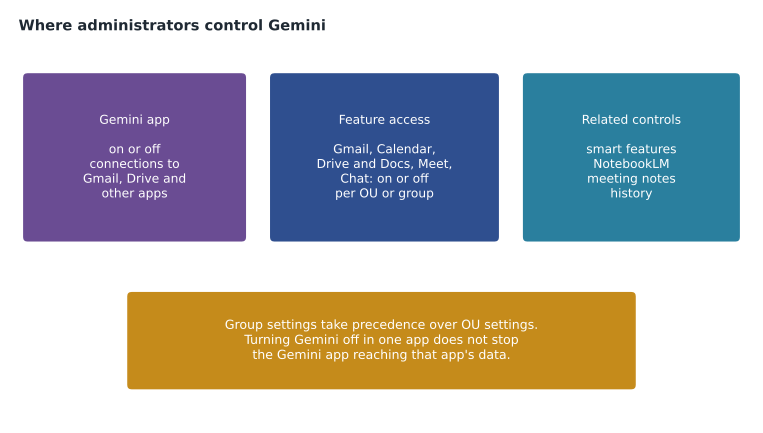
- Feature access for Gemini in Workspace services: an on or off switch for each service group (Gmail; Calendar; Drive and the Docs editors; Meet; Chat and some others), applied to an OU or a configuration group. The default is on for editions that include the features. Where both an OU setting and a configuration group setting apply to a user, the group setting takes precedence.
- Gemini app access: whether users can use the Gemini app with their work accounts, and separately whether the Gemini app may connect to Workspace apps such as Gmail and Drive.
- Conversation history for the Gemini app: whether users' conversations are saved and for how long, within the options Google offers.
- NotebookLM and other related services: on or off like other services.
- Smart features and personalization: Gemini features in Workspace apps depend on users having these turned on, and administrators can set the default.
One detail surprises Owen. Turning Gemini off in one app does not stop users from reaching that app's data through Gemini in another app; for example, with Gmail's Gemini features off but the Gemini app allowed to connect to Gmail, a user can still ask the Gemini app about their mail. To keep Gemini away from a service's data entirely, the related connections must be turned off too. Owen draws the settings as a grid, so the combinations are visible before the rollout.
# Planned settings for one user, as Owen draws them in his grid.
in_app = {"Gmail": False, "Drive and Docs": True, "Meet": True}   # Gemini feature access per service
gemini_app = True                                               # Gemini app allowed
app_connections = {"Gmail": True, "Drive and Docs": True}       # Gemini app may reach these apps

for service in in_app:
    routes = []
    if in_app[service]:
        routes.append("Gemini inside " + service)
    if gemini_app and app_connections.get(service, False):
        routes.append("the Gemini app")
    reach = " and ".join(routes) if routes else "no Gemini feature"
print(f"{service:15} data reachable through: {reach}")Gmail data reachable through: the Gemini app Drive and Docs data reachable through: Gemini inside Drive and Docs and the Gemini app Meet data reachable through: Gemini inside Meet
What this code does
The grid records, for one user, which services have Gemini turned on inside them, whether the Gemini app is allowed, and which services the Gemini app may connect to. For each service it lists every route by which Gemini could work with that service's data. The output shows that even with Gemini off inside Gmail, mail is still reachable through the Gemini app while its Gmail connection is on, which is the combination administrators often overlook.
The grid confirms the point: Gmail's in-app Gemini is off, but the user can still ask the Gemini app about their mail, because the app's Gmail connection is on. Meet's data is reachable only inside Meet, since the app has no Meet connection in this plan. Owen copies the grid into the rollout plan with one row per stage, so that each change to the console can be checked against what the stage is meant to allow.
Meeting notes and consent
Meet's note-taking feature, which writes a summary of the meeting to a Doc, raises the same questions as recording in lesson 7. Participants see an indicator when notes are being taken, and administrators can turn note-taking on or off separately from other Gemini features. Birchline's People and culture team asks that notes never be taken in interviews, disciplinary meetings or medical accommodation discussions, and that notes from other meetings be checked by the organizer before they are shared, because a summary can misattribute who said what. The rule joins the recording policy in the staff guide, and the setting stays off for the People and culture OU until the team asks for it.
Translated captions and other Meet AI features follow the same edition and setting rules. Owen notes that features appear and change often, so the console, not last year's training slides, is the source of truth for what is available.
Data protection
For Workspace customers, Google states that content users work with through Gemini is not used to train its models outside the customer's domain without permission and is not reviewed by people for that purpose, that Gemini respects the existing access controls and sharing on each file, and that the data protections of the Workspace agreement apply. Teresa's team has read Google's published privacy commitments for Gemini in Workspace and the Workspace data processing terms, and her summary for the legal team uses those documents' wording rather than vendor slides. She also records which features send data to services that might be processed outside Canada, because Workspace data regions (from the first course) cannot pin data to Canada, and Birchline's privacy notice must describe that honestly.
Gemini app conversations and some Gemini activity can be retained and searched with Vault in supported editions, so they fall under the same retention and legal hold rules as mail and chat (GCP-212). Teresa wants that confirmed in Birchline's console before the Gemini app is opened to Finance.
Birchline's rollout plan
Sofia's plan is staged, like every other change, and starts with the people whose work is least sensitive.
| Stage | Who | Gemini in apps | Gemini app | Condition to move on |
|---|---|---|---|---|
| 1. Pilot (December) | /Pilot OU, 14 people | On | On, connected to Gmail and Drive | No access surprises in the sharing review; help desk guide written |
| 2. Early groups (February) | Marketing and E-commerce via a configuration group | On | On | Training session attended; usage guidelines signed off |
| 3. Head office (March) | All /Head office except Finance and People and culture | On | On | Feedback from stage 2 reviewed |
| 4. Sensitive departments (after review) | Finance, People and culture | On after review | On after Vault check | Teresa confirms retention and Vault coverage |
| Stores and warehouses | /Stores, /Warehouses | Depends on edition and need | Off at first | A business case from operations |
Before stage 1, Owen turns feature access off for the top-level organization, then on for the /Pilot OU, so that nobody outside the pilot gets Gemini by default when head office moves in February. Stage 2 uses a configuration group, cfg-gemini-early, because Marketing and E-commerce sit in different OUs; the group setting takes precedence over the OU setting, so adding someone to the group turns Gemini on for them even though their OU has it off.
The plan for stores is deliberately open. Frontline editions differ from Enterprise ones in which AI features they include, and Google has been changing the line-up, so Owen will check the current edition comparison when operations makes a case. Possible uses, such as summarizing the store operations manual or drafting incident reports, are real, but so is the training effort for 800 people on shared tablets.
Usage guidelines
Settings cannot decide whether a particular use is wise. Birchline's guidelines, drafted by Teresa and the legal team, are short: Gemini drafts, people decide; check facts and figures before sending; do not paste customers' card numbers or other people's personal health information into prompts; label AI-generated product images as such where the law or Birchline's brand rules require it; and report outputs that look biased or wrong. The guidelines sit on the intranet and are linked from the pilot's welcome message. They also explain the help desk's position: Gemini questions are support questions like any other, and the help desk will not judge whether someone should have used it.
Checking what is happening
Administrators can see Gemini usage in the Admin console's reports, including how many users have used Gemini features in each app, and audit events for Gemini settings changes are recorded like other admin events. For stage reviews, Sofia will look at three things: adoption (how many pilot users used Gemini in a week), help desk tickets about Gemini, and the sharing problems the summaries exposed, if any. The last one is the most useful: each oversharing problem found because a summary showed something unexpected is a problem fixed before the whole company could see it.
Common mistakes
MistakeAssuming Gemini is off because Birchline never bought an add-on.
InsteadGemini is included in Business and Enterprise editions; check feature access and set it deliberately.
MistakeTurning off Gemini in Gmail and thinking mail is now out of reach of every Gemini feature.
InsteadAlso control the Gemini app's connections to Workspace apps.
MistakeRolling out Gemini before reviewing sharing.
InsteadFix oversharing first; Gemini works with whatever each user can already open.
MistakeUsing OUs alone for a rollout that crosses departments.
InsteadUse a configuration group; group settings take precedence over OU settings.
Worked problem
Turning Gemini on for the early group
Feature access is off for the top-level organization and on for /Pilot. Marketing (in /Head office/Marketing) and E-commerce (in /Head office/E-commerce) should get Gemini in stage 2, but the rest of head office should not yet. What should Owen do, and what happens to a Marketing user who is also in /Pilot?
Show solution
- Create the configuration group cfg-gemini-early and add Marketing and E-commerce staff, ideally by nesting their department groups.
- In feature access, select the group and turn Gemini on for each service group planned for stage 2.
- Leave the /Head office OU setting off, so other head office staff stay without Gemini.
- A Marketing user who is also in /Pilot already has Gemini on from the OU, and the group setting also turns it on, so nothing changes for them.
- Check the Gemini app setting separately: if the app should also be available, apply its setting to the same group, and decide whether it may connect to Gmail and Drive.
Answer: Use a configuration group with Gemini on, leave the OU off, and set the Gemini app and its connections separately.
Summary and key terms
- Gemini appears inside Gmail, Docs, Sheets, Slides, Drive, Meet and Chat, and as the Gemini app, which can reach Workspace data when allowed.
- Since 2025 it is included in Business and Enterprise editions.
- Administrators control feature access per service, per OU or configuration group, with group settings taking precedence; Gemini app access and its connections to Workspace apps; conversation history; NotebookLM; and smart features.
- Turning Gemini off in one app does not block access to that app's data through other Gemini features.
- Gemini respects existing sharing, so review oversharing first.
- Read Google's published data protection commitments, check Vault coverage and roll out in stages with usage guidelines and usage reports.
- Gemini in Workspace apps
- AI features inside Gmail, Docs, Sheets, Slides, Drive, Meet and Chat.
- Gemini app
- Google's conversational AI assistant, used with a work account at gemini.google.com and in mobile apps.
- Feature access
- The Admin console settings that turn Gemini on or off per service for an OU or group.
- NotebookLM
- A Google tool that answers questions and creates summaries from documents a user adds.
- Smart features and personalization
- User settings that Gemini features in Workspace apps depend on.
- Conversation history
- Saved Gemini app conversations, which administrators can control.
- Configuration group precedence
- When a group setting and an OU setting both apply, the group setting wins.
- Usage guidelines
- An organization's rules for appropriate use of AI tools.
Practice problems
Work each problem on paper first, then reveal the answer to check.
Why does Sofia review sharing before turning Gemini on widely?
Show answer
Gemini works with whatever a user can already open, so old oversharing would surface in summaries.
What does Owen do before head office moves so that its staff do not get Gemini by default?
Show answer
Turns feature access off at the top level and on only for /Pilot.
Why is a configuration group used for stage 2?
Show answer
Marketing and E-commerce are in different OUs; a group crosses the tree and takes precedence.
Lesson quiz · 5 questions
Score 60% or more to complete this lesson.
Create a free account to save your progress, take quizzes and earn a certificate.