
GCP-211 · Lesson 7 of 12 · 19 min
Google Meet and Chat settings
▶ Video coming soon A video version of this lesson is on the way.
Birchline holds a Monday call with all 40 store managers, a weekly town hall for head office and countless small meetings, all on a mix of Microsoft Teams and phone bridges today. Chat is even more scattered: store managers use a consumer messaging app on their own phones because nothing official reaches them quickly. Sofia sees Meet and Chat as the services that will decide whether stores feel part of the change. "The managers will judge Workspace by one thing," she says. "Does the Monday call work from a phone in a stockroom?" This lesson covers the Admin console settings for Google Meet and Google Chat, the choices they force on administrators, and Birchline's plan for each.
Where the settings live
Meet's settings are under Apps, Google Workspace, Google Meet; Chat's under Apps, Google Workspace, Google Chat. Both apply per OU or configuration group, and some features depend on the edition. Enterprise Standard, which head office and managers will have, includes recording, transcripts and larger meetings; Frontline Standard, for store and warehouse floor staff, includes joining and holding meetings but fewer of the advanced features. Owen keeps a page of edition differences open while planning, because a setting turned on for an OU does nothing for users whose licence lacks the feature.
Meet video settings
The Meet video settings group holds the choices that matter most.
| Setting | What it controls | Birchline's plan |
|---|---|---|
| Video calling | Whether users can start and join Meet calls | On for everyone |
| Recording | Whether eligible users can record meetings to Drive | On for head office; off for stores at first |
| Transcripts | Whether meetings can be transcribed into a Doc | On for head office |
| Who can join | Whether meetings created by users are open to users from other organizations and people without accounts | Head office: anyone may request to join; Finance: only the organization and invited guests |
| Host management | Whether host controls are on by default (who can share, chat, unmute, join without asking) | On by default for large meetings |
| Dial-in | Whether meetings get phone numbers for joining by telephone | On, with Canadian and US numbers |
| Live streaming | Whether eligible users can stream to large view-only audiences | On for the Communications team only |
Two settings need more thought than the others. Recording creates a video file in the organizer's Drive and notifies participants that recording has started, which helps with consent; but recordings of meetings with customers or job candidates raise privacy questions under PIPEDA and provincial privacy law, so the People and culture team asks that interviews never be recorded. That is a policy, not a setting: Meet cannot tell an interview from a project meeting, so the rule goes into the staff guide.
Who can join decides how open meetings are. Meetings that anyone can request to join suit head office, which meets suppliers and agencies daily; the host admits each outside participant. Finance and People and culture handle confidential matters, so their meetings are limited to the organization and people explicitly invited, which stops a forwarded link from letting a stranger knock.
Joining from rooms and phones
Meeting rooms with video systems at head office will use Google Meet hardware or compatible room systems, which appear in Calendar as features of a room resource (lesson 4). Devices are enrolled and managed in the Admin console under Devices, Google Meet hardware, where administrators can see their status and update them remotely. The board room's existing system is not compatible, so Birchline will buy one kit for it and test it before February.
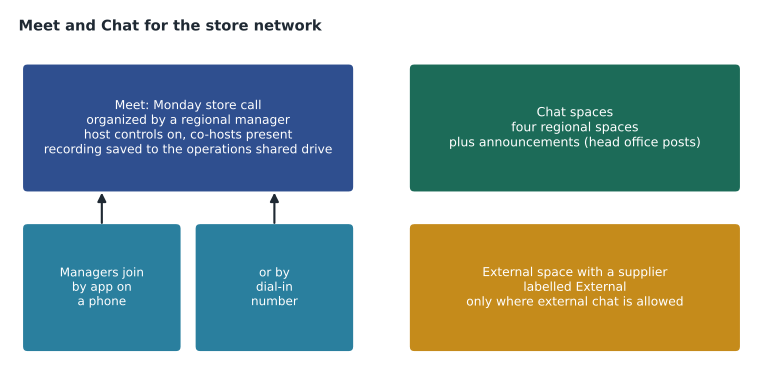
The store managers' Monday call is the real test. Most will join from the Meet app on a phone, some from the store's shared tablet. Owen and Sofia set up a test call with five store managers during the pilot, from stockrooms with weak signal, and decide on three things: dial-in numbers in the invitation for anyone whose data connection fails, host controls so that only the regional managers can present, and a recording saved to the operations shared drive for managers who miss the call. Recording needs the organizer to have an edition with recording, so the call will be organized by a regional manager on Enterprise Standard.
Chat settings
Google Chat offers direct messages, group conversations and spaces, which are persistent rooms with members, threads or in-line replies, files and apps. Administrators control several things.
| Setting | What it controls | Birchline's plan |
|---|---|---|
| Chat on or off | Whether users can use Chat at all | On for everyone |
| History | Whether messages are kept by default, and whether users can change it | History on and users cannot turn it off, so messages can be retained and reviewed |
| External chat | Whether users can chat with people outside the organization, and whether only with allowlisted domains | On for head office with allowlisted domains; off for stores |
| Spaces | Whether users can create spaces, and who can join them | On; space managers decide membership |
| Chat apps | Whether users can install apps in Chat, and which | Allowlist only (lesson 10) |
| File sharing in Chat | Whether files can be shared inside and outside Chat conversations | Inside only for stores |
History is the setting with legal weight. When history is off, messages in a conversation disappear after a day, which some users like and which makes retention and investigations impossible. Birchline's legal team wants chat kept like email, so history will be on and locked for all OUs, and Vault retention rules (GCP-212) will decide how long messages are kept. Sofia warns Owen that changing history settings after launch does not bring back messages that were never kept.
External chat follows the same pattern as Drive sharing. Head office staff may chat with people at the allowlisted partner domains from lesson 6. External spaces, which include outside members, are clearly labelled External in the interface, which reminds people to be careful about what they post. Store staff have no business reason to chat with outsiders, so external chat is off for /Stores.
Replacing the store messaging app
The consumer messaging app the store managers use worries Teresa: customer complaints, staff schedules and occasionally photos of damaged goods with delivery labels are posted from personal phones to a service Birchline cannot manage or retain. Chat will replace it with four regional spaces, each with that region's store managers and regional manager, plus an announcements space where only head office operations can post. Managers will use the Chat app on their phones, signed in with their Birchline accounts and covered by the basic mobile management from the first course.
Owen sets up the spaces from a role account in the Operations team so that they do not belong to whichever person happened to create them, adds the regional groups as members (groups can be added to spaces, and membership follows the group), and pins a short guide explaining what belongs in Chat and what belongs in email.
Coexistence with Teams and phone bridges
During the migration, many meetings will include people on Exchange and Teams. Meet calls can be joined from a browser by anyone the host admits, so Teams users invited to a Meet call can join without installing anything. Interoperability between Meet room hardware and other services exists for some systems and is set up per device; Owen will not rely on it until it is tested. Chat has no direct bridge to Teams, so the plan is simple: pilot users keep Teams for conversations with people who have not moved and use Chat among themselves, and each wave switches as it moves.
How much storage will recordings use?
Recordings are stored in Drive and count against the organization's pooled storage, so Dana Leclair, the CFO, asks what turning recording on will cost in storage. Owen estimates it from the pilot's test recordings, which averaged roughly 0.4 GB per hour of a typical meeting with shared slides; the real figure varies with video content and length, so he treats it as a planning number.
GB_PER_HOUR = 0.4          # measured average from pilot test recordings
recorded = {               # meetings expected to be recorded each week
    "Monday store call": (1, 1.0),        # (meetings per week, hours each)
    "Head office town hall": (1, 0.75),
    "Project meetings": (30, 0.5),
    "Training sessions": (6, 1.5),
}
weekly_hours = sum(n * h for n, h in recorded.values())
weekly_gb = weekly_hours * GB_PER_HOUR
yearly_gb = weekly_gb * 52
print(f"Recorded hours per week: {weekly_hours}")
print(f"Storage per week: {weekly_gb:.1f} GB, per year: {yearly_gb:.0f} GB")
for keep_days in (90, 365):
    kept = weekly_gb * keep_days / 7
print(f"Kept for {keep_days} days: about {kept:.0f} GB at any time")Recorded hours per week: 25.75 Storage per week: 10.3 GB, per year: 536 GB Kept for 90 days: about 132 GB at any time Kept for 365 days: about 537 GB at any time
What this code does
The estimate lists the kinds of meetings Birchline expects to record each week, with how many there are and how long each lasts. It multiplies the total recorded hours by the storage each hour used in the pilot's test recordings to get the storage used per week and per year. It then shows how much storage would be in use at any one time if recordings were kept for 90 days or for a full year, which is the figure that matters for pooled storage.
The answer is small compared with Birchline's pooled storage: about 26 hours of recordings a week (25.75 exactly), roughly 10 GB a week and around 536 GB a year if nothing is deleted. Keeping recordings for 90 days holds about 132 GB at any time. Sofia still asks for a retention rule, not because of storage but because recordings are records: a Vault rule (GCP-212) will delete project and training recordings after a year unless they are placed on hold, while the store call recordings are kept for 90 days.
Meeting safety
Meet includes protections that hosts and administrators should know. Meetings created inside the organization cannot be joined by outsiders without being admitted, unless the access type allows it. Hosts can remove participants, end the meeting for everyone, lock chat or presenting, and turn off a participant's microphone. Knocking requests from outsiders show the requester's name, and repeated requests can be blocked. For the town hall, which may have up to 300 participants, Owen will set the meeting so that only the Communications team can present and participants join muted, and he will brief the hosts on removing a disruptive participant. These are ordinary meeting-hygiene steps that prevent disruption, and they cost nothing.
Chat on shared devices
Shared tablets in stores raise a practical issue: anyone who picks up the tablet sees the signed-in account's Chat. The tablets will therefore be signed in to a store role account that belongs only to the store's announcements and operations spaces, not to a person's account, and the first course's mobile management settings will lock the screen after a short idle time. Individual managers use Chat on their own phones with their own accounts.
Meeting and chat data
Meet produces data that administrators use to support users: the Meet quality tool in the Admin console shows each call's participants, devices, network quality and any problems, which is the first stop when a store manager says the call kept freezing. The audit and investigation pages record Meet and Chat log events. Recordings and transcripts are files in Drive and follow Drive's sharing and retention rules, so a recording saved to a shared drive is governed like any other file in it.
Common mistakes
MistakeTurning recording on for everyone without a policy on what may be recorded.
InsteadWrite the policy, such as never recording interviews, and turn recording on where needed.
MistakeLeaving Chat history up to each user.
InsteadTurn history on and lock it where messages must be retained, before launch.
MistakeCreating important spaces from a personal account.
InsteadCreate them from a role account and add groups as members.
MistakePlanning features for users whose licence does not include them.
InsteadCheck edition differences; settings do nothing without the feature in the licence.
Worked problem
Planning the Monday store call
Forty store managers join a weekly call, many from phones with weak signal. Regional managers present; the call should be recorded for those who miss it, and no outsiders should join. How should it be set up?
Show solution
- Have a regional manager on Enterprise Standard organize the recurring event, so that recording is available.
- In the event, keep the access type limited to the organization and invited guests, which the Finance-style setting allows, so a forwarded link does not admit outsiders.
- Turn host management on for the call and make the regional managers co-hosts, so only they can present and unmute everyone.
- Include dial-in numbers in the invitation for managers whose data connection fails.
- Record each call; the recording goes to the organizer's Drive, so move or save it to the operations shared drive where all managers have viewer access.
Answer: An organizer with recording, restricted access, host controls with regional co-hosts, dial-in for weak connections and recordings kept in a shared drive.
Summary and key terms
- Meet and Chat settings apply per OU or configuration group, and many features depend on the edition.
- Meet settings include video calling, recording, transcripts, who can join, host management, dial-in and live streaming.
- Recording needs a policy as well as a setting.
- Who can join decides whether outsiders may request access.
- Meet hardware is managed in the Admin console.
- Chat settings cover history, external chat, spaces, apps and file sharing.
- Turn history on and lock it where retention matters.
- External spaces are labelled.
- Create shared spaces from role accounts and add groups.
- During coexistence, outsiders can join Meet from a browser; plan Chat use by wave.
- Use the Meet quality tool and audit logs for support.
- Space
- A persistent Chat room with members, messages, files and apps.
- Chat history
- Whether Chat messages are kept; when off, messages disappear after about a day.
- External chat
- Chat with people outside the organization, which administrators can allow or limit.
- Host management
- Meet controls that let hosts decide who can share, chat, unmute and join.
- Dial-in
- Phone numbers that let participants join a Meet call by telephone.
- Meet hardware
- Room video systems for Google Meet, managed in the Admin console.
- Meet quality tool
- An Admin console tool that shows call quality details for troubleshooting.
- Live streaming
- Broadcasting a meeting to a large view-only audience, available in some editions.
Practice problems
Work each problem on paper first, then reveal the answer to check.
Why does Birchline lock Chat history on?
Show answer
So messages can be retained and reviewed like email; changing it later does not recover messages that were never kept.
Why must the Monday call be organized by a regional manager on Enterprise Standard?
Show answer
Recording depends on the organizer's edition; store managers' licences may not include it.
How can Teams users join a Meet call during coexistence?
Show answer
From a browser, admitted by the host, without installing anything.
Lesson quiz · 5 questions
Score 60% or more to complete this lesson.
Create a free account to save your progress, take quizzes and earn a certificate.