
GCP-211 · Lesson 5 of 12 · 19 min
Drive and shared drives
▶ Video coming soon A video version of this lesson is on the way.
Birchline's files live in three places today: Windows file shares on the head-office servers (about 6 TB, mostly department folders), the 40 TB product photo library that the first Google Cloud course moved to Cloud Storage, and personal folders on laptops that nobody backs up properly. In Workspace, everyday documents and team files will move to Drive. Ravi Menon, the data and analytics lead, comes to the fifth session because his team has a folder with 30,000 spreadsheets in it, and he wants to know whether Drive can cope. This lesson covers the difference between My Drive and shared drives, how shared drives are governed, the admin settings that control Drive, and how to plan the move from file shares.
My Drive and shared drives
Every user has My Drive, where files belong to the person who created or uploaded them. Owners can share their files with others, and a file in My Drive stays the owner's even when it sits in a folder shared with a whole team. That ownership model works for personal drafts and causes trouble for team files: when the owner leaves and their account is deleted without a transfer, the files go with it, as the first course showed.
Shared drives solve that problem. Files in a shared drive belong to the organization, not to a person, so they stay when members leave. Membership is set at the level of the shared drive, and every member sees the same files with the same structure. Shared drives are the right home for department and project files; My Drive remains for personal work and drafts.
| Question | My Drive | Shared drive |
|---|---|---|
| Who owns files? | The person who created or uploaded them | The organization |
| What happens when someone leaves? | Files must be transferred before the account is deleted | Files stay; the person simply stops being a member |
| How is access set? | Per file or folder, by the owner | By shared drive membership, with optional extra sharing per file |
| Who can delete files? | The owner | Members with the right role |
| Typical use | Personal drafts, individual work | Department, team and project files |
Shared drive roles
Members of a shared drive have one of five roles. The roles are cumulative: each one includes everything the roles below it can do.
| Role | Can do |
|---|---|
| Manager | Manage members and settings, delete the shared drive (once empty), plus everything below |
| Content manager | Add, edit, move and delete files and folders, plus everything below |
| Contributor | Add and edit files, but not move or delete them |
| Commenter | Comment on files |
| Viewer | View files |
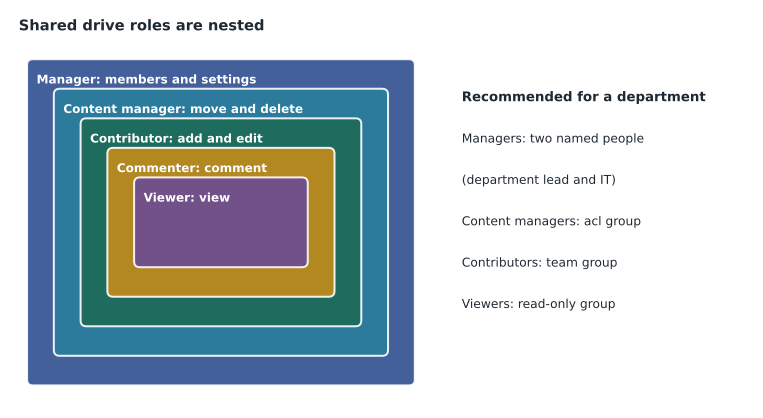
Sofia's rule for Birchline is to assign roles to groups, not individuals, using the access-control groups from the first course. The Finance shared drive will have two named managers (the finance systems lead and an IT administrator), the group acl-finance-files as content managers, and acl-finance-readonly for auditors as viewers. Membership changes then happen in groups, where synchronization from Active Directory can keep them current.
Admin settings for Drive
Drive's settings are under Apps, Google Workspace, Drive and Docs. They apply per OU, and some apply to shared drives as their defaults. Sofia walks through the groups of settings Owen will touch first.
- Sharing settings control sharing outside the organization, link sharing defaults and who can receive files from outside. They are important enough to get their own lesson (lesson 6).
- Shared drive creation decides whether users in an OU can create shared drives. Birchline will allow it only for IT and department leads at first, so that shared drives are created deliberately and named consistently.
- Shared drive settings set defaults for new shared drives, such as whether people outside the organization can be added, whether non-members can be given access to individual files and whether viewers and commenters can download, print and copy.
- Features and applications control Drive for desktop, offline access, add-ons and whether users can use Google Docs editors with third-party apps.
- Templates control whether users can submit templates to the organization's template gallery.
- Storage limits set how much pooled storage each OU or user may use (lesson 6 of the first course covered pooled storage by edition).
Administrators can also manage shared drives directly in the Admin console under Apps, Google Workspace, Drive and Docs, Manage shared drives: search for any shared drive, add or remove members, change its settings, move it to another OU (which changes the policies it follows) and restore deleted shared drives within a limited period. A shared drive belongs to an OU for policy purposes; new shared drives inherit the OU of the person who created them, and the admin can move them.
How big can a shared drive get?
Ravi's question about 30,000 spreadsheets leads to Drive's limits. Google documents a maximum number of items per shared drive, given in its help pages as 400,000 files and folders including items in the trash, along with limits on folder nesting depth and on daily uploads per user. The item limit is the one file-share migrations most often hit, because file shares hold far more small files than people expect. Owen counts the items in each department share with a report from the file server and compares the totals with the limit, leaving room to grow.
# Items (files and folders) in each department share, from the file server report.
shares = {
    "Finance": 182_000,
    "Marketing": 455_000,
    "E-commerce": 96_000,
    "Data and analytics": 31_500,
    "Buying": 402_000,
}
LIMIT = 400_000          # items per shared drive, as Google documents it
TARGET = 0.6 * LIMIT     # plan to fill no more than 60 out of every 100 slots

for name, items in shares.items():
    if items <= TARGET:
        plan = "one shared drive"
    else:
        drives = -(-items // int(TARGET))   # round up
        plan = f"split into {drives} shared drives"
print(f"{name:20} {items:>8,} items -> {plan}")Finance 182,000 items -> one shared drive Marketing 455,000 items -> split into 2 shared drives E-commerce 96,000 items -> one shared drive Data and analytics 31,500 items -> one shared drive Buying 402,000 items -> split into 2 shared drives
What this code does
The plan takes the number of files and folders in each department's file share and compares it with the item limit Google documents for a shared drive. To leave room for growth, it aims to fill a shared drive to no more than 60 out of every 100 available places, which is 240,000 items. Shares under that target get one shared drive; larger ones are split into as many shared drives as needed, rounded up.
Three departments fit easily in one shared drive each. Marketing and Buying need two each, which is not a problem if the split follows how people work. Marketing's share already divides into campaigns and brand assets, so it will become Marketing campaigns and Marketing brand. Buying's divides by product category. Ravi's 30,000 spreadsheets fit comfortably in the Data and analytics shared drive, though Sofia suggests a cleanup before migration, since many of them are old exports that nobody opens.
Planning shared drives from file shares
A file share rarely maps one-to-one to shared drives. File shares use folder permissions that differ from folder to folder; shared drives grant access to the whole drive, with per-file sharing as an exception. When a share has subfolders with very different audiences, such as Finance's Payroll subfolder that only three people may open, the subfolder should become its own shared drive with its own members rather than a folder that everyone else can see.
| File share folder | Who has access today | Plan in Drive |
|---|---|---|
| \\fs01\Finance | Finance group, auditors read-only | Shared drive Finance: acl-finance-files content managers, auditors viewers |
| \\fs01\Finance\Payroll | Three named people | Separate shared drive Finance payroll with those three as members |
| \\fs01\Marketing\Campaigns | Marketing group, agency contractors | Shared drive Marketing campaigns; agency handled by external sharing (lesson 6) |
| \\fs01\Public | Everyone | No shared drive; content moves to the intranet or is archived |
| \\fs01\Users\(each person) | Each person | Each person's My Drive |
Owen records two more rules in the plan. Files that must be kept for legal reasons are not deleted during cleanup; Vault (GCP-212) will hold them. And the file names that Windows allowed but Drive users find confusing, such as names with trailing spaces or very long paths, are reported before migration so that the migration tool does not fail half-way.
Moving the files
The first course matched migration tools to sources: for file shares at Birchline's scale, Google Workspace Migrate can copy folders into shared drives and map file-share permissions onto Drive sharing, keeping the original modified dates. Owen plans each shared drive's move in three passes. A first full copy runs a week ahead, while people keep working on the file server. A delta pass copies only what changed, the night before the department moves. On cutover day the share is made read-only, a final delta pass runs, and the department starts working in Drive. Keeping the old share read-only for a month afterwards gives a safety net without letting two copies drift apart.
A simple sizing check helps with timing. Finance's share holds 182,000 items in about 1.1 TB. If the migration servers sustain the planning rate the first course used, about 55 GB an hour for large files, the first pass takes around 20 hours; but item count matters as much as size, because each small file has its own overhead, so Owen measures a test run on a copy of 10,000 Finance files before fixing the schedule. The delta passes are much shorter, since only a few thousand files change in a week.
Labels and the life of a file
Drive labels let administrators define metadata that people or rules apply to files, such as a classification of Internal, Confidential or Restricted, or a field such as Department or Retention class. Labels are created in the Admin console under Drive and Docs and can be required on some files. They matter for two later topics: data loss prevention rules can use them to decide what may be shared outside (GCP-212), and Vault retention rules can keep or delete files according to a label. Teresa wants a single classification label in place before head office moves, with Internal as the default and Confidential applied to Finance's and People and culture's shared drives automatically.
Files also have a life after use. Sofia asks each department to name an owner for its shared drives who reviews them once a year: archive what is finished, delete what has no value and no retention need, and check that the membership still matches the team. Without that habit, shared drives fill up with the same old exports Ravi's file share did, only faster, because Drive makes copying easy.
Drive for desktop and offline access
Drive for desktop shows Drive, including shared drives, as a drive letter on Windows or a location in macOS Finder, and streams files on demand. It lets people keep working in desktop apps such as Excel on files stored in Drive. Administrators can allow or block it per OU and choose whether it may be installed only on company devices (with device management from the first course). Birchline will allow it for head office and the warehouses' office staff, where people use desktop spreadsheets heavily, and block it for store staff on shared tablets.
Offline access lets users open and edit Docs, Sheets and Slides without a connection in Chrome. Administrators can allow users to turn it on or force it off; for company laptops, Sofia allows it, because buyers travel to suppliers with poor connections.
Common mistakes
MistakeLeaving team files in one person's My Drive shared with the team.
InsteadUse a shared drive so files belong to the organization.
MistakeAdding individuals to every shared drive.
InsteadAdd groups, so membership is managed in one place and synchronized.
MistakeCopying a whole file share into one shared drive without counting items.
InsteadCount items and split large shares along natural lines, leaving room to grow.
MistakeKeeping a restricted subfolder inside a widely shared drive.
InsteadMake it a separate shared drive with its own members.
Worked problem
Choosing roles for the E-commerce shared drive
Jules Baptiste's e-commerce team of 18 needs a shared drive. Four product owners organize the folders; the other 14 write and edit content; two developers from an outside agency need to read the release notes folder only. How should the roles be set?
Show solution
- Create the shared drive E-commerce and make Jules and one IT administrator managers, so that two people can always manage it.
- Add the group acl-ecommerce-owners, with the four product owners, as content managers so they can move and delete files.
- Add acl-ecommerce-team, with the 14 others, as contributors: they can add and edit but not move or delete.
- Do not add the agency developers to the whole drive. Share the release notes folder with them only, if the shared drive and OU settings allow sharing with external users, which lesson 6 covers.
- Review membership each quarter as part of the access reviews from the first course.
Answer: Managers named, owners as content managers, the team as contributors, and outside developers given access only to the folder they need.
Summary and key terms
- My Drive files belong to their owners; shared drive files belong to the organization and stay when members leave.
- Shared drives have five nested roles: Manager, Content manager, Contributor, Commenter and Viewer; assign them to groups.
- Drive and Docs settings, per OU, cover sharing, shared drive creation, defaults for new shared drives, Drive for desktop and offline access, templates and storage.
- Admins can manage any shared drive from the console and move it between OUs for policy.
- Google documents a maximum number of items per shared drive; count items before migrating file shares and split along natural lines.
- Map restricted subfolders to separate shared drives.
- My Drive
- A user's personal Drive space, where files belong to their owner.
- Shared drive
- A Drive space whose files belong to the organization, with access set by membership.
- Content manager
- A shared drive role that can add, edit, move and delete files.
- Contributor
- A shared drive role that can add and edit files but not move or delete them.
- Drive for desktop
- An app that shows Drive as a drive or folder on a computer and streams files.
- Item limit
- The documented maximum number of files and folders in one shared drive.
- Shared drive creation setting
- The Admin console setting that decides who can create shared drives.
- Offline access
- The ability to open and edit Docs editors files without a connection.
Practice problems
Work each problem on paper first, then reveal the answer to check.
Why does Birchline create shared drives for department files instead of shared folders in My Drive?
Show answer
Shared drive files belong to the organization, so they survive staff changes.
Why will Marketing's share become two shared drives?
Show answer
Its 455,000 items exceed the planning target, and it splits naturally into campaigns and brand assets.
Why should Payroll be a separate shared drive?
Show answer
Only three people may access it; shared drive access applies to the whole drive.
Lesson quiz · 5 questions
Score 60% or more to complete this lesson.
Create a free account to save your progress, take quizzes and earn a certificate.