
AWS-104 · Lesson 6 of 12 · 20 min
Cost Explorer, Budgets and cost allocation tags
▶ Video coming soon A video version of this lesson is on the way.
Lorraine runs Cascade Ridge's finances by clinic. Each of the 11 clinics and the emergency hospital has its own budget, and she wants to know what each one costs to run. "When the cloud bill comes," she asks on November 10, "can you tell me how much of it is the Lethbridge clinic?" Gwen answers with three tools that work together: cost allocation tags to label resources, AWS Cost Explorer to analyze spending, and AWS Budgets to set limits and raise alarms before money is spent.
Cost Explorer
AWS Cost Explorer is the main tool for looking at costs over time. It shows charts and tables of spending by day or month, and lets you filter and group by service, account, Region, usage type, purchase option, tag and other dimensions. It includes about a year of past data by default and can forecast spending for the coming months from your history. Cost Explorer is free to use in the console; requests through its API carry a small charge.
Mateo opens Cost Explorer in the sandbox and groups October by service. The chart confirms what the bill said: EC2 is the tallest bar. He changes the grouping to usage type and the EC2 bar splits into instance hours, EBS volume storage and NAT gateway charges. Then he switches to daily granularity and sees the step on October 7 when the test server started, and a smaller one on October 12 when the NAT gateway appeared.
| Cost Explorer feature | What it shows |
|---|---|
| Cost and usage reports | Spending by service, account, Region, tag and other dimensions, by day or month |
| Forecast | Predicted spending for coming months based on history |
| Savings Plans and RI utilization | How much of each commitment was used |
| Savings Plans and RI coverage | How much eligible usage was covered by commitments |
| Savings Plans and RI recommendations | Suggested commitments based on past usage |
| Rightsizing recommendations | EC2 instances that could be smaller or stopped |
| Saved reports | Named views with chosen filters and groupings that can be reused |
Cost allocation tags
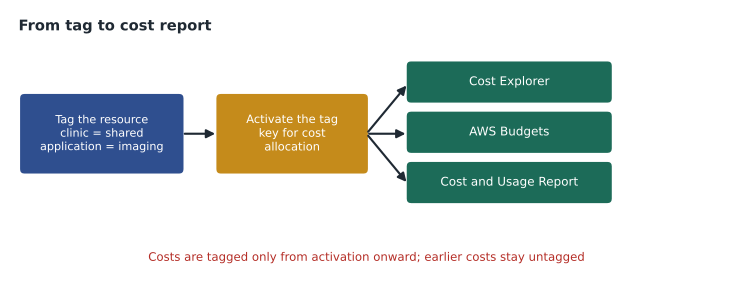
A tag is a label attached to an AWS resource, made of a key and a value, such as clinic = lethbridge or environment = production. Tags help people find, secure and automate resources, and they make it possible to divide a bill. A cost allocation tag is a tag key that has been activated in the Billing and Cost Management console, so that it appears as a dimension in Cost Explorer, Budgets and the Cost and Usage Report.
There are two kinds of cost allocation tags. User-defined tags are the ones you create, such as clinic or application. AWS-generated tags are created by AWS, for example a tag that records which identity created a resource. Both must be activated before they appear in billing tools, and activation is done in the management account of an organization.
Two details catch many teams. First, tags are not retroactive for billing: after a tag key is activated, it appears in cost data from that point on, so costs from before activation, or from resources tagged later, show as untagged. Second, a resource must be tagged to be counted: an untagged server is invisible to a filter for clinic = lethbridge. Some shared costs, such as the NAT gateway or support charges, cannot sensibly be tagged to one clinic at all.
Cascade Ridge's tagging plan
Gwen and Lorraine agree on a short list of required tags. Short lists are followed; long lists are not.
| Tag key | Example values | Purpose |
|---|---|---|
| clinic | calgary-er, lethbridge, shared | Which site the resource serves, or shared |
| environment | production, development, sandbox | Separates real costs from experiments |
| application | vetledger, imaging, bookvet, platform | Which system the resource belongs to |
| owner | mateo.ruiz, kwame.asante | Who to ask about it |
| costcode | IT-100, CLIN-210 | The finance cost centre code Lorraine uses in her ledger |
Tagging by hand is unreliable, so the plan uses automation. Infrastructure is created from templates that apply the tags; an AWS Organizations tag policy defines the allowed keys and values; and a weekly report lists untagged resources. Shared costs are divided by a rule Lorraine chooses, for example by each clinic's number of appointments, using AWS Cost Categories, which group costs by rules on accounts, tags and services.
# Illustrative: allocate a month's costs to clinics from tagged and shared lines.
tagged = {"er-hospital": 2900, "clinic-a": 310, "clinic-b": 295, "clinic-c": 280}
shared = 3100                       # NAT, monitoring, backup and so on
appointments = {"er-hospital": 5200, "clinic-a": 1400, "clinic-b": 1300, "clinic-c": 1250}
total_appts = sum(appointments.values())
for clinic, direct in tagged.items():
    share = shared * appointments[clinic] / total_appts
print(f"{clinic:11} direct {direct:6,d} shared {share:8.2f} total {direct + share:9.2f}")er-hospital direct 2,900 shared 1761.75 total 4661.75 clinic-a direct 310 shared 474.32 total 784.32 clinic-b direct 295 shared 440.44 total 735.44 clinic-c direct 280 shared 423.50 total 703.50
What this code does
It allocates a month's costs to an emergency hospital and three clinics. Each location's directly tagged costs are counted as they are, and the shared costs, such as networking and backups, are divided in proportion to each location's appointments. It prints the direct share, the allocated shared share and the total for each, which is the kind of showback report finance teams use.
Only four sites appear in this illustrative output, but the method scales: tag what belongs to one place, then split what is truly shared by a fair, agreed rule. Lorraine will be able to answer her own question about Lethbridge in the first month of production.
AWS Budgets
Cost Explorer looks backward and forecasts; AWS Budgets watches spending and acts. A budget sets an amount for a period (monthly, quarterly or yearly) and sends alerts when actual or forecast spending crosses thresholds you choose. Alerts go by email or to an Amazon SNS topic, which can forward them to chat tools or trigger automation.
| Budget type | Tracks |
|---|---|
| Cost budget | Money spent, overall or filtered by service, account, tag or other dimension |
| Usage budget | Usage quantities, such as EC2 hours or gigabytes of storage |
| Savings Plans and Reserved Instance utilization budgets | Whether commitments are used enough |
| Savings Plans and Reserved Instance coverage budgets | Whether enough eligible usage is covered by commitments |
Budgets can also take budget actions when a threshold is crossed: apply an IAM policy or a service control policy that blocks new resources, or stop specific EC2 or RDS instances. Actions can run automatically or wait for someone to approve them. For the sandbox, Gwen sets a monthly cost budget of 150 US dollars with three alerts: when the forecast passes 150, when actual spend passes 100, and when actual spend passes 150. At 150 actual, a budget action applies a policy that stops anyone from launching new instances in the sandbox until the team reviews it.
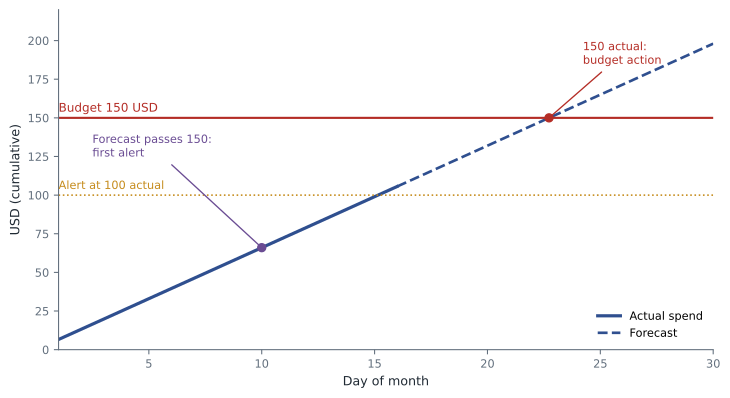
Budgets do not cap spending by themselves. A budget alert is a message, not a limit; only a budget action, or a person reading the alert, stops anything. Gwen does not put automatic stop actions on production. "I would rather pay an extra hundred dollars than switch off the emergency hospital's records at 3 a.m.," she tells Lorraine. Production gets alerts to people, not automatic stops.
Cost Anomaly Detection
AWS Cost Anomaly Detection uses machine learning to learn each service's normal spending pattern and flags unusual jumps, such as a sudden rise in data transfer or a new service appearing. You create monitors (for example per account, per service or per cost category) and subscriptions that send alerts, and each anomaly comes with a likely root cause such as the account, service and usage type involved. It complements budgets: a budget catches spending that passes a fixed amount, anomaly detection catches spending that is unusual even if it is still under budget.
How the three fit together
- Tags label resources so costs can be divided.
- Cost Explorer shows where the money went and what it is likely to be, by any dimension including tags.
- Budgets set expectations and alert, or act, when spending crosses them.
- Cost Anomaly Detection spots unusual changes automatically.
- The Cost and Usage Report keeps the most detailed record for deep analysis.
Saved reports and sharing views
Cost Explorer becomes much more useful when the questions people ask often are saved as reports. Mateo creates four for production: monthly cost by service, monthly cost by the clinic tag, daily cost for the last 30 days by usage type (to spot sudden steps), and Savings Plans coverage. Each report keeps its filters, grouping and time range, so anyone with access sees the same view. Kwame gets a report filtered to application = bookvet, which answers his question about BookVet's cost without giving him access to the whole bill.
One budget per purpose
Gwen's rule for budgets is that each one should have an owner and a purpose. A budget nobody reads is noise. The plan for the organization has a small set:
| Budget | Scope | Alerts to |
|---|---|---|
| Organization total | All accounts, monthly cost | Lorraine and Gwen |
| Production | Production account, monthly cost, forecast and actual alerts | Lorraine, Mateo and the on-call list |
| Development | Development account, monthly cost | Mateo and Kwame |
| Sandbox | Sandbox account, 150 USD with a budget action | Mateo |
| Commitment utilization | Savings Plans utilization once purchased | Lorraine and Mateo |
Keeping tags clean
Tags decay. People create resources by hand in a hurry, scripts forget a key, values drift from "production" to "prod" to "Production". Three habits keep them clean: a tag policy that defines allowed keys and values; templates that apply tags automatically; and a weekly report of resources missing required tags, sent to their owners. A short program run against an inventory export is enough to start.
# Illustrative: find resources missing required tags in an inventory list.
required = {"clinic", "environment", "application", "owner", "costcode"}
inventory = [
    {"id": "i-01", "tags": {"clinic": "shared", "environment": "production", "application": "vetledger", "owner": "mateo.ruiz", "costcode": "IT-100"}},
    {"id": "vol-07", "tags": {"environment": "production"}},
    {"id": "i-09", "tags": {"clinic": "shared", "environment": "development", "application": "bookvet", "owner": "kwame.asante"}},
]
for r in inventory:
    missing = sorted(required - set(r["tags"]))
    if missing:
print(r["id"], "is missing:", ", ".join(missing))vol-07 is missing: application, clinic, costcode, owner i-09 is missing: costcode
What this code does
It checks an inventory of resources against a list of required cost-allocation tags (clinic, environment, application, owner and cost code). For each resource it lists the tags that are missing. A volume missing most of its tags and a server missing its cost code are flagged so their costs can be assigned correctly.
The volume with only one tag is exactly the kind of resource that ends up as an unexplained line on a bill. Finding it in week one is far cheaper than finding it in month six.
Budgets and forecasts together
A forecast in Cost Explorer and a forecast alert in Budgets use the same idea: extend this month's trend to the end of the month. Early in a month the forecast is rough, because a few days of data can mislead, so Gwen sets forecast alerts slightly above the budget amount and actual alerts at the amount itself.
Worked problem
Designing alerts
Lorraine wants to know as early as possible if the production account is likely to exceed its monthly budget of 10,000 US dollars, but she does not want production to stop. What should Gwen set up?
Show solution
- Create a monthly cost budget of 10,000 USD for the production account.
- Add an alert on forecast spend at 10,000 so the warning arrives early in the month.
- Add alerts on actual spend at, for example, 8,000 and 10,000.
- Send alerts to Lorraine and the IT list through email or an SNS topic; add no automatic stop action.
- Add a Cost Anomaly Detection monitor for the account to catch unusual jumps.
Answer: A cost budget with forecast and actual alerts, sent to people, plus anomaly detection, and no automatic stop action on production.
Common mistakes
MistakeTagging a resource immediately shows its past costs by tag.
InsteadTag keys must be activated for billing, and cost data is tagged only from activation onward.
MistakeAn AWS budget stops spending when it is reached.
InsteadA budget alerts; only a budget action or a person can stop resources.
MistakeCost Explorer is the tool for estimating a system that does not exist yet.
InsteadCost Explorer analyzes actual usage and forecasts from it; the Pricing Calculator estimates new systems.
MistakeEvery cost can be tagged to a team.
InsteadSome costs, such as shared networking or support, cannot be tagged to one owner and need an allocation rule.
Summary and key terms
- Cost Explorer analyzes costs by service, account, Region, tag and other dimensions, forecasts spending, and reports on commitment utilization, coverage and recommendations.
- Cost allocation tags are tag keys activated for billing; they can be user-defined or AWS-generated, are activated in the management account and are not retroactive.
- Required tags, tag policies, automation and Cost Categories make allocation reliable and handle shared costs.
- AWS Budgets tracks cost, usage, utilization and coverage against amounts and sends alerts on actual or forecast spend; budget actions can apply policies or stop instances.
- Cost Anomaly Detection flags unusual spending patterns.
- Together these tools turn a bill into information each part of the organization can act on.
- AWS Cost Explorer
- A tool for analyzing and forecasting AWS costs and usage
- Cost allocation tag
- A tag key activated so that it appears in billing tools
- User-defined tag
- A tag created by the customer
- AWS-generated tag
- A tag created by AWS, such as one recording who created a resource
- AWS Budgets
- A service that tracks spending or usage against an amount and alerts when thresholds are crossed
- Budget action
- An automatic or approved response to a budget threshold, such as applying a policy
- AWS Cost Anomaly Detection
- A service that flags unusual changes in spending
- AWS Cost Categories
- Rules that group costs into business categories
Practice problems
Work each problem on paper first, then reveal the answer to check.
Why do costs from last month not appear under a tag activated today?
Show answer
Cost allocation tags are not retroactive; data is tagged from activation onward.
Which tool would send an alert when forecast spending passes a set amount?
Show answer
AWS Budgets.
What is the difference between a budget and Cost Anomaly Detection?
Show answer
A budget compares spending with a fixed amount; anomaly detection flags unusual changes from the normal pattern.
Where are cost allocation tags activated in an organization?
Show answer
In the management account's billing console.
Lesson quiz · 5 questions
Score 60% or more to complete this lesson.
Create a free account to save your progress, take quizzes and earn a certificate.