
WEB-101 · Lesson 4 of 12 · 20 min
Links, images, lists and tables
▶ Video coming soon A video version of this lesson is on the way.
By the first week of October, Mira had a skeleton for each of the five main pages. Now they needed real content: the menu had to link the pages together, the Programs page needed photographs from the community kitchen and the youth garden, the Volunteer page needed a list of roles, and the grocery program's hours, which the old site showed as a picture of a printed timetable, needed to become a real table. Lucy Tran, the volunteer coordinator, sent over a folder of 140 photographs and a spreadsheet of shift times. "Use whatever helps," she wrote.
This lesson covers the four kinds of content that most pages are made of after headings and paragraphs: links, which make the web a web; images, with the text alternatives that make them accessible; lists; and tables for data with rows and columns.
Links
A link is an a element (a for anchor) with an href attribute naming where it goes. The content of the element is the link text, which is what people click and what screen readers announce.
<a href="https://www.food-banks-directory.example/wisconsin">Find a food bank in Wisconsin</a>
<a href="/volunteer">Volunteer with us</a>
<a href="kitchen.html">Community kitchen</a>
<a href="#hours">Opening hours</a>
<a href="mailto:volunteer@riverside-food-hub.example">Email the volunteer coordinator</a>
<a href="tel:+16085550142">Call 608-555-0142</a>
The href can take several forms. An absolute URL includes the scheme and host, and is needed for links to other sites. A root-relative path starts with a slash and is measured from the top of the current site, so /volunteer works from any page. A relative path has no leading slash and is measured from the folder of the current page. A fragment link starting with # jumps to the element with that id on the same page. The mailto: and tel: schemes open an email program or start a phone call, which on a phone is a single tap.
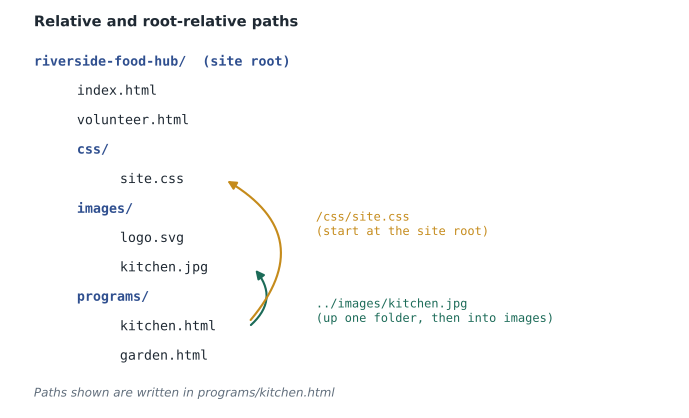
In a relative path, a single dot means the current folder and two dots mean the folder above. From programs/kitchen.html, the photo in the images folder is ../images/kitchen.jpg: up one level to the root, then into images. Getting this wrong is the most common reason for a missing image or an unstyled page, and the Network panel shows it at once as a 404.
const page = 'https://riverside-food-hub.example/programs/kitchen.html';

const links = ['garden.html', '../images/kitchen.jpg', '/css/site.css', '#menu', '../../donate'];
for (const link of links) {
  const resolved = new URL(link, page);
  console.log(link.padEnd(22) + ' -> ' + resolved.pathname + resolved.hash);
}garden.html -> /programs/garden.html ../images/kitchen.jpg -> /images/kitchen.jpg /css/site.css -> /css/site.css #menu -> /programs/kitchen.html#menu ../../donate -> /donate
What this code does
Given a link and the address of the page it appears on, new URL(link, page) works out the full address exactly as a browser does. A plain file name is looked up in the current folder (programs), two dots step up one folder, a leading slash starts again at the root, and a fragment stays on the same page. Stepping up from the root is not possible, so ../../donate simply stops at the root. padEnd adds spaces so the arrows line up.
Writing good links
Link text should make sense on its own, because many users meet links out of context. Screen readers can list every link on a page, and a list that reads "click here, click here, read more, here" is useless. Compare "To volunteer, click here" with "Volunteer with us". The second is shorter, says where it goes, and gives a bigger target to tap.
- Describe the destination or action: "Download the 2025 annual report (PDF, 2 MB)" rather than "Report".
- Say when a link opens a file or leaves the usual flow, such as a PDF or an email program.
- Do not rely on color alone to show that text is a link; keep the underline in body text.
- Avoid opening new windows. If a link must open a new tab with target="_blank", say so in the text. Modern browsers add the safe rel="noopener" behavior by default, but Brightwater writes it anyway for older ones.
One special link goes at the very top of every page: a skip link, the first focusable element, pointing to #main. Keyboard users press Tab once and Enter to jump past the header and menu. Lesson 11 shows how to hide it until it receives focus.
Images
The img element embeds an image. Its src names the file and its alt gives the text alternative: the words a screen reader speaks, the text a search engine indexes, and what appears if the image fails to load. Writing alt text is a judgment about what the image contributes to the page.
- Informative images get a short description of what matters: alt="Volunteers serving soup at the community kitchen counter".
- Functional images, such as a logo that links home, describe the action or destination: alt="Riverside Community Food Hub home".
- Images of text repeat the text exactly. Better still, use real text styled with CSS.
- Decorative images, such as a background leaf pattern, get an empty alt (alt="") so screen readers skip them. Leaving alt out entirely is different and worse: many screen readers then read the file name, such as "IMG underscore 4471 dot jpg".
- Complex images such as charts get a short alt plus a fuller description nearby in the page.
Do not start alt text with "image of" or "picture of"; screen readers already announce it as an image. Keep it short, usually under about 125 characters, and put longer descriptions in the visible text where everyone benefits.
<figure>
  <img src="images/garden-800.jpg"
       srcset="images/garden-400.jpg 400w, images/garden-800.jpg 800w, images/garden-1600.jpg 1600w"
       sizes="(min-width: 60em) 50vw, 100vw"
       width="800" height="533" loading="lazy"
       alt="Teenagers planting tomato seedlings in raised beds at the youth garden">
  <figcaption>The youth garden grew produce for about 3,000 meals in 2026.</figcaption>
</figure>
The width and height attributes give the image's natural size in pixels. They do not fix its displayed size, which CSS controls, but they let the browser reserve the right amount of space before the file arrives, so text does not jump down the page as images load. loading="lazy" delays images far down the page until the visitor scrolls near them. srcset lists several versions of the same photo with their widths, and sizes tells the browser how wide the image will display, so a phone downloads the 400-pixel version and a large desktop screen the 1,600-pixel one. figure and figcaption group an image with a visible caption.
| Format | Best for | Notes |
|---|---|---|
| JPEG | Photographs | Lossy compression; small files; no transparency |
| PNG | Screenshots, images with sharp edges or transparency | Lossless; large for photos |
| WebP | Photographs and graphics | Smaller than JPEG and PNG at similar quality; supported by all current browsers |
| AVIF | Photographs | Smaller again than WebP; supported by all current major browsers |
| SVG | Logos, icons, diagrams | Vector drawing written in XML; sharp at any size; tiny for simple shapes |
Worked problem
How much does srcset save on a phone?
Lucy's original garden photo is 4,032 pixels wide and 3.1 megabytes as a JPEG. Mira exports a 400-pixel WebP version of 38 kilobytes for phones. On the Programs page there are six photos treated the same way. How much data does a phone visitor save, in megabytes, compared with the originals, and what fraction of the original data does the phone still download?
Show solution
- Find the total size of the six originals.
- \[6 \times 3.1 = 18.6 \text{ MB}\]
- Find the total size of the six phone versions, converting kilobytes to megabytes.
- \[6 \times 38 = 228 \text{ kB} = 0.228 \text{ MB}\]
- Subtract to find the saving, then divide to find the fraction.
- \[18.6 - 0.228 = 18.372 \text{ MB}, \quad 0.228 \div 18.6 \approx 0.012\]
Answer: The phone saves about 18.4 megabytes and downloads only about 12 bytes in every 1,000 of the original data. Most of the old site's slowness came from images like these, sent at full camera size to every visitor.
Video, audio and documents
Images are not the only media a page can hold. The video and audio elements play media files with the browser's own controls, and a track element inside a video adds captions from a separate text file in the WebVTT format. Captions matter: a deaf visitor, or anyone watching on a bus with the sound off, gets nothing from an uncaptioned video. The Food Hub's two-minute video about the youth garden had no captions on the old site, so Dev wrote a caption file from the script, and Mira added it with a track element marked as the default. A text transcript under the video helps further, because it can be searched, skimmed and translated.
<video controls width="640" height="360" poster="images/garden-video.jpg">
  <source src="media/youth-garden.mp4" type="video/mp4">
  <track kind="captions" src="media/youth-garden.en.vtt" srclang="en" label="English" default>
</video>
<p><a href="media/youth-garden-transcript.html">Read the transcript of the youth garden video</a></p>
Linked documents deserve the same care. The old site's volunteer form was a scanned PDF, which a screen reader could not read at all and which could not be filled in on a phone. Wherever possible, information belongs in the HTML page itself. When a document must be offered for download, such as an annual report, the link text should give its format and size, and the file itself should be made accessible, with real text, headings and a set reading order.
Lists
HTML has three kinds of list. An unordered list (ul) holds items where order does not matter, shown with bullets by default. An ordered list (ol) holds items where order matters, such as steps, and numbers them. Both contain li (list item) elements, and a list item may contain a whole nested list. A description list (dl) holds pairs of terms (dt) and descriptions (dd), which suits a glossary or a set of questions and answers.
<h2>Volunteer roles</h2>
<ul>
  <li>Grocery floor helper</li>
  <li>Kitchen prep and serving</li>
  <li>Delivery driver (own vehicle needed)</li>
</ul>

<h2>How to start</h2>
<ol>
  <li>Fill in the sign-up form.</li>
  <li>Come to a one-hour orientation.</li>
  <li>Choose your first shift with Lucy.</li>
</ol>

<dl>
  <dt>Minimum age</dt>
  <dd>14, or 12 with a parent or guardian</dd>
  <dt>Time commitment</dt>
  <dd>One shift of three hours a month</dd>
</dl>
Screen readers announce lists and their length ("list, 3 items"), which helps users judge what is coming. That is also why the main menu is a ul inside nav: it is a list of five links, and saying so helps.
Tables
A table is for tabular data: information with a meaningful row and column structure, such as the grocery program's hours by day. In the early web, tables were also used to lay out whole pages in columns. That practice confuses screen readers, which announce row and column positions, and breaks on small screens; CSS layout, in Lessons 8 and 9, replaced it.
<table>
  <caption>Grocery program hours</caption>
  <thead>
    <tr>
      <th scope="col">Day</th>
      <th scope="col">Opens</th>
      <th scope="col">Closes</th>
    </tr>
  </thead>
  <tbody>
    <tr>
      <th scope="row">Tuesday</th>
      <td>10:00</td>
      <td>16:00</td>
    </tr>
    <tr>
      <th scope="row">Thursday</th>
      <td>12:00</td>
      <td>19:00</td>
    </tr>
    <tr>
      <th scope="row">Saturday</th>
      <td>9:00</td>
      <td>13:00</td>
    </tr>
  </tbody>
</table>
Each tr is a row. td holds a data cell and th a header cell. The scope attribute says whether a header labels a column or a row, so a screen reader in the Thursday row, Closes column can announce "Thursday, Closes, 19:00". The caption is the table's title, read first. thead and tbody group the header rows and body rows, which also helps CSS style them differently.
Mira replaced the picture of the printed timetable with this table. For the first time, a blind visitor could find out when the grocery program closed on Thursdays, and Lucy could change the hours by editing text rather than asking someone to make a new picture.
Common mistakes
MistakeWriting "click here" or "read more" as link text.
InsteadWrite link text that names the destination or action and makes sense out of context.
MistakeLeaving the alt attribute out of a decorative image.
InsteadGive decorative images an empty alt so screen readers skip them; give informative images a short description.
MistakeStarting alt text with "image of".
InsteadDescribe what matters; the screen reader already says it is an image.
MistakeLeaving out width and height on images.
InsteadGive the natural dimensions so the browser reserves space and the layout does not jump.
MistakeUsing a table to lay out a page in columns.
InsteadUse tables only for tabular data; use CSS Flexbox and Grid for layout.
MistakeGetting relative paths wrong after moving a page into a folder.
InsteadRemember that relative paths start from the current file's folder, or use root-relative paths that start with /.
Practice problems
Work each problem on paper first, then reveal the answer to check.
Write alt text for a photo on the Donate page showing a volunteer stacking cans on shelves, used to show what donations become.
Show answer
For example: alt="A volunteer stacking donated canned goods on the pantry shelves". It describes what matters for the page's purpose without saying "image of".
A page at /programs/garden.html needs the logo at /images/logo.svg. Give a relative path and a root-relative path.
Show answer
Relative: ../images/logo.svg. Root-relative: /images/logo.svg.
Build this: an ordered list of the three steps to book a cooking class: choose a class, register with the form, arrive ten minutes early.
Show answer
See the model answer below. The steps are in order, so ol is the right list.
<ol>
  <li>Choose a class from the schedule.</li>
  <li>Register with the class form.</li>
  <li>Arrive ten minutes before the class starts.</li>
</ol>
Try it yourself
Resolve the photo paths
The Programs page is at https://riverside-food-hub.example/programs/index.html.
Use new URL(link, page) to print the resolved path of each link in the array, one per line.
const page = 'https://riverside-food-hub.example/programs/index.html';
const links = ['kitchen.html', '../images/garden.jpg', '/contact'];
// your code here
Summary and key terms
- Links are a elements with an href, which can be absolute, root-relative, relative, a fragment, mailto: or tel:.
- Relative paths start from the current file's folder; .. goes up one folder.
- Link text should describe the destination and make sense out of context.
- Every informative img needs alt text that conveys its purpose; decorative images take an empty alt.
- width and height prevent layout shifts; srcset and sizes let small screens download small files; loading="lazy" delays images below the fold.
- ul is for unordered items, ol for ordered steps and dl for term and description pairs.
- Tables are for tabular data, with a caption, th header cells with scope, and thead and tbody groups.
- Hyperlink
- An a element with an href that takes the user to another resource or place.
- Absolute URL
- An address that includes the scheme and host.
- Relative path
- A path measured from the folder of the current page.
- Root-relative path
- A path that starts with / and is measured from the top of the site.
- Alt text
- The text alternative for an image, given in the alt attribute.
- Decorative image
- An image that adds no information and takes an empty alt.
- srcset
- An img attribute listing several versions of an image so the browser can pick a suitable size.
- Description list
- A dl element holding term (dt) and description (dd) pairs.
- Table caption
- The title of a table, given in a caption element.
- scope
- A th attribute saying whether the header labels a column or a row.
Lesson quiz · 5 questions
Score 60% or more to complete this lesson.
Create a free account to save your progress, take quizzes and earn a certificate.