
WEB-101 · Lesson 3 of 12 · 21 min
HTML documents and semantic structure
▶ Video coming soon A video version of this lesson is on the way.
On Monday, September 28, Gareth gave Mira her first real file to write: the skeleton of the new Food Hub home page, with no styling at all. "Plain HTML first," he said. "If the page makes sense with no CSS, it will make sense to a screen reader, to a search engine and to someone on a terrible connection whose stylesheet never arrives. The styling is the coat of paint. The HTML is the building."
Mira had seen HTML before, copied and pasted into the old site's editor, but had never written a page from an empty file. This lesson follows her through it: what elements, tags and attributes are, the parts every HTML document needs, how the browser turns the text into a tree, and how to choose semantic elements that say what each part of the page is rather than just how it should look.
Elements, tags and attributes
HTML, the HyperText Markup Language, describes the structure of a page by wrapping content in elements. Most elements are written as a start tag, some content and an end tag. The start tag holds the element's name between angle brackets; the end tag repeats the name after a slash. The rules are defined in the HTML Living Standard, maintained by WHATWG, the group of browser makers that took over HTML's development from the W3C's numbered versions. It is updated continually, which is why nobody now speaks of "HTML6"; "HTML5" survives only as a nickname for modern HTML.
<p>The grocery program is open <strong>Tuesday to Saturday</strong>.</p>
<a href="/volunteer">Become a volunteer</a>
<img src="images/kitchen.jpg" alt="Volunteers chopping vegetables in the community kitchen">
Elements can contain text and other elements, but they must nest properly: an element that starts inside another must end inside it too. Writing the strong element's end tag after the paragraph's end tag would be an error, and the browser would have to guess what was meant.
Attributes add information to an element. They go inside the start tag as name="value" pairs. The link's href attribute gives the address it points to; the image's src gives the file to load and its alt gives the text alternative read aloud by screen readers and shown if the image fails. Some attributes, such as id (a unique name for one element), class (a group name shared by several elements, used heavily by CSS) and lang (the language of the content), can go on any element.
A few elements, called void elements, can never have content and so have no end tag. The image is one; others are br (a line break), hr (a thematic break), input, link and meta. Older tutorials write them with a closing slash, as in <br />; modern HTML allows that but does not need it.
HTML element and attribute names are not case-sensitive, but the convention is lower case everywhere. Spaces and line breaks in the source are collapsed: any run of whitespace in ordinary text displays as a single space. Indenting nested elements therefore costs nothing on screen and makes the structure much easier for people to read, so Brightwater indents by two spaces per level.
The skeleton of a document
Every page on the Food Hub site starts from the same skeleton. Each line has a reason to be there.
<!DOCTYPE html>
<html lang="en">
<head>
  <meta charset="utf-8">
  <meta name="viewport" content="width=device-width, initial-scale=1">
  <title>Programs | Riverside Community Food Hub</title>
  <meta name="description" content="Grocery program, community kitchen, cooking classes and youth garden in Riverside.">
  <link rel="stylesheet" href="css/site.css">
</head>
<body>
  <!-- page content goes here -->
</body>
</html>- <!DOCTYPE html> tells the browser to use standards mode. Without it, browsers fall back to "quirks mode", which imitates bugs from the 1990s and makes CSS behave unpredictably.
- The html element wraps the whole document. Its lang attribute tells screen readers which pronunciation rules to use and lets browsers offer translation. A French page would use lang="fr"; a single French phrase inside an English page can carry its own lang attribute.
- The head holds information about the page rather than content shown in it.
- meta charset="utf-8" says how the bytes of the file map to characters. UTF-8 covers every writing system, accents and emoji, and should be the first thing in the head.
- The viewport meta element tells phones to lay the page out at the device's real width instead of pretending to be a desktop screen. Lesson 10 explains why responsive design depends on it.
- The title appears in the browser tab, in bookmarks and as the link text in search results. Each page needs its own, with the specific page first and the site name second.
- meta name="description" gives a short summary that search engines often show under the title.
- The link element with rel="stylesheet" loads the CSS file. Lesson 6 begins there.
- The body holds everything the visitor sees. Text between <!-- and --> is a comment, which the browser ignores; anyone can still read it with View Source, so comments must never hold passwords or private notes.
From text to a tree
The browser does not keep the HTML as text. As it reads the file, it builds the Document Object Model (DOM), a tree in which each element is a node, its contents are child nodes, and the text inside elements becomes text nodes. CSS selects nodes in this tree, screen readers walk it, and in the later JavaScript courses, programs change it. When nesting is wrong, the browser repairs the tree according to rules in the standard, but the repair may not match what the author intended.
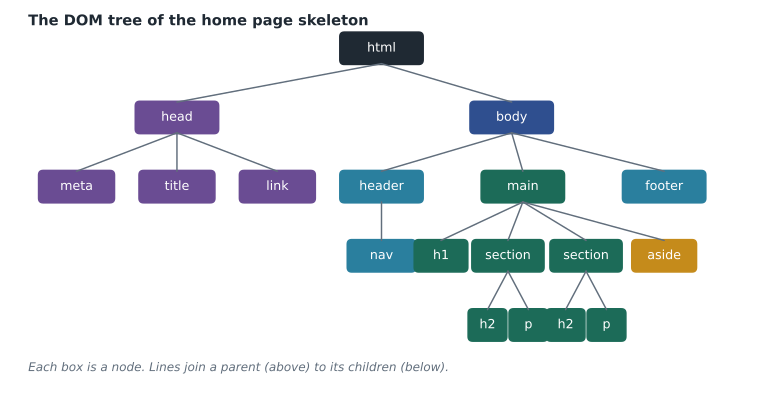
Words for the tree are borrowed from family trees. In the figure, body is the parent of main; main is a child of body; the two sections are siblings; and every element inside body is a descendant of it. Lesson 6 uses these words to describe CSS selectors.
Headings and the outline
Headings run from h1 to h6. They are not size settings; they are levels in an outline, like the numbered headings of a report. A page should have one h1 naming what the page is about, h2 elements for its main sections, h3 for subsections inside an h2 section, and so on, without skipping levels on the way down. Screen reader users rely on this heavily: a 2024 survey by WebAIM found that most screen reader users navigate a long page by jumping from heading to heading, and the outline is the page's table of contents for them.
The old Food Hub site broke the outline in two ways. Its programs page used h4 for every section title because "h4 was the right size", and it used bold paragraphs for the actual section names in other places, so they were not headings at all. Size is a CSS decision. The heading level should come from the structure alone.
const headings = [1, 2, 3, 3, 2, 4, 2];

let previous = 0;
let problems = 0;
for (let i = 0; i < headings.length; i++) {
  const level = headings[i];
  if (level > previous + 1) {
    console.log('Heading ' + (i + 1) + ' jumps from h' + previous + ' to h' + level);
    problems++;
  }
  previous = level;
}
console.log(problems + ' skipped level(s) found');Heading 6 jumps from h2 to h4 1 skipped level(s) found
What this code does
The array lists the heading levels on a page in the order they appear. The loop remembers the previous level and reports any heading more than one level deeper than the one before it, because going down a level must be done one step at a time, while going back up any number of levels is fine. Here the fifth heading returns to h2, and the sixth jumps from h2 to h4, skipping h3, so it is the one reported. Accessibility checkers run the same test on real pages.
Semantic elements
Semantic HTML means choosing elements for what the content is. A paragraph goes in p, a list in ul or ol, a navigation menu in nav. The browser, search engines and assistive technology all understand these meanings. The generic elements div (a block) and span (a run of text) carry no meaning at all and are right only when nothing more specific fits, typically as hooks for styling.
| Element | Meaning | On the Food Hub site |
|---|---|---|
| header | Introductory content for the page or a section | The logo and site name at the top of each page |
| nav | A major block of navigation links | The main menu: Home, Programs, Volunteer, Donate, Contact |
| main | The main content of the page; one per page | Everything specific to the current page |
| section | A thematic group of content, normally with a heading | Grocery program, community kitchen, cooking classes |
| article | A self-contained piece that would make sense on its own | Each news story on the home page |
| aside | Content related to, but separate from, the main flow | A box with this week's urgent needs |
| footer | Closing content for the page or a section | Address, hours, charity number and social links |
Several of these elements create landmarks. Screen readers list the landmarks on a page and let users jump straight to one, so a user can skip the menu and go to the main content in a single keystroke. That only works if the page has a header, a nav, exactly one main and a footer, used for what they mean.
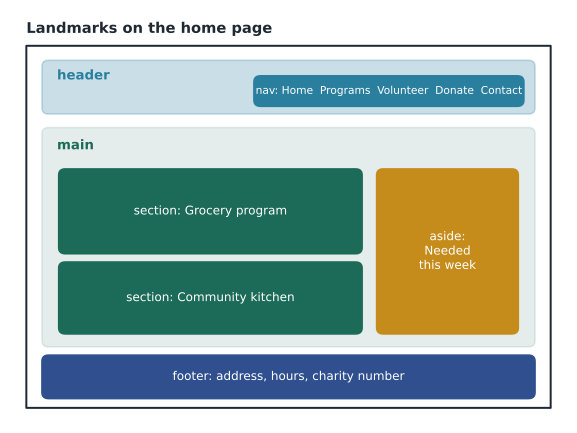
<body>
  <header>
    <a href="/">Riverside Community Food Hub</a>
    <nav aria-label="Main">
      <ul>
        <li><a href="/">Home</a></li>
        <li><a href="/programs">Programs</a></li>
        <li><a href="/volunteer">Volunteer</a></li>
        <li><a href="/donate">Donate</a></li>
        <li><a href="/contact">Contact</a></li>
      </ul>
    </nav>
  </header>
  <main>
    <h1>Good food for everyone in Riverside</h1>
    <section>
      <h2>Grocery program</h2>
      <p>Fresh produce and pantry staples, open Tuesday to Saturday.</p>
    </section>
    <section>
      <h2>Community kitchen</h2>
      <p>Free hot lunch every weekday from 11:30 to 1:30.</p>
    </section>
    <aside>
      <h2>Needed this week</h2>
      <p>Canned fish, baby formula and volunteer drivers.</p>
    </aside>
  </main>
  <footer>
    <p>Riverside Community Food Hub, 418 Mill Street</p>
  </footer>
</body>
Text-level semantics
Inside paragraphs, a few elements carry meaning for runs of text. strong marks strong importance and em marks stress emphasis that changes the meaning of a sentence; both are read differently by some screen readers. The older b and i elements still exist for text that is styled differently without extra importance, such as a ship's name or a term in another language. abbr marks an abbreviation and can carry its expansion in a title attribute. time marks a date or time with a machine-readable datetime attribute, so that "Saturday" on the page can also say 2026-12-05 to a calendar tool.
Some characters have special meanings in HTML and must be written as character references when they are meant literally: < for a less-than sign, > for greater-than and & for an ampersand. A non-breaking space, , keeps two words on one line. With UTF-8, accented letters such as the é in café can be typed directly.
Worked problem
Finding the content-to-markup ratio
The old Food Hub programs page was 41,600 bytes of HTML, of which the visible text was 5,200 bytes; the rest was markup, much of it nested div elements from the template and inline styling. Mira's semantic rebuild of the same page is 9,100 bytes with 5,400 bytes of visible text. What fraction of each file is visible text, and how many times smaller is the new file?
Show solution
- Divide the text bytes by the total bytes for the old page.
- \[5{,}200 \div 41{,}600 = 0.125\]
- Do the same for the new page.
- \[5{,}400 \div 9{,}100 \approx 0.593\]
- Compare the file sizes.
- \[41{,}600 \div 9{,}100 \approx 4.6\]
Answer: Only 1 byte in 8 of the old page was content; in the new page it is about 59 bytes in 100. The new file is about 4.6 times smaller, even though it holds slightly more text, because semantic elements replaced layers of generic div wrappers.
Mira opened her unstyled page in the browser. It was plain black text on white, with blue underlined links and a bulleted menu, and it was entirely usable. Gareth turned on his screen reader, pressed the key that lists landmarks, and jumped straight to the main content. "That," he said, "is what the old site could never do."
Common mistakes
MistakeChoosing a heading level for its size.
InsteadChoose the level from the outline and set the size with CSS.
MistakeBuilding everything from div and span.
InsteadUse the semantic element that matches the content; keep div and span for styling hooks.
MistakeLeaving out the lang attribute or the charset.
InsteadStart every page with the full skeleton: doctype, html lang, meta charset, viewport and title.
MistakeGiving every page the same title.
InsteadWrite a specific title for each page, with the page name first.
MistakePutting private notes in HTML comments.
InsteadAnyone can read comments with View Source; keep private information out of the page.
MistakeUsing more than one main element on a page.
InsteadUse one main per page; group its parts with section and article.
Practice problems
Work each problem on paper first, then reveal the answer to check.
Build this: write the head of the Contact page. It should use UTF-8, support phones, have the title "Contact | Riverside Community Food Hub" and load css/site.css.
Show answer
See the model answer below. The charset comes first, then the viewport, then the title and the stylesheet link.
<head>
  <meta charset="utf-8">
  <meta name="viewport" content="width=device-width, initial-scale=1">
  <title>Contact | Riverside Community Food Hub</title>
  <link rel="stylesheet" href="css/site.css">
</head>
Practice problems
Work each problem on paper first, then reveal the answer to check.
A page's headings run h1, h2, h2, h4, h3. Which heading breaks the outline and how would you fix it?
Show answer
The h4 jumps from h2 to h4, skipping h3. Change it to h3 (and the following h3 to h4 if it belongs under it), and set any size difference in CSS.
A designer wants the footer's address in bold. Should it be marked with strong?
Show answer
Only if it is genuinely more important than the text around it. If it is just a visual choice, use CSS (or b if the text needs to stand out without extra importance).
Why should the new site work with no CSS at all?
Show answer
Stylesheets can fail to load, and screen readers, search engines and text browsers read the structure rather than the styling. Good HTML keeps the page usable in all those cases.
Try it yourself
Count the landmarks
The array tags lists the elements found directly inside a page's body.
Print how many are landmarks (header, nav, main, aside or footer) and then print one main: yes or one main: no depending on whether exactly one main element is present.
const tags = ['header', 'main', 'div', 'aside', 'footer', 'p'];
const landmarks = ['header', 'nav', 'main', 'aside', 'footer'];
// your code here
Summary and key terms
- HTML wraps content in elements made of start tags, content and end tags; void elements such as img have no end tag.
- Attributes in the start tag add information: href, src, alt, id, class and lang are among the most used.
- Every page needs the doctype, html with lang, a head with meta charset, viewport, title and stylesheet link, and a body.
- The browser builds the DOM, a tree of nodes with parents, children, siblings and descendants.
- Headings form an outline: one h1, then h2 to h6 without skipping levels on the way down.
- Semantic elements say what content is; header, nav, main, aside and footer create landmarks that assistive technology can jump between.
- div and span carry no meaning and are for styling hooks when nothing more specific fits.
- Element
- A part of an HTML document, usually a start tag, content and an end tag.
- Tag
- The marker in angle brackets that starts or ends an element.
- Attribute
- A name and value inside a start tag that adds information to an element.
- Void element
- An element that cannot have content and has no end tag, such as img or br.
- DOM
- Document Object Model, the tree of nodes a browser builds from an HTML document.
- Semantic HTML
- Choosing elements for the meaning of the content rather than its appearance.
- Landmark
- A region such as header, nav, main or footer that assistive technology can list and jump to.
- Character reference
- A code such as & that writes a special character literally in HTML.
Lesson quiz · 5 questions
Score 60% or more to complete this lesson.
Create a free account to save your progress, take quizzes and earn a certificate.