
PYTH-120 · Lesson 4 of 12 · 25 min
Python for system administration
▶ Video coming soon A video version of this lesson is on the way.
Bash is excellent at running commands and PowerShell at managing Windows, but many of Ridgeline's chores need more than either does comfortably: combining several CSV files, comparing dates, calling a web service, producing a tidy report, and doing it all the same way on the Linux server and on Anita's Windows computer. That is Python's territory. This lesson tours the parts of Python's standard library that system administrators use most, and shows how to shape a script so that it behaves like a proper command-line tool, with options, exit codes and sensible output.
Everything in this lesson's runnable listings uses only the standard library, which is installed with Python everywhere. A few things cannot run in your browser, such as starting other programs, so those listings are marked for reading only; on a real server they work exactly as shown.
Why Python for admin work
Python's advantages for automation come from three places. First, it is portable: the same script runs on Linux, macOS and Windows, because modules such as pathlib and shutil hide the differences between operating systems, for example the forward and back slashes in paths. Second, it handles data properly: real numbers, dates, dictionaries, CSV and JSON are built in, so a script can parse, combine and summarize information instead of passing text from one tool to the next. Third, it scales: a ten-line script can grow into a well-tested program with functions, modules and error handling, using everything PYTH-101 and PYTH-102 teach.
The trade-off is that a few things take more typing than in a shell. Copying a folder is one command in Bash and a function call in Python; running a chain of five commands joined by pipes is natural in Bash and clumsy in Python. Experienced administrators often keep thin shell scripts for gluing commands together and write the logic in Python, called from the shell script or from a scheduler.
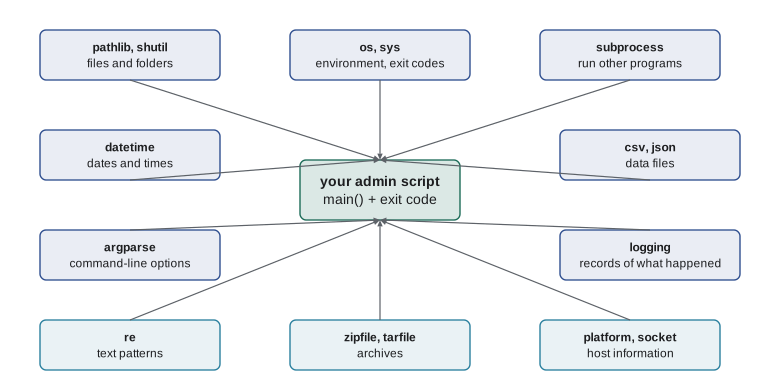
The environment: os, sys and platform
A script often needs to know where it is running and how it was called. The sys module holds the command-line arguments in the list sys.argv, where sys.argv[0] is the script's own name, and sys.exit ends the program with an exit code. The os module reaches into the operating system: os.environ is a dictionary-like view of environment variables, os.getcwd gives the current working directory, and os.sep is the path separator. The platform module reports the operating system, its version and the Python version, which is useful in logs and in scripts that must behave slightly differently on Windows.
import os, sys, platform

print("Python major version:", sys.version_info.major)
print("Operating system family:", os.name)
print("Path separator:", repr(os.sep))
# Settings from the environment, with defaults when they are not set
backup_dir = os.environ.get("RIDGELINE_BACKUP_DIR", "/srv/ridgeline/backup")
keep_days = int(os.environ.get("RIDGELINE_KEEP_DAYS", "30"))
print("Backups go to", backup_dir, "and are kept", keep_days, "days")Python major version: 3 Operating system family: posix Path separator: '/' Backups go to /srv/ridgeline/backup and are kept 30 days
Environment variables are a common way to pass settings, especially secrets such as passwords and API keys, to scripts without writing them into the code. The pattern os.environ.get(name, default) reads a setting and falls back to a default when it is missing. Because every environment variable is text, convert numbers explicitly with int or float, and treat a missing required setting, such as an API key, as an error that stops the script with a clear message rather than a default.
Try it yourself
A setting from the environment
Write a function get_int_setting(env, name, default) that looks up name in the dictionary env (standing in for os.environ). If the name is missing or its value is blank, return default. Otherwise return the value converted to an int; surrounding spaces should not matter.
For example, get_int_setting({"KEEP_DAYS": " 45 "}, "KEEP_DAYS", 30) returns 45.
def get_int_setting(env, name, default):
    return env[name]

print(get_int_setting({"KEEP_DAYS": " 45 "}, "KEEP_DAYS", 30))
Command-line options with argparse
A script that will be run by people and by schedulers needs a clear interface: options with names, defaults, help text and checking. The argparse module provides all of that. You describe the options once, and argparse parses sys.argv, converts types, prints a usage message for --help, and exits with an error for bad input. The parse_args method also accepts an explicit list of strings, which is how tests, and the listings on this page, try a parser without a real command line.
import argparse

def build_parser():
    p = argparse.ArgumentParser(prog="cleanup",
                                description="Remove old till exports from a folder.")
    p.add_argument("folder", help="folder to clean")
    p.add_argument("--days", type=int, default=30, help="age in days (default 30)")
    p.add_argument("--dry-run", action="store_true", help="only list what would be removed")
    p.add_argument("-v", "--verbose", action="store_true")
    return p

args = build_parser().parse_args(["/srv/till", "--days", "45", "--dry-run"])
print(args.folder, args.days, args.dry_run, args.verbose)
print(build_parser().format_help())/srv/till 45 True False usage: cleanup [-h] [--days DAYS] [--dry-run] [-v] folder Remove old till exports from a folder. positional arguments: folder folder to clean options: -h, --help show this help message and exit --days DAYS age in days (default 30) --dry-run only list what would be removed -v, --verbose
Observe that argparse turns --dry-run into the attribute dry_run, converts --days to an int, and writes the help text from the descriptions you supplied. Positional arguments, such as folder here, are required; options that start with dashes are optional and take their defaults when left out. The store_true action makes a flag that is False unless it appears. If a user types --days soon, argparse prints a clear error and exits with code 2, the usual code for a usage mistake, without your script having to check anything.
Try it yourself
Build an argparse parser
Write build_parser() returning an argparse.ArgumentParser for a backup script with: a required positional argument source; an option --keep that is an int with default 7; and a flag --dry-run.
For example, build_parser().parse_args(["/srv/till", "--keep", "14"]) gives source="/srv/till", keep=14 and dry_run=False.
import argparse

def build_parser():
    p = argparse.ArgumentParser(prog="backup")
    return p

args = build_parser().parse_args(["/srv/till", "--keep", "14"])
print(args)
Running other programs with subprocess
Sometimes the best tool for part of a job is an existing program: tar to compress, rsync to copy to another server, systemctl to restart a service, or a vendor's command-line tool. The subprocess module runs such programs from Python. Its main function, subprocess.run, takes the command as a list of strings, waits for it to finish and returns an object with the exit code and, if requested, the captured output.
import subprocess

result = subprocess.run(
    ["df", "-h", "/srv"],          # the command and its arguments, as a list
    capture_output=True,          # keep stdout and stderr instead of printing them
    text=True,                    # decode the output as text
    timeout=30,                   # give up if it takes too long
)
if result.returncode != 0:
    print("df failed:", result.stderr.strip())
else:
    print(result.stdout)

# check=True raises CalledProcessError on a non-zero exit code
subprocess.run(["systemctl", "restart", "nginx"], check=True)
Passing the command as a list, rather than one string, matters for safety. With a list, each element reaches the program as exactly one argument, so a file name containing spaces or punctuation cannot be misread. Avoid shell=True with text that comes from users or files: it hands the whole string to a shell, which will interpret characters such as ; and |, and a carefully crafted file name could then run commands you never intended. Always set a timeout for programs that might hang, and use check=True when a failure should stop your script.
Often you run a command to read its output. The df command reports disk usage per file system, and an alert script parses that text into numbers. The next listing parses a captured sample of df output, which is exactly what result.stdout would hold on the server, so you can run it here.
df_output = """Filesystem      Size  Used Avail Use% Mounted on
/dev/vda1        40G   31G  7.2G  82% /
/dev/vdb1       200G  188G   12G  95% /srv
tmpfs           2.0G     0  2.0G   0% /dev/shm
"""

def parse_df(text):
    rows = []
    for line in text.splitlines()[1:]:          # skip the header
        parts = line.split()
        if len(parts) >= 6:
            used = int(parts[4].rstrip("%"))
            rows.append((parts[5], used))
    return rows

for mount, used in parse_df(df_output):
    flag = "  <-- nearly full" if used >= 90 else ""
print(f"{mount:<10}{used:>4}% used{flag}")/ 82% used /srv 95% used <-- nearly full /dev/shm 0% used
Try it yourself
Which disks are nearly full?
Write a function full_mounts(df_text, limit) that parses df -h style output (a header line, then one line per file system with the use figure such as 95% in the fifth column and the mount point in the sixth) and returns a list of the mount points whose use is at least limit, in the order they appear.
For the sample, full_mounts(df_output, 90) returns ["/srv"].
df_output = """Filesystem      Size  Used Avail Use% Mounted on
/dev/vda1        40G   31G  7.2G  82% /
/dev/vdb1       200G  188G   12G  95% /srv
tmpfs           2.0G     0  2.0G   0% /dev/shm
"""

def full_mounts(df_text, limit):
    return []

print(full_mounts(df_output, 90))
Shaping a script: main, exit codes and output
A script that other people and schedulers will run should follow a few conventions. Put the work in a main function that takes the argument list and returns an exit code, and call it from an if __name__ == '__main__': block. That way the script runs normally from the command line, while tests and other programs can import it and call main with a list of arguments, without anything happening at import time. Print normal results to standard output and problems to standard error, so that a person or a scheduler can separate them.
import argparse, sys

def main(argv=None):
    p = argparse.ArgumentParser(prog="checkfree")
    p.add_argument("--limit", type=int, default=90)
    args = p.parse_args(argv)
    usage = {"/": 82, "/srv": 95}               # stands in for parsed df output
    full = [m for m, u in usage.items() if u >= args.limit]
    if full:
        print("nearly full:", ", ".join(full), file=sys.stderr)
        return 1                                   # failure: someone should look
    print("all file systems below", args.limit)
    return 0                                       # success

print("exit code:", main(["--limit", "99"]))
print("exit code:", main([]))
# In a real script the last lines would be:
# if __name__ == "__main__":
# sys.exit(main())all file systems below 99 exit code: 0 nearly full: /srv exit code: 1
The message about nearly full disks went to standard error. In this page both streams appear together, but on a server a scheduler can log them separately or send only the errors by email. Returning 1 when a disk is nearly full means that a monitoring system, or a Bash script that calls this one with if checkfree; then, can react without parsing any text. These conventions are what make small Python scripts fit smoothly into the larger automation built from cron, Task Scheduler and other tools later in the course.
| Need | Module or function | Example |
|---|---|---|
| Arguments and exit codes | sys.argv, sys.exit | sys.exit(main()) |
| Settings and secrets | os.environ | os.environ.get("API_KEY") |
| Command-line options | argparse | parser.add_argument("--days", type=int) |
| Files and folders | pathlib, shutil | Path("logs").glob("*.log") |
| Other programs | subprocess.run | run(["tar", "-czf", name, folder], check=True) |
| Host information | platform, socket | socket.gethostname() |
| Dates and times | datetime | datetime.now() - timedelta(days=30) |
| Records of what happened | logging | logging.info("backup done") |
Worked problem
Turning check_log.sh into a portable Python tool
The Bash script from lesson 2 counts server errors in the web log. Jordan wants the same check on the Windows laptop too, with an option for the status code to look for. Plan the Python version.
Show solution
- Write main(argv=None) that builds an argparse parser with a positional logfile and an option --status defaulting to "500".
- Check that the file exists with pathlib; if not, print a message to sys.stderr and return 1.
- Open the file with encoding="utf-8" and errors="replace", and count lines containing f" {args.status} ".
- Print the count; return 1 if it is above zero, 0 otherwise.
- Finish with if __name__ == "__main__": sys.exit(main()), so the script works from cron, Task Scheduler and tests alike.
Answer: A short, portable script with the same behavior and exit codes as the Bash version, plus a help message and a configurable status code.
Common mistakes
MistakeWriting secrets such as API keys into the script.
InsteadRead them from environment variables or a protected settings file.
MistakeParsing sys.argv by hand.
InsteadUse argparse for options, defaults, types and help.
MistakeCalling subprocess.run with one string and shell=True.
InsteadPass a list of arguments and leave shell off.
MistakeIgnoring the exit code of a command you ran.
InsteadCheck returncode or pass check=True.
MistakeDoing work at import time.
InsteadPut it in main() and call it from an if __name__ == "__main__": block.
MistakePrinting errors to standard output.
InsteadSend them to standard error with print(..., file=sys.stderr).
Summary and key terms
- Python suits admin work that needs logic, data formats, portability or growth into a larger program.
- sys gives arguments and exit codes, os gives environment variables and paths, platform describes the host.
- argparse builds command-line interfaces with types, defaults, flags and automatic help.
- subprocess.run starts other programs; pass a list, set a timeout and check the exit code.
- A main function that returns an exit code makes a script easy to schedule, chain and test.
- standard library
- The modules installed with every copy of Python.
- sys.argv
- The list of command-line arguments a script was started with.
- environment variable
- A named setting the operating system passes to every program it starts.
- argparse
- The standard module for defining and parsing command-line options.
- positional argument
- A required argument identified by its position rather than a name.
- flag
- An option that is either present or absent, such as --dry-run.
- subprocess
- The standard module for running other programs from Python.
- shell injection
- An attack in which crafted text is run as shell commands.
- standard output
- The normal output stream of a program.
- entry point
- The place where a program starts running, often a main function.
Practice problems
Work each problem on paper first, then reveal the answer to check.
How do you read an environment variable called LOG_DIR with a default of /var/log/ridgeline?
Show answer
os.environ.get("LOG_DIR", "/var/log/ridgeline").
What does argparse do when a user passes --days abc to an option declared with type=int?
Show answer
It prints an error and usage message and exits with code 2.
Why should subprocess commands be passed as lists?
Show answer
Each element becomes exactly one argument, so names with spaces or symbols cannot be misread or run as commands.
What is the purpose of if __name__ == "__main__":?
Show answer
It runs main only when the file is executed directly, not when it is imported.
A script finds a problem a person should look at. What should it return?
Show answer
A non-zero exit code, with the message on standard error.
Name the module that reports the operating system and Python version.
Show answer
platform.
Lesson quiz · 5 questions
Score 60% or more to complete this lesson.
Create a free account to save your progress, take quizzes and earn a certificate.