
PYTH-120 · Lesson 2 of 12 · 26 min
Bash scripting
▶ Video coming soon A video version of this lesson is on the way.
The online shop runs on a small Linux server, the same machine NET-103 used to teach Linux administration. On that server, the quickest way to automate a chore is usually a Bash script: a text file holding the commands you would otherwise type one by one, with a few extra features for variables, decisions and loops. This lesson teaches enough Bash to write and read the scripts every Linux administrator meets, and shows where Bash stops being the right tool and Python takes over.
Bash runs on Linux and macOS, not in your browser, so the Bash listings on this page are for reading rather than running. The exercises use Python to practice the same ideas, such as splitting text into fields, counting matches and building file names, which is also how you will often replace a Bash script that has grown too complicated.
From commands to a script
Kai's roast logs arrive on the server in a folder called incoming, and every morning Jordan runs the same three commands: make a dated folder in the archive, move the CSV files into it, and print how many were moved. Typed by hand, it looks like this:
> mkdir -p /srv/ridgeline/archive/2026-11-03
> mv /srv/ridgeline/incoming/*.csv /srv/ridgeline/archive/2026-11-03/
> ls /srv/ridgeline/archive/2026-11-03 | wc -l
4
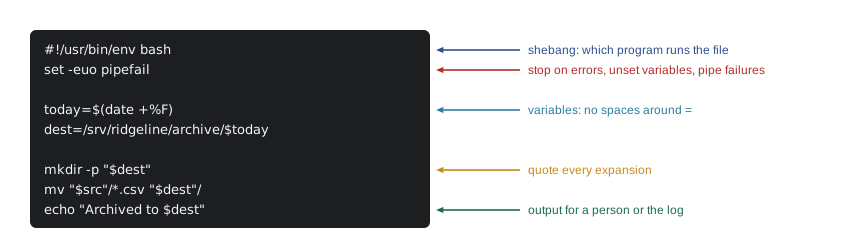
Saved in a file, the same steps become a script. The first line, called the shebang, tells the operating system which program should run the file. Comments start with #. The command date +%F prints today's date in the year-month-day form, and wrapping a command in a dollar sign and parentheses captures its output so the script can store it in a variable.
#!/usr/bin/env bash
# archive_roasts.sh: move today's roast logs into a dated archive folder
set -euo pipefail

today=$(date +%F)
src=/srv/ridgeline/incoming
dest=/srv/ridgeline/archive/$today

mkdir -p "$dest"
mv "$src"/*.csv "$dest"/
count=$(ls "$dest" | wc -l)
echo "Archived $count roast logs to $dest"
To run it, the file needs execute permission, which chmod +x adds, and then it is called by its path: chmod +x archive_roasts.sh followed by ./archive_roasts.sh. Alternatively, bash archive_roasts.sh runs it without the permission change. The line set -euo pipefail is a safety switch explained later in this lesson; experienced administrators put it at the top of nearly every script.
Variables and quoting
A Bash variable is assigned with name=value, with no spaces around the equals sign; a space makes Bash think name is a command. To use the value, put a dollar sign in front of the name, as in the script above. Every variable holds text. Bash can do whole-number arithmetic inside double parentheses, but it has no real numbers with decimals, no dictionaries in the usual sense and no structured data, which is one of the main reasons scripts move to Python as they grow.
Quoting is where most Bash bugs live. When Bash expands an unquoted variable, it splits the result into words at spaces and treats wildcards such as * as file patterns. A file called roast log.csv, with a space, becomes two arguments, roast and log.csv, and the command fails or, worse, acts on the wrong files. The rule is simple: put double quotes around every variable expansion unless you specifically want splitting. Single quotes are stricter still: nothing inside them is expanded at all.
name="roast log.csv"
touch "$name"      # creates one file called: roast log.csv
ls $name           # wrong: ls looks for two files, roast and log.csv
ls "$name"         # right: one argument, the real file name
echo 'single quotes keep $name literally'
echo "double quotes expand $name"
The same splitting idea appears in Python, but there you control it. A string's split method breaks text at runs of whitespace, exactly like Bash's word splitting, while split with an argument breaks only at that character. Run this listing and compare the results: the first split behaves like an unquoted Bash variable, the second like a carefully separated field.
line = "roast log.csv  2026-11-03   B-0412"
print(line.split())          # like unquoted Bash: any run of spaces separates words
fields = "B-0412,Sunrise Blend,12.0,10.2".split(",")
print(fields)                # split at commas only, as cut -d, does
print(fields[1]) # the second field['roast', 'log.csv', '2026-11-03', 'B-0412'] ['B-0412', 'Sunrise Blend', '12.0', '10.2'] Sunrise Blend
Arguments, exit codes and tests
Scripts become reusable when they take arguments. Inside a script, the first argument is written as a dollar sign followed by 1, the second with 2, and so on; a dollar sign followed by # gives how many arguments there are. Every command also finishes with an exit code, a number where 0 means success and anything else means failure. The special variable written as a dollar sign and a question mark holds the exit code of the last command, and the exit command ends a script with a chosen code.
Decisions use if with a test. The test command, usually written in double square brackets, checks conditions such as whether a file exists (-f), whether a folder exists (-d), whether a string is empty (-z) or whether two numbers compare (-lt, -gt, -eq). Because if simply checks an exit code, any command can be used as a condition: if grep -q ERROR shop.log runs grep quietly and branches on whether it found anything.
#!/usr/bin/env bash
# check_log.sh LOGFILE: report whether a log contains errors
set -euo pipefail

if [[ $# -ne 1 ]]; then
    echo "usage: check_log.sh LOGFILE" >&2
    exit 2
fi
log=$1
if [[ ! -f "$log" ]]; then
    echo "no such file: $log" >&2
    exit 1
fi
errors=$(grep -c " 500 " "$log" || true)
if (( errors > 0 )); then
    echo "$errors server errors in $log"
    exit 1
fi
echo "no server errors in $log"
Three habits in this script are worth copying. It checks its arguments first and prints a usage message, sending it to standard error with the >&2 redirection so that it does not mix with normal output. It exits with different codes for different problems, 2 for wrong usage and 1 for a real failure, so a scheduler or another script can tell what happened. And the || true after grep keeps set -e from stopping the script when grep finds nothing, because grep returns 1 when there are no matches, which is information here rather than an error.
Try it yourself
Count the error lines
The Bash command grep -c " 500 " shop.log counts the lines of a log that contain the text " 500 ". Write a Python function count_matches(text, pattern) that does the same for a string holding the whole log: return the number of lines that contain pattern.
For the sample log, count_matches(log, " 500 ") is 2.
log = """GET /shop 200 1532
POST /cart 500 0
GET /beans 200 870
GET /cart 500 0
"""

def count_matches(text, pattern):
    return 0

print(count_matches(log, " 500 "))
Loops and functions
A for loop runs commands once for each item in a list of words, and the commonest list is a file pattern. Kai's exports arrive with useless names, so the next script renames each one using the date and batch number found inside the file. The loop variable holds one file name at a time; head -n 2 and tail -n 1 pick out the first data line, and cut -d, -f1 takes the first comma-separated field.
#!/usr/bin/env bash
# rename_roasts.sh: name each export after its roast date and batch
set -euo pipefail
shopt -s nullglob          # if there are no matches, loop zero times

for file in /srv/ridgeline/incoming/export*.csv; do
    first=$(head -n 2 "$file" | tail -n 1)      # first data row
    day=$(echo "$first" | cut -d, -f1)
    batch=$(echo "$first" | cut -d, -f2)
    new="/srv/ridgeline/incoming/roast_${day}_${batch}.csv"
    if [[ -e "$new" ]]; then
        echo "skip $file: $new already exists"
        continue
    fi
    mv "$file" "$new"
    echo "renamed $(basename "$file") -> $(basename "$new")"
done
The check for an existing file keeps the script from overwriting a log that was already renamed, which also makes the script idempotent: run it twice and the second run renames nothing. The shopt -s nullglob line handles a quiet trap: without it, when no files match, Bash passes the pattern itself, the literal text export*.csv, into the loop, and the script tries to rename a file that does not exist.
Bash also has functions, which group commands under a name and take arguments the same way scripts do. They are useful for small helpers such as a logging function that adds a timestamp to every message. Bash functions return only an exit code, not a value; to get text out, a function prints it and the caller captures the output.
log() {
    echo "$(date '+%F %T') $*" >> /var/log/ridgeline/backup.log
}

backup_name() {
    echo "till-$(date +%F).tar.gz"
}

archive=$(backup_name)
log "starting backup to $archive"
Try it yourself
Build the backup file name
The Bash function above builds names such as till-2026-11-03.tar.gz. Write a Python function backup_name(prefix, year, month, day) that returns the same kind of name, with the month and day always written as two digits.
For example, backup_name("till", 2026, 11, 3) returns till-2026-11-03.tar.gz.
def backup_name(prefix, year, month, day):
    return prefix + ".tar.gz"

print(backup_name("till", 2026, 11, 3))
Pipes, redirection and the classic text tools
Much of Bash's power comes from small programs connected by pipes. The | symbol sends one command's output into the next command's input, so a chain of simple tools can answer surprisingly detailed questions. Redirection sends output to files instead: > writes a file, replacing it; >> appends; 2> redirects error messages; and < feeds a file into a command's input.
| Tool | What it does | Example |
|---|---|---|
| grep | Keeps lines that match a pattern | grep " 404 " access.log |
| cut | Picks fields from each line | cut -d, -f2 roast.csv |
| sort | Sorts lines; -n numeric, -r reverse | sort -n sizes.txt |
| uniq -c | Counts runs of identical lines (sort first) | sort | uniq -c |
| wc -l | Counts lines | ls | wc -l |
| head / tail | First or last lines; tail -f follows a growing file | tail -n 20 shop.log |
| find | Searches folders by name, age or size | find . -name "*.csv" -mtime +30 |
| tar | Bundles and compresses files | tar -czf till.tar.gz till/ |
A classic pipeline counts how often each value appears in a column. To see which coffees Kai roasted most last month, Jordan cuts the third field from every roast log, sorts the values so identical ones sit together, counts each run, and sorts the counts largest first:
> cut -d, -f3 roast_2026-10-*.csv | grep -v sku | sort | uniq -c | sort -rn
     14 RC-101
      9 RC-106
      6 RC-103
      3 RC-102
The same question in Python takes a few more lines but is easier to extend: the csv module handles quoted fields with commas, collections.Counter does the counting, and adding a second condition, such as only batches over 10 kg, is one more if. When a pipeline grows past three or four stages, or needs real data handling, that is the signal to rewrite it in Python.
import csv, io
from collections import Counter

roast_csv = """day,batch,sku,green_kg,roasted_kg
2026-10-01,B-0388,RC-101,12.0,10.2
2026-10-01,B-0389,RC-106,12.0,10.1
2026-10-02,B-0390,RC-101,12.0,10.3
2026-10-03,B-0391,RC-103,9.0,7.6
"""
counts = Counter(row["sku"] for row in csv.DictReader(io.StringIO(roast_csv)))
for sku, n in counts.most_common():
print(f"{n:>4} {sku}")2 RC-101 1 RC-106 1 RC-103
Try it yourself
A column count like uniq -c
Write a function column_counts(text, column) that takes CSV text with a header row and a column name, and returns a list of (value, count) pairs, most common first, like cut | sort | uniq -c | sort -rn. Break ties by value in alphabetical order.
For the sample data, column_counts(data, "sku") returns [("RC-101", 2), ("RC-103", 1), ("RC-106", 1)].
data = """batch,sku
B-1,RC-101
B-2,RC-106
B-3,RC-101
B-4,RC-103
"""

def column_counts(text, column):
    return []

print(column_counts(data, "sku"))
Writing safer Bash
Bash's defaults are forgiving in ways that hurt scripts. By default, a failed command does not stop the script, an unset variable silently expands to nothing, and a failure in the middle of a pipeline is hidden by the success of its last command. The line set -euo pipefail changes all three: -e stops the script when a command fails, -u treats an unset variable as an error, and -o pipefail makes a pipeline fail if any stage fails. Consider what -u prevents: if dest were misspelled in a cleanup line such as rm -rf on a folder built from that variable, the folder path would collapse to its parent, and the command would delete far more than intended.
A few further habits make Bash scripts much safer. Quote every expansion. Use absolute paths, because a scheduled script does not start in your home folder. Check arguments before doing anything. Test destructive commands with echo in front of them first, which prints what would run instead of running it, a quick dry run. Run ShellCheck, a free tool that points out quoting mistakes and other common bugs. And when a script needs arrays of records, arithmetic with decimals, JSON, or more than a screenful of logic, rewrite it in Python, which the rest of this course does for the bigger chores.
Worked problem
Turning a typed routine into a safe script
Anita's evening backup is done by hand: make a folder named for the date on the backup drive, copy the till's CSV files into it, and compress it. Plan a Bash script that does it safely.
Show solution
- Start with the shebang and set -euo pipefail.
- Capture the output of date +%F in a variable called today, and build the destination path from it.
- Check that the backup drive is mounted with a -d test, and exit 1 with a message to standard error if it is not.
- Copy with cp -n, which never overwrites an existing file, so rerunning the script is harmless.
- Compress with tar -czf into a file named with the date, then append a line with the date and file count to a log with >>.
Answer: A short script that checks its preconditions, never overwrites, logs its result and stops on any error.
Common mistakes
MistakeWriting name = value with spaces around the equals sign.
InsteadWrite name=value; spaces make Bash treat name as a command.
MistakeLeaving variable expansions unquoted.
InsteadPut double quotes around every expansion so names with spaces stay whole.
MistakeAssuming a failed command stops the script.
InsteadStart scripts with set -euo pipefail.
MistakeUsing relative paths in scripts that will be scheduled.
InsteadUse absolute paths; scheduled jobs start in a different folder.
MistakeTreating grep finding nothing as an error under set -e.
InsteadAdd || true where no match is a normal result.
MistakeGrowing a pipeline until nobody can read it.
InsteadMove complex logic and structured data into Python.
Summary and key terms
- A Bash script is a file of commands with a shebang line, run after chmod +x or with bash script.sh.
- Variables are assigned without spaces and expanded with a dollar sign; quote every expansion.
- Scripts read arguments by position, test conditions with if, and finish with exit codes where 0 means success.
- for loops over file patterns are the backbone of file chores; check before overwriting to stay idempotent.
- Pipes connect small tools such as grep, cut, sort, uniq and wc; redirection sends output to files.
- set -euo pipefail, quoting, absolute paths and ShellCheck make Bash scripts much safer.
- Bash
- The standard command shell and scripting language on most Linux systems.
- shebang
- The first line of a script, starting with #!, naming the program that runs it.
- expansion
- Bash replacing a variable or command reference with its value.
- word splitting
- Bash breaking an unquoted expansion into separate words at spaces.
- positional parameter
- A script argument referred to by its position, first, second and so on.
- exit code
- The number a command returns when it finishes; 0 means success.
- pipe
- The | operator, sending one command's output into the next command's input.
- redirection
- Sending input or output to or from a file with >, >>, < or 2>.
- standard error
- A separate output stream for error messages.
- ShellCheck
- A tool that checks shell scripts for common mistakes.
Practice problems
Work each problem on paper first, then reveal the answer to check.
Why does the line count = 5 fail in Bash?
Show answer
Bash reads count as a command with the arguments = and 5; assignments need no spaces.
A file is named sales report.csv. What goes wrong with an unquoted expansion of its name in cp?
Show answer
It splits into two arguments, sales and report.csv, so cp looks for two files.
What exit code should a script return when it is called with the wrong arguments?
Show answer
A non-zero code, conventionally 2 for usage errors.
Which pipeline counts how many lines of access.log contain " 404 "?
Show answer
grep " 404 " access.log | wc -l, or grep -c " 404 " access.log.
What does set -u protect against?
Show answer
Using a variable that was never set, which would otherwise expand to nothing.
Give two signs that a Bash script should be rewritten in Python.
Show answer
It needs decimals, dictionaries or JSON, or its logic has grown beyond a few simple steps.
Lesson quiz · 5 questions
Score 60% or more to complete this lesson.
Create a free account to save your progress, take quizzes and earn a certificate.