
PYTH-120 · Lesson 3 of 12 · 24 min
PowerShell scripting
▶ Video coming soon A video version of this lesson is on the way.
Anita's office computer runs Windows, and so does the laptop that holds the till's daily exports before they are uploaded. On Windows, the scripting tool built in from the start is PowerShell. It looks a little like Bash at first glance, with a prompt, commands and pipes, but it works in a fundamentally different way: PowerShell commands pass structured objects to each other instead of lines of text. That one difference makes sorting, filtering and reporting much easier, and it is why PowerShell is the standard tool for managing Windows, Active Directory and Microsoft 365.
PowerShell does not run in your browser, so its listings on this page are for reading. The exercises use Python lists of dictionaries to practice the same object-pipeline ideas: filtering records by a property, sorting them, grouping them and exporting them as CSV. That correspondence is close enough that once you can do one, the other follows quickly.
Cmdlets and their names
PowerShell commands are called cmdlets, and they follow a strict Verb-Noun naming pattern: Get-ChildItem lists files and folders, Copy-Item copies them, Remove-Item deletes them, Get-Process lists running programs, and Get-Service lists Windows services. The verbs come from an approved list, so once you know that Get reads information, Set changes it, New creates something and Remove deletes it, you can often guess a cmdlet's name. Parameters are written with a hyphen, as in Get-ChildItem -Path C:\Till -Filter *.csv.
Two cmdlets make PowerShell easy to explore without a book. Get-Command finds cmdlets by name, for example Get-Command *Service*, and Get-Help shows how to use one, with Get-Help Copy-Item -Examples printing worked examples. A third, Get-Member, lists the properties and methods of whatever objects a command produces, which is the key to knowing what you can filter and sort on.
PS> Get-ChildItem -Path C:\Till -Filter *.csv

    Directory: C:\Till

Mode          LastWriteTime     Length Name
----          -------------     ------ ----
-a---    2026-11-01  9:58 PM     18432 till-2026-11-01.csv
-a---    2026-11-02 10:03 PM     21504 till-2026-11-02.csv
-a---    2026-11-03  9:47 PM     19968 till-2026-11-03.csv
PowerShell also defines short aliases for common cmdlets, so ls, dir and gci all run Get-ChildItem, and cp runs Copy-Item. Aliases are handy at the prompt, but in scripts it is good practice to write the full cmdlet names, which are clearer to the next reader and work the same on every system.
Objects in the pipeline
The table above looks like text, but it is not. Get-ChildItem produces a set of file objects, and PowerShell only turns them into a table at the very end, for display. Each object has properties, such as Name, Length (the size in bytes), LastWriteTime and Extension, and the next command in a pipeline receives the objects themselves. So instead of cutting columns out of text as Bash does, a PowerShell pipeline asks for properties by name.
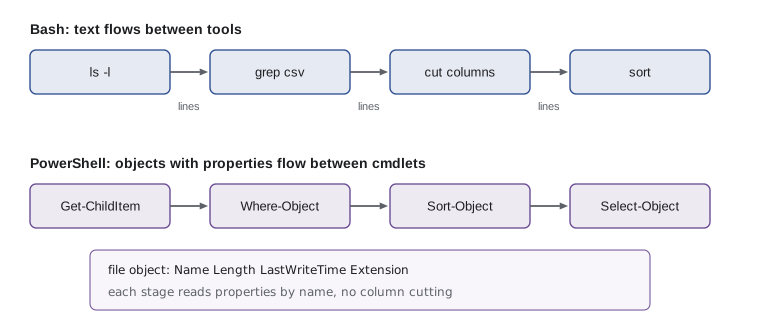
Three cmdlets do most of the work in a pipeline. Where-Object keeps the objects that match a condition; inside its braces, the automatic variable written as a dollar sign and an underscore stands for the current object. Sort-Object orders objects by one or more properties. Select-Object keeps chosen properties, or the first few objects. The next listing finds the till exports larger than 20 KB, largest first:
PS> Get-ChildItem C:\Till -Filter *.csv |
>>     Where-Object { $_.Length -gt 20KB } |
>>     Sort-Object Length -Descending |
>>     Select-Object Name, Length

Name                 Length
----                 ------
till-2026-11-02.csv   21504
Comparison operators in PowerShell are written as words with a hyphen: -eq for equals, -ne for not equal, -gt and -lt for greater and less than, -like for wildcard matches and -match for regular expressions. PowerShell also understands size suffixes, so 20KB means 20,480. In Python, the same pipeline is a list of dictionaries, a list comprehension to filter, sorted to order and another comprehension to select. Run the listing and compare the shape of the two programs.
files = [
    {"name": "till-2026-11-01.csv", "length": 18432},
    {"name": "till-2026-11-02.csv", "length": 21504},
    {"name": "till-2026-11-03.csv", "length": 19968},
]
big = [f for f in files if f["length"] > 20 * 1024]          # Where-Object
big = sorted(big, key=lambda f: f["length"], reverse=True)   # Sort-Object -Descending
for f in big:                                               # Select-Object Name, Length
print(f["name"], f["length"])till-2026-11-02.csv 21504
Try it yourself
Where-Object and Sort-Object
Each file is a dictionary with keys name and length. Write a function large_files(files, min_bytes) that returns the names of files strictly larger than min_bytes, largest first, like a Where-Object filter on Length followed by Sort-Object Length -Descending.
For the starter data, large_files(files, 19000) returns ["till-2026-11-02.csv", "till-2026-11-03.csv"].
files = [
    {"name": "till-2026-11-01.csv", "length": 18432},
    {"name": "till-2026-11-02.csv", "length": 21504},
    {"name": "till-2026-11-03.csv", "length": 19968},
]

def large_files(files, min_bytes):
    return [f["name"] for f in files]

print(large_files(files, 19000))
Variables, scripts and parameters
PowerShell variables start with a dollar sign and can hold any object, not just text: a number, a date, a file, or a whole collection of files. A script is a text file with the extension .ps1. At its top, a param block declares the script's parameters with their types and default values, so PowerShell checks the arguments and even offers tab completion for them. The next script archives till exports older than a given number of days into a zip file.
# Archive-TillFiles.ps1: zip till exports older than a number of days
param(
    [string]$Source = 'C:\Till',
    [string]$Archive = 'D:\Backups\till-archive.zip',
    [int]$Days = 30,
    [switch]$WhatIf
)
$ErrorActionPreference = 'Stop'

$cutoff = (Get-Date).AddDays(-$Days)
$old = Get-ChildItem -Path $Source -Filter *.csv |
       Where-Object { $_.LastWriteTime -lt $cutoff }

if (-not $old) {
    Write-Output "Nothing older than $Days days in $Source"
    return
}
if ($WhatIf) {
    $old | ForEach-Object { Write-Output "would archive $($_.Name)" }
    return
}
Compress-Archive -Path $old.FullName -DestinationPath $Archive -Update
$old | Remove-Item
Write-Output "Archived and removed $($old.Count) files"
Several features in this script are typical of good PowerShell. The parameters have types and defaults, so .\Archive-TillFiles.ps1 -Days 60 is all a person needs to type. The switch parameter adds a dry run: with -WhatIf, the script only reports what it would archive. Setting the error action preference to Stop makes every error end the script, the PowerShell counterpart of Bash's set -e. And Compress-Archive with -Update adds to an existing zip rather than replacing it.
Windows protects against accidentally running scripts downloaded from the internet with an execution policy. On many computers the default allows local scripts but requires downloaded ones to be signed; Get-ExecutionPolicy shows the current setting. Rather than turning the protection off, administrators sign their scripts or set the policy to RemoteSigned for the current user. PowerShell 7, the cross-platform version, installs alongside the Windows PowerShell 5.1 that ships with Windows, and runs as pwsh rather than powershell.
Grouping, measuring and exporting
Reports usually need totals. Group-Object collects objects that share a property value, and Measure-Object counts and sums. Together they answer questions such as how much space each kind of file uses in a folder. Export-Csv writes objects to a CSV file with a header row taken from the property names, which opens straight into a spreadsheet, and ConvertTo-Json does the same for JSON.
PS> Get-ChildItem C:\Shared -File |
>>     Group-Object Extension |
>>     ForEach-Object {
>>         [pscustomobject]@{
>>             Extension = $_.Name
>>             Files     = $_.Count
>>             KB        = [math]::Round(($_.Group | Measure-Object Length -Sum).Sum / 1KB)
>>         }
>>     } |
>>     Sort-Object KB -Descending |
>>     Export-Csv C:\Reports\space.csv -NoTypeInformation
The [pscustomobject] syntax builds a new object with exactly the properties the report needs, which is the PowerShell way of making a record. In Python the same report is a dictionary that accumulates sizes, and the csv module's DictWriter writes the rows with a header, as the next listing shows. Writing to io.StringIO, an in-memory text file, lets the listing print the CSV instead of saving it.
import csv, io

files = [("menu.docx", 48000), ("roast.xlsx", 96000), ("logo.png", 210000),
         ("price.xlsx", 61000), ("notes.docx", 22000)]
by_ext = {}
for name, size in files:
    ext = name[name.rfind("."):]
    files_count, total = by_ext.get(ext, (0, 0))
    by_ext[ext] = (files_count + 1, total + size)

rows = [{"Extension": ext, "Files": n, "KB": round(total / 1024)}
        for ext, (n, total) in by_ext.items()]
rows.sort(key=lambda r: r["KB"], reverse=True)
out = io.StringIO()
writer = csv.DictWriter(out, fieldnames=["Extension", "Files", "KB"])
writer.writeheader()
writer.writerows(rows)
print(out.getvalue())Extension,Files,KB .png,1,205 .xlsx,2,153 .docx,2,68
Try it yourself
Group-Object by extension
Write a function size_by_extension(files) where files is a list of (name, size) pairs. Return a dictionary mapping each extension, including the dot, such as .csv, to the total size of the files with that extension. Treat extensions as lower case, so .CSV and .csv are the same.
For the starter data the result is {".csv": 300, ".pdf": 50}.
files = [("a.csv", 100), ("b.pdf", 50), ("c.CSV", 200)]

def size_by_extension(files):
    totals = {}
    return totals

print(size_by_extension(files))
Try it yourself
Export-Csv in Python
PowerShell's Export-Csv writes a header from the property names and one line per object. Write a function to_csv(rows, fields) that takes a list of dictionaries and a list of field names and returns the CSV text, using the csv module so that values containing commas are quoted. Use lineterminator="\n" so lines end with a plain new line.
For the starter data the result starts with Name,KB.
rows = [{"Name": "menu.docx", "KB": 47}, {"Name": "price list, 2026.xlsx", "KB": 60}]

def to_csv(rows, fields):
    return ""

print(to_csv(rows, ["Name", "KB"]))
Errors and remote management
PowerShell distinguishes terminating errors, which stop a command, from non-terminating ones, which report a problem and carry on, such as one unreadable file among hundreds. Setting the error action preference to Stop, or adding -ErrorAction Stop to a single cmdlet, turns errors into terminating ones that try and catch blocks can handle. The structure is the same as Python's try and except: put the risky commands in try, handle the failure in catch, and use finally for cleanup that must always happen.
try {
    Copy-Item -Path C:\Till\*.csv -Destination E:\TillBackup -ErrorAction Stop
    Add-Content -Path C:\Logs\backup.log -Value "$(Get-Date -Format s) backup ok"
}
catch {
    Add-Content -Path C:\Logs\backup.log -Value "$(Get-Date -Format s) backup FAILED: $($_.Exception.Message)"
    exit 1
}
For more than one computer, PowerShell remoting runs commands on other Windows machines over the network. Invoke-Command -ComputerName runs a script block on one or many computers at once and returns the results as objects, and Enter-PSSession opens an interactive session on a remote machine. Larger organizations use the same mechanism to manage hundreds of computers, together with the Active Directory and Microsoft Graph modules for users and Microsoft 365. At Ridgeline's scale, two Windows computers, Jordan mostly runs scripts locally, but the habits are the same.
| Task | PowerShell | Bash | Python |
|---|---|---|---|
| List files | Get-ChildItem | ls | pathlib.Path.iterdir |
| Filter | Where-Object | grep | list comprehension |
| Sort | Sort-Object | sort | sorted |
| Count and sum | Measure-Object | wc, awk | len, sum |
| Group | Group-Object | sort | uniq -c | dict or collections.Counter |
| Write CSV | Export-Csv | echo with commas | csv.DictWriter |
| Handle errors | try / catch | set -e, exit codes | try / except |
Worked problem
Planning a disk-space report for the office
Rosa wants a monthly list of the ten largest files on the office computer's shared folder, saved as a spreadsheet. Plan a PowerShell one-liner and the Python equivalent.
Show solution
- PowerShell: Get-ChildItem on the shared folder with -Recurse and -File to list every file.
- Sort-Object Length -Descending, then Select-Object -First 10 Name, Directory, Length.
- Pipe into Export-Csv with -NoTypeInformation to save a spreadsheet-ready file.
- Python: walk the folder with pathlib.Path.rglob("*"), keep files, record name and stat().st_size.
- Sort by size in reverse, slice the first ten and write them with csv.DictWriter.
Answer: In both tools the report is list, sort by size, take ten, export; PowerShell does it in one pipeline because files arrive as objects with a Length property.
Common mistakes
MistakeTreating PowerShell output as text to be cut into columns.
InsteadAsk for properties by name; the pipeline carries objects.
MistakeUsing aliases such as ls and dir in scripts.
InsteadWrite full cmdlet names so scripts are clear and portable.
MistakeWriting > and < for comparisons.
InsteadUse -gt, -lt, -eq and their relatives; > is redirection.
MistakeTurning off the execution policy entirely.
InsteadUse RemoteSigned for the current user or sign your scripts.
MistakeAssuming errors stop a script.
InsteadSet the error action preference to Stop and use try and catch.
MistakeRunning destructive cmdlets without testing.
InsteadUse -WhatIf first; many cmdlets support it, and scripts can add their own switch.
Summary and key terms
- PowerShell cmdlets follow a Verb-Noun pattern; Get-Command, Get-Help and Get-Member make them discoverable.
- The pipeline passes objects with named properties, not text.
- Where-Object filters, Sort-Object orders, Select-Object chooses properties, Group-Object and Measure-Object summarize.
- Scripts are .ps1 files with typed parameters in a param block; a switch parameter can provide a dry run.
- Export-Csv and ConvertTo-Json turn objects into files for spreadsheets and other programs.
- Errors become catchable with the Stop error action and try and catch; remoting runs commands on other computers.
- PowerShell
- Microsoft's object-based shell and scripting language for Windows and other systems.
- cmdlet
- A PowerShell command named in Verb-Noun form.
- object
- A structured value with named properties and methods.
- property
- A named piece of data on an object, such as Length or Name.
- pipeline
- A chain of commands in which each passes its output to the next.
- alias
- A short alternative name for a cmdlet.
- param block
- The section at the top of a script that declares its parameters.
- switch parameter
- A parameter that is either present or absent, used for options such as a dry run.
- execution policy
- A Windows setting that controls which scripts may run.
- remoting
- Running PowerShell commands on other computers over the network.
Practice problems
Work each problem on paper first, then reveal the answer to check.
Which cmdlet would you expect to remove a scheduled task, given the Verb-Noun pattern?
Show answer
Unregister-ScheduledTask; the verbs for removing registrations are Unregister or Remove.
How do you see the properties of the objects Get-Service produces?
Show answer
Pipe it into Get-Member: Get-Service | Get-Member.
Write the comparison for files modified before a date stored in a variable called cutoff.
Show answer
Where-Object with the condition that LastWriteTime is -lt the cutoff.
Why does PowerShell not need cut or awk to pick columns?
Show answer
Objects carry named properties, so commands select them by name.
What does -WhatIf do on cmdlets that support it?
Show answer
It reports what would happen without making the change.
Which PowerShell setting is the counterpart of Bash's set -e?
Show answer
Setting the error action preference to Stop.
Lesson quiz · 5 questions
Score 60% or more to complete this lesson.
Create a free account to save your progress, take quizzes and earn a certificate.