
PYTH-110 · Lesson 1 of 12 · 34 min
The developer workstation
▶ Video coming soon A video version of this lesson is on the way.
By the end of PYTH-101, Jordan Reyes had written ridgeline.py, a command-line tool that tracks coffee stock and café sales for Ridgeline Coffee Roasters. It works, the staff use it every day, and that success has created a new problem. Rosa Delgado, the owner, wants more tools: a roast log for Kai, a loyalty tracker for Mei and a monthly report for Anita. She has hired Sam Okoye, a student in a college co-op program, to work with Jordan two days a week. Two people now need to change the same code without breaking it, keep track of who changed what, set up their computers the same way and share their work safely. That is what this course is about.
PYTH-110 teaches the everyday tools of software work: the workstation itself, editors, the terminal, Git and collaboration on a shared repository, virtual environments, documentation and team workflow. None of these tools is Python, yet every working Python programmer uses all of them daily. Many of the tools run on your own computer rather than in a web page, so each lesson shows the commands as listings to try on your own machine, and the browser exercises ask you to write small Python programs that do part of what the tools do. Building a tiny version of a tool is one of the best ways to understand the real one.
This first lesson looks at the developer workstation as a whole: what software a programmer needs, how operating systems differ, how to check which Python you are running, how the system finds the programs you type, how to organize projects on disk and how to keep a working computer safe.
What a developer workstation is
A developer workstation is simply the computer a programmer works on, set up with the tools that programming needs. The hardware can be ordinary. A laptop from the last five or six years with at least 8 GB of memory, a solid-state drive and a comfortable keyboard is plenty for the work in this program. What makes it a workstation is the software, which falls into a handful of layers that build on one another.
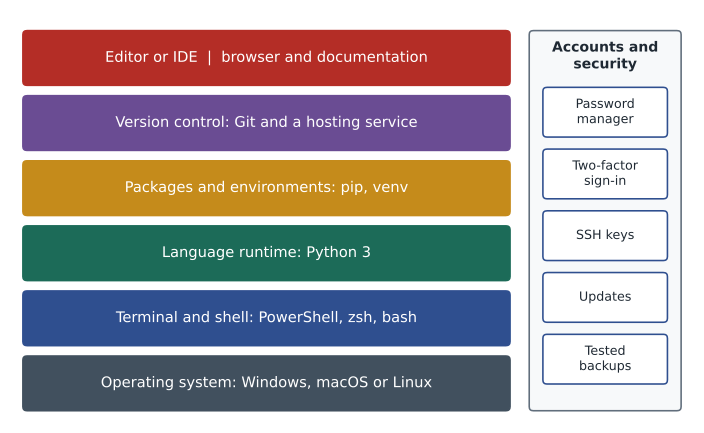
| Layer | Purpose | Examples |
|---|---|---|
| Operating system | Runs everything else and stores files | Windows, macOS, Linux |
| Terminal and shell | Text interface for running commands | Windows Terminal with PowerShell, Terminal with zsh, bash |
| Language runtime | Runs your programs | Python 3, with the py launcher on Windows |
| Packages and environments | Installs libraries and keeps projects separate | pip, venv, pyproject.toml |
| Version control | Records the history of your code and shares it | Git, a hosting service such as GitHub or GitLab |
| Editor or IDE | Where code is written, run and debugged | Visual Studio Code, PyCharm, IDLE |
| Browser and docs | Documentation, issue trackers, code review | docs.python.org, the project wiki |
Each layer depends on the ones below it. The editor needs Python installed to run your code. Git needs a terminal, or an editor that talks to it. A virtual environment needs a Python to copy. When something does not work, thinking in layers helps you find the cause: if a command is not found, the problem is usually in the terminal or the PATH; if a library is missing, it is the environment layer; if the code itself misbehaves, it is your program.
A team also benefits from making workstations alike. When Sam and Jordan run the same Python version, the same editor settings and the same tools, a program that works on one laptop works on the other. When they do not, the team meets the oldest complaint in software: it works on my machine. Much of this course is about removing that problem, and the first step is knowing exactly what is installed.
How operating systems differ
Python runs on Windows, macOS and Linux, and almost all Python code works unchanged on all three. A few differences matter in daily work, and knowing them early saves hours later. Ridgeline itself is a good example: the shop's office computer runs Windows, Jordan uses a Mac at home and Sam uses Linux on a laptop from the college.
The first difference is the path separator. Windows writes paths with backslashes, as in C:\Users\jordan\ridgeline, while macOS and Linux use forward slashes, as in /home/sam/ridgeline. Windows also begins absolute paths with a drive letter. Python's pathlib module hides most of this, and Windows accepts forward slashes in most places, so code should build paths with pathlib or os.path rather than gluing strings together.
The second difference is case sensitivity. Linux treats Report.csv and report.csv as two different files; Windows and macOS usually treat them as the same file. A program written on a Mac that opens report.csv when the file is named Report.csv will work there and then fail on Sam's Linux laptop or on a Linux server. The safe habit is to choose lowercase file names and spell them the same way everywhere.
The third difference is the line ending. A text file is a sequence of lines, and each line ends with an invisible marker. Linux and macOS use a single line feed character, written \n in Python. Windows traditionally uses a carriage return followed by a line feed, written \r\n. Python's open function translates these automatically when it reads text, but tools such as Git can show every line of a file as changed if one person's editor quietly switches the endings. Lesson 2 shows how editors control this, and lesson 4 shows how Git can normalize it.
from pathlib import PurePosixPath, PureWindowsPath

posix = PurePosixPath('/home/sam/ridgeline/data/inventory.csv')
windows = PureWindowsPath(r'C:\Users\jordan\ridgeline\data\inventory.csv')

for p in (posix, windows):
    print(p.name, '|', p.suffix, '|', p.parent.name, '|', len(p.parts), 'parts')

print(PureWindowsPath('C:/Users/jordan') == PureWindowsPath(r'C:\Users\jordan'))
print(PureWindowsPath('Report.CSV') == PureWindowsPath('report.csv'))
print(PurePosixPath('Report.CSV') == PurePosixPath('report.csv'))
print(repr('roast\r\n'.rstrip('\r\n')), repr('roast\n'.splitlines()[0]))inventory.csv | .csv | data | 6 parts inventory.csv | .csv | data | 6 parts True True False 'roast' 'roast'
The listing uses the pure path classes, which describe paths without touching the disk, so it runs the same on any computer, including in your browser. The results show the three differences at once: both styles split a path into the same pieces, Windows accepts either kind of slash and ignores case, and POSIX paths, used by Linux and macOS, treat case as significant. Press Edit and run and try changing the file names.
Which Python are you running?
A workstation can hold several Pythons at once. macOS and Linux may include a Python used by the system itself, an installer from python.org adds another, and editors and other tools sometimes bring their own. On Windows the py launcher picks a version for you; on macOS and Linux the command python3 usually refers to the newest Python 3, while python may be missing or may point somewhere unexpected. Before installing anything for a project, find out which Python a command actually runs.
> python --version
Python 3.15.0
> py --list
 -V:3.15 *        Python 3.15 (64-bit)
 -V:3.13          Python 3.13 (64-bit)
> python -c "import sys; print(sys.executable)"
C:\Users\jordan\AppData\Local\Programs\Python\Python315\python.exe
Inside a program, the sys module answers the same questions. sys.version_info holds the version as a tuple of numbers, which compares correctly with other tuples, and sys.executable gives the full path of the interpreter that is running. The platform module reports the operating system. Programs that need a recent Python can check the version at start-up and stop with a clear message instead of failing later with a confusing error.
import sys, platform

print('Python', '.'.join(str(n) for n in sys.version_info[:3]))
print('Implementation:', platform.python_implementation())
print('At least 3.10:', sys.version_info >= (3, 10))
print((3, 9, 7) < (3, 10, 0), '3.9.7' < '3.10.0')Python 3.13.16 Implementation: CPython At least 3.10: True True False
The last line shows why the version is compared as a tuple. As tuples, (3, 9, 7) is less than (3, 10, 0), which is right. As strings, '3.9.7' is greater than '3.10.0', because the character 9 comes after the character 1. Comparing version numbers as text is a classic bug, and it returns in lesson 9 when we compare package versions. In your browser the first lines show the Python that runs inside the page, which is a WebAssembly build of CPython called Pyodide.
Try it yourself
Check the minimum Python version
Ridgeline's tools need Python 3.10 or later. Write a function version_tuple(text) that takes a line such as Python 3.15.0 and returns a tuple of integers, here (3, 15, 0). Then write new_enough(text) that returns True when that version is at least (3, 10).
The text always starts with the word Python, a space and the version.
def version_tuple(text):
    # split off the word Python, then split the version on dots
    return ()

def new_enough(text):
    return False

print(version_tuple('Python 3.15.0'))
print(new_enough('Python 3.9.18'))
How the system finds a command
When you type a command such as python or git, the shell has to find a program with that name. It does so by searching a list of folders stored in an environment variable called PATH. Environment variables are named settings that every program inherits from the program that started it. PATH holds folder names joined by a separator: a semicolon on Windows and a colon on macOS and Linux. The shell looks in each folder in order and runs the first matching program it finds.
Two consequences follow. If a program's folder is not on the PATH, typing its name gives an error such as command not found, even though the program is installed; this is why the Python installer for Windows offers to add Python to the PATH. And if two folders both contain a program with the same name, the one listed first wins, which is how a workstation with several Pythons ends up running the wrong one. The commands which on macOS and Linux and where.exe on Windows show which program a name resolves to.
> which python3
/usr/local/bin/python3
> echo PATH is set to: & echo %PATH%
PATH is set to:
C:\Users\jordan\AppData\Local\Programs\Python\Python315\;C:\Windows\system32;...
> where.exe git
C:\Program Files\Git\cmd\git.exePATH = '/home/sam/.local/bin:/usr/local/bin:/usr/bin:/bin'
installed = {
'/usr/local/bin': {'python3', 'pip3'},
'/usr/bin': {'python3', 'git', 'ls'},
'/bin': {'ls', 'cat'},
}
def which(command):
for folder in PATH.split(':'):
if command in installed.get(folder, set()):
return folder + '/' + command
return None
for cmd in ('python3', 'git', 'cat', 'pytest'):
print(cmd.ljust(8), which(cmd))python3 /usr/local/bin/python3 git /usr/bin/git cat /bin/cat pytest None
The model shows both consequences. python3 is found in /usr/local/bin before /usr/bin is ever checked, so the copy in /usr/bin is hidden. pytest is not in any folder on the PATH, so the lookup fails, which is exactly what a shell reports as command not found. Real shells also cache the results and, on Windows, try extensions such as .exe and .bat, but the core rule is this simple search.
Try it yourself
Find a command on a Windows PATH
Write find_command(path_text, folders, command). path_text is a Windows PATH string with folders separated by semicolons. folders is a dictionary that maps a folder name to a set of program names in it. Return the full path of the first folder that contains the program file, which is the command name followed by .exe. Build the full path by joining the folder and the file name with one backslash, for example C:\Git\cmd\git.exe. Return None if no folder has it.
Folder names compare exactly as given. Ignore empty entries, which appear when a PATH ends with a semicolon.
def find_command(path_text, folders, command):
    return None

print(find_command(r'C:\Python315;C:\Git\cmd;', FOLDERS, 'git'))
Organizing projects on disk
A tidy disk is part of a good workstation. Keep all code in one top-level folder, such as a folder named code or projects in your home folder, and give each project its own folder inside it. Avoid keeping projects on the desktop, inside a folder that a cloud service synchronizes in the background or in a path with spaces and accented characters, because some tools handle those badly. Each project folder becomes, in lesson 4, a Git repository, and in lesson 9 it gets its own virtual environment.
projects/
  ridgeline-tools/
    README.md
    pyproject.toml
    .gitignore
    src/
      ridgeline/
        __init__.py
        stock.py
        sales.py
    tests/
      test_stock.py
    data/
      inventory.csv
The layout follows common Python practice. The README explains the project, pyproject.toml holds its settings and dependencies, .gitignore lists files Git should not track, the code lives in a package under src, tests live in their own folder, and sample data has its own place. Later courses explain each piece in detail; here the point is that a predictable layout lets a newcomer like Sam find things without asking.
from pathlib import PurePosixPath

root = PurePosixPath('projects/ridgeline-tools')
layout = {
    'src/ridgeline': ['__init__.py', 'stock.py', 'sales.py'],
    'tests': ['test_stock.py'],
    'data': ['inventory.csv'],
    '.': ['README.md', 'pyproject.toml', '.gitignore'],
}

files = sorted(str(root / folder / name) for folder, names in layout.items() for name in names)
for f in files:
    print(f)
print(len(files), 'files,', len({PurePosixPath(f).parent for f in files}), 'folders')projects/ridgeline-tools/.gitignore projects/ridgeline-tools/README.md projects/ridgeline-tools/data/inventory.csv projects/ridgeline-tools/pyproject.toml projects/ridgeline-tools/src/ridgeline/__init__.py projects/ridgeline-tools/src/ridgeline/sales.py projects/ridgeline-tools/src/ridgeline/stock.py projects/ridgeline-tools/tests/test_stock.py 8 files, 4 folders
The pathlib / operator joins path parts with the right separator for the system, and it removes the redundant '.' part for the files at the top. Scripts that create project skeletons work this way; the real version would call mkdir and touch on each path, but planning the list first, as here, makes the script easy to check before it changes anything on disk.
Accounts, security and backups
A workstation holds more than code. It holds keys to the shop's online store, database passwords and access to the shared repository. A compromised laptop can expose all of them, so a few habits belong in every setup. Use a password manager and a different strong password for every account. Turn on two-factor sign-in for the code hosting service and email. Keep the operating system, browser and editor updated. Lock the screen when you step away, which matters even in a small café office.
Never put passwords, API keys or tokens directly in source code. Code gets copied, shared and pushed to repositories, and a secret inside it travels with it. Lesson 9 shows how to keep secrets in environment variables or files that Git ignores. Developers also use SSH keys to prove their identity to Git hosting services without typing a password each time; lesson 6 sets them up. An SSH key has two halves: a public key that you can share freely and a private key that must never leave your computer.
Finally, back up. Version control, covered from lesson 4, protects the history of your code once it is pushed to a shared repository, but it does not protect your documents, settings or work you have not committed yet. An automatic backup to an external drive or a reputable backup service, tested by actually restoring a file now and then, is what lets you recover from a stolen laptop or a failed drive.
Worked problem
Planning Sam's first-day setup
Sam arrives with a Linux laptop and must be able to run and change ridgeline.py by the end of the first afternoon. List the steps in a sensible order and the check that proves each step worked.
Show solution
- Accounts first: Sam creates an account on the code hosting service, turns on two-factor sign-in and is added to the Ridgeline team. Check: Sam can see the ridgeline-tools repository in the browser.
- Python: the team standard is Python 3.15. Check: python3 --version prints 3.15 and which python3 shows the expected location.
- Git: install it from the system package manager. Check: git --version prints a version.
- Editor: install the team editor with its Python extension. Check: the editor runs a one-line script that prints the Python version.
- Project: make a projects folder in the home folder; lessons 6 and 9 add cloning the repository and creating its virtual environment.
- Security: install the password manager, store the new passwords in it and set the screen to lock after five minutes.
Answer: Each step has a visible check, so a problem is caught where it starts instead of surfacing later as a confusing error.
Common mistakes
MistakeAssuming python runs the Python you just installed.
InsteadCheck with python --version and which python3 or where.exe python before installing packages.
MistakeComparing version numbers as strings.
InsteadConvert to tuples of integers, so (3, 10) compares as greater than (3, 9).
MistakeMixing the capitalization of file names.
InsteadUse lowercase names and spell them the same everywhere, because Linux is case-sensitive.
MistakeBuilding paths by joining strings with backslashes.
InsteadUse pathlib or os.path so the right separator is used.
MistakeKeeping projects in a cloud-synchronized folder or on the desktop.
InsteadKeep a dedicated projects folder and let Git and backups protect it.
MistakePasting a password or API key into a script.
InsteadKeep secrets out of code; store them in environment variables or ignored files.
Summary and key terms
- A developer workstation is an ordinary computer with layers of software: the operating system, a terminal, language runtimes, package and environment tools, version control, an editor and documentation.
- Windows, macOS and Linux differ in path separators, case sensitivity and line endings; pathlib smooths over most of these.
- A workstation can hold several Pythons; check which one runs with the version and location commands or sys.version_info and sys.executable.
- Version numbers compare correctly as tuples of integers, not as strings.
- The shell finds commands by searching the folders on the PATH in order and running the first match.
- A predictable project layout, kept in a dedicated projects folder, helps everyone on a team.
- Password managers, two-factor sign-in, updates, keeping secrets out of code and tested backups protect the workstation and the team.
- Workstation
- The computer a programmer works on, with its development software.
- Operating system
- The software that runs the computer and its files, such as Windows, macOS or Linux.
- Path separator
- The character between folder names in a path: backslash on Windows, forward slash elsewhere.
- Line ending
- The invisible marker at the end of each line of text: LF on Linux and macOS, CRLF on Windows.
- Environment variable
- A named setting that a program inherits from the program that started it.
- PATH
- The environment variable listing the folders searched for commands.
- py launcher
- The Windows command that selects and runs an installed Python version.
- sys.version_info
- The running Python's version as a tuple of numbers.
- Two-factor sign-in
- Signing in with a password plus a second proof, such as a code from an app.
- SSH key
- A pair of keys, one public and one private, used to prove identity to a server.
Practice problems
Work each problem on paper first, then reveal the answer to check.
A command works in Jordan's terminal but Sam gets command not found for the same command. Which layer is most likely at fault?
Show answer
The terminal and PATH layer: the program is missing or its folder is not on Sam's PATH.
What does PurePosixPath('/srv/app/Main.py').suffix return?
Show answer
'.py'
Does PureWindowsPath('Data/Roast.csv') equal PureWindowsPath('data\\roast.csv')?
Show answer
Yes: Windows paths accept either slash and compare without regard to case.
Why does '3.9' > '3.10' evaluate to True?
Show answer
Strings compare character by character, and '9' comes after '1'.
Given PATH '/a:/b:/c' with python3 in /b and /c, which one runs?
Show answer
/b/python3, the first match on the PATH.
Which separator joins folders in a PATH on macOS? On Windows?
Show answer
A colon on macOS and Linux; a semicolon on Windows.
A file opens on Jordan's Mac but not on the Linux server. The code says 'Inventory.csv' and the file is inventory.csv. Explain.
Show answer
Linux is case-sensitive, so the two names are different files there; macOS usually ignores case.
Name the file that tells Git which files to leave untracked.
Show answer
.gitignore
Which half of an SSH key may be shared?
Show answer
The public key; the private key stays on your computer.
Why should a project skeleton script build and print its list of paths before creating anything?
Show answer
So the plan can be checked before the script changes the disk.
Lesson quiz · 5 questions
Score 60% or more to complete this lesson.
Create a free account to save your progress, take quizzes and earn a certificate.