
MSBA-340 · Lesson 7 of 12 · 20 min
Forms and form patterns
▶ Video coming soon A video version of this lesson is on the way.
Teodora Brisebois joined the seventh clinic, because it was the one where the warranty module would get a face. She brought a printout of the old system's warranty screen: a single gray page with forty-one fields, eleven buttons and no obvious order. She did not want it reproduced. Desmond assured her it would not be, and not only out of taste. Finance and operations apps do not let developers lay out forms freely. Every form follows a form pattern, and the patterns decide most of the layout.
Forms as metadata
A form is an element in the AOT that defines a page of the user interface. It has data sources, which are the tables the form reads and writes; a design, which is a tree of controls such as tabs, groups, grids, fields and buttons; and methods on the form, its data sources and its controls. The form designer in Visual Studio shows the tree and a preview. When a user opens the form in the browser, the application builds the page from the metadata, runs the form's code on the server, and sends the result to the browser client.
Developers do not write HTML or JavaScript for ordinary forms. Controls are bound to data source fields or to methods, and the client renders them consistently, including on narrow screens and in the mobile layout. That consistency is what makes the form patterns possible: because every form is built from the same controls, the application can check that each form follows the rules of its pattern.
Form patterns
A form pattern is a template for a kind of page, with rules about which containers and controls appear where. When a developer applies a pattern to a form, the designer creates the required structure, and from then on it validates the form against the pattern and reports errors when something is out of place. The most common patterns are listed below.
| Pattern | Used for | Example |
|---|---|---|
| Details Master | Viewing and editing one main record with many fields, grouped in FastTabs | Customers, released products |
| Details Transaction | A header and lines, such as an order | Sales orders, purchase orders |
| Simple List | A small setup table whose records fit in one grid row | Customer groups, reason codes |
| Simple List and Details | A list on the left and details of the selected record on the right | Setup records with more fields |
| List Page | The entry list of a main area, with filters and actions | All customers, all sales orders |
| Table of Contents | Parameter pages with sections down the side | Module parameters |
| Dialog and Drop Dialog | Asking the user for input before an action | Batch job parameters, quick actions |
| Operational workspace | A role-focused overview with tiles, lists and links | Warehouse or collections workspaces |
| Lookup | The drop-down list for choosing a related record | Customer lookup |
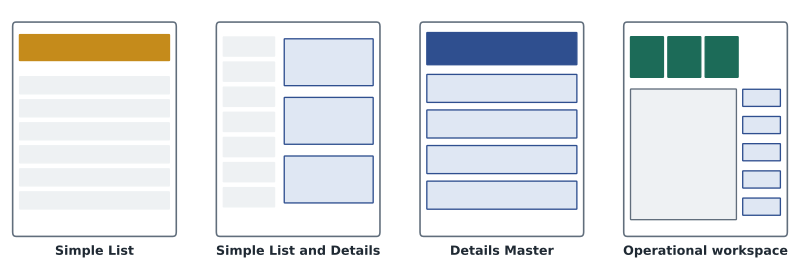
Patterns contain subpatterns for their containers. A FastTab in a Details Master form uses a subpattern such as Fields and Field Groups, which arranges groups in columns. A toolbar uses a toolbar subpattern. When the designer reports a pattern error, it is usually because a control was placed in a container whose subpattern does not allow it, or because a required control is missing. Pattern errors are not compiler errors, and a form with them will still run, but Desmond treated them as defects: forms that break their pattern look wrong on smaller screens, confuse users who know the standard pages, and fail best-practice checks.
Choosing patterns for the warranty module
Teodora and Desmond listed the screens the module needed and chose a pattern for each.
| Screen | Pattern | Why |
|---|---|---|
| Pump warranties (all records) | List Page or Simple List and Details | Service staff search many warranties and open one |
| Pump warranty (one record) | Details Master | Many fields, grouped into Overview, Dates, Sale and Service history |
| Warranty claim reasons | Simple List | A short setup table with code and description |
| Warranty parameters | Table of Contents | Module settings in sections |
| Void warranty | Dialog | Asks for a reason before voiding |
| Warranty service workspace | Operational workspace | Tiles for expiring warranties and unregistered sales |
In the end, to keep the first release small, the team combined the first two rows into one form using the Simple List and Details pattern, which shows the list and the selected warranty together, and put the workspace on the list for a later release. Teodora's forty-one fields became nine on the main view and twelve more on a Service history FastTab that loaded only when opened.
Data sources
A form's data sources are the tables it shows. The main data source for the warranty form is CRPumpWarrantyTable. Additional data sources can be joined to it, for example CustTable to show the customer's name, with a JoinSource property naming the parent data source and a LinkType that decides how they relate: InnerJoin and OuterJoin join the tables into one query, while Delayed and Active link a separate data source that refreshes when the user moves to a new parent record, which suits header and lines.
Data source properties control editing. AllowCreate, AllowEdit and AllowDelete decide what users may do, and individual fields can be made read-only. Data sources also have methods, the most used being init, to set up the query before it runs; executeQuery, which runs it and can be overridden to add ranges; active, called when the user moves to a different record; and validateWrite and write, called when a record is saved. The data source's validateWrite calls the table's validateWrite, so table validation from lesson 5 applies on the form automatically.
[Form]
public class CRPumpWarrantyTable extends FormRun
{
    [DataSource]
    class CRPumpWarrantyTable
    {
        public void init()
        {
            super();
            // Show only this company's non-void warranties by default
            this.queryBuildDataSource().addRange(fieldNum(CRPumpWarrantyTable, Status))
                .value(SysQuery::valueNot(CRWarrantyStatus::Void));
        }

        public int active()
        {
            int ret = super();
            boolean editable = CRPumpWarrantyTable.Status == CRWarrantyStatus::Draft;
            CRPumpWarrantyTable_ds.object(fieldNum(CRPumpWarrantyTable, SerialNumber)).allowEdit(editable);
            return ret;
        }
    }
}
The example shows the naming that confuses newcomers. Inside the form, CRPumpWarrantyTable refers to the current record of that data source, and CRPumpWarrantyTable_ds refers to the data source object itself. The [Form] and [DataSource] attributes mark the nested classes that the designer generates for form code.
Controls
Controls are arranged in the design tree. Containers include Tab and TabPage for FastTabs, Group for sets of fields, Grid for lists of records and ActionPane for buttons at the top of the form. Data controls are bound to a data source and a field or a field group: dropping the Overview field group onto a group control places every field in the group, in order, with the right labels and lookups. Button controls include MenuItemButton, which opens or runs a menu item and is the preferred way to add actions, because it inherits the menu item's label, security and enabled state; CommandButton for standard commands such as delete; and plain Button for custom code.
Controls have methods too, such as clicked on buttons, modified on fields and lookup to replace the standard lookup with a custom one. Desmond's guidance was the same as for classes: keep control methods thin, and call classes for anything more than a line or two. A button that voids a warranty should be a MenuItemButton for an action menu item that runs CRPumpWarrantyVoidAction, the runnable class from lesson 4, rather than a Button whose clicked method contains the voiding logic.
Form methods and the form lifecycle
The form itself has methods that run as it opens and closes: init, after the form object is created and before data loads; run, which shows the form; and close. A form opened from another form receives an Args object, so it can read the calling record, for example to open the warranty form filtered to one customer. The element keyword refers to the form inside its code, and element.args() returns the Args.
Display and edit methods
A display method is a table or form method, marked with the display keyword, that returns a calculated value for a control. The warranty form shows the end date through a display method on the table, displayEndDate, which calls the calculator from lesson 4. Display methods are easy to write and easy to abuse: they run for every visible record, every time the form refreshes, so an expensive display method on a grid can make a form crawl. Cobalt Ridge's rule was that display methods may only use data already in the record or cached lookups. Methods that need queries are replaced by joined data sources or by stored fields. An edit method is the writable cousin, used rarely, for fields that do not map directly to a table field.
Lookups and filtering
Many fields on a form are chosen from a list of related records, and the lookup a user sees comes from metadata wherever possible. A field based on an EDT with a reference table, or covered by a table relation, gets an automatic lookup whose columns are the related table's AutoLookup field group. That is why lesson 5 spent time on field groups: the CustAccount lookup on the warranty form shows the customer account, name and group because CustTable's AutoLookup group lists them. When a lookup must be filtered, for example to show only released products that are serial-tracked pumps, the developer can add a lookup method to the control or, better, a lookup method on the table field that builds a SysTableLookup with a query, so every form that uses the field gets the same behavior.
Users filter lists with the filter pane and the grid column filters, and can save personal views. Developers rarely need to write code for filtering. They do decide which fields are available to filter by placing them in the grid or in the form's quick filter, and which default ranges the data source applies. The default range in the example above, hiding void warranties, is visible to users in the filter pane and can be removed by them, which Teodora preferred to a hidden restriction.
Responsive layout and accessibility
Because forms are rendered from metadata, they adapt to the screen. Groups wrap into fewer columns on narrow screens, grids scroll, and FastTabs collapse. The patterns encode the rules that make this work, which is another reason to respect them: a form built from groups and field groups reflows cleanly, while a form with fixed widths and manual positioning does not. The same structure supports accessibility. Labels from EDTs and field groups become the names that screen readers announce, keyboard navigation follows the design tree, and the client handles contrast and focus. Desmond had Prudence test the warranty form with the keyboard only, tabbing through every field and triggering every action, before the code review in lesson 11.
Extending standard forms
The warranty module also needed changes to standard forms: a Warranty button on the sales order lines and a Warranty FastTab on the serial numbers page. Standard forms cannot be changed directly, so these are form extensions, created in the CobaltRidgeCustom model by right-clicking the standard form and choosing to create an extension. A form extension can add data sources, controls, FastTabs and buttons, change some properties, and add methods through chain of command on the form's classes. MSBA-341 teaches form extensions in detail. The principle is the same as for tables: add to the standard form, keep its pattern valid, and put logic in classes.
Custom controls and style
The MB-500 outline mentions creating custom controls and style sheets. For the rare cases where no standard control fits, finance and operations apps support extensible controls: custom controls built from an X++ class for the server side and HTML, JavaScript and CSS resources for the browser side, registered so they can be used in the form designer like any other control. They are powerful but rarely needed, and they must work with the client's layout, theming and accessibility features. Cobalt Ridge had no need for one; Desmond showed a sample only so that Prudence would recognize the structure if she met it in a vendor solution.
Operational workspaces
An operational workspace is a form that gathers the information a role needs to do its daily work: count tiles showing how many records need attention, tabbed lists of those records, links to related pages and, optionally, embedded Power BI analytics. Workspaces are built on the Workspace pattern with tiles that point to menu items and queries. Although the MB-500 outline no longer has a separate domain for workspaces, creating and extending operational workspaces is still listed under UI elements. The warranty service workspace, planned for the second release, would show tiles for warranties expiring in the next 30 days and sold pumps without a registered warranty, using the notexists query from lesson 6.
Worked problem
Fixing a pattern error
Prudence drops the WarrantyMonths field directly onto the Overview FastTab of a Details Master form. The designer reports a pattern error on the FastTab. What is wrong and how should she fix it?
Show solution
- The FastTab uses a subpattern such as Fields and Field Groups, which expects fields to sit inside group controls, not directly on the tab page.
- She should add the field to the Overview field group on the table, if it belongs there, or place it inside an existing group control on the FastTab.
- Using the field group means the field also appears on other forms and lookups that use the group.
- After the change the designer revalidates the pattern and the error disappears.
Answer: Place the field inside a group, preferably through the table's field group, so the FastTab matches its subpattern.
Common mistakes
MistakeLaying out a form freely without applying a pattern.
InsteadApply the pattern that fits the page and keep the form valid against it.
MistakeWriting business logic in button clicked methods.
InsteadUse MenuItemButtons that run action menu items backed by classes.
MistakeUsing display methods that run queries on grids.
InsteadUse joined data sources or stored fields; keep display methods cheap.
MistakePlacing individual fields on forms instead of field groups.
InsteadBind group controls to table field groups so changes flow everywhere.
Summary and key terms
- Forms are metadata with data sources, a design tree of controls and methods; the client renders them consistently.
- Form patterns such as Details Master, Simple List, Simple List and Details, List Page and Workspace define structure and are validated in the designer.
- Data source properties and methods control joins, editing and default ranges; table validation runs through the data source.
- MenuItemButtons tied to menu items are the preferred way to add actions; control and form methods should stay thin.
- Display methods run for every visible record and must be cheap; operational workspaces gather tiles, lists and links for a role.
- Form pattern
- A template for a kind of form whose structure the designer validates.
- Subpattern
- A pattern for a container inside a form, such as a FastTab or toolbar.
- Form data source
- A table that a form reads and writes, with join and editing properties.
- MenuItemButton
- A button that opens or runs a menu item and inherits its label and security.
- Display method
- A method that returns a calculated value for a control.
- Operational workspace
- A role-focused form with tiles, lists and links.
Practice problems
Work each problem on paper first, then reveal the answer to check.
Which pattern suits a setup table of claim reasons with a code and a description?
Show answer
Simple List.
What does the LinkType Delayed mean on a form data source?
Show answer
The data source is linked to its parent and refreshes, after a short delay, when the user moves to a different parent record.
Why is a MenuItemButton preferred over a Button with code?
Show answer
It reuses the menu item's label, security and target, keeping logic in a class.
Lesson quiz · 5 questions
Score 60% or more to complete this lesson.
Create a free account to save your progress, take quizzes and earn a certificate.