
MSBA-340 · Lesson 1 of 12 · 23 min
The developer environment and Visual Studio
▶ Video coming soon A video version of this lesson is on the way.
In the second week of October, after the functional foundation sessions had settled most of the setup questions, Desmond Oyediran-Platt booked the small meeting room beside the Akron engineering office for what he called the developer clinics. Desmond is Cobalt Ridge Manufacturing's X++ developer. He joined the company from a partner firm two years earlier, when the decision to move to Dynamics 365 Finance and Supply Chain Management was still being argued over, and he has spent most of 2026 reading the configuration decisions in Annelise Vorster-Kim's decision log and asking which of them would need code. The answer, so far, was fewer than he had feared. Annelise had pushed hard to meet requirements with standard features, and the remaining gaps fitted on one page.
That page still had nine items on it, though, and the implementation partner had assigned a junior developer, Prudence Okolo, to work with him on them. Prudence knew C# well and had built two Power Apps solutions, but she had never written X++. Kiri Langford, the project manager, asked Desmond to run his clinics so that Prudence could be productive by the end of November, and so that anyone else at Cobalt Ridge who would one day maintain the code would understand how it was built. This course follows those clinics, from setting up the tools in the first session to building a small module in the last.
What developers build in finance and operations apps
Finance and operations apps are a large application written mostly in X++, a language that grew from the Axapta product of the late 1990s and has been modernized steadily since. Microsoft ships the application as a set of packages of metadata and compiled code. Partners, independent software vendors and in-house developers add to it in the same language and with the same tools, so there is no separate customization language and no scripting layer. Everything a developer creates is an element in the application's metadata: an extended data type, an enum, a table, a class, a form, a menu item, a query, a security privilege or a report. These elements are arranged in a tree called the Application Object Tree, usually shortened to AOT, and in Visual Studio the tree is browsed in a window called Application Explorer.
Customization in modern finance and operations apps is done by extension. Microsoft's own application packages are sealed, which means a partner cannot change the source of a standard table, form or class. Instead, a developer creates new elements and extensions of standard ones in a separate model: adding a field to a standard table, a control to a standard form, or logic that runs before or after a standard method. This is the single most important idea in the course, because it explains why the tools, the models and the coding patterns look the way they do. The full extension toolkit, including chain of command and event handlers, is taught in MSBA-341, the next course in this program. Here the focus is on the foundation: the environment, the language, the data model and the user interface.
| Kind of work | Typical elements | Where it is taught |
|---|---|---|
| New data and screens | Extended data types, enums, tables, forms, menu items, labels | This course |
| New business logic | Classes, methods, queries, runnable classes | This course |
| Changing standard behavior | Table and form extensions, chain of command, event handlers | MSBA-341 |
| Batch and long-running work | SysOperation framework, batch jobs, workflows | MSBA-341 |
| Integration and reporting | Data entities, OData, custom services, SSRS reports, business events | MSBA-341 and MSBA-342 |
| Security, performance and lifecycle | Privileges, duties, roles, caching, traces, pipelines | MSBA-343 |
The unified developer experience
For most of the life of Dynamics 365 Finance, developers worked on a large virtual machine, often called an all-in-one machine or a cloud-hosted environment, that held the whole application: the application server, a SQL Server database with company data, the batch service, Visual Studio and the full source of every Microsoft package. Developers deployed these machines from Lifecycle Services, the management portal for finance and operations projects. Microsoft has replaced that model. As the MSBA-141 course described, the all-in-one developer machines are retired, environments are provisioned through the Power Platform admin center, and developer tools run on a normal Windows workstation. Microsoft calls the new model the unified developer experience.
The idea behind the name is that finance and operations apps and the Power Platform now share one environment. A unified developer environment is a Power Platform environment, with Microsoft Dataverse, in which the finance and operations application is also installed. Developers connect to it from Visual Studio on their own machine. They write and compile X++ locally against metadata downloaded from the environment, then deploy their models to the environment, where the code runs and is debugged. The key point to remember is the direction of travel: X++ executes only in the cloud tier. A developer workstation holds the source, the compiler, a cross-reference database and the downloaded reference metadata, but not the running application or its business data.
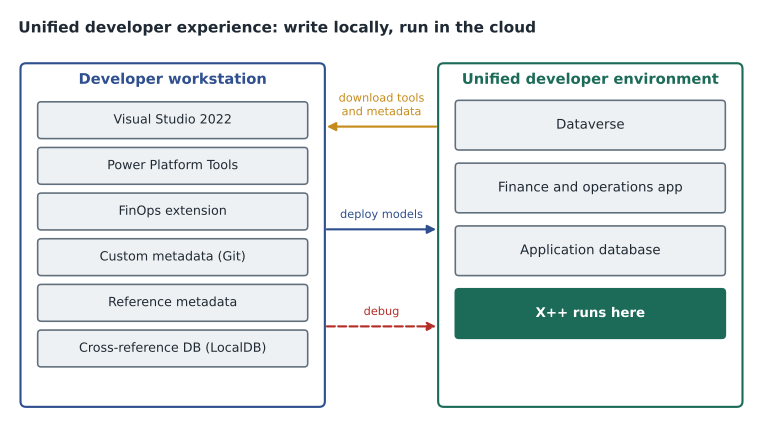
Prudence asked the question everyone asks at this point: if the code runs in the cloud, what happens when two developers deploy to the same environment? Desmond's answer was the one Cobalt Ridge had already agreed with the partner. Each developer gets their own unified developer environment, provisioned from a template for development, so that a half-finished deployment by one person never breaks the other's tests. Shared environments are used later in the pipeline, for integration and user acceptance testing. The CONFIG sandbox, where Annelise holds configuration, is not a developer environment at all; code arrives there only as a deployable package built from source control.
Setting up the workstation
Desmond walked through the setup on Prudence's laptop. Microsoft documents a short list of prerequisites, and the clinics followed it exactly.
| Requirement | What Microsoft documents |
|---|---|
| Environment | A provisioned developer sandbox (a unified developer environment), created from the development template |
| Access | The development account holds the System Administrator role in that environment |
| Operating system | Windows 10 or Windows 11 |
| Disk space | At least 16 GB free on the system drive |
| Visual Studio | Visual Studio 2022 with the .NET desktop development workload, the Modeling SDK and the other listed components |
| Database | SQL Server Express LocalDB, installed with Visual Studio, reachable with Windows authentication |
| Extension | Power Platform Tools for Visual Studio, from the Visual Studio Marketplace |
With Visual Studio and the Power Platform Tools extension installed, the developer connects to the environment. Under the Tools menu are two commands: Connect to Dataverse, which downloads the finance and operations assets only if they have not been downloaded before, and Download Dynamics 365 FinOps assets, which always downloads them. After signing in with the development account and choosing the environment, Visual Studio offers to download the finance and operations extension and the metadata for the application version installed in that environment. Progress appears in the Output window.
The download lands in a folder under the user profile, named for the application version. It contains four files that every developer comes to recognize.
| Downloaded file | Purpose |
|---|---|
| PackagesLocalDirectory.zip | The system metadata for every Microsoft package in that application version, extracted to a folder named PackagesLocalDirectory |
| Microsoft.Dynamics.FinOps.ToolsVS2022.vsix | The finance and operations extension for Visual Studio: designers, compiler integration, Dynamics 365 menu |
| DYNAMICSXREFDB.bak | A backup of the cross-reference database, restored into LocalDB, used for finding references and impact analysis |
| TraceParser.msi | The installer for Trace Parser, used to analyze performance traces |
By default an automatic setup option extracts the metadata and creates the metadata configuration. If a developer turns it off, they unblock and extract the files themselves and create the configuration by hand under Extensions, Dynamics 365, Configure Metadata. A configuration has a name, the cross-reference database server and name (LocalDB by default), the application version, the folder for the developer's own custom metadata and the folders for reference metadata. The reference folders must include the extracted PackagesLocalDirectory and any folders of independent software vendor packages the project uses. Only one configuration is current at a time, and it applies to new Visual Studio instances.
Desmond made one change to the defaults on every Cobalt Ridge workstation: the custom metadata folder points to the local clone of the project's Git repository. That way every element a developer creates is already inside source control, and the repository, not the laptop, is the master copy. Lesson 2 returns to source control in detail.
Workstation checklist used at Cobalt Ridge (October 2026)

1. Visual Studio 2022 with .NET desktop development + Modeling SDK
2. Power Platform Tools for Visual Studio (Marketplace)
3. Tools > Connect to Dataverse  -> sign in with the dev account
4. Accept the download of the FinOps extension and metadata
5. Extensions > Dynamics 365 > Configure Metadata
     Custom metadata folder:   C:\repos\cobalt-ridge-fno\Metadata
     Reference metadata:       ...\PackagesLocalDirectory
     Cross-reference database: (localdb)\.  DYNAMICSXREFDB
6. Open Application Explorer (View menu) and search for CustTable
Visual Studio as the development tool
With the extension installed, Visual Studio gains a Dynamics 365 menu under Extensions, a set of element designers, Application Explorer and new project templates. Developers never edit metadata files by hand. Every element is created and changed through a designer: the table designer for tables and their fields, indexes and relations; the form designer with its design tree and preview; the class editor for X++ code; the label editor; the security designers; and so on. The designers save each element as an XML file in the model's folder, and those files are what source control tracks.
| Window or command | What it is for |
|---|---|
| Application Explorer | Browsing every element in the application, standard and custom, by type or by model; searching with filters such as type:"form" |
| Solution Explorer | The developer's own project: the elements being created or extended for a piece of work |
| Element designers | Editing tables, forms, menus, queries, security objects and other metadata |
| Code editor | Writing X++ in classes and in methods of tables and forms |
| Properties window | Setting properties of the selected element, field, control or method |
| Dynamics 365 menu | Model management, build, deploy, synchronize database, launch debugger, options |
| Find references | Using the cross-reference database to see where an element is used |
Application Explorer has two views. The classic view groups elements by type, under nodes such as Data Types, Data Model, Code and User Interface. The model view groups them by the model that owns them, which is useful for seeing what a package contains. Desmond had Prudence search for the standard customer table, CustTable, and open it in the designer without changing anything. Standard elements can be opened and read, and their code can be viewed, but because the models are sealed the designer will not let a developer save changes to them; the right-click menu offers to create an extension instead.
Lifecycle Services, the admin center and the Implementation Portal
The tools for managing environments are in the middle of a long migration, and the MB-500 exam reflects that by listing all of them. Lifecycle Services still provides some project tools, including the asset library, where deployable packages, database backups and other files are stored, and some project-level monitoring. The Power Platform admin center now provisions and manages unified environments, including unified developer environments, and is where package deployment to sandbox and production environments is increasingly done. The Implementation Portal is Microsoft's portal for implementation projects, used for project setup, guidance and reviews. Cobalt Ridge's project uses all three, with the partner owning most of the Lifecycle Services and Implementation Portal work and Desmond owning his developer environment in the admin center.
The MB-500 exam
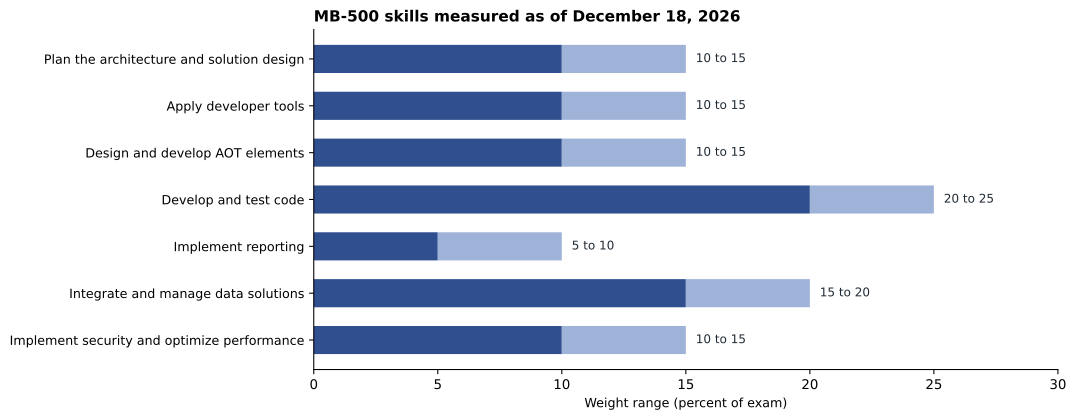
This course belongs to the program that prepares for Exam MB-500, Microsoft Dynamics 365: Finance and Operations Apps Developer. The Microsoft Learn study guide lists skills measured as of December 18, 2026, in seven domains. Compared with the previous outline, planning the architecture and applying developer tools gained weight; designing AOT elements and reporting lost weight; a separate domain on workspaces was removed; and the objectives now include managing unified developer environments in the Power Platform admin center, using Azure DevOps and GitHub for source control, and telling apart the AI development tools that can extend the apps.
| Domain | Weight | Where in this program |
|---|---|---|
| Plan the architecture and solution design | 10 to 15 percent | Lessons 1 and 2 here; ALM in MSBA-343 |
| Apply developer tools | 10 to 15 percent | Lessons 1, 2, 10 and 11 here |
| Design and develop AOT elements | 10 to 15 percent | Lessons 5 to 9 here; data entities in MSBA-342 |
| Develop and test code | 20 to 25 percent | Lessons 3, 4, 6 and 11 here; frameworks and extensions in MSBA-341 |
| Implement reporting | 5 to 10 percent | MSBA-341 |
| Integrate and manage data solutions | 15 to 20 percent | MSBA-342 |
| Implement security and optimize performance | 10 to 15 percent | Lesson 8 introduction; MSBA-343 |
The passing score is 700 on a scale of 1,000. Like other associate-level role-based certifications, the developer credential is renewed each year through a free online assessment on Microsoft Learn. Booking, exam rules and a full review of every domain come in MSBA-348, the exam-readiness course. Microsoft notes on the study guide that its older practice assessments are no longer updated and points candidates to a newer practice assessment; the readiness course explains how to use practice material without memorizing questions.
AI tools for developers
One new objective asks candidates to tell apart the AI development tools that can extend finance and operations apps. In practice this means knowing which tool is for which kind of work. GitHub Copilot in Visual Studio can suggest and explain X++ code as a developer writes it, though its suggestions must be reviewed like any other code, and it knows less about X++ than about mainstream languages. Copilot Studio builds agents and conversational experiences that can call finance and operations data and actions, which MSBA-342 covers with the Power Platform integration. The Copilot capabilities built into the application itself, introduced in MSBA-141, are configured rather than coded. Desmond's rule for the clinics was simple: use Copilot to draft and to explain, never to skip reading the code.
Worked problem
Choosing where to work
Prudence has three tasks for her first week: (1) read how the standard purchase order confirmation works; (2) add a warranty start date field to a new table; (3) see the new field on a form and step through the code that fills it. Where does each task happen in the unified developer experience?
Show solution
- Reading standard code happens locally: Application Explorer and the code editor show the downloaded reference metadata, so nothing needs to be deployed.
- Creating the table and field happens locally in Visual Studio, in Prudence's own model, saved into the Git working folder.
- Seeing the field on a form needs the model built and deployed to her unified developer environment, with the database synchronized so the new column exists.
- Stepping through the code means launching the debugger from Visual Studio against the code running in the cloud environment.
Answer: Reading and writing are local; running and debugging are in the cloud. Every change she wants to see in the browser must be built and deployed first.
How the clinics ran
Desmond kept the clinics short and practical: twenty minutes of explanation, then the rest of the hour in Visual Studio. Each session ended with a small task for Prudence to finish before the next one, and every task fed the module she would build in lesson 12, a warranty registration module for the serial-numbered pumps that Annelise's product team had set up in MSBA-330. Kiri asked for a single list of what the clinics would cover so that she could plan Prudence's work around it, and Desmond's list became the outline of this course.
- Set up the environment and tools.
- Organize work into models, packages, projects and source control.
- Learn the X++ language: types, statements, classes and methods.
- Model data with tables, fields, indexes and relations.
- Read and change data with select statements and queries.
- Build forms on standard patterns, with menu items and labels.
- Debug, review and test the code.
- Build the warranty registration module end to end.
Common mistakes
MistakeExpecting to run X++ on the developer workstation.
InsteadIn the unified developer experience code is compiled locally but runs only in the cloud environment after deployment.
MistakeTrying to change a standard Microsoft element directly.
InsteadStandard models are sealed; create an extension or a new element in your own model.
MistakeLeaving the custom metadata folder outside source control.
InsteadPoint the custom metadata folder at the local Git or Azure Repos working folder so every element is tracked.
MistakeSharing one developer environment between several developers.
InsteadGive each developer their own unified developer environment; share environments only for integration and testing.
Summary and key terms
- Finance and operations apps are extended in X++ with Visual Studio; all customization is done by extension because standard models are sealed.
- In the unified developer experience, developers connect Visual Studio to a unified developer environment, download tools and metadata, compile locally and deploy to the cloud, where code runs.
- Setup needs Visual Studio 2022 with the documented workloads, LocalDB, Power Platform Tools for Visual Studio, and the System Administrator role in the environment.
- Application Explorer browses all elements; designers edit them; the Dynamics 365 menu builds, deploys and debugs.
- MB-500 skills measured as of December 18, 2026 have seven domains, with Develop and test code the largest at 20 to 25 percent.
- Application Object Tree (AOT)
- The tree of all metadata elements in the application, browsed in Application Explorer.
- Unified developer environment
- A Power Platform environment with finance and operations apps installed, used by one developer to deploy and debug code.
- Power Platform Tools for Visual Studio
- The Visual Studio extension that connects to Dataverse environments and downloads the finance and operations tools.
- Reference metadata
- The downloaded metadata of Microsoft and other packages that a developer's code compiles against.
- Cross-reference database
- A local database used by Visual Studio to find where elements are used.
- Extension
- A separate element that adds to a standard element without changing its source.
Practice problems
Work each problem on paper first, then reveal the answer to check.
Name the two Tools menu commands that download the finance and operations assets, and say how they differ.
Show answer
Connect to Dataverse downloads only if the assets have not been downloaded before; Download Dynamics 365 FinOps assets always downloads them.
Which downloaded file contains the system metadata?
Show answer
PackagesLocalDirectory.zip, extracted to a PackagesLocalDirectory folder.
Why does each developer at Cobalt Ridge have their own environment?
Show answer
So one developer's deployments and database changes never break another developer's work in progress.
Lesson quiz · 5 questions
Score 60% or more to complete this lesson.
Create a free account to save your progress, take quizzes and earn a certificate.