
MSBA-309 · Lesson 8 of 12 · 18 min
Domain review: privacy and safeguards
▶ Video coming soon A video version of this lesson is on the way.
Thursday afternoon was the session Dmitri had dreaded since Monday: privacy, content exclusions and safeguards, worth 10 to 15 parts in 100, where he had scored 2 of 6. His Thursday morning practice assessment showed 5 of 6, but Priya wanted the rules behind the answers, not a lucky set of questions. "You set up exclusions with Rosa in May," she said. "So you know what Tidewater did. Today we learn what the feature does for everyone, what it does not do, and how to tell them apart in a question." The domain has three parts: content exclusions and editor settings; ownership and the limits of output; and the public code filter, code referencing and troubleshooting.
Content exclusions: what they do
A content exclusion tells Copilot not to use certain files as context and not to offer suggestions in them. If a file is excluded, code completion is not available while you edit it, and its content is not used to inform suggestions in other files or answers in Copilot Chat. Exclusions are a feature of the organization plans, Copilot Business and Enterprise. They can be configured by repository administrators for a repository, by organization owners for paths in any repository (including repositories outside the organization, by naming them), and by enterprise owners across the enterprise. Patterns use paths and wildcards, such as "/config/secrets/**" for a folder or "*.pem" for a type of file.
# Content exclusion paths for the trailcheck repository (illustrative)
- "/config/secrets/**"
- "*.pem"
- "/data/volunteers.csv"
- "**/.env"from fnmatch import fnmatch
patterns = ["/config/secrets/**", "*.pem", "/data/volunteers.csv", "**/.env"]
files = ["/config/secrets/api.toml", "/certs/site.pem", "/data/volunteers.csv",
"/data/trails.csv", "/app/.env", "/trails/parse.py"]
for path in files:
excluded = any(fnmatch(path, p.replace("**", "*")) for p in patterns)
print(path, "-> excluded" if excluded else "-> available")/config/secrets/api.toml -> excluded /certs/site.pem -> excluded /data/volunteers.csv -> excluded /data/trails.csv -> available /app/.env -> excluded /trails/parse.py -> available
What this code does
The example lists four exclusion patterns and six file paths, and checks each path against the patterns using ordinary wildcard matching, in which a star stands for any run of characters. If any pattern matches, the file is reported as excluded. The output shows the secrets folder, the certificate, the volunteer list and the environment file excluded, while the public trail data and the parser stay available, which is a quick way to check that a pattern covers what you meant before saving it. GitHub's own matching rules decide the real result, so treat this as a sanity check.
Content exclusions: what they do not do
This is where Dmitri's Monday mistakes were, and where the exam likes to probe. GitHub's documentation lists limitations. Content exclusion is not supported in some modes: it was documented as not applying in the editor's edit and agent modes when Dmitri checked, so an agent could still read a file that completions and ask-mode chat avoid. It does not follow symbolic links. It applies to Copilot in supported editors and on GitHub.com, but it does not hide files from people, and it is not an access control: anyone with read access to the repository can still open the file. Changes to exclusions take a short while to reach editors that are already open, and reloading the editor picks them up sooner. And exclusions do not stop a person from pasting the contents of an excluded file into a prompt.
| Exclusions do | Exclusions do not |
|---|---|
| Stop completions in excluded files | Act as access control on the repository |
| Keep excluded content out of context for other files and ask-mode chat | Apply in every mode (agent and edit modes were documented as not supported) |
| Apply at repository, organization or enterprise level | Follow symbolic links |
| Work on Copilot Business and Enterprise | Exist on individual plans |
| Show an indicator in the editor when a file is excluded | Stop someone pasting secret content into chat |
The safe conclusion is that exclusions are one layer. Secrets belong in a secrets manager, not in the repository at all; secret scanning and push protection catch the ones that slip through; repository permissions control who can read what; and training tells people not to paste sensitive data. Exclusions reduce what Copilot sees in the files that must exist.
Worked problem
A content exclusion question
A question reads: "A company on Copilot Pro for each developer wants to stop Copilot using files in /internal/keys/ as context across all repositories. What should they do?" Options: A) add an organization content exclusion; B) move to Copilot Business, then add an organization content exclusion; C) add the folder to .gitignore; D) turn on the public code filter.
Show solution
- Content exclusion is a feature of the organization plans, not individual Pro plans.
- So the company first needs Copilot Business or Enterprise, which also gives owners control.
- Then an organization owner adds the exclusion for those paths.
- .gitignore controls what Git tracks; the public code filter is about public matches.
Answer: B. The plan is the hidden condition in the question.
Editor settings
Individual developers have settings too. In most editors you can turn Copilot completions on or off globally, for a workspace or for particular languages or file types, for example turning them off for Markdown or plain text. You can sign in with the account that holds the organization seat so that its policies apply. You can configure a network proxy and certificates where a corporate network requires them. Settings on an individual plan also include whether suggestions matching public code are allowed and whether your data may be used for product improvement; on organization plans those decisions are made by policy.
The public code filter and code referencing
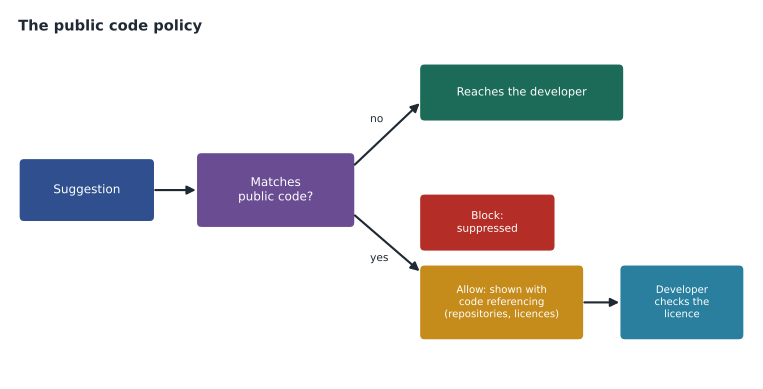
Copilot is trained on public code, so occasionally a suggestion can match code that exists in a public repository. GitHub offers two approaches, chosen by policy on organization plans or by setting on individual plans. With matches blocked, the public code filter checks suggestions of meaningful length, about 150 characters, against public code and suppresses those that match. With matches allowed, code referencing shows the match: in the editor, a log lists the repositories where similar code appears and their licenses, and on GitHub.com chat notes the match. GitHub reports that matches happen in well under 1 in 100 suggestions. The choice is a trade-off between never seeing matching code and seeing it with the information needed to check the license.
Ownership and the limits of output
The study guide asks you to describe ownership and limitations of output. GitHub's terms state that it does not claim ownership of suggestions; the user who accepts and uses code is responsible for it, as with any code. For organization customers GitHub offers an intellectual property indemnity in its terms, and Dmitri's notes recorded that it is tied to having the public code filter set to block; he marked that as a detail to confirm in the current terms. The wider legal question of who owns AI-generated material is unsettled and differs by country. The practical rules the exam expects are: you are accountable for what you merge; check licenses when code referencing shows a match; and follow your organization's policy.
Output has other limits beyond ownership. Suggestions can be insecure, outdated or wrong; they can include placeholder values that look like real ones; and generated prose can sound authoritative without being accurate. Tidewater's lawyer had advised that guidebook text stay human-written, partly because of these limits and partly because of the unsettled ownership question, and the the United States privacy adviser had added that no real personal data should appear in prompts, examples or test data.
Troubleshooting
The domain ends with troubleshooting suggestions and exclusions, which is very practical. When Copilot gives no suggestions, work through a short list. Is the user signed in, and with the account that has the seat? Is the seat assigned and the subscription active? Is Copilot enabled for this language and workspace? Is the file excluded, which the editor shows with an indicator? Is a policy disabling the feature? Is the network blocking the connection, for example a proxy or firewall that needs configuration? The editor's Copilot output or log panel shows errors and status, which is usually the fastest way to find the cause.
| Symptom | Likely cause | Check |
|---|---|---|
| No suggestions in one file only | The file is excluded or the language is disabled | Exclusion indicator; language settings |
| No suggestions anywhere | Not signed in, no seat or network blocked | Account status; seat; proxy settings; logs |
| Chat feature missing on GitHub.com | Disabled by organization policy | Ask an owner to check policies |
| A suggestion vanishes after appearing | Blocked as a public code match | Public code policy |
| Excluded file still used by an agent | Exclusions not supported in that mode | Documentation limits; agent instructions |
| New exclusion not taking effect | Editor still using older settings | Reload the editor |
Safeguards for agents
Agents raise the stakes because they act. In agent mode, Copilot asks for approval before running terminal commands and some tools, and a developer can allow or deny each one; approving everything automatically removes the safeguard. The coding agent works in a cloud environment with limited permissions, on its own branch, and its work arrives as a pull request that people must review; branch protection and rulesets still apply, so it cannot merge to a protected branch by itself. Workflows on pull requests from the agent may need a person's approval before they run. MCP servers extend what an agent can reach, which is why the MCP policy is off by default for organizations and why Tidewater allowed only the GitHub MCP server.
Two exam patterns follow. If a question asks how to reduce the risk of an agent running an unexpected command, the answer involves keeping approvals on and scoping the task. If it asks how to make sure agent changes meet the team's standards, the answer involves review, required checks and instructions such as AGENTS.md, not trusting the agent to check itself.
Policies that protect privacy
Several organization policies are really privacy and safety controls, and they appear in this domain as well as in features. The public code policy decides between blocking and code referencing. Preview features can be turned off so members do not use features whose data handling is still changing; Tidewater kept previews off during the pilot. Copilot Chat on GitHub.com, the coding agent and MCP servers can each be enabled or disabled. Model choices can be limited to models the organization has reviewed. And because these are policies, they apply to every member using an organization seat, which is the main reason a company handling sensitive code chooses an organization plan over letting staff use personal subscriptions.
Putting the layers together
Priya drew Tidewater's safeguards as layers: secrets kept out of the repository and in a vault; secret scanning and push protection; repository permissions; content exclusions for the files that must exist but should not reach Copilot; the public code filter set to block; an organization instruction against real personal data; guidelines and training; and human review of every pull request. No single layer is enough, and exam questions that offer one setting as a complete solution to a privacy problem are usually wrong.
When a question mentions sensitive data, ask which layer it is really about. If the worry is Copilot using a file as context, the answer is content exclusion on an organization plan. If it is people reading the file, it is repository permissions. If it is a secret committed by mistake, it is secret scanning and push protection. If it is a suggestion that copies public code, it is the public code policy. Matching the worry to the layer is usually enough to find the answer.
Common mistakes
MistakeExpecting content exclusion on an individual Pro plan.
InsteadIt is a feature of Copilot Business and Enterprise.
MistakeTreating content exclusion as access control.
InsteadIt limits what Copilot uses; repository permissions control who can read.
MistakeAssuming exclusions apply in every mode.
InsteadCheck the documented limits, such as agent and edit modes.
MistakeConfusing the public code filter with code referencing.
InsteadThe filter blocks matches; code referencing shows them with license information.
MistakeUsing .gitignore to keep files away from Copilot.
Instead.gitignore affects Git tracking; use content exclusion.
Summary and key terms
- Privacy, content exclusions and safeguards is worth 10 to 15 parts in 100.
- Content exclusion stops completions in excluded files and keeps them out of context; it is on Business and Enterprise.
- Exclusions are not access control, do not follow symbolic links and have documented gaps in some modes.
- The public code filter blocks matches of about 150 characters or more; code referencing shows them with licenses.
- Users are responsible for code they accept; check licenses and follow policy.
- Troubleshoot with the account, seat, language settings, exclusions, policies, network and logs.
- Content exclusion
- A setting that stops Copilot using specified files as context and suggesting code in them.
- Public code filter
- A setting that blocks suggestions matching public code.
- Code referencing
- Showing where a suggestion matches public code, with license information.
- Indemnity
- A contractual promise to cover certain legal claims, offered by GitHub to organization customers under conditions.
- Secret scanning
- A GitHub security feature that detects credentials committed to repositories.
Practice problems
Work each problem on paper first, then reveal the answer to check.
At which levels can content exclusions be set?
Show answer
Repository, organization and enterprise.
What is the difference between blocking and allowing public code matches?
Show answer
Blocking suppresses matching suggestions; allowing shows them with code referencing so the developer can check the license.
Copilot gives no suggestions in one file but works elsewhere. Name two likely causes.
Show answer
The file is excluded, or Copilot is disabled for that language.
Lesson quiz · 5 questions
Score 60% or more to complete this lesson.
Create a free account to save your progress, take quizzes and earn a certificate.