
MSBA-301 · Lesson 5 of 12 · 20 min
Docker container actions
▶ Video coming soon A video version of this lesson is on the way.
Priya took the third action herself. Tidewater sends printed guidebooks to a print shop as PDF proofs, and the proofs are built from the Markdown chapters with a document converter and a typesetting engine, using two licensed typefaces and a page template. Installing all of that on a runner took about four minutes and broke twice in 2026 when a package repository changed. The same proof built on Owen's laptop and on the runner sometimes came out with different line breaks because of a different typesetting version. What Priya wanted was a build environment that was exactly the same every time.
That is the problem Docker container actions solve. The action carries its whole environment in a container image, so the tools, versions, fonts and libraries are fixed. This lesson covers how container actions run, how they receive inputs and produce outputs, how to write the Dockerfile and entry point, how to make them faster with prebuilt images, and the limits that come with them.
How a container action runs
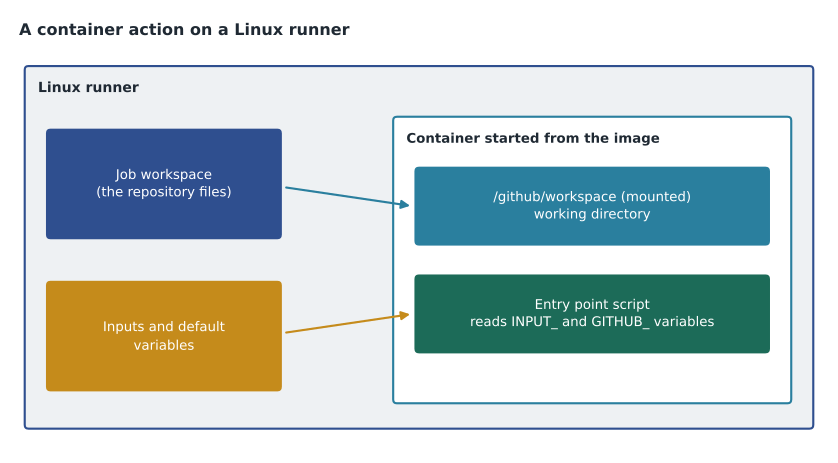
When a step calls a Docker container action, the runner first gets the image. If the metadata file's image key names a Dockerfile, the runner builds the image from it at the start of the job. If image names a published image with docker://, the runner pulls it. Then, when the step runs, the runner starts a container from the image, runs its entry point with the arguments from the metadata file, and waits for it to finish. The step succeeds if the container's process exits with code zero.
The runner mounts the job's workspace into the container at /github/workspace and sets that as the working directory, so the action sees the calling repository's files there. It also passes the default environment variables, such as GITHUB_REPOSITORY and GITHUB_SHA, the action's inputs as INPUT_ variables, and the paths of the special files for outputs, environment, summary and path changes. A home directory is mounted at /github/home. Files the action writes into the workspace remain there for later steps; anything written elsewhere disappears with the container.
Linux only, and Docker required
Container actions run only on Linux runners. GitHub's Ubuntu runners have Docker installed, so container actions work there without setup. They do not run on Windows or macOS runners. A self-hosted Linux runner needs Docker installed and the runner user must be able to use it. A workflow that tries to run a container action on a Windows runner fails at the start of the job, which is one reason Priya documented the action as Linux-only in the first paragraph of its README.
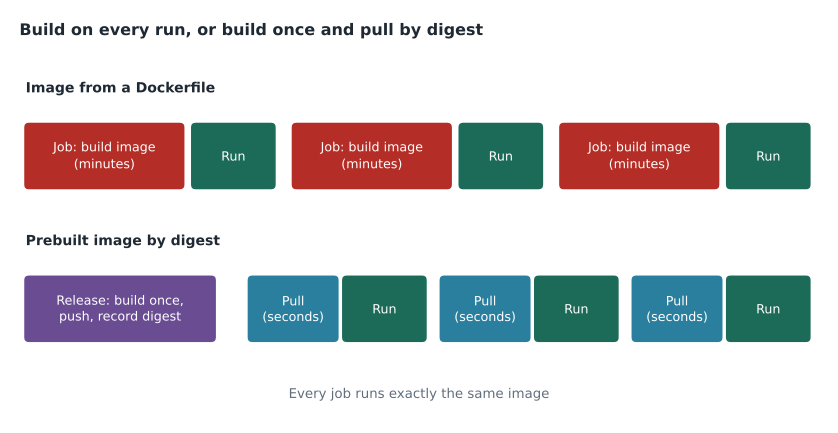
The other cost is time. Building an image from a Dockerfile at the start of every job repeats work that never changes. For pdf-proof the first version took longer to build its image than the old script took to install tools, which defeated part of the purpose. The section on prebuilt images below explains how the team fixed that.
The metadata for a container action
A container action's runs section sets using to docker and image to a Dockerfile or a published image. args lists the arguments passed to the entry point, and often refers to inputs so that the container receives them as command-line arguments as well as environment variables. env adds environment variables. entrypoint overrides the image's own entry point, and pre-entrypoint and post-entrypoint name commands to run in separate containers before and after the main one.
name: PDF proof
description: Build print-ready PDF proofs of guidebook chapters in a fixed typesetting environment
inputs:
  chapters:
    description: Folder containing the chapter Markdown files
    default: chapters
  output:
    description: Folder to write PDF files into
    default: proofs
outputs:
  pages:
    description: Total number of pages produced
runs:
  using: docker
  image: Dockerfile
  args:
    - ${{ inputs.chapters }}
    - ${{ inputs.output }}
Writing the Dockerfile
The Dockerfile for an action is an ordinary Dockerfile with a few conventions that GitHub's documentation sets out. Start from a specific, small base image and pin it by tag or, better, by digest, so a rebuild does not silently pick up a different operating system release. Install only what the action needs. Copy the entry point script into the image and set it with ENTRYPOINT in exec form, the form written as a JSON list, so that arguments are passed correctly and signals reach the process.
Two settings that are normal in application Dockerfiles cause problems in actions. GitHub's documentation advises against setting USER, because the container must run as the image's default user, which is root, to read and write the mounted workspace and file-command files. It also advises against setting WORKDIR, because the runner sets the working directory to /github/workspace itself and a different WORKDIR in the image is ignored or confusing. Priya removed both from her first draft, which she had adapted from a web application's Dockerfile.
FROM debian:bookworm-slim@sha256:<digest-of-the-reviewed-image>

RUN apt-get update \
 && apt-get install -y --no-install-recommends pandoc texlive-xetex fontconfig \
 && rm -rf /var/lib/apt/lists/*

COPY fonts/ /usr/local/share/fonts/tidewater/
COPY template/ /opt/pdf-proof/template/
COPY entrypoint.sh /entrypoint.sh
RUN fc-cache -f && chmod +x /entrypoint.sh

ENTRYPOINT ["/entrypoint.sh"]
The fonts deserve a word. Tidewater's two typefaces are licensed for the company's own use, and their license does not allow redistribution. Copying them into an image is fine for an image kept private to the organization, but would not be for an image published publicly. Priya kept the image in a private registry for that reason. Anyone building a public container action has to check the license of everything that goes into the image, not just the code.
The entry point script
The entry point script receives the arguments from args and the inputs as environment variables. It does the work, writes outputs to the file named by GITHUB_OUTPUT and exits with a meaningful code. Because it runs inside the container, it can use any tool installed in the image and any language, though shell scripts are the most common.
#!/bin/sh
set -eu
chapters="$1"
out="$2"
mkdir -p "$out"
pages=0
for f in "$chapters"/*.md; do
  name=$(basename "$f" .md)
  pandoc "$f" --pdf-engine=xelatex --template=/opt/pdf-proof/template/proof.tex -o "$out/$name.pdf"
  n=$(pdfinfo "$out/$name.pdf" | awk '/^Pages:/ {print $2}')
  pages=$((pages + n))
  echo "::notice file=$f::$name.pdf built, $n pages"
done
echo "pages=$pages" >> "$GITHUB_OUTPUT"
The script uses a workflow command, the line beginning with two colons and notice, to create an annotation for each chapter. Workflow commands are written to standard output and work the same from a container as from any other step. Lesson 6 covers them. The script also writes the PDF files into the workspace, so a later step in the job can upload them as an artifact for Owen to download.
Faster runs with a prebuilt image
Building the image on every run is the default, and it is the simplest way to start. For a stable action it wastes time. The better pattern is to build the image once, when a new version of the action is released, push it to a container registry such as GitHub Container Registry, and change the metadata file to use docker:// with the published image. The runner then pulls the image, which is usually much faster than building it, and every run of a given action version uses exactly the same image.
Referring to the image by digest, the sha256 identifier of its exact contents, rather than by a tag, makes that guarantee strict. A tag can be moved to a different image; a digest cannot. Priya's release workflow for pdf-proof builds the image, pushes it, reads back its digest and writes the digest into action.yml in the release commit, so that each tagged version of the action points at one immutable image.
| image value | What the runner does | Speed | Reproducibility |
|---|---|---|---|
| Dockerfile | Builds the image at the start of every job | Slow | Depends on the base image and package versions at build time |
| docker:// with a tag | Pulls the image that tag points to now | Faster | Good, unless the tag is moved |
| docker:// with a digest | Pulls exactly that image | Faster | Exact: the same bytes every run |
A private image needs credentials to pull. When an action's image is in GitHub Container Registry and owned by the same organization, the package's settings can grant read access to the repositories that use it, and the runner can pull it with the job's token. Priya granted the guidebook repository read access to the pdf-proof package. Lesson 9 discusses the wider question of sharing private actions inside an organization.
Running a container image directly with docker://
A workflow step can also run a container image without any action at all, by writing uses: docker:// followed by the image. The step can pass arguments with args under with and environment variables with env. This is handy for one-off tools that already publish an image, but it gives up everything the metadata file provides: named inputs, defaults, declared outputs and documentation. For something the team would use repeatedly, Priya preferred a proper container action wrapping the image.
Worked problem
Choosing between Docker and JavaScript for a tool
Malik's trail-report action needs to read hiking log files, produce a condition report in Markdown and comment on pull requests. Some club members run it on Windows runners. Dmitri suggested Docker so the environment would be fixed. Is that a good choice?
Show solution
- The work is parsing files, formatting text and calling the GitHub API, all of which JavaScript and the toolkit handle well.
- Docker container actions run only on Linux runners, so Windows users could not use it.
- A container action also starts more slowly, which matters for an action run on every pull request.
Answer: No. A JavaScript action suits trail-report better: it runs everywhere, starts quickly and does not need a fixed operating system environment.
Troubleshooting container actions
Container actions fail in a few characteristic ways. A build failure at the start of the job, before any steps, usually comes from the Dockerfile: a package that no longer exists, a base image that cannot be pulled. An exit code from the step with no useful message usually means the entry point script failed early; set -eu at the top of a shell script, as Priya used, makes the script stop on the first error and on any unset variable, and adding a line that prints the script's arguments helps. Permission errors writing to the workspace usually mean the Dockerfile set a non-root USER.
A container that cannot find files is usually looking in the wrong place. The workspace is at /github/workspace inside the container; paths from the host runner, such as the runner's own home directory, mean nothing inside it. And a container action that works locally with docker run but not in a workflow is often missing an input that the workflow does not pass, because locally the environment variables were set by hand.
Testing a container action locally
Priya tested pdf-proof on her laptop before pushing it, using the same pieces the runner uses. She built the image with docker build, giving it a local tag, and then ran it with docker run, mounting a folder of sample chapters at /github/workspace, setting the working directory to the same path, passing the two arguments the metadata file would pass and setting GITHUB_OUTPUT to a file inside the mounted folder so that the entry point could write its output. When the container exited she read the output file and opened the PDFs. That reproduced the runner closely enough to find two problems: a font that the image's font cache had not picked up, and a template path that was wrong. Neither would have been obvious from a failed workflow log.
Local testing has limits. The runner also passes dozens of default variables, mounts a home directory and file-command files, and on GitHub-hosted runners uses a particular version of Docker. A container that depends on any of those can behave differently in a workflow. The integration test in lesson 8, which runs the action from its own repository on a real runner, remains the final check.
Image size and security
A smaller image pulls faster and contains less software that could have vulnerabilities. Slim or distroless base images, installing packages without their recommended extras, and removing package lists in the same layer that installs them all keep images small. pdf-proof's typesetting packages are large, so its image was still several hundred megabytes, which is one reason prebuilding it mattered. Scanning images for known vulnerabilities before release, and rebuilding them when the base image receives security updates, belongs in the maintenance routine that lesson 11 describes.
Common mistakes
MistakeRunning a Docker container action on a Windows or macOS runner.
InsteadContainer actions run only on Linux runners; choose JavaScript or composite for cross-platform actions.
MistakeSetting USER or WORKDIR in the action's Dockerfile.
InsteadLeave both unset; the container runs as the default user with /github/workspace as its working directory.
MistakeBuilding the image from a Dockerfile on every run of a stable action.
InsteadBuild once at release, push to a registry and refer to the image by digest.
MistakeWriting ENTRYPOINT as a plain string.
InsteadUse the exec form, a JSON list, so arguments and signals are handled correctly.
Summary and key terms
- A Docker container action runs its code in a container built from a Dockerfile or pulled from a registry.
- The runner mounts the workspace at /github/workspace and passes inputs and default variables as environment variables.
- Container actions run only on Linux runners that have Docker.
- Pin the base image, install only what is needed, use exec-form ENTRYPOINT and avoid USER and WORKDIR.
- Prebuilding the image and referring to it by digest makes runs faster and identical.
- Check the license of everything placed in an image before publishing it.
- Container image
- A packaged file system and configuration from which containers are started.
- Entry point
- The program a container runs when it starts, set with ENTRYPOINT.
- Digest
- The sha256 identifier of an image's exact contents, which cannot be moved like a tag.
- /github/workspace
- The path inside a container action where the runner mounts the job's workspace.
- GitHub Container Registry
- GitHub's registry for container images, at ghcr.io.
- docker://
- The prefix that refers to a published container image in an action or step.
Practice problems
Work each problem on paper first, then reveal the answer to check.
Where does a container action find the calling repository's files?
Show answer
At /github/workspace, which is also its working directory.
Why refer to a prebuilt image by digest rather than tag?
Show answer
A digest always means the same image; a tag can be moved.
Why should an action's Dockerfile not set USER?
Show answer
The container must run as the default user to read and write the mounted workspace and command files.
Lesson quiz · 5 questions
Score 60% or more to complete this lesson.
Create a free account to save your progress, take quizzes and earn a certificate.