
MSBA-252 · Lesson 5 of 12 · 20 min
Desktop flows
▶ Video coming soon A video version of this lesson is on the way.
By October the intake, extraction, matching and approval flows were running in test, and approved invoices sat in Dataverse with every field filled in. Then they stopped, because the last step still needed a person: someone had to type each approved invoice into LedgerPoint, the college's finance system, so the payment run could pay it. LedgerPoint's vendor offered a read-only reporting API, which Signe had already wrapped in a custom connector, but there was no supported way to create an invoice except through its Windows client. Ysaline's clerks spent about four minutes per invoice on that entry, and at 1,800 invoices a month that was 120 hours of typing. It was also where most typing errors crept in.
This is the classic case for a desktop flow: automation that operates a Windows application, a website or files through the user interface, the way a person would. The industry term is robotic process automation, or RPA. Desktop flows are not in the AB-410 skills outline, which concentrates on cloud flows, but they are a core part of Power Automate and of most real automation programs, and they sit naturally beside the cloud flows covered in the rest of this course.
When a desktop flow is the right tool
The rule of thumb is simple: if a system offers a connector or an API, use it from a cloud flow, because APIs are faster, more reliable and easier to maintain than screen automation. Use a desktop flow when the user interface is the only way in. Typical cases are older Windows applications like LedgerPoint, websites with no API, mainframe terminal screens, and work on files and folders on a Windows computer or file share. Many automations combine the two: a cloud flow handles the event, the data and the people, and calls a desktop flow only for the steps that need a screen.
| Situation | Use | Reason |
|---|---|---|
| Create a record in a system that has a supported API | Cloud flow with a connector | More reliable and cheaper to run |
| Create an invoice in LedgerPoint's Windows client | Desktop flow called from a cloud flow | The user interface is the only way in |
| Download a statement from a supplier portal with no API | Desktop flow with browser automation | Only a website is available |
| Rename and file hundreds of scanned PDFs on a share | Desktop flow, or a cloud flow if the share is in SharePoint | File work on Windows |
| Read a value from a system once a year | Manual | Too rare to justify automation |
Building in Power Automate for desktop
Desktop flows are built in Power Automate for desktop, a Windows application. Its designer has an Actions pane with hundreds of prebuilt actions in groups, a central workspace where the flow is a numbered list of actions, and panes for variables, UI elements and images. Action groups cover what a person does at a computer: UI automation for Windows applications, browser automation for Microsoft Edge, Chrome and Firefox through extensions, Excel, Word and, as of 2026, PowerPoint automation in preview, files and folders, email, PDF, text, date and time, OCR, clipboard and keyboard, cryptography including PGP encryption, and scripting.
There are two ways to start. The recorder watches you perform the task once and turns each click and keystroke into actions. Recordings capture the screens and controls, but they need cleaning up: removing stray clicks, replacing typed values with variables, adding waits and loops. Copilot in Power Automate for desktop can also generate actions from a description and answer questions about the designer, and a 2026 update lets it refer back to earlier prompts in the same session. Either way, the draft is the beginning of the work, not the end.
UI elements and selectors
When a flow interacts with a window, it stores a UI element for each control it touches, such as the Supplier field or the Post button in LedgerPoint. Each UI element is found by a selector, a description of the control based on its properties and its position in the window's structure. Selectors are the weak point of desktop automation. If a software update renames a control or moves it into a new panel, a selector that depended on position or visible text no longer matches, and the flow fails.
Good selectors use stable properties such as an automation ID or a control name, and avoid positions, indexes and visible text that might change. Power Automate for desktop lets you edit selectors in a visual or text editor, add several selectors for one element so the flow tries alternatives, and use variables inside selectors when the target changes with the data, such as a row for a particular invoice. Signe gave every UI element a readable name, such as "LedgerPoint - Supplier code box", so that a failure message pointed straight at the problem.
Structure and data
Desktop flows use the same logic as cloud flows, with desktop names. If, Switch and Case make decisions. Loop, For each and Loop condition repeat actions. Subflows break a long flow into named sections, with Main as the starting point. Variables hold text, numbers, lists, data tables and custom objects, and input and output variables pass data between the desktop flow and the cloud flow that calls it. Error handling can be set on each action, to retry, continue or run a subflow when it fails, and On block error handles errors for a whole block.
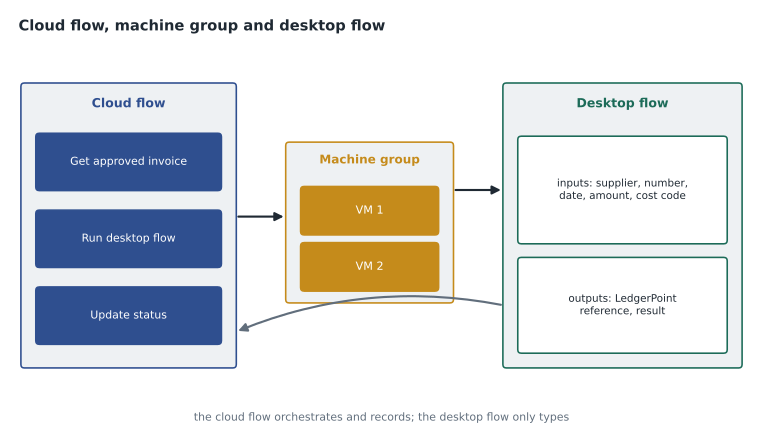
At Lumenvale the desktop flow, named "Enter invoice in LedgerPoint", took five input variables: supplier code, invoice number, invoice date, amount and cost center. It opened LedgerPoint, signed in with credentials supplied securely, opened the invoice entry screen, filled in the fields, posted the invoice, read the LedgerPoint reference number from the confirmation dialog and returned it as an output variable, along with a Result value of Posted or a short error description. It ended by closing LedgerPoint so the next run started from a clean state.
Attended and unattended runs
Desktop flows run in one of two modes. Attended runs happen while a person is signed in to the computer, usually at their desk, and they suit work where the person and the flow take turns. Unattended runs happen on a machine with no one signed in: Power Automate signs in to a Windows session, runs the flow and signs out. Unattended runs suit high volumes, overnight work and anything that should not tie up a person's screen. They need a license that allows unattended automation, such as Power Automate Process, and in July 2026 Microsoft made generally available the ability to share Process license capacity across workflows. As of May 2026, unattended runs can also automate desktop applications that need administrator rights, which older setups often could not.
Lumenvale chose unattended runs. Posting 1,800 invoices a month was steady, predictable work that no one needed to watch, and it could run outside office hours when LedgerPoint was quiet. For the first two weeks, though, Signe ran it attended on a test machine so the clerks could watch the bot type, which did more for their confidence in the project than any presentation.
Machines, machine groups and hosted machines
To run desktop flows from the cloud, a Windows computer must be registered as a machine in a Power Platform environment using the machine runtime that comes with Power Automate for desktop. Machines can be gathered into machine groups, and a cloud flow that targets a group lets Power Automate send each run to whichever machine is free. Machine groups also make maintenance easier: one machine can be taken out for patching while the other keeps working.
Organizations that do not want to manage their own machines can use hosted machines and hosted machine groups, which Microsoft provisions and manages in its cloud, and which scale up and down with demand. Lumenvale's IT team already ran virtual machines in the college's data center and on Azure, and LedgerPoint's client needed a connection to an on-premises database, so they registered two of their own virtual machines into a machine group called "LedgerPoint bots".
Credentials and security
A desktop flow that signs in to applications needs credentials, and those credentials must never be typed into the flow. Power Automate supports credentials stored in a secure store, such as Azure Key Vault, which flows reference by name. The machine connection for unattended runs also needs a Windows account that the flow signs in with. Lumenvale created a dedicated LedgerPoint account for the bot with only the rights needed to enter invoices, not to approve or pay them. That separation of duties mattered to the auditors: the bot could type what the approved record said, but it could not approve anything.
Flows that handle sensitive data should also limit what is logged. Desktop flow actions can be marked so their values are not stored in run logs, and screenshots and video logs, which Microsoft added for unattended runs in preview in 2026, should be reviewed for what they might capture before being turned on in production.
Work queues for volume
When work arrives faster than one machine can process it, work queues help. A work queue holds items, such as approved invoices, with a status and priority. One flow adds items to the queue; desktop flows on one or more machines take items off, process them and mark them as processed or failed, with retries and exception handling built into the queue. Work queues make volume, backlog and failures visible, and in 2026 Microsoft added export of work queue items to CSV files for reporting. Lumenvale started without a queue, because the machine group handled the load, but planned one for the end-of-year peak.
Worked problem
Designing the LedgerPoint posting
Approved invoices must be posted in LedgerPoint each weeknight between 19:00 and 23:00. About 90 are approved each day. Each posting takes the bot about 70 seconds. LedgerPoint sometimes shows a "Supplier on hold" dialog that a person must handle. How should the solution be structured?
Show solution
- A scheduled cloud flow at 19:00 lists invoices with status Approved and no LedgerPoint reference.
- For each invoice, the cloud flow runs the desktop flow on the LedgerPoint bots machine group in unattended mode, passing the five input variables.
- The desktop flow posts the invoice and returns the reference, or detects the "Supplier on hold" dialog, cancels the entry and returns Result = Supplier on hold.
- The cloud flow writes the reference and sets status Posted, or sets Needs review with the returned reason and posts to the accounts payable channel.
- Capacity check: 90 invoices at 70 seconds is about 105 minutes on one machine, comfortably inside the four-hour window; two machines give headroom for growth and maintenance.
Answer: The cloud flow orchestrates and records; the desktop flow only types. Exceptions the bot cannot handle return a reason rather than failing silently, and the arithmetic of volume times duration shows whether the machine group is big enough.
Keeping desktop flows healthy
Desktop flows need more care after launch than cloud flows, because they depend on screens that change. Lumenvale's IT team agreed on a short list of practices. The bot machines were dedicated to automation and excluded from automatic restarts during the posting window. The vendor's update schedule for LedgerPoint was added to the team calendar, and each update was tested against the desktop flow in a test environment before it reached production. Version control for desktop flows, generally available since May 2026, let Signe compare versions and roll back. And every failure returned a clear reason to the cloud flow, which posted it to Teams the same evening.
Microsoft has also added tools for measuring value. In July 2026 it made generally available a feature for recording the time and cost savings of desktop flows, which turns "the bot saves us time" into a number. Lumenvale recorded four minutes saved per posting, which Kwabena later checked against the clerks' own estimates.
Common mistakes
MistakeUsing a desktop flow when an API exists.
InsteadPrefer connectors and APIs; use the user interface only when there is no other way in.
MistakeKeeping recorder selectors that depend on position or visible text.
InsteadEdit selectors to use stable properties and name every UI element clearly.
MistakeTyping passwords into flows.
InsteadStore credentials in a secure store such as Azure Key Vault and reference them.
MistakeLetting the bot account approve or pay.
InsteadGive automation accounts only the rights their task needs.
Summary and key terms
- Desktop flows automate Windows applications, websites and files through the user interface; use them only when no API exists.
- Power Automate for desktop offers actions, a recorder and Copilot help; drafts need cleaning up.
- UI elements are found by selectors, which should use stable properties.
- Input and output variables pass data between cloud flows and desktop flows.
- Attended runs share a person's session; unattended runs sign in on registered or hosted machines.
- Machine groups spread runs and ease maintenance; work queues manage volume.
- Store credentials securely, limit bot rights, test against application updates and use version control.
- Desktop flow
- An automation that operates Windows applications, websites and files through their user interface.
- Robotic process automation (RPA)
- Automating work by operating software through its user interface.
- Selector
- A description that a desktop flow uses to find a control on screen.
- Unattended run
- A desktop flow run on a machine with no person signed in.
- Machine group
- A set of registered machines that share desktop flow runs.
- Hosted machine group
- Machines that Microsoft provisions and manages for desktop flows.
- Work queue
- A managed list of items that flows add and process with status and retries.
Practice problems
Work each problem on paper first, then reveal the answer to check.
Why could LedgerPoint posting not be done from a cloud flow alone?
Show answer
Its only supported way to create invoices was the Windows client; the API was read-only.
What do input and output variables do in a desktop flow?
Show answer
They pass data from the calling cloud flow into the desktop flow and return results back.
Why did Lumenvale use a machine group with two machines?
Show answer
Runs go to whichever machine is free, and one machine can be patched while the other works.
How long would 90 postings at 70 seconds take on one machine?
Show answer
About 105 minutes.
Lesson quiz · 5 questions
Score 60% or more to complete this lesson.
Create a free account to save your progress, take quizzes and earn a certificate.