
MSBA-252 · Lesson 4 of 12 · 20 min
Approvals and business process flows
▶ Video coming soon A video version of this lesson is on the way.
Kwabena's process map had shown that invoices spent a median of nine and a half days waiting for approval. When Ysaline asked two budget holders why, the answers were consistent. Approval requests arrived as forwarded emails with a PDF attached, mixed into busy inboxes. There was no reminder. Nobody could see what was waiting, and when a budget holder went on leave, invoices simply stopped. One Lakeshore program head said she had once found eleven invoices in a folder she had forgotten existed. None of that was a people problem. All of it was a design problem that approval flows are built to solve.
This lesson covers the Approvals capability in Power Automate, which AB-410 tests under "Manage approvals by using cloud flows", and business process flows, which AB-410 tests under "Implement business and process logic". They solve different problems. An approval asks someone to make a decision. A business process flow guides people through the stages of a longer piece of work that involves several decisions and several people.
How approvals work
The Approvals connector sends an approval request to one or more people and records their responses. Approvers receive the request as an actionable message in Outlook, in the Approvals app in Microsoft Teams, in the Power Automate mobile app and in the Power Automate portal, and they can respond from any of them. Approval requests and responses are stored in Dataverse in the environment, which is why the first approval in a new environment can take a little longer while Dataverse tables are provisioned.
Two ways of starting approvals matter. Start and wait for an approval creates the request and pauses the flow until the approval completes. Create an approval creates the request and returns immediately, and a later Wait for an approval action pauses until it completes. The second pattern lets the flow do other work between sending and waiting, such as posting a Teams message to the approver's manager or updating a record with the approval's identifier.
| Approval type | Who must respond | Outcome | Typical use |
|---|---|---|---|
| Approve/Reject - Everyone must approve | All assigned approvers | Approve only if all approve; one rejection completes it as Reject | Joint sign-off, such as budget holder and finance |
| Approve/Reject - First to respond | Any one approver | The first response decides | Any of several deputies may approve |
| Custom Responses - Wait for all responses | All assigned approvers | Each chooses from custom options | Polling a group; collecting votes |
| Custom Responses - Wait for one response | Any one approver | The first custom response decides | Choosing among options such as Approve, Reject, Query supplier |
Custom responses were useful at Lumenvale. Budget holders wanted a third answer besides Approve and Reject: "Query", meaning "I need to ask the supplier something before I decide". A Custom Responses - Wait for one response approval offered Approve, Reject and Query, and the flow branched on the outcome with a Switch. Query set the invoice to On hold, created a task for a clerk and sent the approver's comments to the supplier contact.
Designing the approval route
Approval design starts from policy, not from the tool. Lumenvale's financial policy said that invoices up to 5,000 dollars needed the budget holder for the cost center; invoices over 5,000 dollars also needed the campus finance manager; and invoices over 50,000 dollars also needed the vice-president of finance. Invoices without a purchase order always needed the budget holder, whatever the amount, because no one had approved the spending in advance.
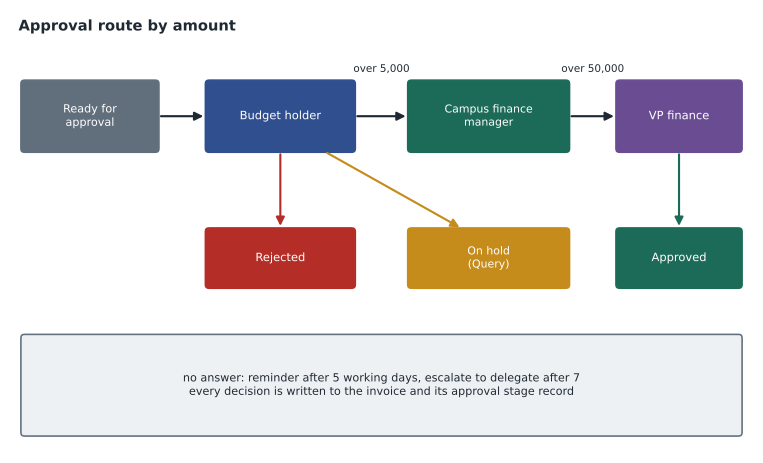
Signe implemented the stages as sequential approvals: one approval action per stage, each starting only if the previous one was approved and the amount crossed the next threshold. The thresholds lived in environment variables, so finance could change them without editing the flow. The child flow from lesson 2 supplied each stage's approver from the Budget Holder table.
For parallel decisions, where two people must approve but not in any order, a single approval assigned to both people with Everyone must approve is simplest. Alternatively, two approval actions can run in parallel branches when each approver needs different details. Sequential stages suit escalating authority; parallel approvals suit joint sign-off.
Reminders, timeouts and escalation
Approvals can wait a long time, and a flow run has a limit: a cloud flow run can last up to 30 days, after which it times out, and an approval left unanswered that long goes with it. So every approval design needs a plan for silence. There are two common patterns.
The first uses the action's timeout setting, an ISO 8601 duration such as P7D for seven days, together with Configure run after on the next step so that a timeout leads to escalation instead of failure. The second uses Create an approval, followed by a Do until loop or a scheduled reminder flow that checks whether the approval is still pending and sends reminders, then reassigns or escalates after a set time. Lumenvale used both: a scheduled flow sent a polite Teams reminder after five working days, and the approval's own timeout of seven days triggered escalation to the budget holder's delegate, who was recorded in the Budget Holder table.
Approvers can also reassign a request to someone else from the approval itself, if the flow allows reassignment, which helps when a budget holder knows a colleague is better placed to decide. Reassignments are recorded in the approval history.
Writing a good approval request
The approval's title and details are what the approver reads, often on a phone, so they deserve care. The details field supports Markdown, so it can include headings, bold text, lists and links, although support varies a little between Outlook, Teams and mobile. Lumenvale's request showed the supplier, the invoice number and date, the amount, the cost center, the purchase order (or "No PO"), the reason for review if any, and a link to the PDF and to the invoice row in the clerks' app. Approvers said that seeing everything in one card, without opening an attachment, was the single biggest improvement.
Title: Invoice @{outputs('Invoice')?['body/lv_invoicenumber']} - @{outputs('Invoice')?['body/lv_suppliername']}
Details (Markdown):
**Amount:** @{variables('AmountText')}
**Cost code:** @{outputs('Invoice')?['body/lv_costcode']}
**Purchase order:** @{coalesce(outputs('Invoice')?['body/lv_ponumber'], 'No PO')}
**Due:** @{variables('DueDateLocal')}

[Open the invoice PDF](@{variables('PdfLink')})
Recording the decision
An approval decides something, and the decision belongs in the business data, not only in the approval history. After each stage, the Approve flow wrote the outcome, the responder, the time and any comments to the invoice row and to a related Approval Stage table. That gave the clerks' app, the supplier status enquiries and Kwabena's reports the full story without reading approval tables, and it gave the auditors what they needed. A useful test for any approval design is to ask, six months later, "who approved this invoice, when, at what amount and with what comments?" and see whether the answer is on the record.
Business process flows
Some work is longer than a single decision. When an invoice needed review, because its amount did not match or it had no purchase order or the supplier was new, a clerk worked through a series of stages over several days: investigate, contact the supplier or the budget holder, correct the record, and release it back to the automated path. Clerks did this differently from one another, and work was lost when someone went on holiday. Lumenvale needed a guided process, and that is what a business process flow provides.
A business process flow is a Dataverse feature that shows a process bar across the top of a model-driven app form, with stages and, within each stage, steps that are usually columns to fill in. Users move a record from stage to stage, and a step can be marked required so the record cannot move on until it is complete. Business process flows can span more than one table, can branch based on conditions, and can include action steps that run an instant flow or a workflow when the user selects them. Each business process flow is itself stored as a Dataverse table, so you can report on how many records are in each stage and how long they stay there.
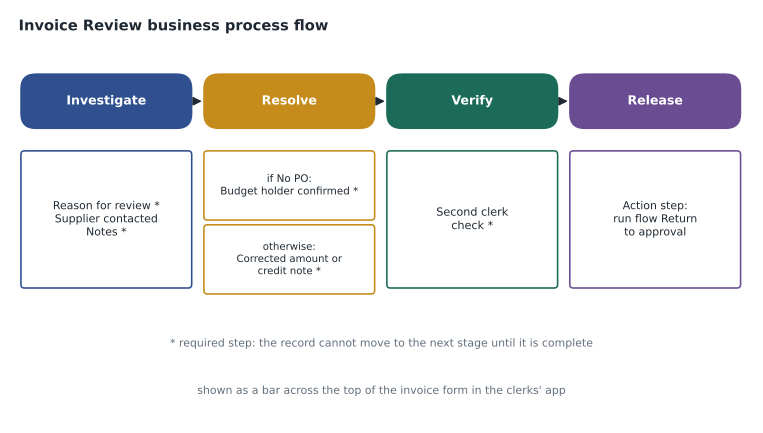
The Invoice Review process had four stages: Investigate, Resolve, Verify and Release. Investigate required the reason for review and a note. Resolve branched on the reason: invoices with no purchase order required a confirmed budget holder and cost center, while mismatched amounts required either a corrected amount or a supplier credit note. Verify required a second clerk to confirm the change, a control the auditors had asked for. Release included an action step that ran an instant flow to set the status back to Ready for approval, which started the Approve flow again.
Business process flows are designed in the solution designer's process designer, where stages, steps, branches and the tables they span are laid out visually. They are activated per environment and shown to users through security roles, like other components. Business process flows guide people; they do not move records on their own. Automation happens around them, in flows triggered by stage changes or action steps.
Business rules and other logic
Business process flows are one of several ways to add logic to Dataverse without code, and AB-410 asks you to evaluate use cases for each. Business rules apply simple logic on forms and, when scoped to the entity, on the server: setting a column value, making a column required or read-only, showing or hiding it, or showing an error message when a condition is met. Calculated, rollup and formula columns compute values from other columns. Cloud flows handle logic that reaches other systems, runs after a delay or involves people through approvals. Choosing well means using the lightest tool that does the job reliably.
| Requirement | Best fit | Why |
|---|---|---|
| Make Credit note number required when Reason is Amount mismatch | Business rule | Simple form logic on one table |
| Show days waiting since receipt | Formula column | A value calculated from other columns |
| Total the approved amounts per cost center | Rollup column or a report | Aggregates over related rows |
| Guide clerks through four stages of review | Business process flow | Staged, guided work over days |
| Ask the campus finance manager to approve large invoices | Cloud flow with Approvals | A person must decide; involves notifications |
Worked problem
Choosing an approval type
For each requirement, choose an approval type: (a) any one of three accounts payable leads may approve a refund; (b) both the budget holder and the grant officer must approve spending on a research grant; (c) the budget holder chooses Approve, Reject or Query; (d) four campus managers vote on a new supplier and each vote is recorded.
Show solution
- (a) Approve/Reject - First to respond, assigned to all three leads.
- (b) Approve/Reject - Everyone must approve, assigned to both, or two sequential stages if the grant officer should see the budget holder's decision first.
- (c) Custom Responses - Wait for one response, with the three options.
- (d) Custom Responses - Wait for all responses, then count the outcomes in the flow.
Answer: Match who must answer (one or all) and what they can answer (approve or reject, or custom options) to the four types. Use sequential stages when later approvers should see earlier decisions.
Approvals that need more than one round
Sometimes an approver needs more information before deciding, and the flow must ask, wait and then ask again. With the Query option, Lumenvale's flow set the invoice On hold and created a clerk task; when the clerk recorded the supplier's answer, a status change started the Approve flow again from the stage where it had stopped, carrying the earlier comments into the new request's details. Designing the flow to resume from a stage, rather than restarting the whole route, kept approvers from seeing the same invoice twice and kept the history on the Approval Stage rows complete.
Common mistakes
MistakeApprovals with no plan for silence.
InsteadSet timeouts, send reminders and escalate to a delegate before the 30-day run limit.
MistakeKeeping the decision only in the approval history.
InsteadWrite the outcome, responder, time and comments onto the business record.
MistakeHard-coding approval thresholds.
InsteadStore thresholds in environment variables or a configuration table.
MistakeExpecting a business process flow to move records automatically.
InsteadUse business process flows to guide people, and flows or action steps for automation.
Summary and key terms
- The Approvals connector sends actionable requests to Outlook, Teams, mobile and the portal and stores them in Dataverse.
- Use Start and wait, or Create then Wait, depending on whether the flow needs to act in between.
- Choose among the four approval types by who must respond and what they can answer.
- Model approval policy as sequential or parallel stages with thresholds held outside the flow.
- Plan for silence with reminders, timeouts and escalation, and record each decision on the business record.
- Business process flows guide users through stages and steps on model-driven forms, with branching and action steps.
- Use business rules, formula columns, business process flows and cloud flows each for the job they suit.
- Approval
- A request for one or more people to decide, sent and tracked by the Approvals connector.
- Custom responses
- Approval options defined by the maker instead of Approve and Reject.
- Sequential approval
- Approval stages that run one after another, each depending on the last.
- Escalation
- Sending an unanswered approval to another person after a time limit.
- Business process flow
- A guided set of stages and steps shown on model-driven forms in Dataverse.
- Action step
- A step in a business process flow that runs a flow or workflow when selected.
- Business rule
- No-code logic that sets, validates or shows columns based on conditions.
Practice problems
Work each problem on paper first, then reveal the answer to check.
Why did Lumenvale use Create an approval followed by Wait for an approval in one flow?
Show answer
So the flow could record the approval identifier and notify people before pausing for the outcome.
Which approval type lets any one of several deputies decide?
Show answer
Approve/Reject - First to respond.
What happens to a pending approval if the flow run reaches 30 days?
Show answer
The run times out, so designs must remind and escalate well before that limit.
How did the Invoice Review process return an invoice to approval?
Show answer
An action step in the Release stage ran an instant flow that set the status to Ready for approval.
Lesson quiz · 5 questions
Score 60% or more to complete this lesson.
Create a free account to save your progress, take quizzes and earn a certificate.