
MSBA-252 · Lesson 3 of 12 · 20 min
Expressions and error handling
▶ Video coming soon A video version of this lesson is on the way.
The first test run of the Match flow failed on invoice nine. A supplier in Lakeshore had typed its invoice date as "Oct 3 2026" instead of a date the flow could read, and the comparison with the purchase order date threw an error that stopped the run. Invoices ten to forty never ran. Ysaline asked the obvious question: "Does one bad invoice stop everything?" With the flow as it was, yes. By the end of that week's clinic it did not, and this lesson explains the two skills that fixed it: writing expressions that handle real-world data, and designing flows that expect failure.
AB-410 asks you to configure cloud flow actions, implement flow control with conditions and loops, and test and troubleshoot cloud flows. Expressions and error handling run through all three.
What expressions are
Most inputs in a flow can be filled with dynamic content, the outputs of earlier steps chosen from a list. When you need to calculate, convert, combine or test values, you use an expression. Power Automate expressions use the Workflow Definition Language, the same language as Azure Logic Apps. An expression is a function call, such as concat('INV-', variables('Number')), and it can be nested. In the designer you enter expressions through the expression editor, where Copilot can also help write them from a description. Inside the flow definition, expressions start with @ and, when embedded in text, are wrapped in @{ }.
| Family | Useful functions | Example use at Lumenvale |
|---|---|---|
| String | concat, substring, replace, toLower, trim, split, indexOf | Normalize supplier names before matching |
| Logical and comparison | if, and, or, not, equals, greater, less, empty | Decide whether an amount needs a second approver |
| Conversion | int, float, string, bool, json, base64 | Turn extracted text "1,250.00" into a number |
| Date and time | utcNow, addDays, formatDateTime, convertTimeZone, dayOfWeek | Calculate the due date and show it in local time |
| Collection | length, first, last, contains, union, intersection | Count invoice lines, check for a value in a list |
| Workflow and reference | triggerOutputs, outputs, body, items, variables, result, workflow | Read step results and the run's own details |
Expressions for real-world data
Data from documents, emails and people is messy, so robust expressions anticipate blanks, unexpected formats and missing properties. Three techniques do most of the work.
The ? operator returns null instead of an error when a property does not exist, so triggerOutputs()?['body/subject'] is safe even when a field is missing. The coalesce function returns the first non-null value from its arguments, which provides defaults: coalesce(outputs('Extract')?['body/poNumber'], 'NONE'). And if with empty chooses between paths for blank values.
Dates need special care. Flows run in Coordinated Universal Time (UTC), so utcNow() returns UTC, and a date compared or displayed without conversion can be a day off for people in Pacific time. convertTimeZone changes a timestamp from one time zone to another using Windows time zone names, and formatDateTime formats it for display. Lumenvale's campuses use Pacific time, so every date shown to a person passed through convertTimeZone first.
Due date (30 days after the invoice date, shown in local time):
formatDateTime(
  convertTimeZone(addDays(outputs('Invoice_date'), 30), 'UTC', 'Pacific Standard Time'),
  'yyyy-MM-dd')

Amount as a number, or 0 if extraction found nothing:
float(replace(coalesce(outputs('Extracted_total'), '0'), ',', ''))

Needs a second approver?
greater(variables('Amount'), parameters('Approval Threshold (lv_ApprovalThreshold)'))
The date that broke invoice nine was text that formatDateTime could not parse. The fix was not a cleverer expression but a better design: extraction in lesson 7 returns dates in a standard format, and when it cannot, the invoice goes to a person for review instead of into a calculation. Expressions should handle the variations you expect; anything stranger should leave the automated path deliberately.
Conditions, switches and loops
Flow control decides which steps run. A Condition tests one or more comparisons, combined with And or Or, and runs a Yes branch or a No branch. A Switch compares one value with several cases, which is clearer than nested conditions when a status has many possible values. Apply to each loops over an array, running the inner actions for every item; by default it runs items one at a time, and its concurrency control setting lets up to 50 items run in parallel, which is faster but means the order is not guaranteed and variables must not be shared across iterations. Do until repeats its actions until a condition is true or a limit on count or time is reached, which suits waiting for an external status. AB-410 lists conditions and loops together under implementing flow control.
| Control | Use it when | Watch for |
|---|---|---|
| Condition | A yes or no decision | Deep nesting; prefer Switch for many values |
| Switch | One value with several known cases | A default case for unexpected values |
| Apply to each | Acting on every item in an array | Concurrency and shared variables; very large arrays |
| Do until | Repeating until an external condition changes | Always set count and timeout limits |
| Scope | Grouping actions to handle their result together | Configure run after on the next step |
| Terminate | Ending the run with a status and message | Use to mark business failures clearly |
Loops are where performance problems hide. A flow that loops over 2,000 rows and calls a connector for each one makes 2,000 calls, which is slow and may hit throttling limits. Better patterns include filtering in the list action itself with an OData filter so fewer rows return, using Select and Filter array to reshape data without loops, and using bulk actions where a connector offers them. When a loop is needed, keep the work inside it small.
How flows fail
Every action ends with a status: Succeeded, Failed, Skipped or TimedOut. By default, an action runs only if the previous action succeeded, and when an action fails, the following actions are skipped and the run ends as Failed. That default is what stopped the whole batch at invoice nine. Some failures are temporary, such as a service that is briefly unavailable or throttling, and others are permanent, such as a missing file or a value in the wrong format. Good error handling treats them differently: retry temporary problems, and route permanent ones to a person with enough information to fix them.
Retry policies handle temporary failures. Many actions retry automatically on certain errors, such as throttling responses, using a default exponential policy. In an action's settings you can choose the retry policy type (default, none, fixed interval or exponential interval), the count and the interval. Retry is the right answer for transient faults, but it cannot fix a bad input; retrying a malformed date four times just fails four times.
Try, catch and finally with scopes
For everything else, Power Automate uses Scope actions and Configure run after. A Scope groups actions. Its result is the result of the actions inside it: if any fail, the scope fails. Configure run after, found in an action's settings, lets you choose which statuses of the previous step allow the action to run. Combine them and you get the classic pattern from programming languages: a Try scope holds the normal work, a Catch scope runs only if Try failed or timed out, and a Finally scope runs whatever happened.
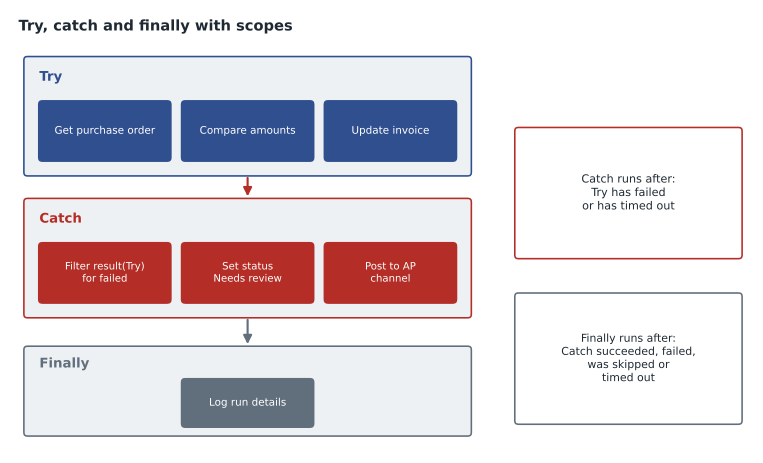
Inside the Catch scope, the result function returns the results of every action inside the Try scope, including their status and error messages. Filtering that array for failed actions tells you exactly what went wrong, and the workflow function returns the run's own details, which you can use to build a link straight to the failed run in the portal.
Filter array
  From:  result('Try')
  Where: equals(item()?['status'], 'Failed')

Compose: link to this run
  concat('https://make.powerautomate.com/environments/',
         workflow()?['tags']?['environmentName'], '/flows/',
         workflow()?['name'], '/runs/', workflow()?['run']?['name'])
At Lumenvale the Catch scope did three things. It set the invoice's status to Needs review and wrote the error message into a column on the row, so the problem was visible in the clerks' app. It posted a short message to the accounts payable channel in Teams with the supplier, the invoice number and a link to the run. And, because the Match flow was triggered per invoice, the failure affected only that invoice; the others carried on. Ysaline's question had its answer.
Business failures versus technical failures
Not every problem is an error. An invoice whose amount exceeds its purchase order by 20 percent is not a technical failure; it is a business exception that the process expects. Treating it as an error, by letting an action fail, makes run history alarming and hides real faults among expected ones. A better design tests the business rule with a Condition and routes the exception explicitly: status Needs review, reason "Amount exceeds PO by more than the allowed tolerance", and the run ends as Succeeded. The Terminate action can also end a run with a status of Succeeded, Failed or Canceled and a custom message, which is useful when a flow should stop early with a clear reason.
Worked problem
Designing error handling for the Match flow
The Match flow looks up the purchase order in LedgerPoint through the custom connector, compares supplier, amount and date, and sets the status. The LedgerPoint reporting API is sometimes unavailable for a few minutes during its nightly refresh. Some invoices have no purchase order. A few have an amount that differs from the purchase order. How should the flow handle each situation?
Show solution
- API briefly unavailable (temporary): set an exponential retry policy on the custom connector action, for example four retries, so short outages resolve without a person.
- No purchase order (expected business case): test for a blank PO number with a Condition before calling the API, and route the invoice to the supplier-and-campus approval path with status Ready for approval and reason "No PO".
- Amount differs (business exception): compare with a tolerance held in an environment variable; within tolerance continue, outside it set Needs review with the reason, and end the run successfully.
- Anything unexpected (technical failure): wrap the work in a Try scope; in Catch, record the error on the invoice, set Needs review, alert the team in Teams with a run link, and terminate the run as Failed so monitoring counts it.
Answer: Retry the temporary, route the expected, and catch the unexpected. Only true technical failures should end runs as Failed, so failure counts in monitoring mean something.
Testing and troubleshooting
The designer's Test option runs a flow manually, or with data from a recent trigger event, and shows each action's inputs and outputs. Run history shows every past run, its status, duration and each step's inputs and outputs; selecting a failed step shows the error. The Flow checker lists errors and warnings in a flow's design, such as missing required inputs. And Resubmit reruns a failed run with the same trigger data once the cause is fixed, which was how Lumenvale reprocessed invoices ten to forty after the date fix.
Troubleshooting follows a steady method: find the first failed action, read its inputs and the error, decide whether the failure was temporary or permanent, fix the cause rather than the symptom, test with the failing data, and resubmit. When a flow handles sensitive data, the secure inputs and secure outputs settings on an action hide its values from run history, which Lumenvale turned on for actions that carried supplier banking details.
Variables versus Compose
Makers coming from programming often reach for variables for everything. In cloud flows, variables must be initialized at the top level of the flow, not inside a loop or scope, and changing a variable inside an Apply to each loop running in parallel gives unpredictable results, because several iterations may write at once. The Compose action is often a better choice: it takes an input, which can be an expression, and makes the result available to later steps as its output, without any shared state. Signe's rule of thumb for the invoice flows was to use Compose for any value calculated once and read later, such as the due date or the lowest confidence score, and to keep variables for values that genuinely change as the flow runs, such as a running total or a list of failed items built up inside a sequential loop.
Renaming Compose actions matters even more than renaming other actions, because their outputs are referenced by name in expressions. outputs('Due_date_local') explains itself in six months; outputs('Compose_7') does not. The designer updates references when you rename an action, but it is easiest to name each action well when you create it.
Common mistakes
MistakeLetting one bad item fail a whole batch.
InsteadProcess items independently and catch failures per item.
MistakeRetrying permanent errors.
InsteadRetry only transient faults; route bad data to a person.
MistakeTreating expected business exceptions as failures.
InsteadTest business rules with conditions and route exceptions with a clear reason.
MistakeShowing UTC dates to people.
InsteadConvert to the local time zone before formatting dates for display.
Summary and key terms
- Expressions calculate, convert and test values; use ?, coalesce, if and empty to handle missing data.
- Flows run in UTC; convert time zones before showing dates to people.
- Conditions, Switch, Apply to each and Do until control the flow; mind loop concurrency and size.
- Actions end as Succeeded, Failed, Skipped or TimedOut; by default a failure skips the rest.
- Retry policies handle transient faults; scopes with Configure run after give try, catch and finally.
- Separate business exceptions from technical failures so monitoring stays meaningful.
- Test in the designer, read run history, use the flow checker and resubmit after fixing the cause.
- Expression
- A formula in Workflow Definition Language that calculates or transforms values in a flow.
- coalesce
- A function that returns the first non-null value from its arguments.
- Scope
- An action that groups other actions and reports their combined result.
- Configure run after
- A setting that controls which statuses of the previous step allow an action to run.
- Retry policy
- A setting that repeats an action after transient failures.
- Terminate
- An action that ends a run with a chosen status and message.
- Resubmit
- Rerunning a past flow run with its original trigger data.
Practice problems
Work each problem on paper first, then reveal the answer to check.
Why did one invoice stop the whole batch in the first version?
Show answer
By default, a failed action skips later actions and ends the run, and the batch was processed in one run.
Which function lists the results of every action inside a scope?
Show answer
result, passing the scope's name.
How should a flow handle an amount that exceeds the purchase order?
Show answer
As a business exception: test it with a condition, set Needs review with a reason, and end the run successfully.
What does convertTimeZone fix?
Show answer
Flows use UTC, so dates must be converted to local time before display or day-based comparisons.
Lesson quiz · 5 questions
Score 60% or more to complete this lesson.
Create a free account to save your progress, take quizzes and earn a certificate.