
MSBA-250 · Lesson 7 of 12 · 20 min
Security roles and teams
▶ Video coming soon A video version of this lesson is on the way.
Rupert Ellingsworth came to the security session with a printed list of questions from the college's privacy office. Can an inspector see inspections on other campuses? Can a contractor see anything except the inspections they are working on? Who can delete a finding? Who can change a checklist template? Can Kwabena's reports see everything without being able to change anything? "If I can't answer all of these from the design," Rupert said, "we don't go live."
Dataverse answers questions like these with a layered security model. This lesson covers the core of it: privileges, access levels, security roles, teams and sharing. Lessons 8 and 9 add business units, hierarchy security and column security, and lesson 10 adds auditing. AB-410 lists configuring security as part of building data models, and every Power Platform role eventually has to design or troubleshoot it.
Users, licenses and environments
Security starts with people. A person needs a Microsoft Entra ID account, a license that includes Dataverse access for the apps they use, and a user row in the environment's Dataverse database, which Dataverse creates when the person is added to the environment, often through the environment's security group. Every user belongs to exactly one business unit, by default the root. Security roles are assigned in each environment separately: being a System Administrator in the development environment gives no rights in production.
Privileges and access levels
A privilege is permission to perform one operation on one table. Each table has eight standard privileges: Create, Read, Write, Delete, Append, Append To, Assign and Share. Append and Append To work as a pair: to set a finding's Inspection lookup, a user needs Append on Finding (attaching it to something) and Append To on Inspection (allowing things to be attached to it). Assign changes a row's owner; Share grants another user or team access to a row.
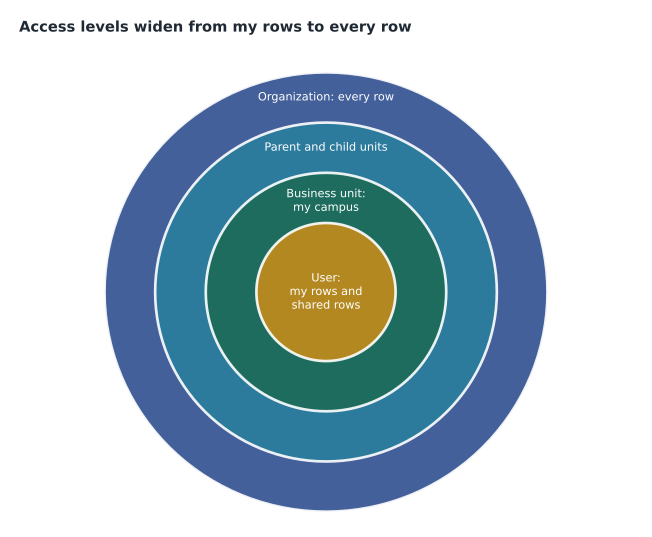
For tables that are user or team owned, each privilege has an access level that decides which rows it applies to. User level applies to rows the user owns, rows owned by a team the user belongs to, and rows shared with the user or their teams. Business unit level applies to all rows owned in the user's business unit. Parent: child business units level applies to the user's business unit and every business unit below it. Organization level applies to every row. None grants nothing. For organization-owned tables, a privilege is either granted for all rows or not at all.
| Access level | Rows it applies to | Lumenvale example |
|---|---|---|
| None | No rows | Inspectors cannot delete findings |
| User | Rows the user or their teams own, and rows shared with them | An inspector edits their own inspections |
| Business unit | All rows in the user's business unit | A campus supervisor reads every inspection on the campus |
| Parent: child business units | The user's business unit and all below it | The facilities director reads every campus |
| Organization | All rows | Kwabena's reporting account reads all inspections |
Security roles
A security role is a named set of privileges with access levels for many tables, plus miscellaneous privileges for actions that are not about one table, such as exporting to Excel, using bulk delete or acting on behalf of another user. Roles are assigned to users and to teams. A role defined in a solution moves between environments with it, but assignments to people are made in each environment.
Dataverse includes predefined roles. System Administrator has full access to everything, including customization and security. System Customizer can customize the environment and work with data it owns. Environment Maker can create apps, flows and connections but has little data access of its own. Basic User gives the minimum privileges people need to run model-driven apps and work with common tables, and is the usual starting point for a custom role. Do not edit predefined roles; copy one and change the copy, so updates from Microsoft do not overwrite your changes and your intent is clear.
Roles are managed in the Power Platform admin center: select the environment, open its settings, go to Users and permissions, then Security roles. The role editor lists tables with a privilege setting for each column of privileges, and lets you copy a role, filter to the tables in a solution and show only changed privileges. Copilot in the admin center can describe what a role allows, which is a useful check, but the privileges are what Dataverse enforces.
Privileges add up
A user's effective access is the union of every role assigned to them directly and through their teams. If one role grants Read at user level and another grants Read at organization level, the user can read every row. No role can take access away that another grants. This is why least privilege matters at design time: a broad role given to a large team quietly widens everyone's access. When someone can see more than they should, look at all their roles, including team roles, not just the one you expected.
Worked problem
Designing the Inspector role
Inspectors must create and edit their own inspections and findings, attach findings to inspections, read every building, room and checklist template, and never delete anything or edit templates. Design the role.
Show solution
- Start from a copy of Basic User, renamed Lumenvale Inspector.
- Inspection and Finding: Create, Read, Write, Append and Append To at user level; Delete none; Assign and Share none.
- Building and Room: Read at organization level; Append To at organization level so findings and inspections can point to them; no Create, Write or Delete.
- Room Type, Checklist Item and Template Item (organization owned): Read granted; nothing else.
- Miscellaneous: no Export to Excel, because inspectors do not need bulk data on their phones.
Answer: A copy of Basic User with user-level create, read, write and append on their own work, organization-level read on reference data, and no delete.
| Role | Inspection and Finding | Building and Room | Templates | Assigned to |
|---|---|---|---|---|
| Lumenvale Inspector | C R W A AT at user level | Read, Append To at organization level | Read | Inspectors, through a team |
| Lumenvale Campus Supervisor | R W A AT Assign Share at business unit level | R W at business unit level | Read | Supervisors, through a team |
| Lumenvale Facilities Admin | All at organization level | All at organization level | All | Two administrators |
| Lumenvale Report Reader | Read at organization level | Read at organization level | Read | Kwabena's reporting group |
Teams
Managing roles person by person does not scale, and it is how access drifts. Teams group users so roles and ownership can be managed once. Every team belongs to a business unit. Dataverse has several kinds.
| Team type | Can own rows? | Can have security roles? | Membership | Use for |
|---|---|---|---|---|
| Default business unit team | Yes | Yes | Automatic: every user in the business unit | Access for everyone in a unit |
| Owner team | Yes | Yes | Managed in Dataverse | Shared ownership of work and role assignment |
| Access team | No | No | Added per row, often by template | Giving a few people access to specific rows |
| Microsoft Entra group team | Yes | Yes | From a Microsoft Entra security group or Microsoft 365 group | Role assignment managed by group membership |
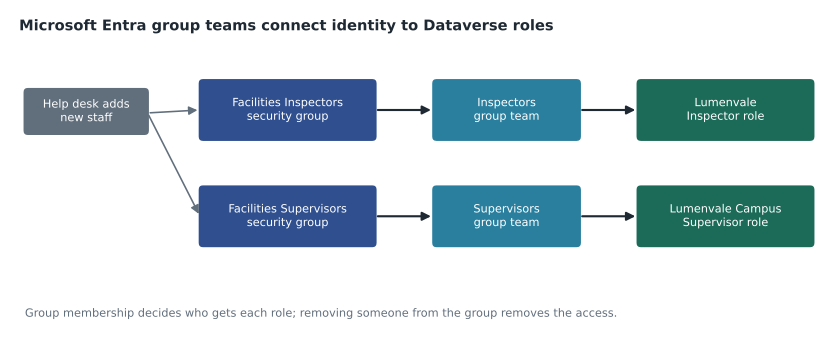
Owner teams can own rows and hold roles. When an owner team owns a row, every member gets the team role's access to it at user level, so a campus facilities team can own its campus's inspections and every member can work on them. Access teams cannot own rows or hold roles; they give named people access to a particular row through sharing, and access team templates let a form show a subgrid where users add people to a row's access team with defined rights. Microsoft Entra group teams link a Dataverse team to a security group or Microsoft 365 group in Microsoft Entra ID; assign roles to the team, and anyone added to the group gets them, which ties Dataverse access to the identity processes the college already runs.
Lumenvale's design uses group teams for nearly all role assignment. The Entra security group Facilities Inspectors is linked to a Dataverse team holding the Inspector role; Facilities Supervisors to a team holding the Supervisor role. When a new inspector joins, the help desk adds them to the group, as it does for every other system, and they have the right Dataverse access the next time they sign in. Removing someone from the group removes the access. Rupert liked this more than anything else in the design.
Sharing
Sharing grants a user or team access to one specific row, with chosen rights such as Read, Write or Append, regardless of their roles' access levels. It is meant for exceptions: an elevator contractor needs to read and update one inspection. Sharing with a team is more efficient than sharing with many individuals, and access team templates make sharing manageable from a form. Sharing is not free: each share is stored and checked, and heavy use across many rows can slow the system and make access hard to audit. If many rows need to be shared the same way, that is a sign the role or team design should change.
For contractors, Signe used an access team template on Inspection. A supervisor opens an elevator inspection and adds the contractor to its Contractors subgrid; the contractor's user row joins that inspection's access team with Read, Write and Append rights. Because Inspection to Finding is parental (lesson 3), the share cascades to the inspection's findings. When the inspection is closed, the supervisor removes the contractor and the access ends.
Security for apps
Dataverse security controls data. Access to a model-driven app is also controlled by security roles: when you share a model-driven app, you choose which roles can open it, and the app's forms and views can be limited to roles too. Canvas apps are shared with people or groups separately, but every Dataverse read and write the app makes runs as the signed-in user and is checked against their roles. That is the key to a safe design: a hidden button in a canvas app is not security, because the same user could reach the data another way. The role is what protects the data.
Testing security
Rupert insisted on testing security with real test accounts, not by reading roles. Signe created four test users, one for each role, plus a contractor, in the test environment, and ran a script of 30 checks: the inspector opens another inspector's inspection (should fail), the supervisor on one campus opens an inspection on another (should fail until lesson 8's design), the report reader tries to edit (should fail), the contractor opens a shared inspection (should succeed) and an unshared one (should fail). Every failure that should have been a success, and every success that should have been a failure, was a design bug found before any real data was at risk.
At the end of the session Rupert went through his printed list and ticked every question but one: "Can a supervisor see their whole campus but not the others?" "That's business units," Signe said. "Next session."
Least privilege in practice
Least privilege means each person gets the access their work needs and nothing more. In practice it is easier to start too narrow and add a privilege when a tester hits an error than to start broad and try to take access away later, because removing access after go-live breaks things people already rely on. Signe keeps a short change log for each custom role: the date, the privilege changed, the reason and who asked. When the privacy office reviews access each year, the log answers most of its questions before they are asked.
Common mistakes
MistakeEditing the predefined Basic User or System Customizer roles.
InsteadCopy a predefined role and edit the copy.
MistakeAssigning roles to people one by one.
InsteadAssign roles to owner teams or Microsoft Entra group teams and manage membership.
MistakeExpecting one role to restrict access another role grants.
InsteadPrivileges are cumulative; check every role a user has, directly and through teams.
MistakeUsing sharing as the main way to grant access.
InsteadUse roles and teams for the normal case and sharing for exceptions.
MistakeHiding a button in a canvas app instead of restricting the role.
InsteadProtect data with security roles; app design is not security.
MistakeForgetting Append and Append To.
InsteadGrant Append on the child and Append To on the parent so lookups can be set.
Summary and key terms
- Privileges are permissions for one operation on one table: Create, Read, Write, Delete, Append, Append To, Assign and Share.
- Access levels for user- or team-owned tables are none, user, business unit, parent: child business units and organization.
- Security roles bundle privileges and are assigned to users and teams; copy predefined roles instead of editing them.
- A user's access is the union of all roles from them and their teams.
- Owner teams and Microsoft Entra group teams can own rows and hold roles; access teams give per-row access through sharing.
- Sharing is for exceptions; data in apps is protected by roles, not by app design.
- Privilege
- Permission to perform one operation, such as Read or Delete, on one table.
- Access level
- The scope of rows a privilege applies to: user, business unit, parent: child business units or organization.
- Security role
- A named set of privileges and access levels assigned to users and teams.
- Owner team
- A team that can own rows and hold security roles.
- Access team
- A team that cannot own rows or hold roles and gives members access to specific rows.
- Microsoft Entra group team
- A Dataverse team linked to a Microsoft Entra group whose members receive the team's roles.
- Sharing
- Granting a user or team access to one specific row with chosen rights.
Practice problems
Work each problem on paper first, then reveal the answer to check.
A user can read every inspection though their Inspector role grants Read only at user level. What should you check?
Show answer
Their other roles, including roles from every team they belong to, because privileges add up.
Which two privileges are needed to set a finding's Inspection lookup?
Show answer
Append on Finding and Append To on Inspection.
Why are Microsoft Entra group teams useful?
Show answer
Roles assigned to the team follow group membership, so the organization's identity processes control Dataverse access.
When is sharing the right tool?
Show answer
For exceptions, such as giving a contractor access to one inspection, not as the main way to grant access.
Lesson quiz · 5 questions
Score 60% or more to complete this lesson.
Create a free account to save your progress, take quizzes and earn a certificate.