
MSBA-250 · Lesson 2 of 12 · 25 min
Tables, columns and data types
▶ Video coming soon A video version of this lesson is on the way.
With the whiteboard design agreed, Signe opened the Lumenvale Facilities solution in Power Apps and created the first table while Maribeth Ferreira-Quon watched. Maribeth had built a small canvas app for the registrar's office the year before, on a table someone else had designed, and she wanted to understand the choices behind it. "Every box on this screen is a decision," Signe told her. "Most of them you can change later. A few you can't. Let's go through them."
This lesson covers the building blocks: the kinds of tables Dataverse offers, the properties you set on a table, the data types available for columns, and the column settings that decide how values are stored, shown and searched. AB-410 lists creating and modifying standard tables, configuring table properties and creating and modifying columns as separate skills; together they are the most practical part of the exam's data modeling objective.
Kinds of tables
When you create a table in Power Apps you choose its type. Most business tables are standard tables: regular relational tables stored in Dataverse's database, with full support for relationships, security, business rules, auditing and forms. Activity tables are a special kind of standard table for things people do: each row has a subject, an optional due date, a regarding lookup that can point to many tables, and it appears in the timeline of the row it is about. Task, Email, Appointment and Phone Call are standard activity tables; you can create custom ones, such as Site Visit.
Virtual tables display data that lives in another system, such as an SQL database or SharePoint, through a connector or data provider; the rows are not copied into Dataverse, so reads and writes go to the source. Elastic tables are designed for very large volumes of data with simple access patterns, such as telemetry or event logs, and trade some relational features for scale. For the inspection model every table except one is standard. Signe considered making Inspection an activity table, because an inspection is something an inspector does on a date, and decided against it: activity tables have a fixed set of behaviors and an inspection here is a long-lived business object with its own children, not a single appointment.
| Type | Stored in | Typical use | Notes |
|---|---|---|---|
| Standard | Dataverse database | Business objects such as Building, Room, Inspection | Full relationships, security, rules and auditing |
| Activity | Dataverse database | Things people do: calls, visits, tasks | Shown in timelines; regarding can point to many tables; always user or team owned |
| Virtual | An external system | Showing external data in apps without copying it | Capabilities depend on the source and provider |
| Elastic | Dataverse, designed for scale | High-volume event or sensor data | Fewer relational features; designed for horizontal scale |
Table properties
A table's properties are set in the table designer, under the table's settings and advanced options. Some matter on day one; others can wait. Signe walked Maribeth through them for the Inspection table.
The display name and plural name are what people see: Inspection and Inspections. The description explains the table's purpose and, as lesson 1 noted, is read by Copilot. The schema name is the permanent logical name with the publisher prefix. The primary column is the column that identifies a row to people: it appears in lookups, in the title of forms and as the first column of views. By default it is a single line of text called Name. Signe changed the Inspection table's primary column to an autonumber called Inspection Number, so every inspection gets a readable identifier such as INS-000214 that people can quote on the phone.
| Property | What it does | Can it change later? |
|---|---|---|
| Type (standard, activity, virtual, elastic) | Decides how the table is stored and what it supports | No |
| Ownership | User or team owned, or organization owned | No |
| Schema (logical) name | Permanent name used by code and the Web API | No |
| Display and plural names, description | What people and Copilot see | Yes |
| Primary column | Identifies rows in lookups, forms and views | Its display name and format, yes; it is created with the table |
| Enable attachments | Adds notes and file attachments to rows | Can be turned on; cannot be turned off once on |
| Audit changes to its data | Records changes for this table when auditing is on | Yes |
| Track changes | Lets external systems and Synapse or Fabric links read only what changed | Yes |
| Appear in search results | Includes the table in Dataverse search | Yes |
| Can be added to a queue, connections, offline use | Turns on specific platform features | Some are one-way |
| Image column as primary image | Shows a picture on forms and cards | Yes |
Several advanced options are one-way: once turned on they cannot be turned off, because Dataverse creates supporting columns and relationships. Enabling attachments, for example, adds a relationship to the Note table. Signe's habit is to turn on only what a requirement needs and to note in the design record why each option is on.
The primary column
Every standard table has exactly one primary column, and it must be text. People often leave it as Name and then wonder why lookups show unhelpful values. Good primary columns are short, unique enough to tell rows apart, and meaningful to the people who pick rows from lookups. For Building, the primary column is the building's name ("Orchard Science Center"). For Room, Signe made the primary column a room code that includes the building, such as OSC-114, because two buildings both have a room 114 and an inspector choosing a room from a lookup needs to know which one. For Finding, the primary column is filled automatically by a business rule or flow, because nobody wants to type a name for each of 40 findings.
Worked problem
Choosing a primary column for Room
Rooms are numbered within buildings, so "114" exists in four buildings. Inspectors pick rooms from a lookup on their phones. What should Room's primary column hold?
Show solution
- The lookup shows the primary column, so it must tell rooms apart at a glance.
- The room number alone is not unique across buildings.
- A combined code such as OSC-114, building code plus room number, is short and unique.
- Keep the plain room number in its own column for sorting and reports, and add an alternate key on building plus room number (lesson 5) to prevent duplicates.
Answer: Use a combined building-and-room code as the primary column, keep the parts in their own columns, and enforce uniqueness with an alternate key.
Column data types
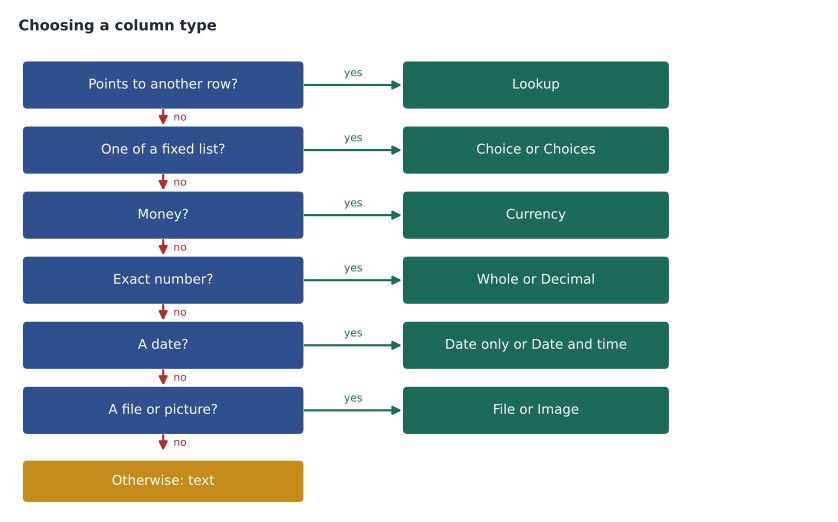
Each column has a data type that decides what it can hold, how it is stored, how it appears on forms and which operations work on it. Choosing the right type is one of the most important modeling decisions, because most types cannot be changed after the column is created; if a type is wrong you usually create a new column and move the data.
| Data type | Holds | Inspection model example |
|---|---|---|
| Single line of text | Up to 4,000 characters; formats include plain text, email, URL, phone and ticker symbol | Room code, contractor email |
| Multiple lines of text | Long text, optionally rich text | Finding note |
| Whole number | Integers; formats include duration, time zone and language | Floor number, estimated minutes |
| Decimal number | Exact decimals with fixed precision | Floor area in square meters |
| Floating point number | Approximate decimals for scientific values | Sensor readings |
| Currency | Money with a currency and exchange rate | Estimated repair cost |
| Date and time, or date only | Dates with a time-zone behavior | Scheduled date, completed on |
| Yes/No | A two-option choice | Requires follow-up |
| Choice and Choices | One value, or several values, from a defined list | Result, priority; campus |
| Lookup and Customer | A reference to a row in another table | Room, inspector; contractor |
| File and Image | A file or picture stored in file capacity | Photo of the failed item |
| Autonumber | Generated text such as INS-000214 | Inspection Number |
| Formula | A value calculated with Power Fx | Days open |
| Prompt | AI-generated text from other columns | Plain-language summary of a finding |
Text columns
Single line of text holds up to 4,000 characters and has formats that change how the value appears and behaves: email addresses become clickable mail links, URLs become links, phone numbers can be dialled from a phone. The format does not validate the value strictly, so an email format does not guarantee a working address; business rules or app logic can add checks. Multiple lines of text is for longer content such as notes and can be configured as rich text, which allows bold, lists and pasted images in the note. Set a sensible maximum length: it does not save space, but it stops a paragraph from being pasted into a column meant for a code.
Number columns
Choose the number type by what the number means. Whole number is for counts and integers. Decimal number stores exact values with a fixed number of decimal places, which is right for measurements and quantities where rounding errors would matter. Floating point stores approximate values and suits scientific readings with a wide range. Currency stores money: each currency column comes with a hidden base-currency column so that amounts in different currencies can be compared, and each row has a currency and exchange rate. Lumenvale works in one currency, so the Estimated Repair Cost column simply uses the organization's base currency.
Lumenvale's base currency is the US dollar. If the college ever records a cost in Canadian dollars for equipment ordered from a supplier across the border, Dataverse converts it to US dollars for reports using the exchange rate stored on the row.
Date columns and time-zone behavior
Date columns cause more subtle bugs than any other type. A date and time column has a behavior that decides how time zones apply. User local stores the value in coordinated universal time and shows it in each user's time zone, which is right for moments such as "the inspection started at 9:14". Date only stores a calendar date with no time and no time-zone conversion, which is right for birthdays and due dates. Time zone independent stores a date and time exactly as entered and shows it the same to everyone, which suits values such as a hotel check-in time.
The danger is using user local for a value that is really a calendar date. If an inspection is scheduled for 12 March as a user local date at midnight, a user in a time zone to the west sees 11 March. Lumenvale's campuses share a time zone, but its online staff and external contractors do not, so Signe set Scheduled Date to date only and Completed On to user local. A column's behavior can be changed from user local to date only or time zone independent, but not back, and existing values may need correcting when you change it, so decide carefully.
| Behavior | Stored as | Shown as | Use for |
|---|---|---|---|
| User local | UTC | Converted to each user's time zone | Moments: started at, completed on |
| Date only | A date with no time | The same date for everyone | Calendar dates: scheduled date, due date |
| Time zone independent | Date and time as entered | The same for everyone, no conversion | Local times that must not shift |
Lookups, files, images and autonumbers
A lookup column stores a reference to a row in another table, and creating one creates a many-to-one relationship, which lesson 3 explains in detail. A customer lookup can point to either an account or a contact. File columns store documents and image columns store pictures, both using file capacity; each has a maximum size you set when you create it, and images can be shown on forms and as the row's primary image. Autonumber columns generate text identifiers from a pattern that can combine fixed text, a sequential number with a set number of digits, random characters and the date. Autonumbers are generated by the server, so they are unique even when many people create rows at once.
Inspection Number   INS-{SEQNUM:6}            INS-000214
Finding Number      FND-{DATETIMEUTC:yyyyMM}-{SEQNUM:5}   FND-202611-00031
Work Order Ref      WO-{RANDSTRING:4}-{SEQNUM:4}        WO-K7QM-0098
Column settings that matter
Beyond the type, a few settings on every column shape the data. Required can be optional, business recommended (a visual cue) or business required, which forms enforce. Business required is enforced in model-driven forms and in canvas apps that respect it, but it is not a database constraint: data arriving through the API or an import can still omit it unless a business rule or plug-in enforces it. Searchable decides whether the column appears in Advanced find and filters. Column security and auditing, which lessons 9 and 10 cover, can be turned on per column.
Two more decisions are permanent. The column's data type generally cannot be changed, with limited exceptions such as changing a text column's format or converting a text column to autonumber. The column's schema name is fixed. Signe's rule: name and type every column in the design record, and have someone else read it before you create it.
Worked problem
Fixing a wrong type
Maribeth's earlier registrar app stored Credits as a single line of text, so "3", "3.0" and "three" all appear, and reports cannot add them up. How should she fix it?
Show solution
- A text column cannot be changed into a number column.
- Create a new Decimal number column called Credit Value with one decimal place.
- Use a flow or a data import to copy cleaned values from the text column into the new column, fixing "three" and similar entries.
- Update forms, views and the app to use the new column, then hide the old one and delete it once nothing uses it.
Answer: Create a correctly typed column, migrate and clean the data into it, switch everything over, then retire the old column.
Creating a table in the designer
The steps to create a table are simple, which is why the decisions around them matter. In Power Apps, open your solution, select New, then Table, then Table again, or start from the data workspace or by describing the table to Copilot. Enter the display name, plural name and description, open the advanced options to set the type and ownership and any one-way options you need, set the primary column's name and format, and save. Then add columns from the table's Columns area: New column, a display name, a description, the data type and its settings. Signe created the seven tables of the inspection model in under an hour, because every decision had already been made on paper.
Maribeth asked whether she could have let Copilot create them all from the photograph of the whiteboard. "You could get close," Signe said, "and then you'd spend the hour checking date behaviors and primary columns. Either way somebody has to make the decisions. I'd rather make them first."
Common mistakes
MistakeLeaving the primary column as Name with no meaning.
InsteadMake the primary column short, meaningful and distinctive, or an autonumber.
MistakeUsing user local for calendar dates such as due dates.
InsteadUse date only for dates without a time, so they do not shift between time zones.
MistakeStoring numbers or dates as text.
InsteadUse the proper type so values can be sorted, filtered, totaled and validated.
MistakeAssuming business required stops all incomplete data.
InsteadIt is enforced by forms; imports and the API need rules or plug-ins to enforce it.
MistakeTurning on one-way table options just in case.
InsteadEnable advanced options only when a requirement needs them, because some cannot be turned off.
Summary and key terms
- Dataverse tables are standard, activity, virtual or elastic; most business tables are standard.
- Table type, ownership and schema name are permanent; display names and descriptions can change.
- The primary column identifies rows in lookups and forms and should be meaningful or an autonumber.
- Choose each column's data type carefully, because most types cannot be changed later.
- Date columns have a behavior: user local, date only or time zone independent.
- Business required is enforced by forms, not by the database.
- Primary column
- The text column that identifies a row to people in lookups, form headers and views.
- Activity table
- A table for things people do, with a regarding lookup and timeline support.
- Virtual table
- A table that shows rows stored in an external system without copying them into Dataverse.
- Elastic table
- A table type designed for very large volumes with simple access patterns.
- Date behavior
- The setting that decides whether a date column is converted between time zones.
- Autonumber
- A text column whose values are generated by the server from a pattern.
- Business required
- A column requirement level that forms enforce before saving.
Practice problems
Work each problem on paper first, then reveal the answer to check.
Which date behavior should a due date use, and why?
Show answer
Date only, so the same calendar date appears for every user regardless of time zone.
Name two table properties that cannot be changed after creation.
Show answer
Any two of: table type, ownership, schema name; some advanced options are also one-way once on.
Why might an autonumber be a good primary column for Inspection?
Show answer
It gives every row a unique, readable identifier automatically, so nobody has to invent a name.
A column holds money in two currencies. Which type should it use?
Show answer
Currency, which stores the currency and exchange rate and a base-currency value for comparison.
Lesson quiz · 5 questions
Score 60% or more to complete this lesson.
Create a free account to save your progress, take quizzes and earn a certificate.