
MSBA-211 · Lesson 8 of 12 · 20 min
Remote actions: wipe, retire and restart
▶ Video coming soon A video version of this lesson is on the way.
On the evening of October 21, a home-care worker in the East Branch called the after-hours line. Her car had been broken into outside a client's house and her work phone, one of the fully managed Samsung phones, was gone. The phone held that day's visit list in VisitWise and her work email. It was locked with a PIN, but nobody wanted to rely on that. This is the situation remote actions exist for, and it is why Ama had written a procedure for each of them before anyone needed one.
What remote actions are
A remote action is a command an administrator sends to one device, or a batch of devices, from the Intune admin center. Like policies, actions are delivered when the device checks in, prompted by a push notification, so an action on a device that is off or out of signal waits until it comes back. Which actions are available depends on the platform, the enrollment type and the ownership: Intune deliberately offers fewer actions on personal devices.
| Action | What it does | Main platforms |
|---|---|---|
| Sync | Tells the device to check in now | All |
| Restart | Restarts the device | Windows, supervised iOS, some Android |
| Remote lock | Locks the screen so the PIN or password is needed | iOS, Android, macOS |
| Reset passcode | Removes or resets the device passcode | Supported Android Enterprise types and some iOS |
| Lost Mode and locate | Shows a message and phone number on the lock screen and reports location | Supervised iOS; locate on corporate Android and iOS |
| Retire | Removes company data, managed apps and profiles; leaves personal data; removes the device from management | All |
| Wipe | Returns the device to factory settings, removing everything | Corporate devices on all platforms |
| Delete | Removes the device record from Intune | All |
| Fresh Start | Reinstalls Windows and removes manufacturer-added apps, optionally keeping user data | Windows |
| Autopilot Reset | Returns a Windows device to a ready-for-work state while keeping its enrollment and Entra join | Windows |
| Rotate BitLocker keys and rotate local admin password | Creates new recovery keys or a new LAPS password | Windows |
| Collect diagnostics | Gathers logs and uploads them for the administrator | Windows |
Retire, wipe and delete
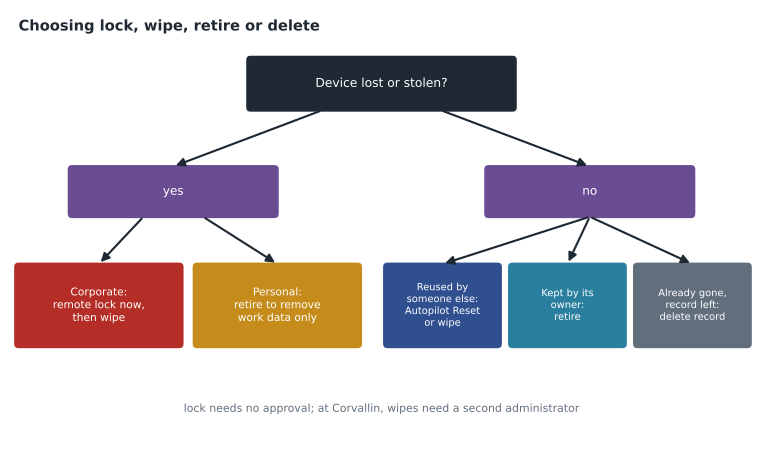
The three removal actions are the ones people most often confuse, and choosing the wrong one can destroy someone's personal photos or leave company data behind.
Retire removes what the organization put on the device: managed apps and their data, email profiles, Wi-Fi and VPN profiles, certificates and management itself. It leaves personal apps and data in place. It is the right action when a personal device leaves management, or when a corporate device is being handed back to someone who will keep it.
Wipe returns the device to factory settings. Everything is erased. It is the right action for a lost or stolen corporate device, or one being prepared for a new user from scratch. On Windows, wipe offers extra options: keeping the enrollment state and user account, or wiping the device while keeping it enrolled, and a protected wipe that continues even if the device loses power. Wipe is not offered for personal devices enrolled with Apple user enrollment or with an Android personally owned work profile, because the organization has no right to erase someone's own phone; for those, retire removes the work side.
Delete removes the device record from Intune. Intune then retires the device when it next checks in, but if the device never checks in again, nothing on it changes. Delete is for cleaning up records of devices that are already gone, not for protecting data on a device that might still be in someone's hands.
The stolen phone
The after-hours technician followed Ama's procedure. First, Remote lock, which needs no approval and reached the phone within a minute because it was still switched on. Second, Locate device, which showed the phone moving along a main road. Third, a Wipe request. Because the wipe action was protected by multi-admin approval, as set up in lesson 6, it was held until an approver accepted it. Ines approved it from her phone 14 minutes later, and the wipe ran at the phone's next check-in, before it was switched off.
Afterwards the record showed the sequence: lock sent and completed, wipe requested, approved, sent and completed. Ama added two steps to the procedure. The worker's password was reset and her sessions revoked in Entra ID, because a stolen phone may also hold signed-in tokens; and the police report number was added to the help desk ticket. The Samsung phone was enrolled with factory reset protection tied to an IT-controlled Google account, so even after the wipe it could not be set up again by whoever had it.
Worked problem
How fast was the data protected?
The theft was reported at 7:42 p.m. The lock was sent at 7:51 and completed at 7:52. The wipe was requested at 7:55, approved at 8:09 and completed at 8:11. How long was the phone unlocked or unprotected after the report, and how long did approval add?
Show solution
- From report to completed lock: 7:42 to 7:52 is 10 minutes.
- From wipe request to approval: 7:55 to 8:09 is 14 minutes.
- From report to completed wipe: 7:42 to 8:11 is 29 minutes.
Answer: The phone was locked 10 minutes after the report and wiped 29 minutes after it. Approval added 14 minutes, which was acceptable because the lock already protected the data in the meantime.
Departing staff and reassigned laptops
Not every removal is an emergency. When a scheduler left in October, her laptop was going to another scheduler in the same office. Ama had two choices. A full wipe would erase everything and send the laptop back through Autopilot, which works but takes longer. Autopilot Reset removes personal files, apps and settings, reapplies the original settings and keeps the device enrolled and Entra joined, so the new user can sign in and start work after a short setup. It needs the Windows recovery environment to be working on the device, and it is started either from the admin center or, with the right credentials, from the sign-in screen.
Ama chose Autopilot Reset. She also made sure the departing scheduler's files had already moved: her OneDrive was kept for 30 days and shared with her manager, as the agency's leaver process required, and nothing important lived only on the laptop because Known Folder Move had been on since the deployment project.
The nine desktops from lesson 2, enrolled long ago with personal records and never registered in Autopilot, needed a different path. Ama uploaded their hardware identifiers to Autopilot, wiped them, and let them enroll again as corporate devices through the normal Autopilot process.
| Scenario | Action Corvallin uses |
|---|---|
| Corporate phone lost or stolen | Remote lock immediately, then wipe with approval |
| Corporate laptop reassigned in the same office | Autopilot Reset |
| Corporate device being sold or recycled | Wipe, then remove from Autopilot and delete the record |
| Personal device leaving management | Retire |
| Device record of a laptop already destroyed | Delete |
| Windows device with unwanted manufacturer apps | Fresh Start |
Sync and restart in daily support
Most remote actions the help desk uses are not dramatic. Sync is the first step for almost every "my policy didn't arrive" call. Restart helps when a setting or app needs a restart and the user keeps postponing it; the user gets a warning before the device restarts. Collect diagnostics gathers event logs, registry keys and Intune logs from a Windows device and uploads them, so a technician can look at them without remote access to the user's screen; lesson 10 shows how they are used.
Bulk device actions
Some actions can be run on many devices at once through Bulk device actions, which lets an administrator pick an action and up to 100 devices of the same platform. Ama used it to restart the 96 laptops upgraded in place during the deployment project after a firmware update that needed a restart, choosing an evening when no visits were scheduled. She would not use bulk actions for wipes outside a genuine incident, and multi-admin approval would hold them anyway.
Worked problem
Planning a bulk restart
Ama needs to restart 260 Samsung phones after an Android security update. Bulk device actions accept up to 100 devices per run. How many runs does she need, and why should she stagger them?
Show solution
- Runs: 260 / 100 = 2.6, so 3 runs.
- Split them by branch so each office has its phones back before the next run.
- Run them outside visit hours so no worker loses access to VisitWise during a visit.
Answer: Three runs, by branch, in the evening. If something goes wrong with the first, she can stop before the rest of the fleet is affected.
Privacy and records
Dr. Ostrander-Bey asked a question that every organization should answer in writing: who can see where a phone is? Locate device reports a position, which is personal information about the worker carrying the phone. Corvallin's policy, approved by the privacy officer, allows location only for a reported lost or stolen device, by the help desk, with the ticket number recorded. The device's action history in Intune and the Intune audit log record who ran which action and when, so the rule can be checked.
Apple-specific actions
Supervised iPhones offer a few extra actions. Lost Mode locks the phone and shows a message and a phone number on the lock screen, and while it is on, the phone can be located. Activation Lock, Apple's anti-theft feature, ties a device to an Apple account; on supervised devices Intune can allow Activation Lock and keep a bypass code, or clear it with Disable Activation Lock, so a returned phone can be reused. Ama tested Lost Mode on a spare iPhone so the help desk knew what a finder would see: the message read, "This phone belongs to Corvallin Home Care. Please call" followed by the after-hours number.
| Windows reset option | What happens | Stays enrolled? |
|---|---|---|
| Wipe | Factory reset, everything removed | No, unless the retain-enrollment option is chosen |
| Wipe, retain enrollment state and user account | Removes apps and settings, keeps enrollment and the user account | Yes |
| Fresh Start | Reinstalls Windows and removes manufacturer apps, optionally keeping user data | Depends on options; plan to re-enroll |
| Autopilot Reset | Removes user data and apps, reapplies settings | Yes, and stays Entra joined |
Writing the procedures down
Ama's procedures for remote actions were each a single page with four parts: when to use the action, who may run it, what approval it needs and what to record in the ticket. The help desk practiced the stolen-phone procedure on a spare Samsung phone before the theft in October, which is why the after-hours technician followed it without hesitating. The practice also showed one gap: the after-hours technician had Help Desk Operator rights but did not know who the wipe approvers were or how to reach them at night. The procedure now lists the approvers with their after-hours numbers, and Ines, Ama and Teodor take turns as the first approver for each week.
She also set a rule for the record: every remote action other than sync and restart needs a ticket number in the action's notes or in the ticket, so that a review can match each lock, wipe, retire and location request to a reason. When the privacy officer reviewed the first month, every location request matched a reported loss.
Finally, she checked how actions behave when a device is out of reach. An action on a device that never checks in again stays pending in the action history. That is why the stolen-phone procedure treats a pending wipe as unfinished business: the ticket stays open, the user's sessions are revoked anyway, and the device is reviewed again after a week.
Common mistakes
MistakeUsing Delete to protect a lost device.
InsteadDelete only removes the record. Lock and wipe the device, then clean up the record later.
MistakeWiping a personal phone that leaves management.
InsteadRetire it, which removes work data and leaves personal data; wipe is not offered for user-enrolled personal devices.
MistakeWaiting for wipe approval before doing anything.
InsteadSend Remote lock immediately; it needs no approval and protects the data while the wipe waits.
MistakeUsing wipe for every reassigned Windows laptop.
InsteadAutopilot Reset keeps the enrollment and join and gets the next user working faster.
Summary and key terms
- Remote actions are delivered at the device's next check-in; the actions offered depend on platform, enrollment type and ownership.
- Retire removes company data and leaves personal data; wipe erases the device; delete removes only the Intune record.
- For a lost corporate phone: remote lock at once, locate if allowed, then wipe.
- Autopilot Reset prepares a Windows device for a new user while keeping enrollment and Entra join; Fresh Start reinstalls Windows.
- Bulk device actions run an action on up to 100 devices of one platform; every action is recorded in the device history and audit log.
- Remote action
- A command sent from Intune to a managed device, such as lock, retire or wipe.
- Retire
- Removing company data, apps and management from a device while leaving personal data.
- Wipe
- Restoring a device to factory settings.
- Delete (device record)
- Removing a device from Intune; the device is retired only if it checks in again.
- Autopilot Reset
- Returning a Windows device to a ready state while keeping its enrollment and Entra join.
- Bulk device actions
- Running a remote action on up to 100 devices at once.
Practice problems
Work each problem on paper first, then reveal the answer to check.
A worker leaves and keeps her own phone, which had work apps under management. Which action?
Show answer
Retire.
Why did the after-hours technician lock the phone before requesting the wipe?
Show answer
Lock needs no approval and protects the data at once, while the wipe waits for approval.
What does Autopilot Reset keep that a wipe does not?
Show answer
The device's Intune enrollment and Entra join.
Lesson quiz · 5 questions
Score 60% or more to complete this lesson.
Create a free account to save your progress, take quizzes and earn a certificate.