
MSBA-211 · Lesson 11 of 12 · 19 min
Automating device tasks with scripts and remediations
▶ Video coming soon A video version of this lesson is on the way.
Some jobs don't fit a configuration profile. The old printer utility that slowed North Branch laptops in lesson 9 had to be found and removed from every laptop it was on. Laptops with almost full disks needed their temporary files cleared before Windows updates failed. And Ines's Monday page needed a list of stale devices that took Ama 20 minutes to build by hand each week. Intune handles these with three kinds of automation: platform scripts that run once on devices, Remediations that detect and fix problems on a schedule, and Microsoft Graph, which lets administrators automate Intune itself with PowerShell.
Platform scripts
A platform script is a PowerShell script for Windows, or a shell script for macOS, that Intune sends to assigned devices. On Windows, the Intune Management Extension runs it. The administrator chooses whether it runs as the signed-in user or as the system account, whether it runs in 64-bit PowerShell, and whether the script must be signed. A Windows platform script runs once per device; if it fails, the extension retries a few times and then reports the failure. Changing the script makes it run again. macOS shell scripts can be set to run again on a schedule.
Scripts are powerful because they run with whatever rights the account has, and as the system account that is everything. That is why lesson 6 put PowerShell scripts under multi-admin approval at Corvallin. It is also why scripts should do one small, well-tested job and should write a line of output that says what they did, because that output is what an administrator sees when troubleshooting.
| Option | Choice for most scripts | Why |
|---|---|---|
| Run as signed-in user | No (run as system) | Most device fixes need system rights; user context is for per-user changes |
| Enforce signature check | Yes, once code signing is set up | Stops altered scripts running |
| Run in 64-bit PowerShell | Yes | Avoids 32-bit registry and file system redirection surprises |
| Assignment | Device groups, piloted first | A script reaches every assigned device; test on the IT ring |
Remediations
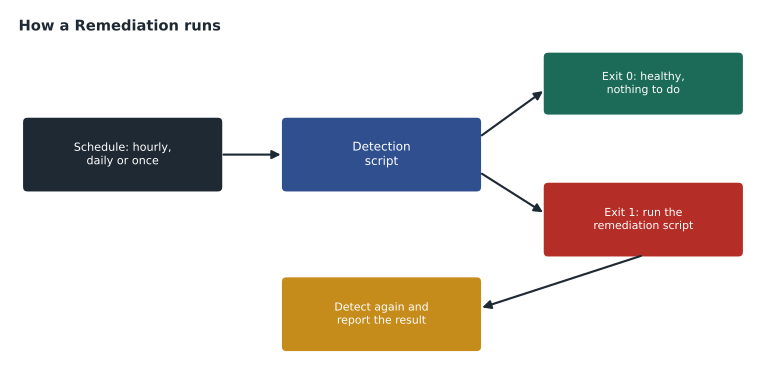
Remediations, part of Endpoint analytics, are pairs of scripts: a detection script that checks for a problem and a remediation script that fixes it. Intune runs the detection script on a schedule, hourly, daily or once. If the detection script exits with code 1, meaning the problem is present, Intune runs the remediation script, then runs detection again to confirm the fix worked. If detection exits with 0, nothing else happens. Each run reports its result and the scripts' output, so the admin center shows how many devices had the problem, how many were fixed and how many failed.
Remediations need Windows Enterprise E3 or E5, or the equivalent Education or Virtual Desktop Access rights, for the users of the devices. Microsoft 365 E3 and F3 both include Windows Enterprise E3, and Corvallin's laptops step up to Enterprise through subscription activation, so Remediations were available across the fleet. Microsoft also publishes ready-made script packages for common problems, which are a good place to learn the pattern.
Removing the printer utility
Ama's first Remediation dealt with the printer utility from lesson 9. The detection script checks whether the utility's start-up entry exists; the remediation script removes the entry and stops the process. She did not uninstall the utility, because three branch laptops still needed it for an old label printer; she only stopped it starting with Windows on every boot.
# Detection: exit 1 if the old printer utility starts with Windows
$run = "HKLM:\SOFTWARE\Microsoft\Windows\CurrentVersion\Run"
$value = Get-ItemProperty -Path $run -Name "PrintAssist" -ErrorAction SilentlyContinue
if ($value) {
    Write-Output "PrintAssist start-up entry found"
    exit 1
}
Write-Output "No PrintAssist start-up entry"
exit 0# Remediation: remove the start-up entry and stop the running process
$run = "HKLM:\SOFTWARE\Microsoft\Windows\CurrentVersion\Run"
Remove-ItemProperty -Path $run -Name "PrintAssist" -ErrorAction SilentlyContinue
Get-Process -Name "PrintAssist" -ErrorAction SilentlyContinue | Stop-Process -Force
Write-Output "PrintAssist start-up entry removed"
exit 0She assigned the pair to the IT ring first, then to the North Branch laptops, set it to run daily and excluded the three label-printer laptops with a device group exclusion. The report after the first day showed 58 laptops with the problem, 58 fixed and none failed. A week later, the startup performance score for the North Branch had risen to match head office.
Worked problem
Reading a Remediation report
A disk clean-up Remediation runs daily on 520 laptops. On its first day the report shows: no issue detected 431, issue fixed 74, issue recurred 0, remediation failed 15. What share of laptops had low disk space, and what share of those were fixed?
Show solution
- Laptops with the issue: 74 fixed + 15 failed = 89.
- Share of the fleet: 89 / 520 = about 17.1 percent.
- Share fixed: 74 / 89 = about 83.1 percent.
Answer: About 17 percent had low disk space and about 83 percent of those were fixed. The 15 failures were laptops where the remaining space was taken up by user files, not temporary files, so the help desk contacted those users.
Running a Remediation on demand
A Remediation can also be run on one device immediately with the Run remediation remote action, without waiting for the schedule. The help desk used it for the disk clean-up when a nurse called because a Windows update had failed for lack of space: run the Remediation, wait a few minutes, check the device's Remediation status, then retry the update.
Custom compliance and scripts
Lesson 5 showed the other place scripts appear: custom compliance, in which a discovery script returns facts as JSON and a rules file decides compliance. The difference is purpose. A Remediation fixes things. A compliance discovery script only reports, so that Conditional Access can act on the result. A problem that matters for security can use both: a compliance rule so the device is blocked until it is healthy, and a Remediation so it is usually fixed before the block happens.
Automating Intune with Microsoft Graph
Everything in the admin center is built on Microsoft Graph, the API for Microsoft 365. The Microsoft Graph PowerShell SDK lets administrators script it. Ama used it to build the stale device list for the Monday page. The older Intune PowerShell module and the MSOnline and AzureAD modules are retired, so new scripts should use Microsoft Graph PowerShell.
Connect-MgGraph -Scopes "DeviceManagementManagedDevices.Read.All"

$cutoff = (Get-Date).AddDays(-30)
Get-MgDeviceManagementManagedDevice -All |
    Where-Object { $_.LastSyncDateTime -lt $cutoff } |
    Select-Object DeviceName, OperatingSystem, UserPrincipalName, LastSyncDateTime |
    Sort-Object LastSyncDateTime |
    Export-Csv -Path ".\StaleDevices.csv" -NoTypeInformation
The permission requested when connecting matters. DeviceManagementManagedDevices.Read.All can read devices but change nothing. Actions such as syncing or wiping need a privileged permission, such as DeviceManagementManagedDevices.PrivilegedOperations.All, and should be requested only by the script that needs them. Ama ran her report interactively at first, signing in with her own account. Later, to run it every Monday at 6 a.m. without anyone signed in, Teodor registered an application in Entra ID with only the read permission, authenticated with a certificate rather than a secret, and scheduled the script in the monitoring partner's automation account.
Connect-MgGraph -Scopes "DeviceManagementManagedDevices.PrivilegedOperations.All"

$device = Get-MgDeviceManagementManagedDevice -Filter "deviceName eq 'CHC-5CG4211ABC'"
Invoke-MgGraphRequest -Method POST `
-Uri "https://graph.microsoft.com/v1.0/deviceManagement/managedDevices/$($device.Id)/syncDevice"| Task | Best tool |
|---|---|
| Change a setting on every Windows device | Configuration profile, not a script |
| One-off change a profile can't make | Platform script |
| Recurring problem to find and fix | Remediation |
| Block access until a custom condition is met | Custom compliance |
| Report on or act on Intune objects in bulk | Microsoft Graph PowerShell |
Keeping automation safe
Ama's rules for scripts were the same as for profiles, with one addition. Every script is stored in the IT team's repository with its history, so the version on devices can always be traced. Every script writes a clear output line. Every script goes through the IT ring before wider assignment, and through multi-admin approval. And a script is never used for something a profile can do, because a profile reports per setting and can be undone cleanly, while a script just runs.
The MD-102 skills cover these topics in their newest area, on optimizing endpoint operations: automating Intune with PowerShell and Microsoft Graph, extending compliance with PowerShell, and configuring remediation scripts and their schedules. Expect questions about exit codes, licensing, run context and the right tool for a task.
Scheduling and output
A Remediation runs on the schedule its assignment sets: once, hourly or daily, with a time for daily runs. Scripts run as the system account by default and can run as the signed-in user instead; they can run in 64-bit PowerShell; and they can be required to be signed. The report shows the output of each script for each device, so the output line from the detection and remediation scripts is effectively the troubleshooting log. Ama kept output short and specific, such as "Free space 3.2 GB, below 5 GB" rather than "Problem found".
A second Remediation: low disk space
The disk clean-up Remediation from the example above detected laptops with less than 5 GB free on the system drive and removed temporary files and old update files that Windows no longer needed.
# Detection: exit 1 if the system drive has less than 5 GB free
$freeGB = [math]::Round((Get-PSDrive -Name C).Free / 1GB, 1)
if ($freeGB -lt 5) {
    Write-Output "Free space $freeGB GB, below 5 GB"
    exit 1
}
Write-Output "Free space $freeGB GB"
exit 0
Shell scripts for Macs
Intune can also run shell scripts on Macs through the Intune agent for macOS. A macOS script can run as the signed-in user or as root, can run once or repeat on a schedule, and can be retried if it fails. Corvallin's nine Macs needed one: a script that set the computer name to match the agency's naming pattern, because the Macs had been named after their first owners. Ama ran it once and checked the result in the device list.
| Feature | Windows platform script | Remediation | macOS shell script |
|---|---|---|---|
| Runs | Once per device | On a schedule or on demand | Once or on a schedule |
| Context | System or user | System or user | Root or user |
| Reports | Success or failure | Detection and remediation results with output | Success or failure with output |
| License beyond Intune | None | Windows Enterprise E3 or E5 or equivalent | None |
Using Microsoft-provided packages
Microsoft publishes script packages for Remediations that address common problems, such as restarting a stopped service or clearing a stuck update. They are a good way to learn the pattern because they show working detection and remediation pairs with sensible exit codes and output. Ama read them all before writing her own, and used one almost unchanged to restart the Windows Update service on laptops where it had been disabled by an old utility.
Graph for reports and bulk changes
Graph PowerShell is useful beyond device lists. Intune's reports can be exported through Graph by creating an export job, waiting for it to finish and downloading the file, which suits a scheduled task that collects the same report every week. Configuration profiles, compliance policies and their assignments can be read through Graph too, which Teodor used to produce a monthly list of every policy, its assigned groups and its last change date for the change review. Both used read-only permissions; neither changed anything in the tenant.
The skill that matters most, Ama told the technicians, is reading a script before running it. A script found online that wipes devices or removes assignments in bulk can do in seconds what would take hours to undo. Every script in Corvallin's repository has a comment block saying what it does, what permissions it needs and who reviewed it.
When not to automate
Not every repeated task should become a script. The weekly review of the retire list from lesson 5, for example, stayed manual on purpose: each device on it belonged to a person who might be on leave, and a human decision was the point of the review. Ama's test was simple. If a task is the same every time and a mistake is easy to undo, automate it. If it involves a judgment about a person, or a mistake would be hard to reverse, keep a person in the loop and let automation only prepare the information.
Common mistakes
MistakeUsing a platform script for a setting that a profile can manage.
InsteadProfiles report per setting and can be removed cleanly; use scripts only where no profile setting exists.
MistakeWriting a detection script that exits with 0 when the problem is present.
InsteadDetection exits with 1 when remediation is needed and 0 when the device is healthy.
MistakeGranting a reporting script the privileged operations permission.
InsteadUse read-only Graph permissions for reports and keep privileged permissions for the few scripts that act on devices.
MistakeWriting new automation with the retired MSOnline or AzureAD modules.
InsteadUse the Microsoft Graph PowerShell SDK.
Summary and key terms
- Platform scripts run once per device through the Intune Management Extension, as the user or the system account.
- Remediations pair a detection script and a remediation script; exit code 1 from detection triggers the fix, and results are reported.
- Remediations need Windows Enterprise E3 or E5 or equivalent rights, included in Microsoft 365 E3 and F3.
- Run remediation fixes a single device on demand; custom compliance scripts report rather than fix.
- Microsoft Graph PowerShell automates Intune; request least-privilege permissions and use certificates for unattended scripts.
- Platform script
- A PowerShell or shell script that Intune runs on assigned devices.
- Remediations
- Scheduled detection and remediation script pairs in Endpoint analytics.
- Detection script
- The script that checks for a problem and exits with 1 if it is present.
- Exit code
- The number a script returns to say whether it succeeded or what it found.
- Microsoft Graph PowerShell SDK
- The supported PowerShell modules for automating Microsoft 365 services, including Intune.
- Least privilege
- Granting only the permissions a person or script needs for its task.
Practice problems
Work each problem on paper first, then reveal the answer to check.
What exit code should a detection script return when it finds the problem?
Show answer
1.
Why didn't Ama uninstall the printer utility?
Show answer
Three laptops still needed it for an old label printer; she only removed its start-up entry.
Which Graph permission lets a script read but not change managed devices?
Show answer
DeviceManagementManagedDevices.Read.All.
Lesson quiz · 5 questions
Score 60% or more to complete this lesson.
Create a free account to save your progress, take quizzes and earn a certificate.