
MSBA-210 · Lesson 9 of 12 · 21 min
Joining devices to Microsoft Entra ID
▶ Video coming soon A video version of this lesson is on the way.
Every method in this course ends the same way: the device gets an identity in Microsoft Entra ID and enrolls in Intune. Teodor had configured Entra ID for Corvallin when the agency moved to Microsoft 365, but he had done it for users. Devices were a different matter, and the new laptops kept raising questions. Could a home health aide add her work account to her own tablet without the tablet becoming the agency's? Who was allowed to join devices? Why did one laptop say it was "registered" and another "joined"? This lesson answers those questions.
Three ways a device relates to Entra ID
Microsoft Entra ID recognizes three device states. They differ in who owns the device, who signs in to it, and how much control the organization has.
| State | Who owns the device | How users sign in to Windows | Typical use |
|---|---|---|---|
| Microsoft Entra registered | Usually the user (personal device) | With a personal or local account; the work account is added for apps | Bring your own device: personal Windows, iOS, Android and macOS devices |
| Microsoft Entra joined | The organization | With the work account in Entra ID | Cloud-first organizations; new corporate devices |
| Microsoft Entra hybrid joined | The organization | With an on-premises Active Directory account that is synchronized to Entra ID | Organizations that still depend on domain join for some devices or apps |
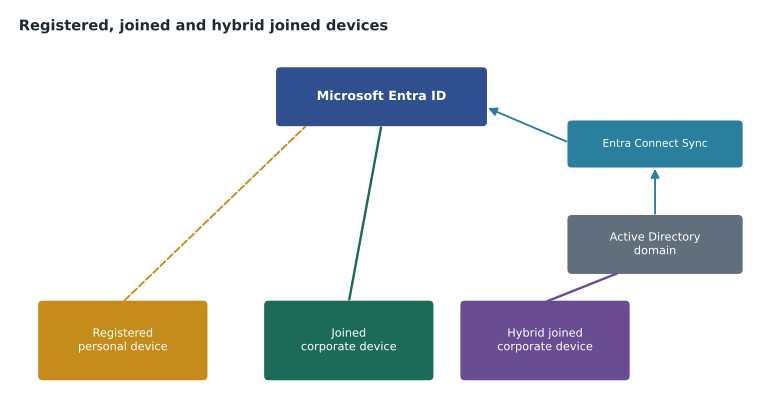
Microsoft Entra registration is for personal devices. When a user adds a work or school account under Settings, Accounts, Access work or school on a personal Windows device, or signs in to a Microsoft app on a phone, the device is registered. The organization can then require that device to be compliant before it reaches company data, but the device still belongs to the user. Registration was the answer to the tablet question: the support worker could add her work account, Intune app protection could protect agency data inside Outlook and Teams, and the tablet stayed hers.
Microsoft Entra join is the normal state for corporate devices in a cloud-first organization. The device has an identity in Entra ID, users sign in to Windows with their work accounts, single sign-on reaches cloud apps, and, with Intune automatic enrollment, the device is managed from the first sign-in. It needs no line of sight to a domain controller, so it works for staff who never visit an office.
Microsoft Entra hybrid join describes a device joined to an on-premises Active Directory domain whose computer object is also synchronized to Entra ID. Users sign in with domain accounts, and the device gets single sign-on to cloud apps as well. It suits organizations that still depend on Group Policy or on apps that require domain authentication. Microsoft's guidance is to choose Entra join for new devices wherever possible.
Choosing a join type
The MD-102 skills outline lists choosing a join type as the first skill under preparing infrastructure for devices. The choice usually follows from three questions: who owns the device, whether it needs anything only a domain can give it, and whether it can reach a domain controller.
| Question | If yes | If no |
|---|---|---|
| Is the device personal? | Registered, with app protection or compliance | Go to the next question |
| Does it depend on Group Policy or domain-authenticated apps that cannot move? | Hybrid joined, for now | Entra joined |
| Can users reach on-premises file shares and printers? | Entra joined devices can still reach them with Kerberos through Entra ID and cloud trust or line of sight to a domain controller | Entra joined |
The third row surprises many administrators. An Entra joined device can still use on-premises resources. When the user's account is synchronized from Active Directory and the device can reach a domain controller, Windows obtains Kerberos tickets for file shares and printers through single sign-on. Corvallin no longer needs this: it moved its old file server to SharePoint and turned off directory synchronization in December 2022, and it has been a cloud-only organization since. But many organizations, including the large partner network Ama advised later in the project, still run file servers, and their Entra joined laptops reach them this way.
Joining a device
Devices join Entra ID in several ways.
Who can join is set in Microsoft Entra ID under device settings. The setting "Users may join devices to Microsoft Entra" can allow everyone, selected users or nobody, and a second setting limits the number of devices per user. Corvallin allowed all staff to join devices, since Autopilot and device preparation needed it, and kept the default limit of 50 devices per user. Teodor also turned on the setting that requires multifactor authentication to register or join devices, through a Conditional Access user action, so that a stolen password alone could not add a device.
Automatic enrollment in Intune
Joining Entra ID and enrolling in Intune are separate steps, but automatic enrollment links them. In the Intune admin center, under Windows enrollment, the automatic enrollment settings name the MDM user scope: the users whose Entra joined devices enroll in Intune automatically. It can be set to None, Some (a group) or All. A separate MAM user scope controls app protection for registered devices. If a user is outside the MDM user scope, their device joins Entra ID but is not managed, which is one of the most common reasons a new device arrives without policies.
Worked problem
Why was the laptop unmanaged?
A new laptop at the south branch completed setup, and the user could sign in with her work account, but Intune showed no device for her. Her account was in the group "CHC-All-Staff". The MDM user scope was set to Some, with the group "CHC-Intune-Users". What went wrong, and what should Teodor change?
Show solution
- The device joined Entra ID, because the user could sign in with her work account.
- It did not enroll in Intune, because her account was not in the MDM user scope group.
- Teodor can add her to CHC-Intune-Users, or set the scope to All, since every Corvallin user should have managed devices.
Answer: She was outside the MDM user scope. Teodor set the scope to All, then used the device's Settings, Access work or school, Info page to trigger a sync; the device enrolled and received its policies.
Dynamic device groups
Policies and apps are assigned to groups, and devices are easier to target when groups fill themselves. A dynamic device group in Entra ID adds devices that match a rule. Rules can test properties such as operating system, device ownership, enrollment profile name and, for Autopilot devices, the group tag. The MD-102 outline lists planning and implementing device groups, including dynamic membership rules, as a skill.
(device.deviceOSType -eq "Windows") and (device.deviceOwnership -eq "Company")

(device.devicePhysicalIds -any (_ -eq "[OrderID]:BRANCH-SOUTH"))

(device.enrollmentProfileName -eq "CHC Staff Laptops")
Dynamic groups take time to evaluate, from minutes to longer in large tenants. That delay is why Autopilot device preparation adds devices to an assigned group at enrollment instead, and why Intune assignment filters, which evaluate at the moment of check-in, are often a better way to narrow an assignment. Dynamic membership rules require Microsoft Entra ID P1 licenses for the users or devices involved, which Corvallin's Microsoft 365 E3 and F3 licenses include.
Checking a device's state
On any Windows device, the command dsregcmd /status reports its relationship with Entra ID and Active Directory. Teodor taught the help desk to read four lines of its output.
dsregcmd /status

+----------------------------------------------------------------------+
| Device State                                                         |
+----------------------------------------------------------------------+
             AzureAdJoined : YES
          EnterpriseJoined : NO
              DomainJoined : NO
...
AzureAdPrt : YES| AzureAdJoined | DomainJoined | Meaning |
|---|---|---|
| YES | NO | Microsoft Entra joined |
| YES | YES | Microsoft Entra hybrid joined |
| NO | YES | Domain joined only, not yet synchronized or registered |
| NO | NO | Not joined; may be registered (check WorkplaceJoined in the user state section) |
The AzureAdPrt line shows whether the user has a Primary Refresh Token, the credential that gives single sign-on to cloud apps. If it says NO on a joined device, users are prompted to sign in again and again, and the cause is usually a network or time problem during sign-in.
Device settings in Microsoft Entra ID
Teodor reviewed the full list of device settings in the Microsoft Entra admin center, under Devices and then Device settings, before the pilot. Most organizations change only a few of them, but each has consequences.
| Setting | What it controls | Corvallin's choice |
|---|---|---|
| Users may join devices to Microsoft Entra | Who can join devices | All |
| Users may register their devices with Microsoft Entra | Whether users can register personal devices | All |
| Require multifactor authentication to register or join devices | MFA at join; Microsoft recommends using a Conditional Access user action instead | Handled by a Conditional Access policy for the register or join devices user action |
| Maximum number of devices per user | How many devices one user can join or register | 50, the default |
| Additional local administrators on joined devices | Who becomes a local administrator on every Entra joined device | Only a dedicated device administrator role |
| Enable Microsoft Entra Local Administrator Password Solution (LAPS) | Whether joined devices can back up local administrator passwords to Entra ID | Yes |
The local administrator settings matter more than they look. By default, the person who joins a device becomes a local administrator on it unless the Autopilot profile sets them as a standard user. Corvallin's profiles did that, and Teodor kept the list of additional local administrators to one role used by the help desk. Windows LAPS, configured through Intune, rotates the built-in administrator password on each device and stores it in Entra ID, so the help desk can retrieve it when a device needs local administration and nobody shares one password across hundreds of devices.
Enrollment restrictions
Intune enrollment restrictions control which devices may enroll. Platform restrictions can block personal Windows devices or limit enrollment to certain operating system versions, and device limit restrictions cap how many devices each user can enroll. Corvallin blocked enrollment of personal Windows devices, because personal devices should be registered, not enrolled. That restriction is the reason lesson 4 needed corporate identifiers for the reseller laptops: a device that Intune cannot recognize as corporate looks personal.
Worked problem
Joined, registered or blocked?
For each case, say what happens at Corvallin: (A) a nurse signs in during OOBE on a new Autopilot laptop; (B) the same nurse adds her work account to her personal Windows laptop; (C) a scheduler tries to enroll a personal laptop in Intune through Access work or school.
Show solution
- A: The device joins Entra ID and enrolls in Intune automatically; Autopilot identifies it as corporate.
- B: The personal laptop is registered with Entra ID; apps can be protected, but it is not enrolled.
- C: The enrollment restriction that blocks personal Windows devices stops the enrollment.
Answer: A is joined and enrolled, B is registered only, and C is blocked by the enrollment restriction, which is what Corvallin intended.
Leaving and rejoining
Sometimes a device has to leave Entra ID, for example when a laptop that was joined by mistake to a test tenant must move to the production tenant. A user with the right permissions can disconnect a device from Settings, under Access work or school, but this removes access to the work account on the device and is usually followed by a reset. In practice, Ama wiped such devices from Intune and let them go through Autopilot again, which was faster and left nothing behind.
Join type and Conditional Access
Join type matters most when Conditional Access policies use it. A policy can require that a device be marked compliant in Intune, or that it be hybrid joined, before it can reach an app. Corvallin's policies required a compliant device for the clinical record system from any Windows device. A registered personal laptop could never meet that requirement, so staff used their agency laptops for clinical records and their personal devices only for email and Teams, protected by app protection policies.
One last detail helps the help desk: the Entra admin center shows each device's join type, owner, last activity and compliance state on one page. When a user says "my laptop is not working with the clinical system", that page usually shows the answer before anyone opens the device: a registered personal device, a compliant flag still pending, or a device that has not checked in for weeks.
Common mistakes
MistakeJoining personal devices to Entra ID.
InsteadPersonal devices should be registered, not joined; joining makes them organization devices.
MistakeChoosing hybrid join for new devices out of habit.
InsteadChoose Entra join unless a real dependency on the domain remains.
MistakeAssuming an Entra joined device enrolls in Intune automatically for every user.
InsteadCheck the MDM user scope; users outside it join Entra ID but stay unmanaged.
MistakeRelying on dynamic groups for apps that must install during setup.
InsteadUse assigned groups with device preparation, or assignment filters, where timing matters.
Summary and key terms
- Entra ID recognizes registered, joined and hybrid joined devices; registration is for personal devices.
- Entra join is the recommended state for new corporate devices and still allows access to on-premises resources.
- Device settings in Entra ID control who can join devices and how many; MFA can be required to join.
- The Intune MDM user scope decides whose Entra joined devices enroll automatically.
- Dynamic device groups target devices by properties such as group tag; dsregcmd /status shows a device's join state.
- Microsoft Entra registered
- A personal device with a work account added, known to Entra ID but owned by the user.
- Microsoft Entra joined
- A corporate device whose identity and sign-in are in Entra ID.
- Microsoft Entra hybrid joined
- A domain-joined device that is also registered in Entra ID.
- MDM user scope
- The users whose Entra joined devices enroll automatically in Intune.
- Dynamic device group
- A group that adds devices matching a membership rule.
- Primary Refresh Token
- The credential that gives a signed-in user single sign-on to cloud apps.
Practice problems
Work each problem on paper first, then reveal the answer to check.
What dsregcmd /status values show a hybrid joined device?
Show answer
AzureAdJoined : YES and DomainJoined : YES.
Where do you set who can join devices to Entra ID?
Show answer
In Microsoft Entra ID device settings.
Which state suits a staff member's personal tablet used for Outlook and Teams?
Show answer
Microsoft Entra registered, protected with app protection policies.
Lesson quiz · 5 questions
Score 60% or more to complete this lesson.
Create a free account to save your progress, take quizzes and earn a certificate.