
MSBA-210 · Lesson 5 of 12 · 20 min
Provisioning packages and Windows Configuration Designer
▶ Video coming soon A video version of this lesson is on the way.
Corvallin's training room at head office had twelve tablets used by new staff during their first week. They were shared, rarely left the building, and were often wiped between cohorts. Ama wanted them joined to Microsoft Entra ID and enrolled in Intune like everything else, but she did not want each new cohort to sit through a sign-in at OOBE before the trainer could start. She also had a second, more awkward case: a satellite office in a rural area, opened under a contract with the state health authority, where the internet connection went down for hours at a time. For both, she reached for an older tool that still has a place: the provisioning package.
What a provisioning package is
A provisioning package is a single file with the extension .ppkg that contains settings and resources to apply to a Windows device. It can set the device name, connect to Wi-Fi, remove preinstalled software, install apps and certificates, apply settings through configuration service providers, create a local account, join the device to Active Directory, or join it to Microsoft Entra ID and enroll it in Intune with a bulk enrollment token. The package is applied in seconds from a USB drive, a file share or an email attachment, and it does not replace Windows. It is a provisioning method, like Autopilot, but it runs locally rather than from the cloud.
The MD-102 skills outline updated on October 27, 2026 no longer lists provisioning packages as a skill; it concentrates on Autopilot and cloud-based deployment. Provisioning packages are still supported and still used, and an administrator should know when they are the right answer.
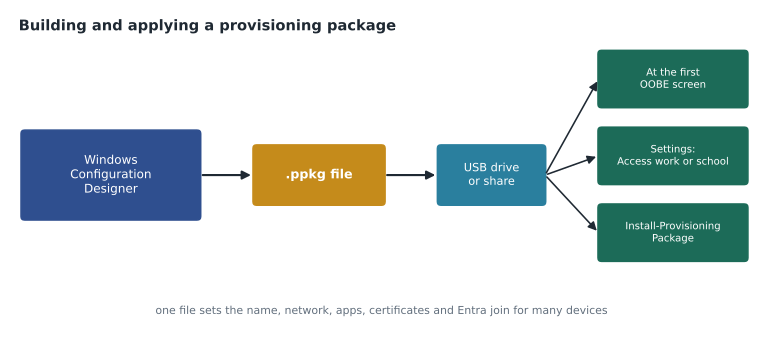
Windows Configuration Designer
Packages are built with Windows Configuration Designer, a free app available from the Microsoft Store and as part of the Windows Assessment and Deployment Kit (ADK). It has wizards for common cases, such as provisioning desktop devices, kiosk devices, HoloLens devices and Surface Hub, and an advanced editor that exposes every setting.
The desktop wizard walks through five pages. Ama's choices for the training tablets were these.
| Wizard page | What it sets | Ama's choice for the training tablets |
|---|---|---|
| Set up device | Device name, product key for an edition upgrade, whether this is a shared device, removal of preinstalled software | Name CHC-TRN- followed by four random digits, shared device, remove preinstalled software |
| Set up network | Wi-Fi network name and password, or wired | The head office staff Wi-Fi |
| Account management | Enroll in Microsoft Entra ID with a bulk token, join Active Directory, or create a local administrator | Enroll in Entra ID |
| Add applications | Apps to install, such as a line-of-business installer | None; Intune installs apps after enrollment |
| Add certificates | Root or intermediate certificates | None |
The bulk enrollment token
Choosing Entra ID enrollment in the wizard prompts the administrator to sign in and get a bulk token. Behind the scenes this creates a special account in Microsoft Entra ID, named with the prefix package_ followed by an identifier, and grants it permission to join devices. Each device that applies the package uses that account to join Entra ID and to enroll automatically in Intune. The token has an expiry date, up to 180 days after it is created, and the package stops working after that.
The package account has consequences an administrator must plan for. It must be allowed to join devices, which the Entra ID device settings control. It must be within the Intune MDM user scope for automatic enrollment. And because it signs in without a person, a Conditional Access policy that requires multifactor authentication for every account will block it, so the package account must be excluded from such policies. Ines, who came to Corvallin from hospital IT and is cautious about exceptions, accepted the exclusion only on condition that the package expire after 30 days and be rebuilt for each training cohort.
Devices enrolled with a bulk token are joined to Entra ID with no primary user, and they behave as shared devices. Users who sign in afterwards with their own work accounts get their own profiles. Bulk enrollment does not support features that need a user at enrollment, such as user-targeted apps installed during setup.
Worked problem
When does the package expire?
Teodor builds the training room package on September 21, 2026, with a token expiry of 30 days, as Ines asked. The next cohort starts on October 19. Will the package still work for that cohort?
Show solution
- September has 30 days, so September 21 plus 9 days is September 30.
- The remaining 21 days of the 30 reach October 21.
- October 19 is before October 21, so the token is still valid.
Answer: Yes, the package still works on October 19 and expires on October 21. Teodor rebuilds it before the cohort after that.
Applying a package
A package can be applied in three ways. At the first OOBE screen, inserting a USB drive with the package in its root folder makes Windows find and offer it, and pressing the Windows key five times opens the provisioning options. On a running device, an administrator can open Settings, go to Accounts, then Access work or school, and choose to add or remove a provisioning package. And from an elevated PowerShell session the package can be installed by command, which is how Ama applied it to tablets that had already been through OOBE.
Install-ProvisioningPackage -PackagePath D:\CHC-Training.ppkg -QuietInstall
Get-ProvisioningPackage | Select-Object PackageName, PackageId
# Remove the package record later if needed:
Uninstall-ProvisioningPackage -PackageId <PackageId>
Packages can also be signed with a certificate and encrypted with a password. Signing lets devices trust that the package came from the organization; encryption protects the Wi-Fi password and the bulk token inside it if the USB drive is lost. Corvallin encrypts every package it builds.
Packages for an unreliable network
The satellite office was the case where a package earned its place. Autopilot needs the internet during OOBE, and the office's connection dropped often enough that a user-driven deployment could fail halfway. Ama built a second package that set the device name, connected to the office Wi-Fi, removed preinstalled software and installed the offline installer for the visit verification app, which is large. A technician applied it on the one day each month he visited. Enrollment in Intune still needed the internet, but because the large app was already present, the remaining setup was short enough to finish during a working connection.
She was careful not to make the package the main way devices were managed. Everything the package set was also delivered by Intune once the device enrolled, so if the package and Intune ever disagreed, Intune's settings would win when the next policy refresh arrived.
Packages and Autopilot together
Provisioning packages and Autopilot are not rivals. A package can prepare a device for Autopilot, for example by connecting it to a Wi-Fi network that needs a certificate before OOBE can reach the internet. Autopilot then takes over. For new laptops, though, Autopilot or device preparation is the better default: no token to rotate, no USB drive to carry, and a primary user associated with each device.
| Question | Provisioning package | Autopilot or device preparation |
|---|---|---|
| Needs internet during setup | Not for local settings; yes for Entra join and enrollment | Yes |
| Primary user assigned | No, with bulk enrollment | Yes, in user-driven modes |
| Credential to protect | Bulk token inside the package | None on the device |
| Hands-on step | Someone applies the package | None for user-driven setup |
| Typical use | Shared devices, labs, kiosks, offline preparation, bulk joins | Personal work devices shipped to users |
Inside the advanced editor
The wizards cover common cases, but the advanced provisioning editor in Windows Configuration Designer exposes the full list of runtime settings, organized by configuration service provider. A configuration service provider (CSP) is the interface Windows uses to receive a setting from a management tool; Intune uses the same CSPs. In the advanced editor an administrator can, for example, set the time zone, configure the Start menu layout, add a Wi-Fi profile that uses a certificate, configure a kiosk with assigned access, or run a script during provisioning.
Settings are of two kinds. Runtime settings are applied when the package is installed on a running device or at OOBE. Deployment-time settings are applied while Windows is being installed from media and are mainly used by device makers. Administrators almost always use runtime settings.
| Need | Where in the advanced editor | Example |
|---|---|---|
| Device name | Accounts, ComputerName | CHC-TRN- followed by random digits |
| Wi-Fi with a password | ConnectivityProfiles, WLAN | The head office staff network |
| Entra join with a token | Accounts, Azure | Bulk token valid for 30 days |
| Remove preinstalled apps | Policies or the wizard option | Consumer apps preinstalled by the manufacturer |
| Run a script | ProvisioningCommands | A command that installs a printer driver |
Testing a package
A package should be tested on one device before it goes near twelve. Ama kept one spare tablet for testing, reset it to factory settings, applied the package at OOBE from a USB drive and checked four things: the name was right, the tablet was joined to Entra ID, it appeared in Intune within a few minutes, and the trainer could sign in with a work account. She then checked the Provisioning-Diagnostics-Provider event log on the tablet for errors. Only after all four passed did she copy the package to the training room USB drive.
A package can also be applied more than once, and some settings can be removed by removing the package. Account changes, such as joining Entra ID, cannot be undone by removing the package; the device must be removed from Entra ID and reset. Keeping that in mind, Ama never put anything in a package that she might want to reverse later without a reset.
Worked problem
How many devices per token?
Each training cohort is 12 people, and Corvallin runs a cohort every 4 weeks. With a 30-day token, how many packages must Teodor build each year, and how many device joins will each package perform?
Show solution
- Cohorts per year: 52 / 4 = 13.
- A 30-day token lasts for one cohort, so one package per cohort: 13 packages a year.
- Each package joins the 12 tablets once: 12 joins per package.
Answer: 13 packages a year with 12 joins each. Building the package takes about 15 minutes, so the safer short token costs a little over three hours a year.
Packages compared with Intune policies
Nearly everything a package can configure, Intune can also configure once the device is enrolled. The difference is timing: a package works before enrollment and without the internet, while Intune works after enrollment and keeps settings in place over time. A package is a one-time push; an Intune policy is continuous. That is why Ama used packages only to get devices to the point where Intune could take over, and never as the place where a setting lived permanently.
Kiosk and shared device packages
Windows Configuration Designer also has a wizard for kiosk devices. A kiosk package can create a local account that signs in automatically, configure assigned access so that the account can run only one app or a short list of apps, and set the device to restart into that app every morning. Corvallin did not use it, because its one kiosk was deployed through Autopilot self-deploying mode and configured by an Intune kiosk profile, which can be changed centrally later. A package-based kiosk would have needed a new package and a visit to change anything. The general rule held again: the package gets the device started, and Intune keeps it right.
Packages also leave a record. Every package applied to a device is listed under Settings, Accounts, Access work or school, Add or remove a provisioning package, and Get-ProvisioningPackage shows the same list from PowerShell. When the help desk found a training tablet behaving oddly, that list showed it had received an old package from a previous cohort as well as the current one, which explained the duplicate Wi-Fi profile.
Common mistakes
MistakeLeaving the package account under a Conditional Access policy that requires MFA.
InsteadExclude the package account, limit it with a short token life and rebuild packages regularly.
MistakeStoring an unencrypted package with a Wi-Fi password and bulk token on a shared USB drive.
InsteadEncrypt the package and keep the drive under control.
MistakeExpecting bulk-enrolled devices to have a primary user.
InsteadBulk enrollment creates shared devices with no primary user.
MistakeUsing provisioning packages for every new laptop.
InsteadUse Autopilot or device preparation for personal work devices and packages for the special cases.
Summary and key terms
- A provisioning package (.ppkg) applies settings, apps, certificates and joins to Windows without replacing it.
- Windows Configuration Designer builds packages through wizards or an advanced editor.
- A bulk token creates a package account that joins devices to Entra ID and enrolls them in Intune; it expires within 180 days.
- Packages apply at OOBE from a USB drive, from Settings under Access work or school, or with Install-ProvisioningPackage.
- Packages suit shared devices, labs, kiosks and offline preparation; Autopilot remains the default for personal work devices.
- Provisioning package
- A .ppkg file containing settings and resources applied to a Windows device.
- Windows Configuration Designer
- The free tool that builds provisioning packages.
- Bulk enrollment token
- A credential stored in a package that lets devices join Entra ID and enroll in Intune.
- Package account
- The Entra ID account created for a bulk token, named with the prefix package_.
- Shared device
- A device with no primary user, signed in to by several people.
Practice problems
Work each problem on paper first, then reveal the answer to check.
What is the longest a bulk enrollment token can remain valid?
Show answer
180 days from when it is created.
Name two ways to apply a package to a device that has already finished OOBE.
Show answer
Settings, Accounts, Access work or school, Add or remove a provisioning package; or Install-ProvisioningPackage in PowerShell.
Why must the package account be excluded from an all-users MFA policy?
Show answer
It signs in without a person, so it cannot complete multifactor authentication.
Lesson quiz · 5 questions
Score 60% or more to complete this lesson.
Create a free account to save your progress, take quizzes and earn a certificate.